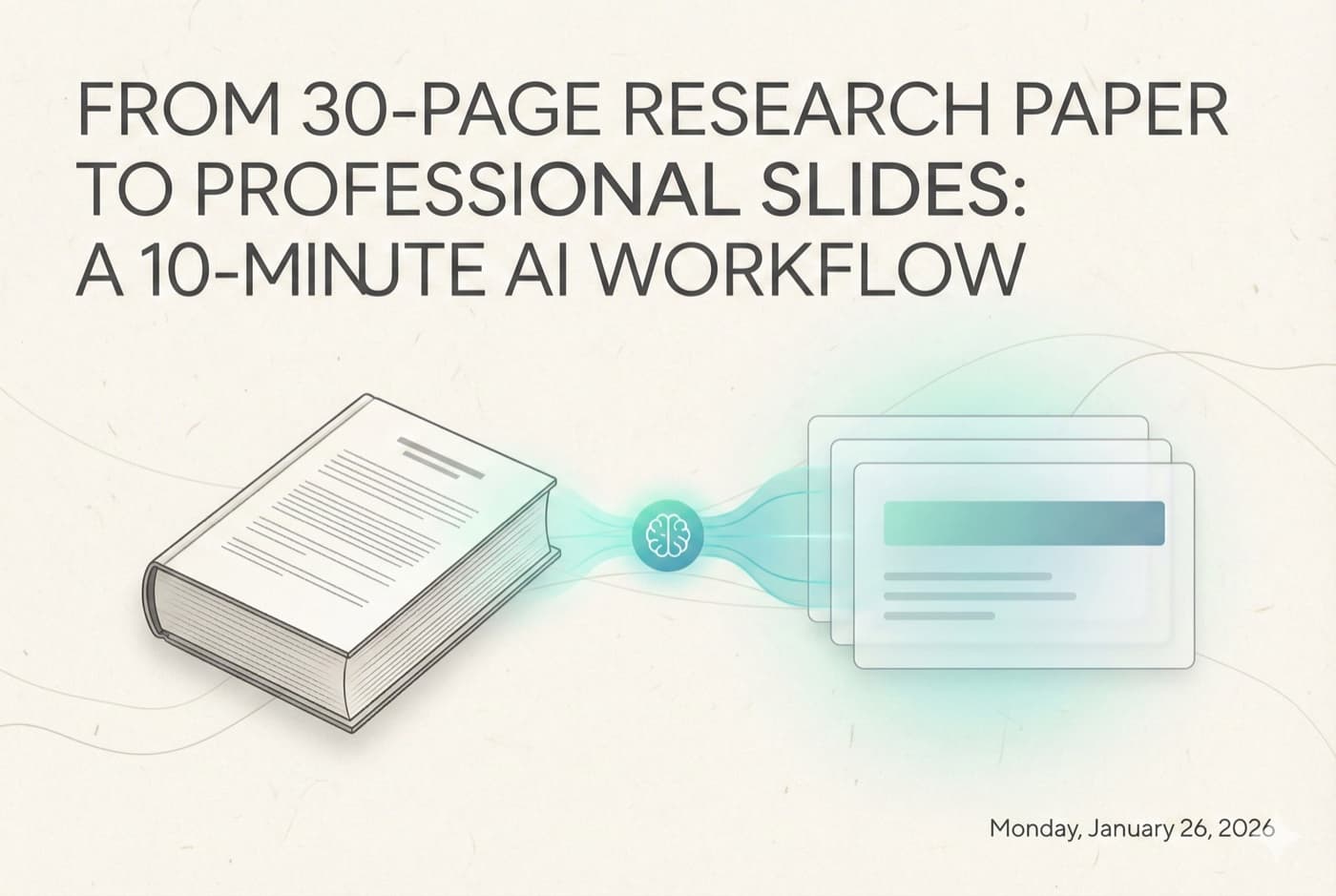
From 30-Page Research Paper to Professional Slides: A 10-Minute AI Workflow
A step-by-step guide to converting complex research papers into professional presentations using a refined 3-step AI workflow.
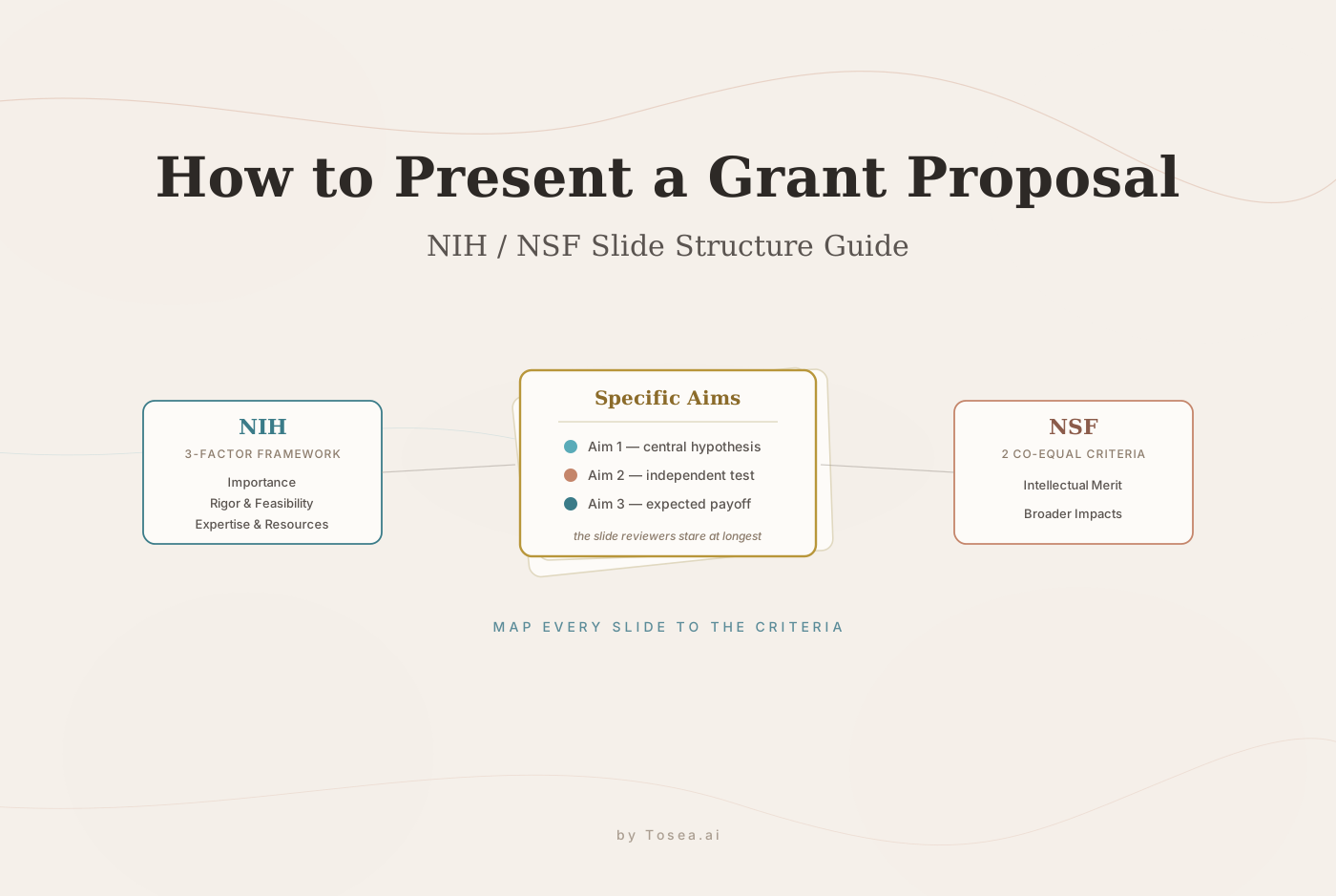
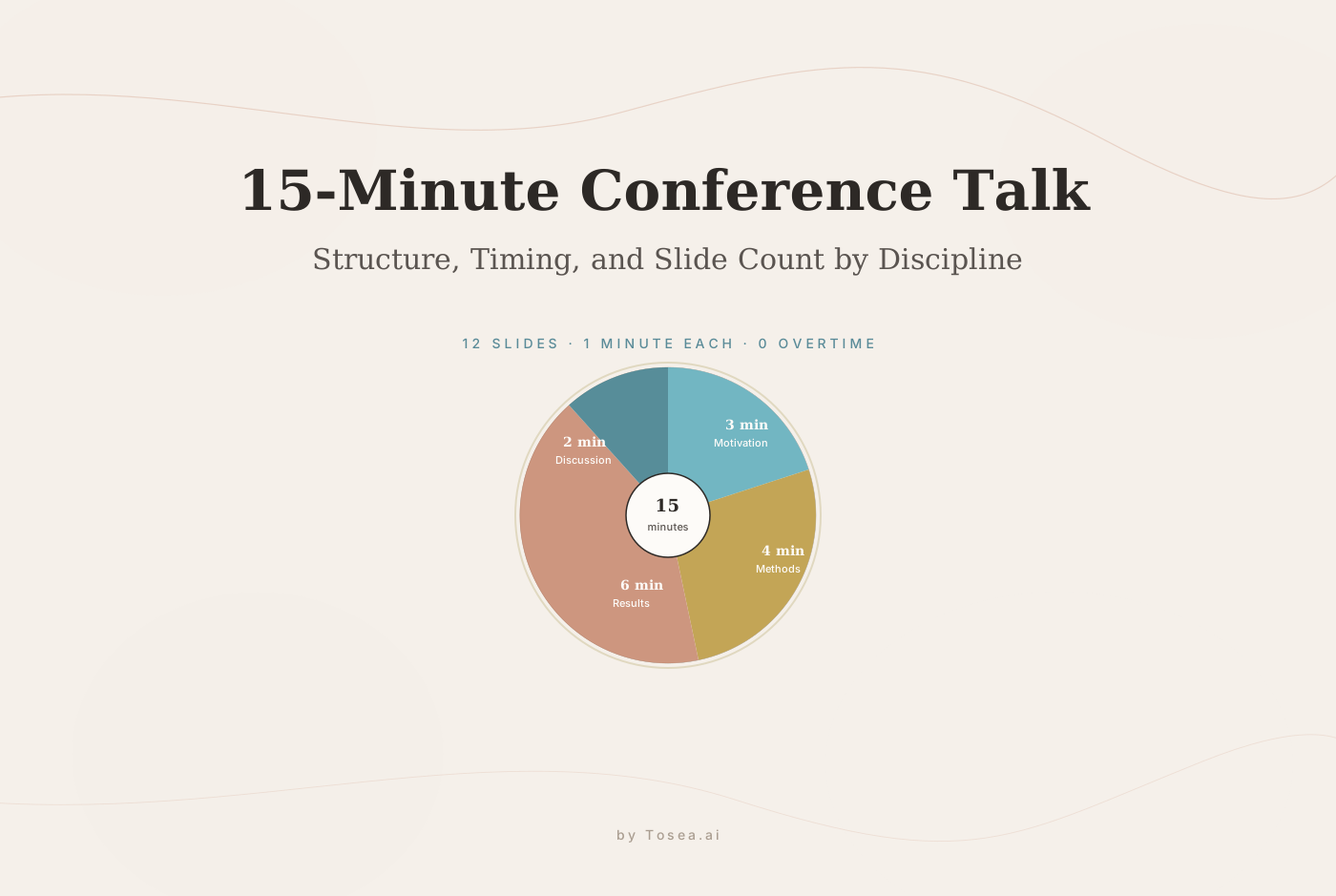
An excellent PPT not only conveys the theme clearly but also enhances the presentation effect, helping the audience deeply understand and remember the content. So, how can we create a PPT that achieves such ideal results?
First, let’s correct the wrong way most people use AI for PPTs: I used to directly ask AI to "make a PPT about XX" and rely on various "one-click generation" tools. The outcomes were either overly simplistic, with generic templates and shallow content, or completely misaligned with my needs.
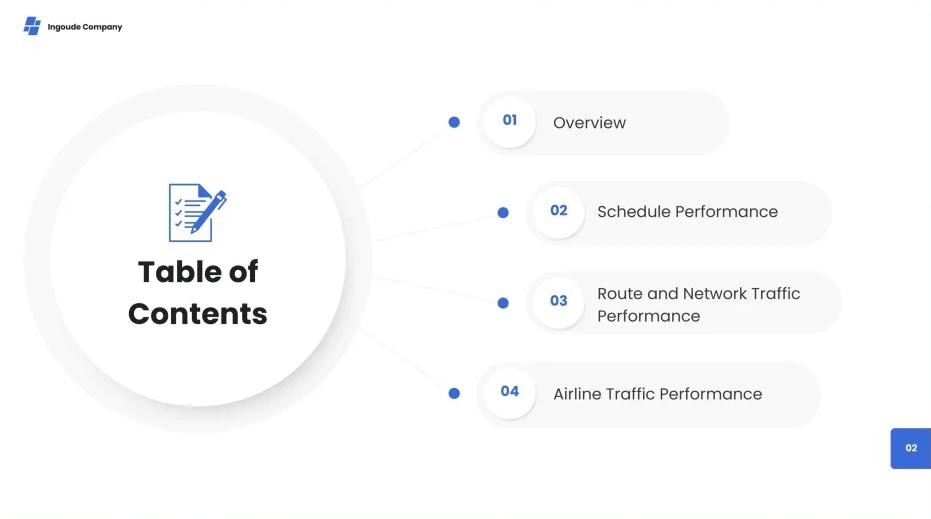
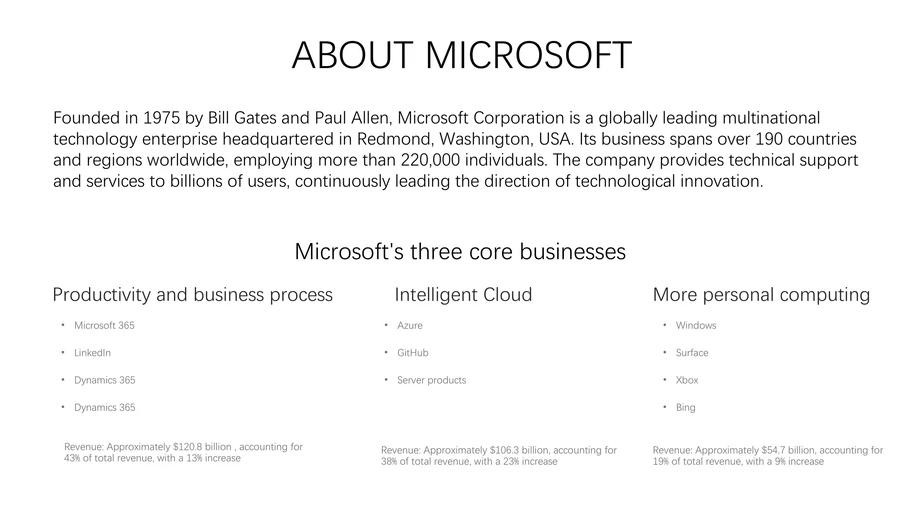
AI-generated low quality slide
But the reality is clear: while AI excels at processing and organizing information, it can’t read your mind, nor can it guarantee the accuracy of the content it generates—especially when dealing with complex data, academic papers, or professional reports.
The correct approach is to break down the PPT creation task into manageable steps and let AI focus on what it does best: parsing content, organizing frameworks, and optimizing formatting.
The 3-Step Workflow for AI-Powered PPT Creation
To avoid the pitfalls of generic AI PPT tools, I’ve refined a 3-step workflow that balances efficiency, depth, and accuracy.
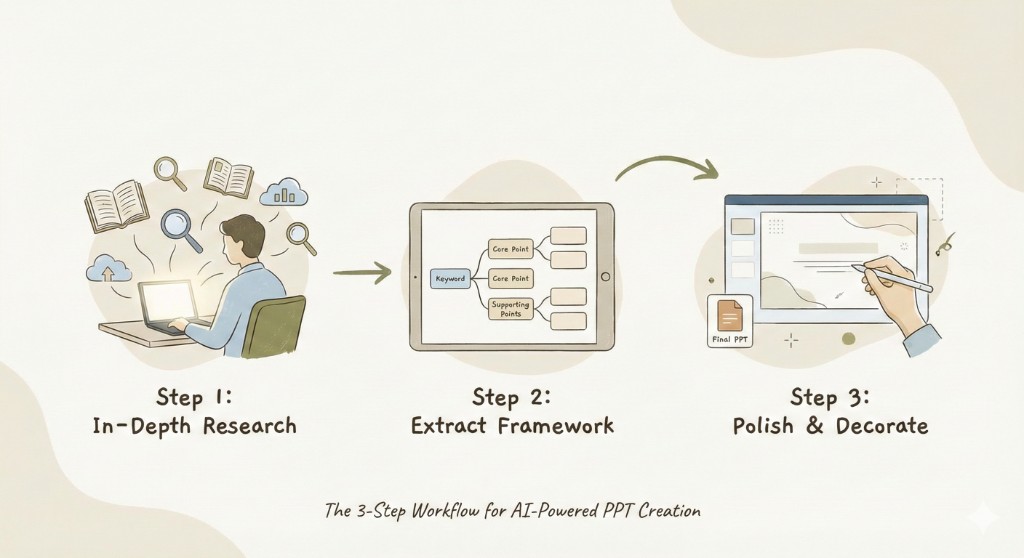
Step 1: In-Depth Research – Let AI Do the Groundwork
The biggest struggle for most PPT creators is figuring out what content to include. This step leverages AI to gather and organize high-quality, data-backed material—your "content foundation."
- Claude: Exceptional research capabilities and logical coherence.
- ChatGPT: Comprehensive information coverage.
- Perplexity: Delivers real-time data and verified sources.
Step 2: Extract Framework – Turn Content into PPT Structure
With your research draft, the next step is to distill thousands of words into a clear, logical PPT framework. Here’s a golden formula for each slide:
Each Slide = 1 Keyword + 1 Core Point + 3-6 Supporting Points
Step 3: Polish & Decorate – Generate the Final PPT
With a solid framework in place, it’s time to use AI tools to generate the final presentation.
- Gamma: Fast generation, exquisite templates.
- Skywork: High-quality output, deep customization.
- Felo: Simple operation, editable generated charts.
Why Tosea.ai Solves AI PPT’s Core Pain Points
Unlike generic AI tools that sacrifice accuracy for speed, Tosea.ai is built to address the biggest frustrations: content errors, lack of customization, and one-size-fits-all results.
1. Original Data Extraction: No AI Hallucinations
Tosea.ai eliminates this risk entirely with its Original Data Extraction technology. Instead of generating new visuals or guessing at data, it extracts original charts, graphs, and data points directly from your source PDF.
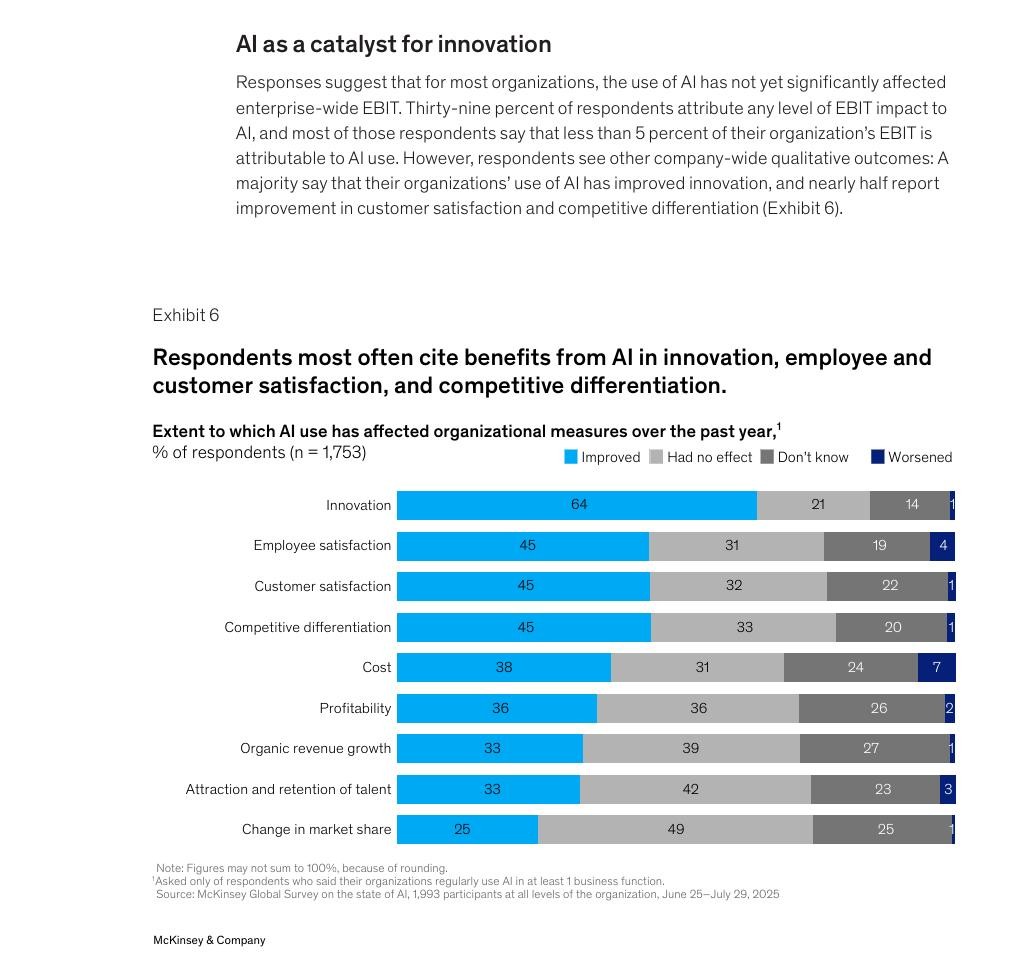
Source Material: High-density raw data and complex visuals from the original PDF
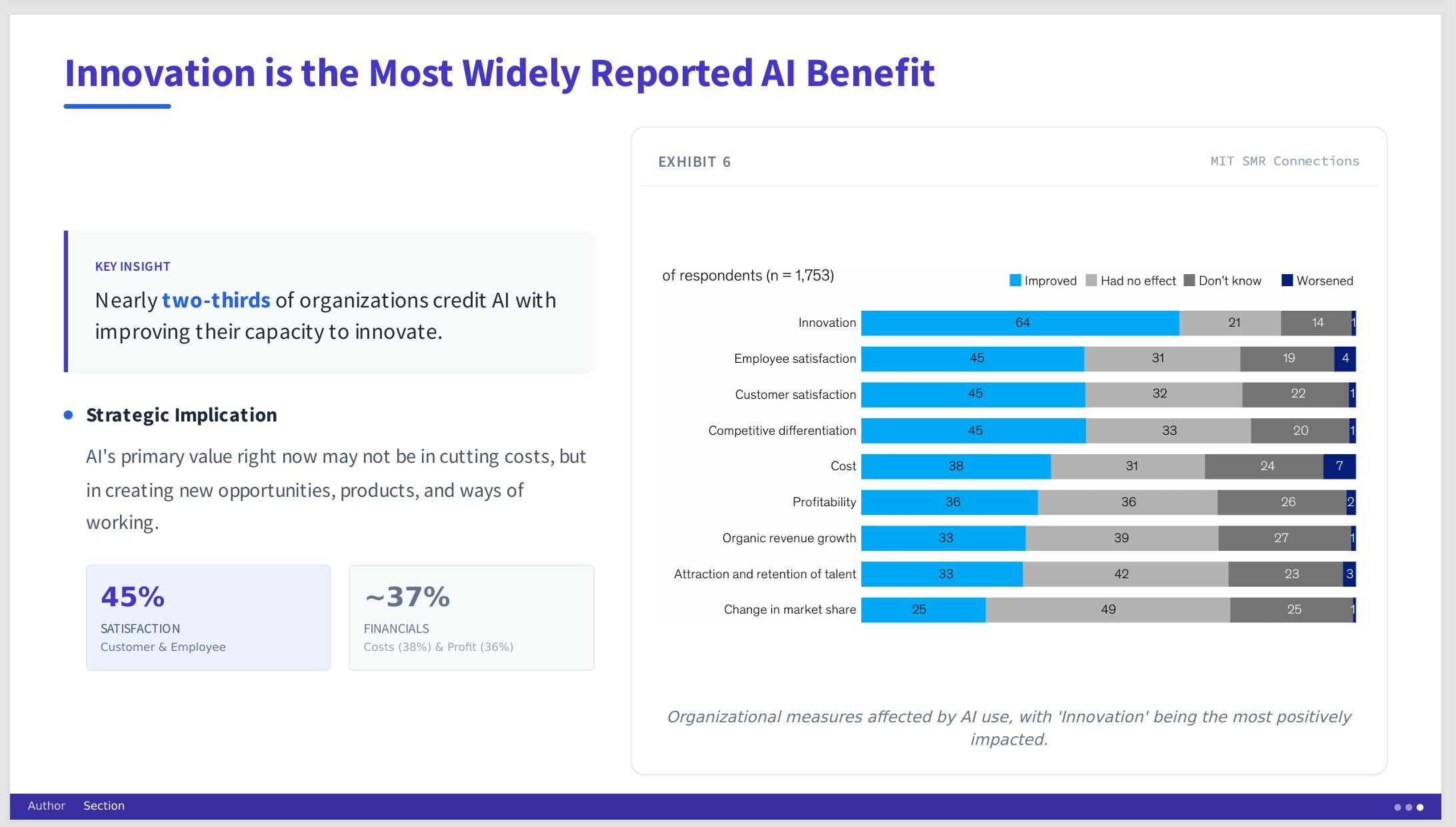
Tosea.ai Output: Original graphics extracted with 100% fidelity—no AI hallucinations, no data distortion
Whether it’s a statistical table or a technical diagram, Tosea.ai preserves the exact visuals and formatting of the original document.
2. Interactive Planning: Tailored to Your Exact Needs
Tosea.ai’s interactive planning feature acts like a human assistant, asking targeted questions to align the PPT with your goals.
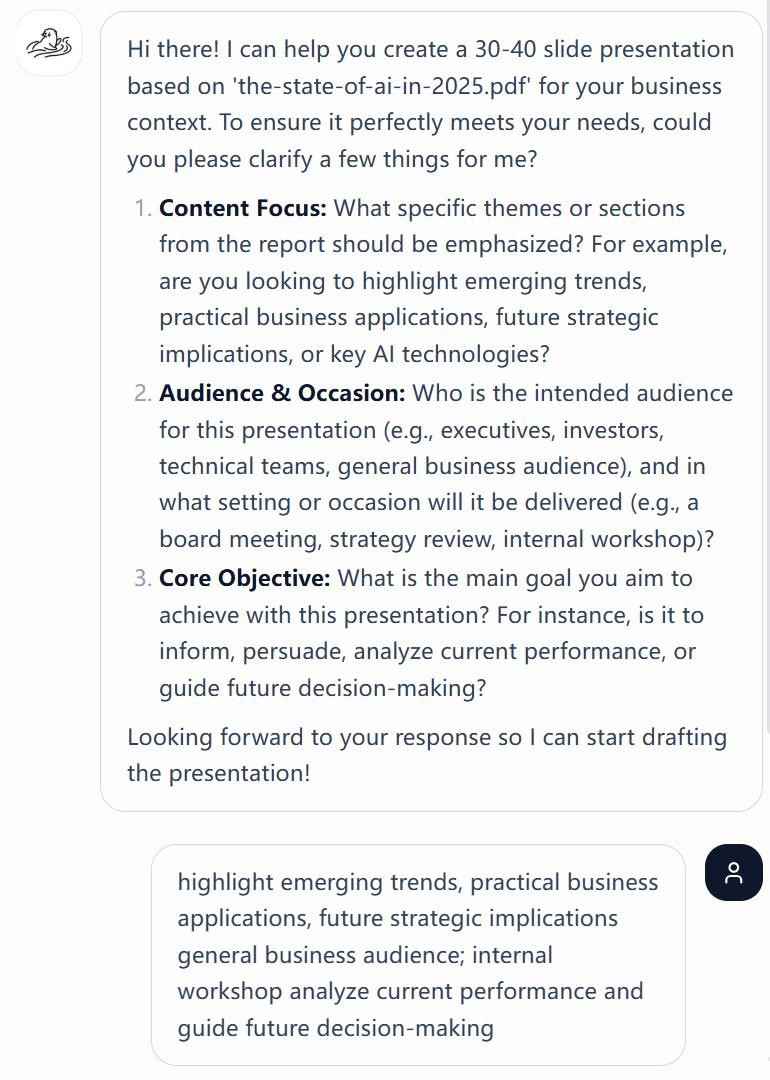
Interactive Planning: Tailored to Your Exact Needs
3. The Power of Choice: Top-Tier LLMs for Every Task
Tosea.ai gives you the freedom to choose from leading LLMs, including Gemini 3.1 Pro, Claude 4.6, and DeepSeek.
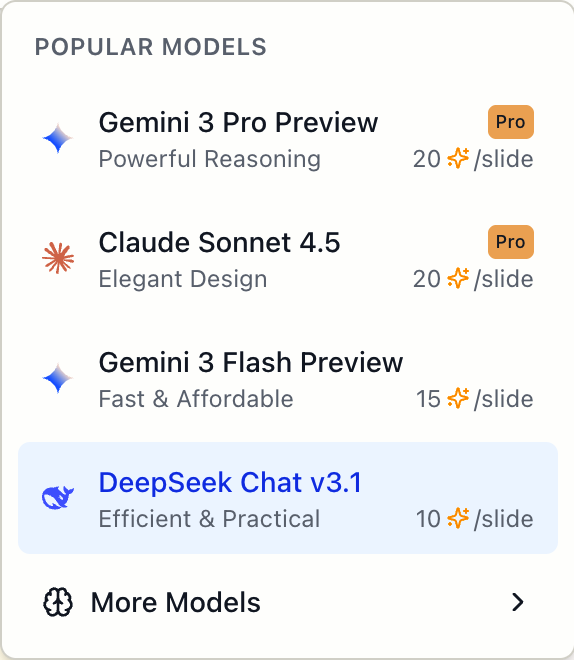
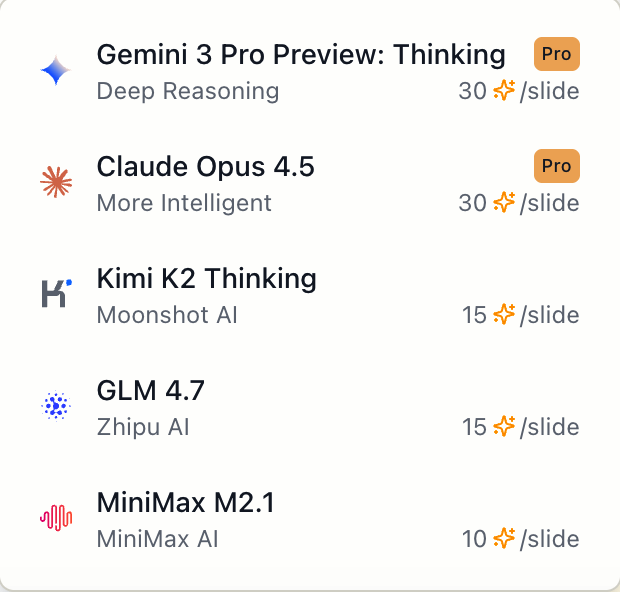
Top-Tier LLMs: Choose from Gemini 3.1 Pro, Claude 4.6, and more
Step-by-Step Guide: Convert Any PDF to PPT in 10 Minutes
Follow these 5 simple steps to turn dense PDFs into professional slides:
- Upload Your PDF: Head to the AI presentation maker for research papers and upload your document.
- Define Your Scope: Specify your research field and the number of slides.
- Answer the "Key Questions": Respond to targeted questions about your focus.
- Select Theme & Model: Choose a professional theme and your preferred LLM.
- Review & Download: Review the structure and download your presentation.
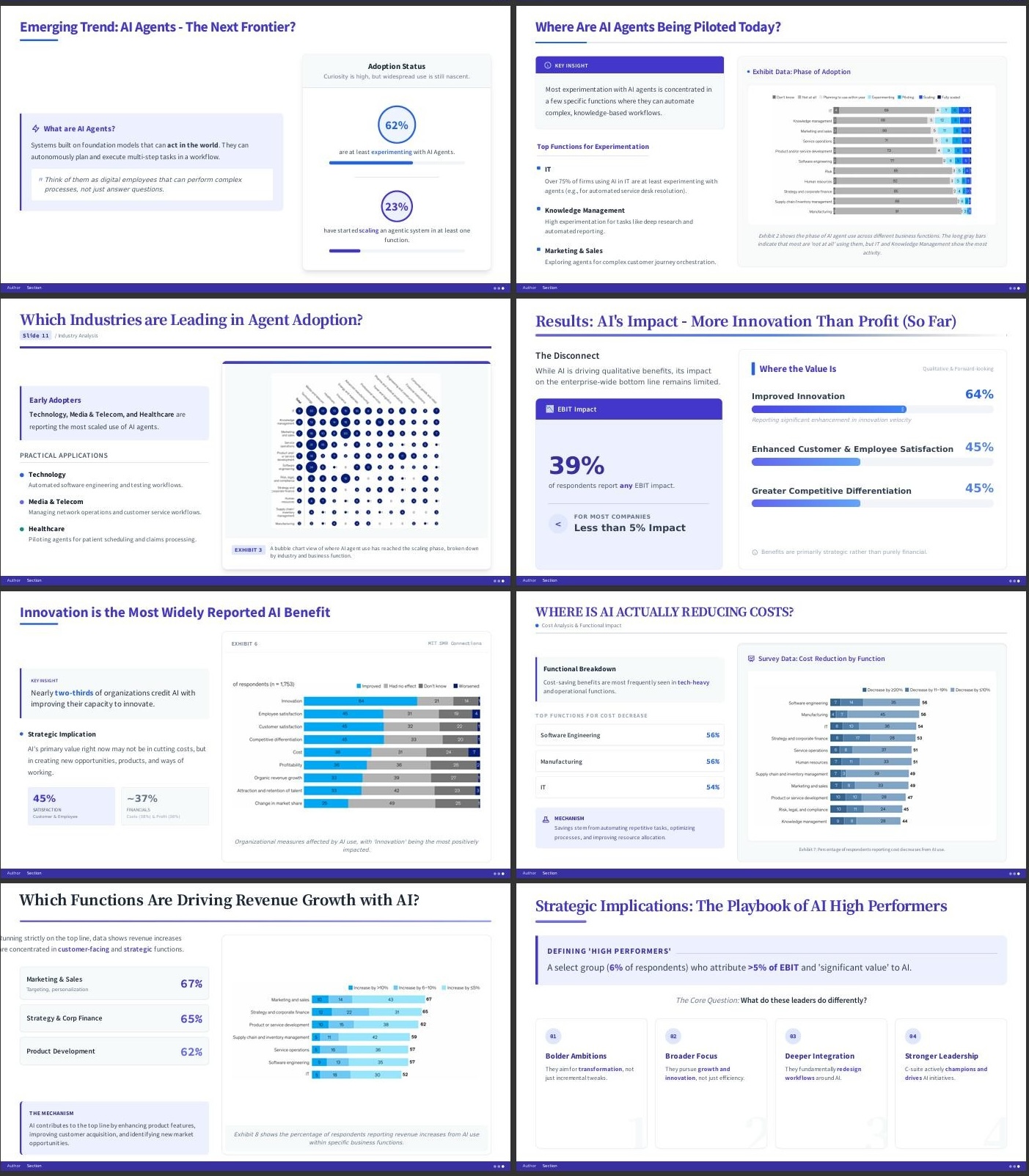
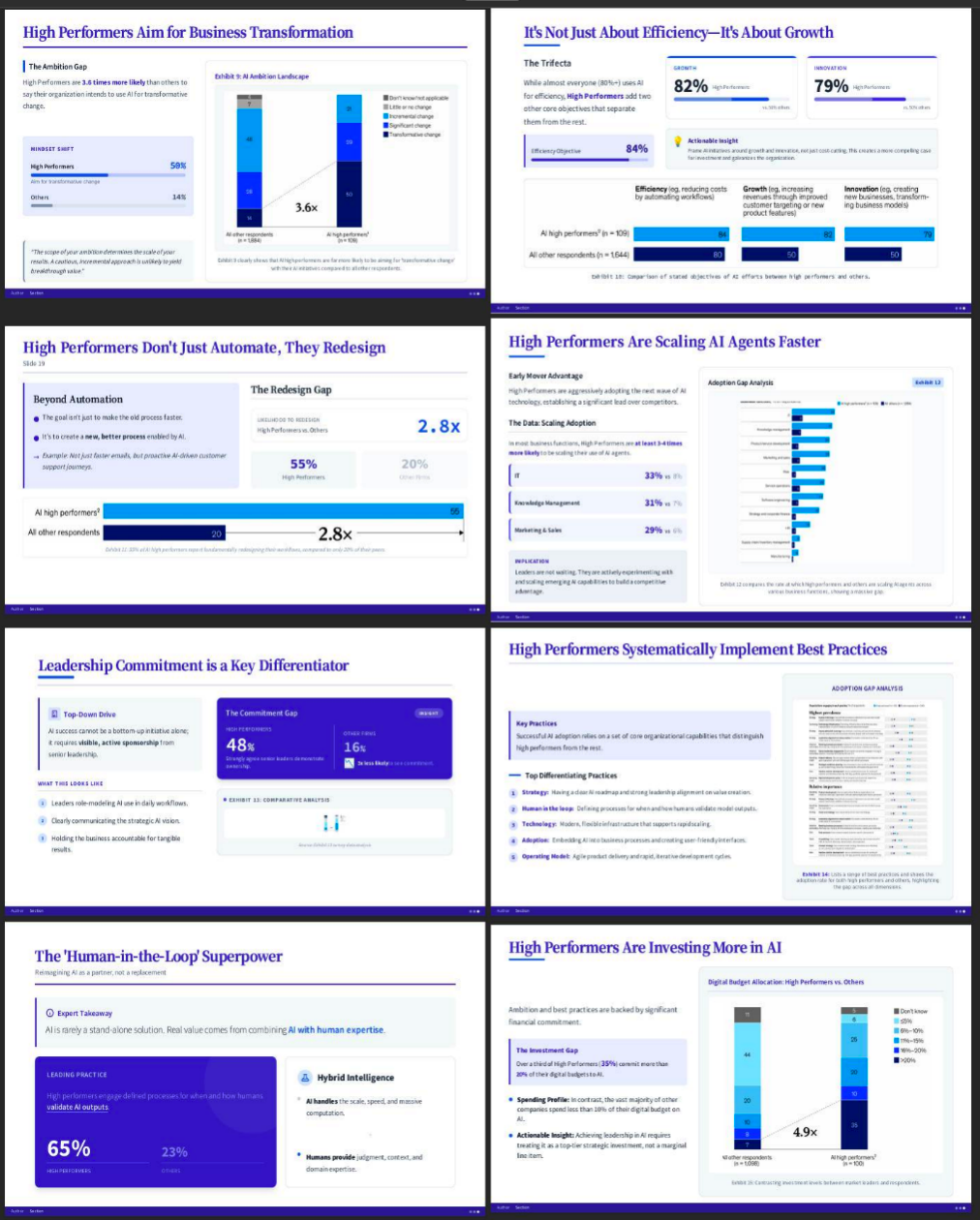
Visual Proof: See Tosea.ai in Action
FAQ: Your Questions About Tosea.ai Answered
- Can AI summarize a 50-page research paper? Absolutely. Tosea.ai excels at handling long, complex documents up to 200 pages.
- Will the AI mess up my charts? No. Tosea.ai specializes in extracting charts from PDF files intact.
- Is it free to use? Tosea.ai offers a free trial for new users, letting you convert up to 2-3 PDFs.
Ready to transform your PDFs into standout slides? Try Tosea.ai today and streamline your presentation workflow.