How to Make a PowerPoint With NotebookLM (2026): Generate, Edit and Export
Step by step: turn sources into a NotebookLM slide deck, fix slides with revision prompts, and get a PowerPoint you can actually edit. Tested on a 48-page NIST report.
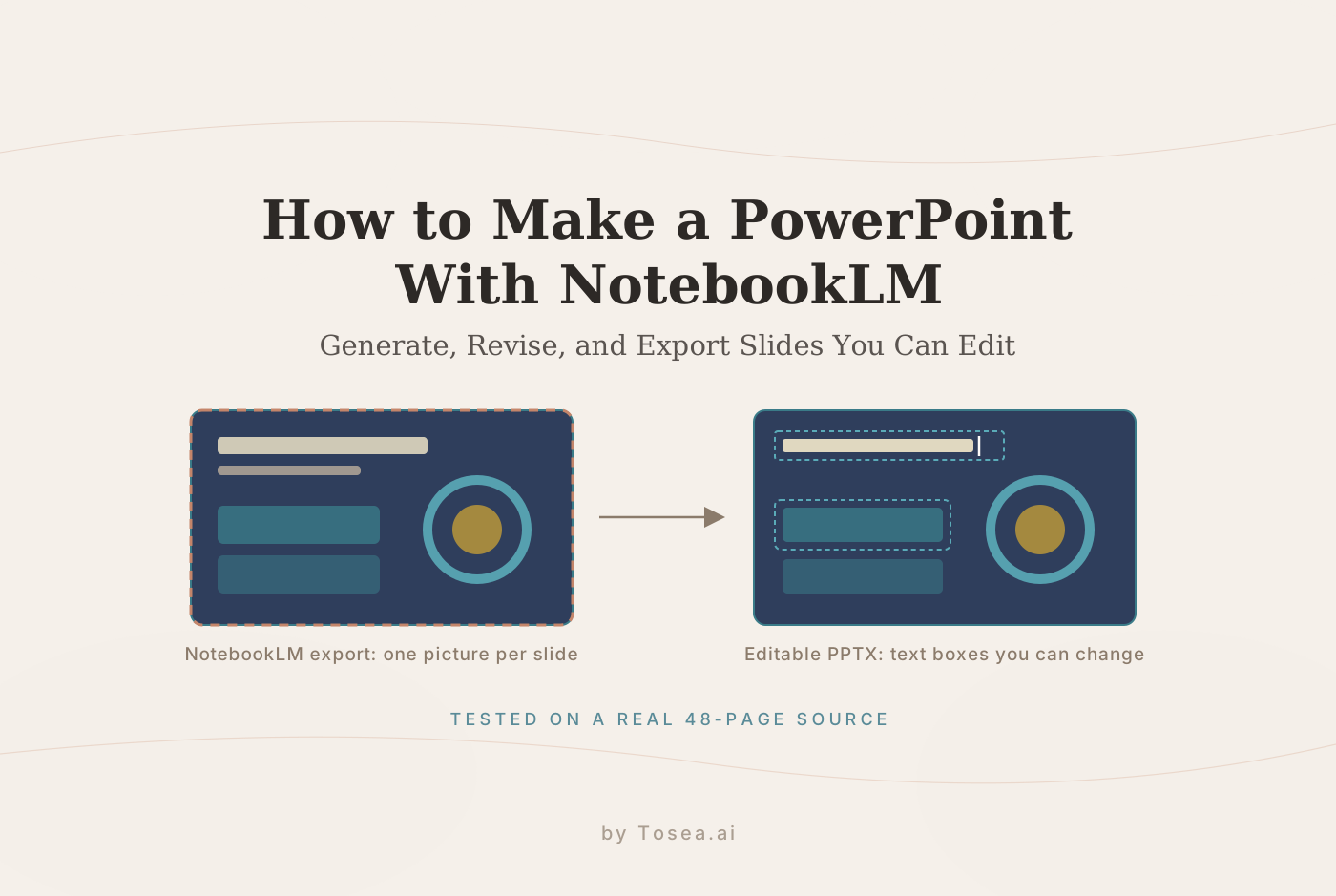
Quick answer: Add your sources to a notebook, open Studio → Slide Deck, choose a format, language and length, describe the audience, and generate. Fix individual slides with revision prompts, then use the ⋮ menu to download a PowerPoint (.pptx). In our test, every slide in that file was a single image, so to edit the text in PowerPoint you need to convert the PDF export.
We tested the whole workflow on November 2, 2026, using NIST's 48-page AI Risk Management Framework (a public-domain U.S. government report) as the only source. This guide shows each step with what actually happened: how long it took, what the deck looked like, two mistakes we had to fix, what is inside the exported file, and how we turned it into an editable PowerPoint.
NotebookLM now appears as Gemini Notebook in some accounts (the web app lives at notebook.google.com). The features below are the same under either name.
Step 1: Create a Notebook and Add Your Sources
Create a new notebook and add sources with Add source. You can upload files (PDF, documents, images, audio), paste a website or YouTube link, pick a Google Drive file, or paste copied text.
We pasted the link to the NIST PDF (nvlpubs.nist.gov/…/NIST.AI.100-1.pdf) as a website source. NotebookLM fetched and summarized it in under 20 seconds.
Tips for better slides later:
- Fewer, better sources. The deck draws on everything you check in the source list. Uncheck sources you do not want quoted.
- Text beats scans. A PDF with real text gives more accurate slides than a scanned image PDF.
- One topic per notebook. If you mix unrelated sources, the deck tries to cover both.
Step 2: Open Studio and Customize the Slide Deck
In the Studio panel, click Slide Deck. The customize dialog has five settings:
| Setting | Options | What we chose |
|---|---|---|
| Format | Detailed deck (full text, meant to be read or emailed) or Presenter slides (clean visuals with talking points, meant to be presented) | Presenter slides |
| Language | Any supported output language, independent of the interface language | English |
| Length | Short or Default | Default |
| Sources | All or selected sources | The NIST PDF |
| Description | Free text: audience, goal, style, focus | "A 10-minute briefing for a company leadership team on what the NIST AI RMF asks organizations to do." |
There is also an option to review and edit the slide outline before the deck is drawn; we left it off. The dialog shows an AI usage meter. When we opened NotebookLM, an in-app notice said usage limits now refresh every 5 hours instead of daily, and Generate later queues a deck instead of starting it right away.
What to write in the description: name the audience, the length of the talk, and the one decision or takeaway you want. Our one-sentence brief was enough to get a deck aimed at executives rather than a general summary, ending with next steps for leadership. If your company has style rules, add them here ("navy and white, no stock photos").
Step 3: Generate and Wait
Click Generate. The deck appears in Studio with status messages (planning, drawing slides, finishing up). Ours took about 10 minutes and produced 13 slides titled "NIST AI Risk Blueprint".
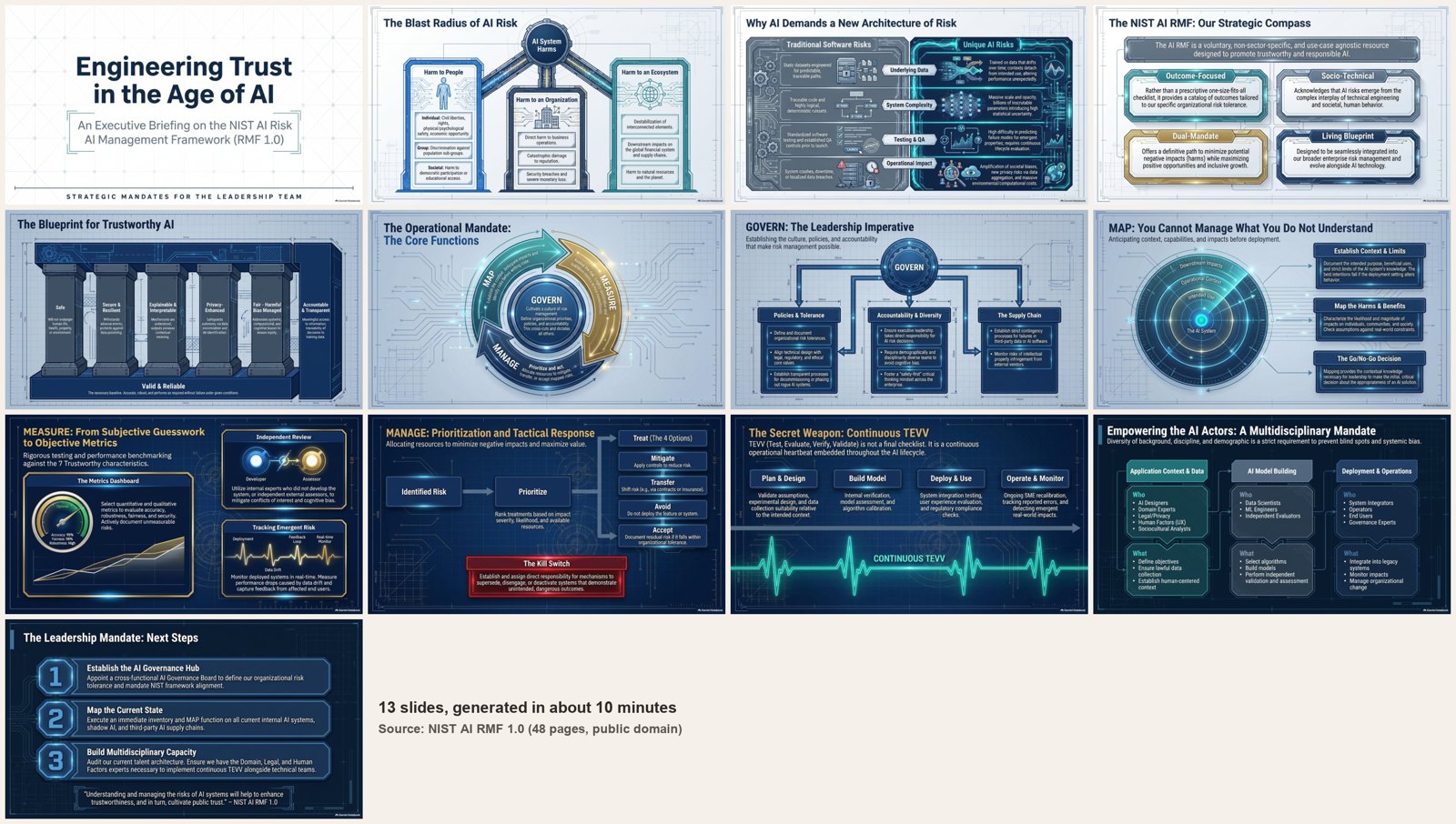
The design quality is high: consistent dark-blue technical styling, real diagrams (a cycle for the four core functions, columns for the seven trustworthiness characteristics, a flow chart for risk responses) and almost no generic stock art. For a leadership briefing, the structure was sensible too: why AI risk is different, what the framework is, the four functions, who is involved, and three next steps.
Step 4: Check the Slides Against Your Source
NotebookLM's own help page warns that slide decks "may contain visual or factual inaccuracies," so we checked every slide against the NIST text. Most held up:
- The closing quote ("Understanding and managing the risks of AI systems will help to enhance trustworthiness, and in turn, cultivate public trust.") is word for word from page 1 of the framework.
- The four risk responses on the Manage slide (mitigate, transfer, avoid, accept) match MANAGE 1.3, and the "Kill Switch" box paraphrases MANAGE 2.4 correctly.
- The seven trustworthy-AI characteristics were all present and correctly named.
Two problems needed fixing:
- A typo in the title slide subtitle: "NIST AI Risk AI Management Framework (RMF 1.0)". The framework's name is "AI Risk Management Framework (AI RMF 1.0)".
- Invented numbers on the Measure slide: the gauge showed "Accuracy: 95%, Fairness: 98%, Robustness: High." Those values do not appear anywhere in the source; the model added them as decoration. In a deck shown to executives, a made-up 98% fairness score is the kind of thing that gets quoted later.
Also note what is not from the source: the "next steps" slide (set up an AI governance hub, inventory current AI systems, build multidisciplinary capacity) is NotebookLM's own recommendation, based on the framework but not stated in it. That is fine in a briefing, but present it as your team's recommendation, not as NIST's.
Step 5: Fix Slides With Revision Prompts
You cannot click into a NotebookLM slide and type. Instead, open the deck, click the edit (pencil) icon, select a slide, and describe the change. You can queue changes for several slides, then click Generate revised deck.
We queued two prompts:
- Slide 1: Fix the subtitle typo: it should read "An Executive Briefing on the NIST AI Risk Management Framework (AI RMF 1.0)". Keep everything else the same.
- Slide 9: Remove the example numbers on the gauge (Accuracy 95%, Fairness 98%, Robustness High). They are not in the source. Keep the gauge without numbers.
The revised deck was ready in about 2 minutes and saved as a new version next to the original. Both fixes landed exactly, and when we compared the two PDFs page by page, the other 11 slides were pixel-for-pixel identical. Revisions only redraw the slides you asked about.
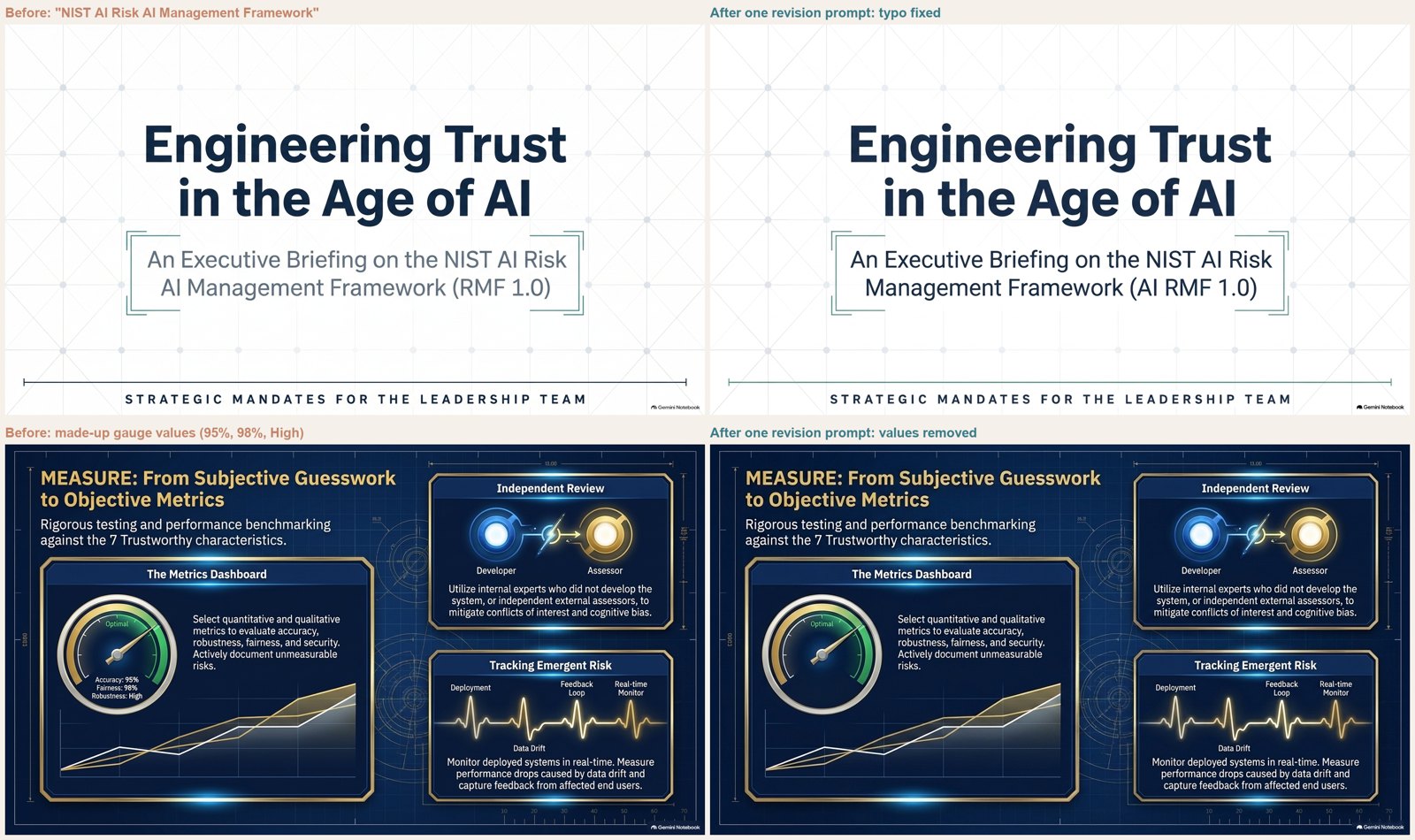
Revision prompts are the right tool for wording fixes, removing a wrong number, or changing a layout element. Google's help page notes there are quota limits on how many decks you can revise, so batch your changes into one revision rather than one at a time.
Step 6: Download as PowerPoint or PDF
From the deck's ⋮ menu, choose Download PowerPoint (.pptx) or Download PDF document (.pdf). We downloaded both and looked inside:
| PowerPoint export | PDF export | |
|---|---|---|
| File size | 18.3 MB | 16.8 MB |
| Slides / pages | 13 | 13 |
| What each slide contains | One full-slide PNG image | One full-page image |
| Editable text | None (0 text elements) | None (no text layer) |
| Speaker notes | None | — |
| Image resolution | 1376 × 768 pixels | 1376 × 768 pixels |
| Slide size | 17.78 × 10 inches (16:9) | 1376 × 768 points |
So the PowerPoint file is a container of pictures. It opens fine in PowerPoint, Google Slides and Keynote and looks exactly like the deck, but you cannot fix a typo, change a number, apply your company font or translate it. Two smaller practical points: the images are below 1920 × 1080, so fine text looks slightly soft on a large screen, and 18 MB is heavy for email; the free PowerPoint compressor brings it down.
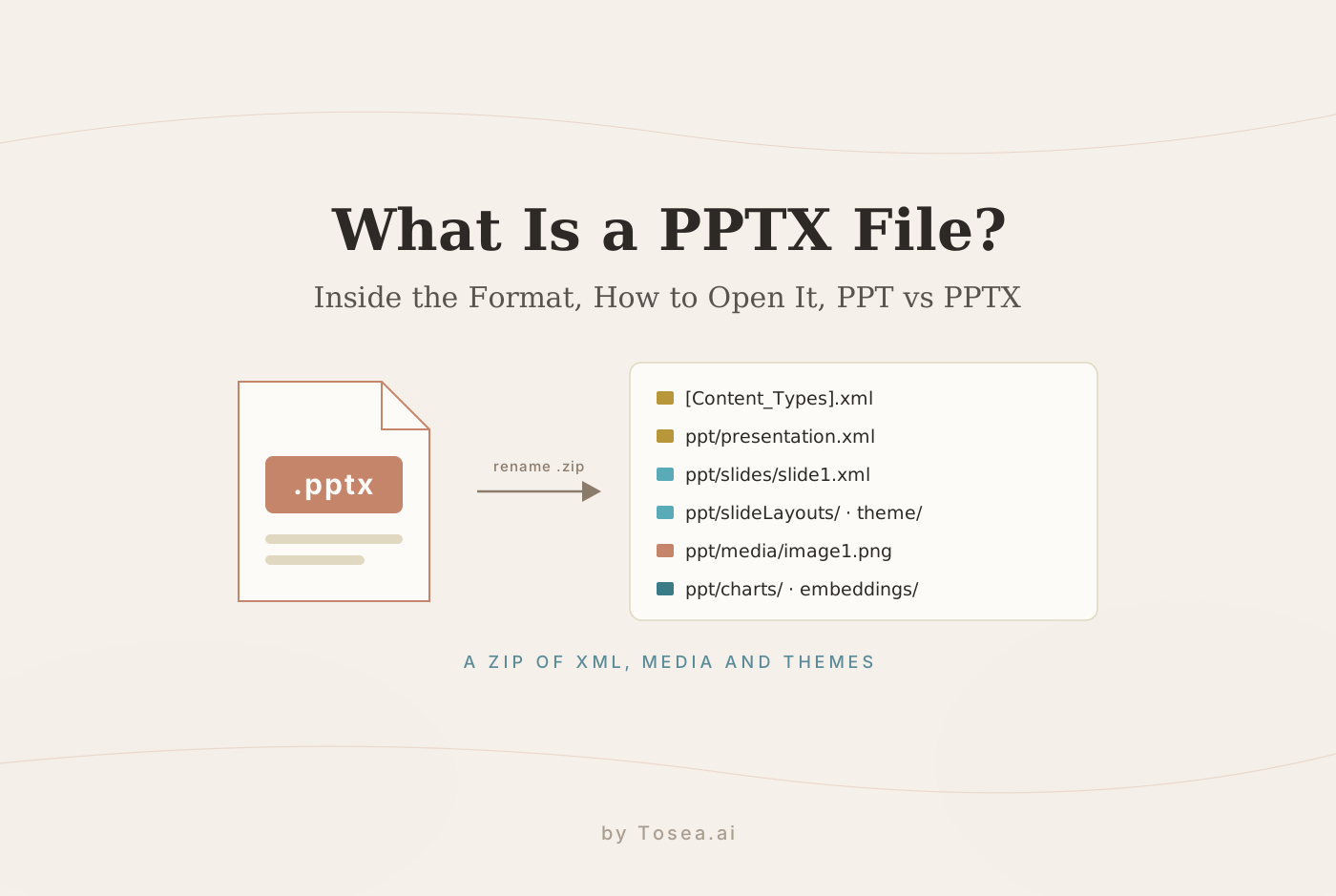
If you are curious why some PowerPoint files are editable and others are not, our guide to what a PPTX file is unzips this file and several others.
How to Edit NotebookLM Slides in PowerPoint
To edit NotebookLM slides in PowerPoint, the pictures have to be turned back into text boxes and separate visual elements. Your options:
1. Revise inside NotebookLM first. For a handful of wording fixes, revision prompts (Step 5) are fastest and keep the design intact. Do this before exporting.
2. Convert the export into an editable PPTX. We ran the PDF export through the free NotebookLM slides to PowerPoint converter on Tosea (our own tool). The free plan converts 5 pages a month after sign-in and accepts PDFs up to 30 MB, so we picked 5 of the 13 slides into a smaller PDF. Conversion took under a minute.
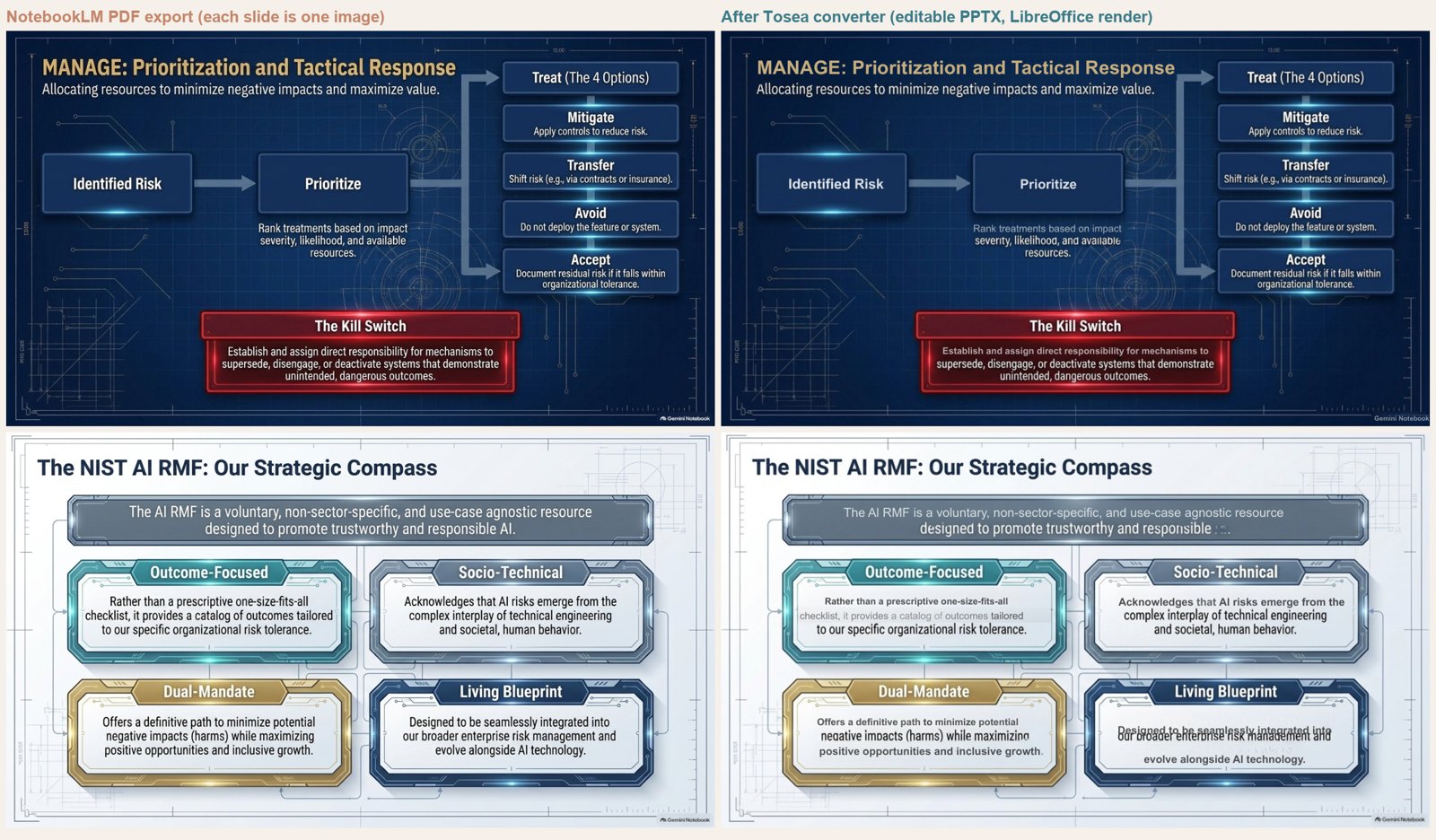
What we got, honestly:
- Layout and colors were preserved. The diagrams, boxes and backgrounds stayed where NotebookLM drew them, as separate elements you can move or delete.
- Most body text became editable, 137 words across the five slides, in real text boxes with roughly matching sizes.
- Not everything came back as text. The large title on slide 1 and the curved labels around the core-functions cycle stayed part of the image.
- Recognition errors to check: "AI" was read as "Al" (lowercase L) in several places, a habit of OCR with this typeface. One card on the compass slide had a text box overlapping leftover text in the image, and one line was cut short.
That matches what the tool's page says to expect: check small text, numbers and special characters against the original before you present. Budget a few minutes per slide for cleanup. That is still much faster than rebuilding a designed slide from scratch, but not zero.
3. Rebuild in your own template. If you need the deck in your company master, ask NotebookLM in the chat panel for the slide content as a table (slide title, bullets, speaker notes), paste it into your template, and use the NotebookLM deck only as a visual reference. You lose NotebookLM's design but get a clean, fully native deck.
4. Import into Canva or Google Slides. Both can import the PDF or PPTX, but they treat each page as an image, so the text is still not editable without additional tools. We did not test Canva's text-extraction workflow for this guide.
Why Is My NotebookLM Slide Deck Not Working?
Common causes when a slide deck fails, sits on "generating" or shows as unavailable:
- You hit a usage limit. Check the AI usage meter in the customize dialog. Limits refresh over time (every 5 hours, according to the in-app notice we saw), or you can queue the deck with Generate later.
- It is simply slow. Our 13-slide deck took about 10 minutes. Leave the tab open; NotebookLM also offers browser notifications when Studio output is ready.
- A source did not load. Make sure every checked source shows its summary. Broken links, login-protected pages and scanned PDFs without text give the model little to work with.
- Too much in one deck. Very broad notebooks produce vague or failed decks. Select only the sources you need for this presentation.
- The Slide Deck button is missing. Check Google's help page for current availability and account requirements.
Tips for Better NotebookLM Presentations
- Write the brief like you would for a colleague: audience, length, goal, tone. It is the biggest single lever on the result.
- Use Presenter slides for talks and Detailed deck for documents people will read alone.
- Check every number against the source before revising, so you can fix all errors in one revision batch.
- Decide early whether you need editable PowerPoint. If you do, plan for the conversion step, and keep the PDF export: the converter needs it.
- Keep the original. Revisions create a new version, so you can always compare against the first draft.
Frequently Asked Questions
Can NotebookLM make a PowerPoint?
Yes. NotebookLM's Slide Deck feature generates a full presentation from your sources, and you can download it as a PowerPoint (.pptx) or PDF from the deck's menu. In our November 2026 test, though, every slide in the PowerPoint file was a single image, so the text cannot be edited directly in PowerPoint.
Are NotebookLM slides editable?
Inside NotebookLM you can change slides with revision prompts, which worked precisely in our test. In PowerPoint, Google Slides or Keynote, the exported slides are pictures. To edit text, numbers or fonts there, convert the PDF export with an image-to-editable converter, or rebuild the slides in your own template.
How do I edit NotebookLM slides in Canva?
Canva can import the PDF or PPTX, but each slide arrives as an image, just as in PowerPoint. You can add new text on top, but to change the existing words you need to extract or rebuild the text first. Converting to an editable PPTX and then importing that file into Canva gives you separate, editable text.
How long does NotebookLM take to make slides?
Our 13-slide deck from a 48-page source took about 10 minutes to generate, and a two-slide revision took about 2 minutes. Times vary with source length, deck length and demand.
Is there a limit on NotebookLM slide decks?
Yes, usage is limited by account. Google's help page mentions quota limits for revising decks, and the in-app notice we saw said limits refresh every 5 hours. Check the AI usage meter in the customize dialog before generating a long deck.
Sources
- Google, Generate a Slide Deck in NotebookLM (NotebookLM Help)
- NIST, Artificial Intelligence Risk Management Framework (AI RMF 1.0), NIST AI 100-1 (test source document)
- Tosea, NotebookLM slides to PowerPoint converter (limits and FAQ)