How to Type a Subscript: A Complete Guide
Master subscript typing in Word, PowerPoint, Google Docs, LaTeX, and more with shortcuts, Unicode tricks, and AI-powered formatting solutions.
Knowing how to type a subscript is one of those small details that signals professionalism, separating a polished document from an amateurish one. For anyone working in a technical, academic, or scientific field, it’s not just a formatting preference—it's a core requirement for clear communication.
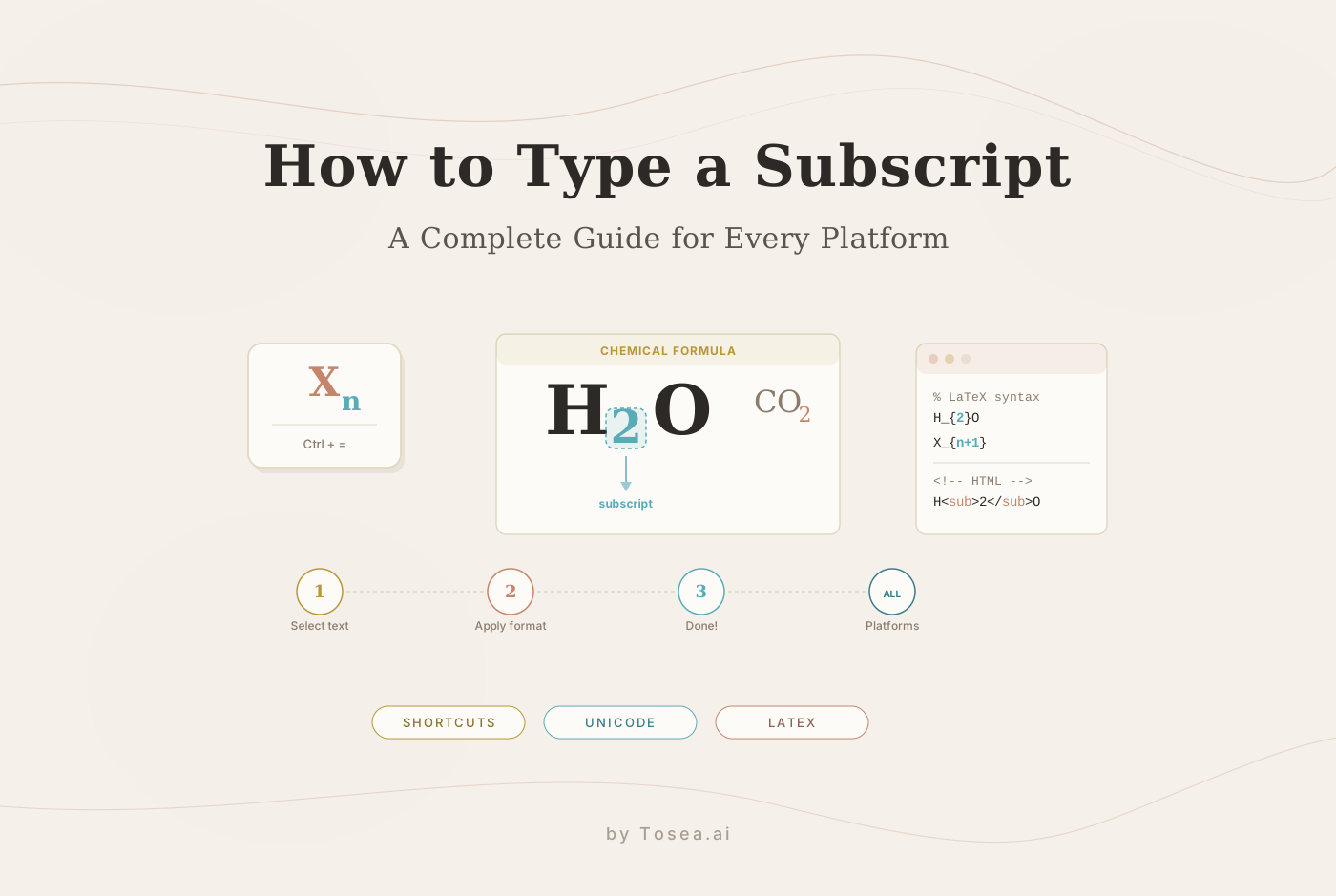
The most common method is the keyboard shortcut Ctrl+= on Windows or Cmd+= on Mac. This simple command toggles subscript formatting in mainstream applications like Microsoft Word and Google Docs.
Why Subscript Mastery Is a Non-Negotiable Skill
That tiny, lowered number or letter is what makes a chemical formula like H₂O instantly recognizable. It’s what clarifies a mathematical variable like xᵢ, preventing the kind of ambiguity that can completely undermine a complex analysis. Without proper formatting, your work doesn't just look sloppy; it risks being fundamentally misunderstood.
This guide moves beyond a simple list of shortcuts. We'll get into the practical, real-world methods for all the software you actually use, from the familiar grounds of PowerPoint to more specialized tools.
More Than a Minor Detail
The need for clear scientific notation isn't new. Conventions for subscripts were already being discussed over a century ago. A 1926 article in Science magazine noted that over 90% of scientific publications followed specific rules for formulas like H₂O to prevent confusion. You can actually explore the historical context of these scientific standards on their website.
Fast forward to today, and the problem has shifted from convention to efficiency. One study found that graduate students can waste 15-20 minutes per presentation just on manual formatting hacks. That’s a significant productivity drain.
Modern tools have completely changed this process. For instance, uploading a research paper from arXiv to an AI platform like Tosea.ai can instantly render all subscripts in a presentation with high accuracy, eliminating much of the tedious manual work.
This guide is your complete playbook for getting this right every time. Proper formatting isn't just about aesthetics; it's a critical component of effective communication. For more on creating impactful presentations, you can check out our guide on the top 10 business presentation tips for 2026.
What This Guide Covers
We’ll cover everything you need, from the basic keyboard commands to more advanced techniques for specialized documents. You'll get instructions for:
- Microsoft Office (Word, PowerPoint, Excel)
- Google Workspace (Docs, Slides)
- Technical platforms like LaTeX/Overleaf and Markdown/HTML
We’ll also dig into how to copy and paste subscripts without breaking your layout and troubleshoot the most common formatting headaches. By the end, you'll have a complete toolkit for handling any subscript scenario that comes your way.
Typing Subscripts Across Your Everyday Applications
The difference between professional and amateur work often comes down to the details. In scientific, financial, or academic documents, few details are as critical as correctly formatted subscripts. But the right method isn't universal—a shortcut that works wonders in Microsoft Word might do nothing at all in your browser.
Let's break down the most efficient ways to type subscripts across the tools you actually use, so you can stop fumbling with menus and get back to your work.
Microsoft Word and PowerPoint
For anyone working in the Microsoft Office suite, the keyboard shortcut is your best friend. It’s a fast, repeatable toggle that gets the job done without breaking your flow.
- On Windows: Select the character you want to turn into a subscript and press Ctrl+=.
- On Mac: Select the same character and press Command+=.
This is perfect for quickly hammering out chemical formulas like H₂O or basic algebraic terms directly in a document or slide. Press the shortcut again, and you're back to typing normal text. It just works.
However, if you need more granular control—say, adjusting the subscript's position or size for a specific branding guide—you'll want to use the Font dialog box. Just right-click the text and select "Font" for more precise adjustments.

As the infographic makes clear, this isn't just about aesthetics. Proper notation directly impacts the clarity of your data and the professional credibility of your work.
Google Docs and Google Slides
Thankfully, the experience in the Google Workspace ecosystem is just as straightforward. Whether you're in a Google Doc or building a presentation in Google Slides, the shortcuts are consistent and easy to remember.
- On Windows: Use Ctrl+, (that's the Control key and the comma).
- On Mac: Use Command+, (the Command key and the comma).
Just like with Office, this shortcut is a toggle. Use it to start subscripting, then use it again to return to normal text. It's incredibly handy for inline footnotes or quick formulas. And if you're looking for more ways to make your text pop in a presentation, check out our guide on how to curve text in Google Slides.
Pro Tip: If a shortcut ever fails you (it can happen with browser extensions or conflicting OS hotkeys), the menu is a reliable fallback. Just navigate to Format > Text > Subscript in either Docs or Slides to apply the formatting manually.
For a quick reference, here’s a summary of the most common shortcuts.
Subscript Shortcuts Across Popular Applications
| Application | Windows Shortcut | Mac Shortcut | Menu Path |
|---|---|---|---|
| MS Word & PowerPoint | Ctrl + _ | Command + _ | Home > Font > Subscript (x₂) |
| Google Docs & Slides | Ctrl + , | Command + , | Format > Text > Subscript |
| LaTeX / Overleaf | _{text} | _{text} | N/A (code-based) |
| Excel | N/A | N/A | Format Cells > Font > Subscript |
This table covers the most direct routes, but sometimes you'll find yourself in an environment that doesn't cooperate.
When to Just Copy and Paste Unicode Characters
What happens when you need a subscript in a program without rich text formatting? Think plain text editors, certain web forms, or even a Slack message. This is where Unicode characters save the day.
Unicode provides a universal standard for characters, including a set of subscript numbers that render correctly almost anywhere. You can simply copy the one you need (e.g., ₀, ₁, ₂, ₃) from a reference site like CopyChar and paste it directly.
While this trick is limited to numbers, it's a foolproof method that ensures your H₂O looks right whether it's in an email, a code comment, or a social media post. It guarantees maximum compatibility, which is a huge win when you can't control where your text will end up.
Advanced Subscript Methods for Technical Documents

When your work moves into technical writing, academic publishing, or coding, the standard keyboard shortcuts just don't cut it. These environments operate on their own distinct rules for formatting, making it critical to master the platform-specific methods for typing subscripts correctly.
Subscripts in LaTeX and Overleaf
For anyone producing academic or scientific documents, LaTeX is the gold standard. When you're working in a modern editor like Overleaf, creating a subscript is elegantly simple: just use an underscore (_).
Whatever character or group of characters comes right after the underscore gets formatted as a subscript. For instance, to type the variable xᵢ, you would write x_{i}. Those curly braces {} are essential if you need to subscript more than one character, making sure the entire group formats correctly. If you only need a single character subscripted, like in x_1, you can leave the braces out.
This code-based approach gives you an unparalleled level of control and consistency across long, complex documents—it's a non-negotiable skill for serious researchers. The process of converting these documents requires care, a topic we cover in our research paper to slides workflow guide.
HTML and Markdown for Web Content
If you're writing for the web, whether in a content management system or a simple Markdown file, you'll need to fall back on a bit of HTML. The <sub> tag is the universal key to creating subscripts that render properly in any web browser.
To get it done, just wrap the text you want subscripted in opening <sub> and closing </sub> tags. For example, to write H₂O, your HTML would look like this: H<sub>2</sub>O. It's a straightforward method that guarantees your chemical formulas and mathematical notations will show up correctly for every visitor.
Workarounds for Microsoft Excel
Microsoft Excel is notoriously difficult when it comes to subscripts. It completely lacks a dedicated keyboard shortcut, forcing you into a manual, cell-by-cell process that can bring any data-heavy project to a grinding halt.
Here's the manual slog for applying a subscript in Excel:
- First, double-click the cell to enter edit mode.
- Highlight the specific character or characters you want to subscript.
- Right-click on your selection and choose "Format Cells."
- In the Font tab that appears, check the "Subscript" box and click OK.
This manual method is a common source of frustration. Subscripts are a cornerstone of statistical reporting, powering tables across a large share of research outputs. Thankfully, modern analysis tools offer far better solutions. For example, the reporter package in R can transform raw data into polished reports where values are displayed with correct notation automatically, a format widely used in SAS and R-based analyses. You can learn more about these advanced reporting techniques with R and how they streamline these exact tasks.
For anyone who frequently needs to type subscripts in technical documents, moving beyond basic shortcuts isn't just a good idea—it's essential for maintaining accuracy and professionalism in your field.
Troubleshooting Common Subscript Formatting Issues
Even after you master the shortcuts, few things are more disruptive than when subscript formatting simply refuses to cooperate. It’s a familiar frustration: a keyboard shortcut suddenly stops working, or subscripts that look perfect in one application break the moment you paste them into another. These small glitches can bring your entire workflow to a halt.
Let's walk through the solutions for the most common subscript formatting problems that professionals run into.
When Keyboard Shortcuts Fail
You press Ctrl+= in Microsoft Word and nothing happens. The first thing to check is for conflicting software. Many applications, from screen capture tools to browser extensions, can hijack global keyboard shortcuts. Try closing other programs one by one to see if the shortcut begins responding again.
Another common culprit is your keyboard's language or input settings. If you’ve switched to a different language layout, the shortcut combination might be mapped to a different key or disabled entirely. Resetting your input method to your standard language is often an instant fix.
Fixing Broken Copy and Paste Formatting
Have you ever meticulously formatted text in Word, only to see it revert to plain text when you paste it into PowerPoint or an email? This usually happens because the destination application doesn't support the same rich text formatting as the source.
A study of STEM students highlighted this exact problem, with 55% citing subscripts as their top 'symbol challenge.' In many cases, these formatting frustrations were linked to software limitations, delaying report completion by 25% on average. You can read more about how software limitations impact student work in academic settings.
To get around this, use the "Paste Special" or "Keep Source Formatting" options. When you paste (often with a right-click), look for a small clipboard icon that appears and select the option that preserves the original styling. This tells the program to import not just the characters but also their formatting data, including your subscripts.
Achieving Consistent Alignment and Size
Sometimes a subscript just looks off. It might be positioned too low, too high, or sized too small, creating a visual distraction that undermines your document's professional look. While default settings are usually fine, you can manually adjust them for a more polished appearance.
- In Microsoft Office: Right-click the subscripted text, choose "Font," and navigate to the "Advanced" tab. Here, you can use the "Position" dropdown to raise or lower the text by a specific point value.
- In Google Workspace: While direct position controls are limited in tools like Google Slides, you can adjust the font size of the subscript character independently to make it more or less prominent.
For maximum compatibility across platforms where formatting is unreliable, the most robust solution is Unicode. Unicode provides a set of universal subscript characters (like ₀, ₁, ₂, ₃) that are treated as standard text, not special formatting. You can copy these from a character map or website and paste them anywhere. They will render correctly in plain text files, web forms, and even code comments, making them a foolproof fallback when other methods fail.
Let AI Handle the Formatting

Every method we’ve covered works, but they all require you to stop, select, and format—one notation at a time. In a 30-page research paper full of H₂O and xᵢ references, that manual process adds up fast. A better workflow lets AI handle the formatting for you.
A More Direct Path From Document to Deck
Instead of fixing notations one character at a time, modern AI tools can analyze an entire document's structure, understanding the context behind your formatting from the start.
This is precisely the problem a tool like Tosea.ai was built to solve. It’s designed to let you upload a source document—whether a PDF, Word file, or Markdown—and have all its technical notations rendered correctly in a new presentation automatically.
- PDFs and Word Docs: The platform doesn't just scrape text; it analyzes the layout to identify subscripts, superscripts, equations, and figures.
- Markdown: It correctly interprets your
<sub>tags and converts them into properly formatted text on the slides.
This isn’t just about speed; it’s about preserving the integrity of your technical work with a high degree of precision.
Tosea.ai is built for this use case, correctly rendering complex notations including subscripts, superscripts, and equations. This means your evidence, formulas, and citations are transferred faithfully, saving the hours you’d normally spend on painstaking manual checks.
This level of automation is a huge advantage when you’re up against a tight deadline. Instead of getting bogged down in formatting details, you can spend your time where it counts—refining your core message and making sure your arguments land. For those looking to get the most out of this process, our guide on the best AI prompts for converting documents to PPT offers some deeper strategies.
Ultimately, the future of creating technical and academic presentations isn't about memorizing more shortcuts. It’s about automating the repetitive work that distracts you from thinking. When an AI handles the mechanics of formatting, you get to focus on what really matters: the content itself.
Your Subscript Questions, Answered
You've learned the shortcuts, but you still hit a wall. Your subscripts look weird in a PDF, or maybe you're stuck on a laptop without a number pad. These are the real-world formatting headaches that pop up when the deadline is near.
Here are the fixes for those common, lingering problems.
How Can I Type Subscripts on a Laptop Without a Numpad?
That moment you realize the Alt code trick only works with a full keyboard is a familiar frustration for many laptop users. Thankfully, you’re not out of luck—you just need to use your operating system’s built-in symbol library.
- On Windows: The tool you need is the Character Map. Just search for it in your Start Menu. It lets you find any character, including all the subscript numbers, and copy it straight to your clipboard.
- On Mac: The Character Viewer is your best friend here. The shortcut
Control+Command+Spacebarbrings up a searchable library of every symbol you could ever need.
For the subscripts you use all the time—like in H₂O or CO₂—a great habit is to keep a text file or note with them ready to copy. Just grab ₀, ₁, ₂, and ₃ from a reference site and paste them into your own personal cheat sheet.
Why Do My Subscripts Look Different in a PDF?
This is a classic formatting nightmare. Your document looks perfect, but the exported PDF shows misaligned or resized subscripts. The culprit is almost always a font issue. Either the font wasn’t embedded correctly, or the PDF reader is substituting a different font that breaks your layout.
The most reliable fix is to embed all fonts when you save the file. In programs like Microsoft Word or PowerPoint, look for this option in the "Save As" or "Export" dialog box, often under "Tools" or "Advanced Settings."
Embedding fonts locks in your formatting. It packages the actual font data into the PDF, forcing it to render exactly as you intended, no matter who opens it on what device.
Can I Create a Custom Keyboard Shortcut for Subscripts?
Yes, and if a program’s default shortcut feels awkward, creating your own is a massive time-saver. Some applications, like Excel, don't even have a built-in shortcut, making a custom one essential.
In Microsoft Word, for instance, you can navigate to File > Options > Customize Ribbon > Keyboard shortcuts: Customize. From there, you can find the subscript command and assign any key combination you want. It’s a powerful way to build a workflow that feels natural and consistent to you.
If you frequently convert technical documents into presentations, a tool like Tosea.ai can save significant time by automatically preserving subscripts, tables, and figures during the conversion process.