Best AI Prompts for Professional Document-to-PPT Transformation
Ten expert-level prompts for turning PDFs, financial reports, and research papers into professional presentations — with model-selection guidance for GPT-5.5, DeepSeek V4, and MiMo-V2.5-Pro.
Why Your AI-Generated Slides Fall Flat (And How Prompts Fix It)
Standing before a blank PowerPoint slide in 2026 is no longer a rite of passage for professionals; it signals an outdated workflow. As AI-driven document conversion tools have matured, the gap between a complex idea and a polished presentation has narrowed considerably. Yet a new challenge has taken its place: the prompt crisis.
Many users upload a PDF, type something generic like "make slides from this," and receive a deck that feels hollow. The slides lack depth, miss critical nuances, and read like a surface-level summary rather than a professional narrative. The problem is rarely the tool. It is almost always the prompt.
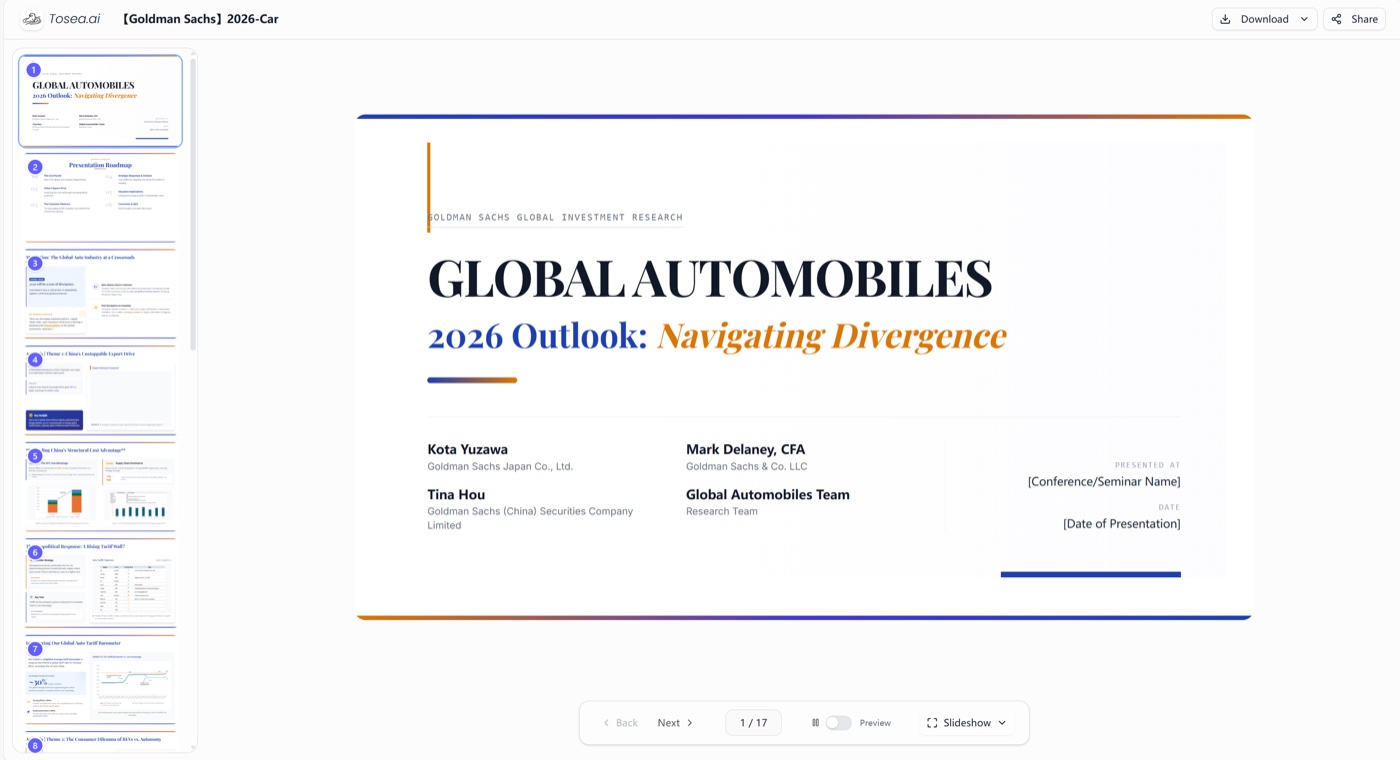
This guide walks through a structured approach to writing prompts that produce presentations worth presenting. The techniques here are rooted in document-to-PPT workflows where the source material — a financial report, a research paper, a legal brief — is parsed at the layout and content level before any slide generation begins. We cover ten production-grade prompts, the structural anatomy that separates strong prompts from weak ones, model-selection guidance for the April 2026 frontier (GPT-5.5, DeepSeek V4, MiMo-V2.5-Pro), and the iteration patterns that turn a first draft into a deck you would actually present.
How Document-Aware Prompting Differs from General AI Prompting
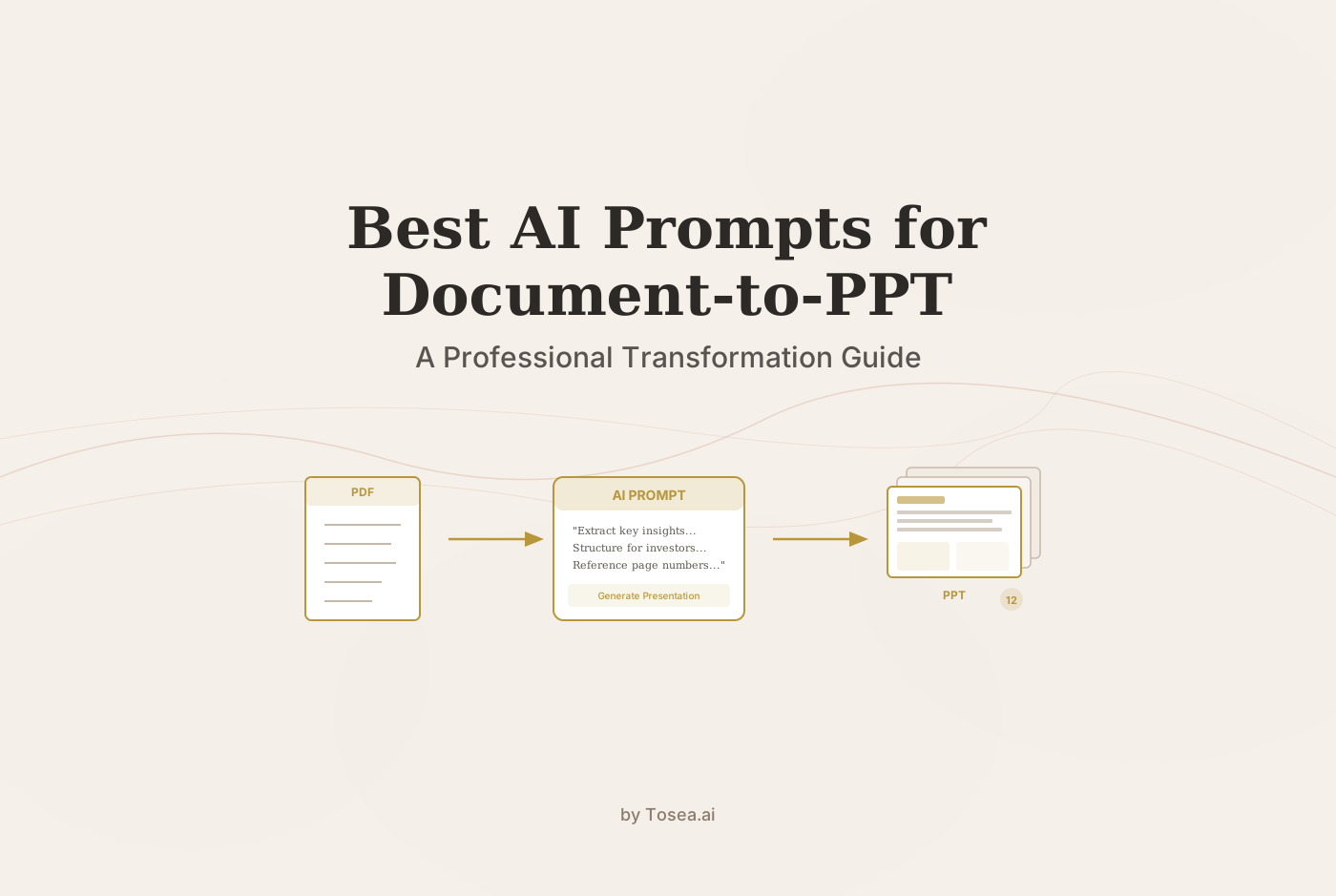
In general-purpose AI tools, a prompt is a standalone instruction: "Write me an email" or "Summarize this article." In document-to-PPT conversion, the dynamic is different. Your uploaded document is the primary input. The prompt serves as a steering mechanism that tells the AI how to interpret, prioritize, and structure the content it finds in your file.
This distinction matters because a 200-page annual report contains dozens of potential narratives. Without a focused prompt, the AI has to guess which one you care about. With a well-crafted prompt, you direct the parsing engine toward exactly the story you need to tell.
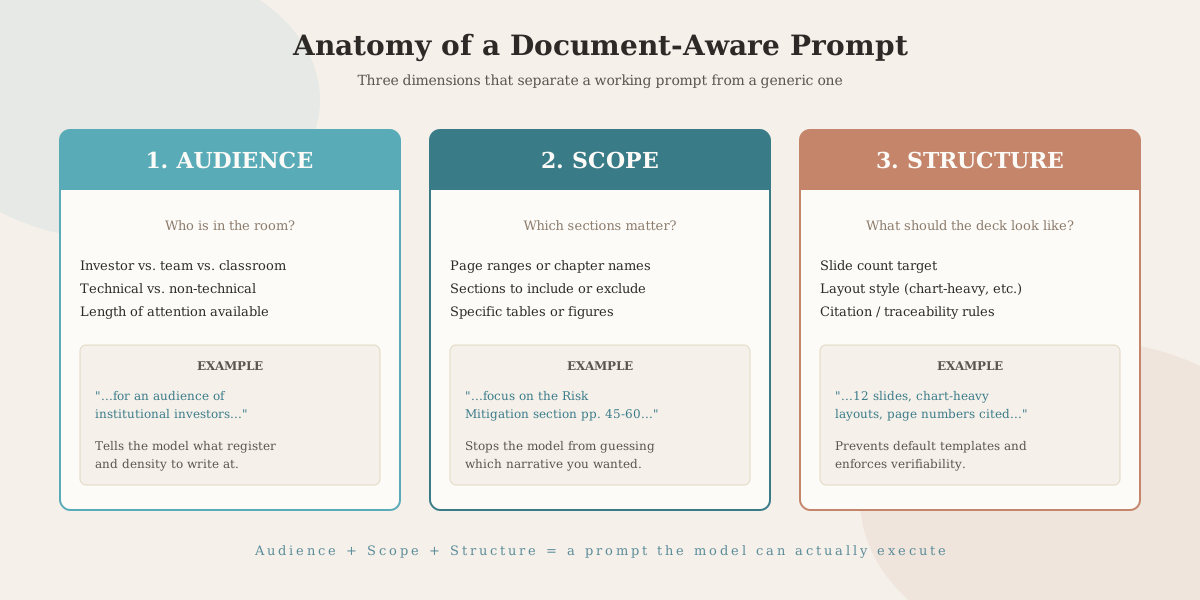
A strong document-aware prompt addresses three dimensions:
Audience context -- Who will see these slides? An investor, an internal team, a classroom of students? The answer shapes everything from vocabulary to visual density.
Content scope -- Which sections of the document matter? Prompting the AI to focus on "the Risk Mitigation section on pages 45-60" produces far better results than asking it to "summarize the whole report."
Output structure -- How many slides? What layout style? Should it favor charts over bullet points? Explicit structural guidance prevents the AI from defaulting to generic templates.
10 Expert-Level Prompts for Document-to-PPT Workflows
The following prompts are designed for workflows where you upload a source document and then guide the AI through the conversion. Each prompt includes context on when and why to use it.
I. The Executive Distiller (For Long Financial Reports)
When to use: You have a lengthy annual report or quarterly filing and need a focused deck for senior leadership or investors.
Prompt: "Using the uploaded 200-page annual report, extract the top 5 financial risks and 3 growth opportunities. Structure the slides for an audience of institutional investors, focusing on the 'Risk Mitigation' section. Ensure every slide references the specific page number from the PDF."
Why it works: By specifying the audience (institutional investors), the section to focus on (Risk Mitigation), and the traceability requirement (page numbers), you eliminate ambiguity. The AI knows exactly what to extract and how to present it.
II. The Technical-to-Tactical Bridge
When to use: A technical team has produced a whitepaper or spec document, and you need to communicate its value to a non-technical audience such as marketing, sales, or executive leadership.
Prompt: "Analyze the technical specifications in this engineering whitepaper. Create a 10-slide presentation for a non-technical marketing team. Focus on the 'Value Propositions' section and use a clean, consulting-style layout with minimal jargon."
Why it works: The explicit audience shift (engineering to marketing) forces the AI to translate rather than transcribe. Specifying "minimal jargon" acts as a content filter.
III. The IPO Pitch Generator
When to use: Preparing investor-facing materials from a draft prospectus or business plan.
Prompt: "Summarize the 'Business Model' and 'Competitive Landscape' sections of this draft prospectus. Use minimalist design principles and prioritize high-impact visual metaphors over bullet points. Limit to 15 slides."
Why it works: Naming specific sections prevents the AI from wandering through boilerplate legal text. The design instruction ("visual metaphors over bullet points") pushes the output beyond standard list-based slides.
IV. The Audit Trail Specialist (For Legal and Compliance)
When to use: Presenting compliance findings, audit results, or regulatory summaries where every claim must be verifiable.
Prompt: "Based on this compliance audit, create a summary of non-conformities organized by severity. For every finding, include a reference to the specific clause or section number from the source document. Use a table layout where possible."
Why it works: Compliance presentations live or die on traceability. This prompt builds verification directly into the slide structure rather than treating it as an afterthought.
V. The Multi-Source Synthesizer
When to use: You need to combine findings from multiple documents into a single coherent narrative, such as merging three research reports for a steering committee.
Prompt: "Merge the key insights from these three separate research PDFs. Identify where the data points agree and where they conflict. Structure the final PPT to highlight these 'Knowledge Gaps' for a research steering committee."
Why it works: The instruction to find agreement and conflict gives the AI an analytical framework rather than just asking it to "summarize everything."
VI. The Academic Defense Deck
When to use: Converting a thesis or dissertation into a defense presentation or conference talk.
Prompt: "Turn my 50,000-word dissertation into a 20-minute defense deck (approximately 18-22 slides). Ensure the methodology slides clearly show the logical progression from research question to data collection to analysis. Include a limitations slide."
Why it works: Academic presentations follow a known structure. Naming the expected progression (question, data, analysis) helps the AI mirror the conventions your committee expects.
VII. The Sentiment-Aware Sales Deck
When to use: Translating customer feedback, survey results, or interview transcripts into an internal presentation for product teams.
Prompt: "Read the customer feedback transcripts in this document. Create a presentation for the product development team that categorizes the top 3 pain points with supporting quotes. Use a professional but empathetic tone. Include a slide mapping each pain point to a potential product improvement."
Why it works: Adding the mapping instruction (pain point to improvement) transforms a passive summary into an actionable document.
VIII. The Scenario Planner
When to use: Working with forecasts, projections, or strategy documents that contain multiple possible outcomes.
Prompt: "From this market forecast document, generate three distinct 'What-If' scenarios. Create a separate slide for the 'Best Case,' 'Base Case,' and 'Worst Case' outcomes based on the provided data tables. Include a comparison summary slide at the end."
Why it works: Explicitly naming the three scenarios and requesting a comparison slide gives the output a clear narrative arc rather than a flat data dump.
IX. The Board Meeting Briefing
When to use: Distilling operational reports, KPI dashboards, or quarterly updates into a tight board-ready deck.
Prompt: "From this quarterly operations report, create a 10-slide board briefing. Lead with a one-slide executive summary of the 3 most critical metrics. Follow with one slide per business unit, showing performance against targets. Close with a forward-looking slide on next quarter priorities."
Why it works: Board members have limited attention and high expectations. This prompt enforces a familiar structure (summary, details, outlook) that matches how boards actually consume information.
X. The Training Material Converter
When to use: Turning a policy document, handbook, or procedural guide into a training presentation for onboarding or workshops.
Prompt: "Convert this employee handbook into a 25-slide onboarding training deck. Break each policy area into a separate section. Use simplified language appropriate for new hires. Include a quiz question slide at the end of each section to reinforce key points."
Why it works: Training decks need active learning elements. The quiz instruction pushes the AI beyond passive summarization into instructional design territory.
Refining AI Output: From Draft to Presentation-Ready
A well-crafted prompt gets you most of the way to a finished product, but the refinement step is what separates a passable deck from one that commands attention. Here are practical techniques for that final pass.
Use Traceability to Remove Doubt
When presenting data-driven slides, the ability to trace every claim back to its source document eliminates the most common credibility objection: "Where did this number come from?" If your tool supports source-to-slide linking, use it. If a slide states "Market share increased by 15%," you should be able to point to the exact table or paragraph in the original PDF. For a deeper treatment of the architecture that makes this possible, see our zero-hallucination AI slide generation guide.
This is particularly important for financial presentations, legal summaries, and any context where your audience may challenge the data. The same principle scales to multi-document research synthesis — see our research-paper-to-slides workflow for how to keep traceability intact across many sources.
Enforce a Consistent Visual Standard
Generic AI output tends to default to bright colors, inconsistent spacing, and a mix of layout styles. You can prevent this by including visual direction in your prompt. Phrases like "use a consulting-style layout," "high-density data charts," or "minimalist with a neutral color palette" give the AI concrete guidance.
If you find yourself repeatedly correcting the same visual issues, build those instructions into a reusable prompt template that you apply to every conversion.
Handle Long Documents in Sections
Documents over 100 pages present a challenge even for advanced parsing engines. Rather than uploading a massive file and hoping for the best, consider a sectional approach. Our massive slide deck guide walks through this pattern in detail for decks built from book-length source material:
Prompt Tip: "Focus only on Chapters 3 and 4 of this document. Maintain a consistent logical thread from the chapter introduction to the conclusion. Ensure that the 'Key Insights' on slide 2 are expanded upon in the 'Detailed Analysis' section."
Breaking long documents into focused sections produces tighter, more coherent slide sequences than trying to compress everything at once.
Iterate with Follow-Up Prompts
Your first prompt sets the direction. Follow-up prompts sharpen the result. Think of it as a conversation with the AI:
- First prompt: "Create a 12-slide deck from this market analysis report for the VP of Sales."
- Follow-up: "The competitor analysis slide is too surface-level. Add a column comparing pricing models and include the data from page 34."
- Second follow-up: "Reduce the text on slides 5-8 by 30% and replace the bullet points with a visual comparison chart."
Each iteration narrows the gap between what you received and what you need.
Common Mistakes That Weaken Your Results
Even experienced users fall into patterns that produce mediocre output. Here are the most frequent mistakes and how to correct them.
Mistake 1: The Blank-Check Prompt
Before: "Make a PPT from this file."
After: "Extract the strategic pillars from this file and create a 12-slide growth plan for the executive team, with one slide per pillar and a summary slide."
The blank-check prompt gives the AI no constraints, so it defaults to generic structure and surface-level content. Adding audience, scope, and structure transforms the output.
Mistake 2: Ignoring Document Structure
Before: "Summarize this 150-page report into slides."
After: "Using the table of contents on page 3, create slides that follow the report's own chapter structure. Focus on Chapters 2, 5, and 7."
Your document already has an organizational logic. Referencing it saves the AI from having to infer structure and produces slides that align with the source material's narrative.
Mistake 3: Overloading a Single Prompt
Before: "Make a 30-slide deck covering everything in this document, with charts, executive summary, detailed analysis, competitor comparison, and financial projections."
After: Break this into three separate prompts -- one for the executive summary section, one for the detailed analysis, and one for the financial projections. Then combine the outputs.
Overloaded prompts dilute focus. The AI tries to address everything and ends up doing nothing well.
Mistake 4: Skipping Audience Specification
Before: "Create a presentation from this technical whitepaper."
After: "Create a presentation from this technical whitepaper for a non-technical board of directors. Translate technical terms into business impact language."
The same document should produce very different slides depending on who is in the room. Omitting the audience is the single most common cause of "this doesn't feel right" feedback.
Mistake 5: Accepting the First Draft as Final
Many users generate slides once and immediately start presenting. Treat AI-generated slides as a first draft. Run a second prompt asking for a "more critical perspective" on a specific slide, or ask the AI to "identify any gaps in the argument." This editorial pass catches weak points that a single generation often misses.
Mistake 6: Not Specifying What to Exclude
Before: "Create slides from this annual report."
After: "Create slides from this annual report. Exclude the appendices, boilerplate legal disclaimers, and any sections marked as 'For Internal Use Only.'"
Telling the AI what to ignore is often as valuable as telling it what to include. Without exclusion criteria, filler content bleeds into your slides.
Before and After: Prompt Comparisons
To illustrate the difference that prompt quality makes, here are three side-by-side comparisons.
Scenario: Quarterly Earnings Report
| Weak Prompt | Strong Prompt |
|---|---|
| "Summarize this earnings report." | "From this Q3 earnings report, create a 10-slide investor update. Lead with revenue and EBITDA trends (pages 12-15). Include a slide comparing Q3 vs. Q2 performance. End with the management outlook from page 45. Use chart-heavy layouts." |
Result difference: The weak prompt produces a generic 5-slide summary with bullet points. The strong prompt produces a structured narrative with specific financial comparisons and visual data.
Scenario: Research Paper for Conference
| Weak Prompt | Strong Prompt |
|---|---|
| "Turn this paper into a presentation." | "Convert this research paper into a 15-slide conference presentation. Follow the standard academic structure: background, methodology, results, discussion, conclusion. Emphasize the figures from the Results section. Limit text to 30 words per slide." |
Result difference: The weak prompt produces a text-heavy summary. The strong prompt produces a visual, structured deck that matches conference presentation norms.
Scenario: Policy Document for Training
| Weak Prompt | Strong Prompt |
|---|---|
| "Make training slides from this handbook." | "Convert Sections 3-7 of this employee handbook into a training deck for new hires. Use plain language (8th-grade reading level). Add a 'Key Takeaway' box to each slide. Include scenario-based examples where the policy applies." |
Result difference: The weak prompt copies policy language verbatim. The strong prompt produces accessible, instructional content with practical examples.
Choosing Your Model in April 2026
The same prompt can produce dramatically different output depending on which underlying model interprets it. The April 2026 frontier reset changed the trade-off space materially. Three models are worth knowing for document-to-PPT work specifically:
GPT-5.5 — strongest on multi-step agentic reasoning, 1M context, GDPval at 84.9% (the closest proxy for "expert-grade knowledge work"). Best for high-stakes decks where the source document is structurally complex and the audience is senior leadership. Per-token cost is highest in the set: $5 / 1M input, $30 / 1M output. Hallucination rate is the trade-off — pair with the "only use information in the uploaded document" instruction listed in the FAQ below.
DeepSeek V4-Flash — strongest cost profile of the three, with a 1M context window backed by Engram conditional memory (97% NIAH at 1M tokens). Best for high-volume document-to-PPT runs where you are processing dozens of source files per week. Pricing is roughly 18× cheaper than GPT-5.5 on input and 107× cheaper on output. The trade-off is that the strongest reasoning ceiling sits with V4-Pro at $3.48 / 1M output, which is still less than half of GPT-5.5.
MiMo-V2.5-Pro — Xiaomi's 1T MoE model with strong agentic-coding benchmarks and a clean Pareto position on token efficiency. Best for the middle tier — better than V4-Flash on the hardest reasoning steps, less expensive than GPT-5.5 by roughly 8×. The omnimodal V2.5 sibling is the only frontier-tier model in its price tier with native video understanding, which matters for source documents containing video clips or complex figures.
Model selection rule of thumb: GPT-5.5 for the highest-stakes single deck (one investor pitch, one board update). MiMo or DeepSeek V4-Pro for the recurring weekly synthesis at meaningful volume. DeepSeek V4-Flash for the high-throughput tier where the source documents are routine and the deliverables stack up. The prompt itself stays the same across all three — the model selection is what shifts the cost and quality envelope.
For teams running this orchestration in production, Tosea.ai treats model selection as a swappable component in the document-to-PPT pipeline, so the prompt anatomy you build once works against whichever frontier model the cost-quality math currently favors.
Frequently Asked Questions
Q: Can AI handle handwritten notes or scanned documents?
A: Most document-to-PPT tools are optimized for digital text and structured layouts. While vision-language models can interpret some visual elements in scans, clean digital documents produce significantly more accurate results. If you are working with scanned material, consider running OCR preprocessing first.
Q: How do I prompt for a specific brand style or color scheme?
A: You can instruct the AI to follow general visual guidelines such as "use a professional minimal style with a dark blue and white palette." For precise brand matching (exact hex codes, logo placement), plan to make those adjustments in PowerPoint or Google Slides after generation. Prompt-level control over colors is improving but remains approximate in most tools.
Q: Does prompting in one language work with documents in another?
A: Yes. You can upload a document in one language (for example, Chinese or German) and prompt in English to generate an English-language presentation. The parsing engine maintains logical integrity across languages, though you should review technical terminology in the output for accuracy.
Q: How do I prevent the AI from generating inaccurate data?
A: Use grounded prompts. Explicitly instruct the AI: "Only use information provided in the uploaded document. If data is missing, leave a placeholder rather than generating a figure." Combining this instruction with source-traceability features significantly reduces the risk of fabricated content.
Q: What is the ideal document length for a single conversion?
A: Documents up to about 100 pages convert well in a single pass. For longer documents, you will get better results by breaking the conversion into sections -- for example, prompting for chapters 1-5 first, then 6-10 separately. This approach gives the AI a tighter focus and produces more coherent slide sequences.
Q: How many slides should I request for a given document?
A: A useful rule of thumb is one slide per 5-10 pages of source material for a summary deck, or one slide per 2-3 pages for a detailed walkthrough. Always specify the slide count in your prompt. Without a target, the AI tends to either over-compress (too few slides) or pad with filler (too many).
Q: Can I combine multiple documents into one presentation?
A: Yes, and this is where prompting becomes especially important. When merging sources, instruct the AI on how to handle overlap: "Where the two reports present different figures for the same metric, show both values with their sources." Without this guidance, the AI may silently pick one source over the other.
Q: Should I prompt differently for different output formats (PPT vs. Google Slides vs. HTML)?
A: The prompt itself -- audience, scope, structure -- stays the same regardless of output format. However, you may want to adjust visual instructions. For example, HTML-based presentations handle animations and responsive layouts differently than traditional PPT files. If your output is HTML-based, you can prompt for "responsive layouts" or "scroll-based transitions" that would not apply in a .pptx context.