60+ Best AI Prompts for PowerPoint Presentations (2026)
60+ ready-to-use AI prompts for PowerPoint presentations in 2026 — covering style, color, data visualization, document conversion, and industry-specific decks.
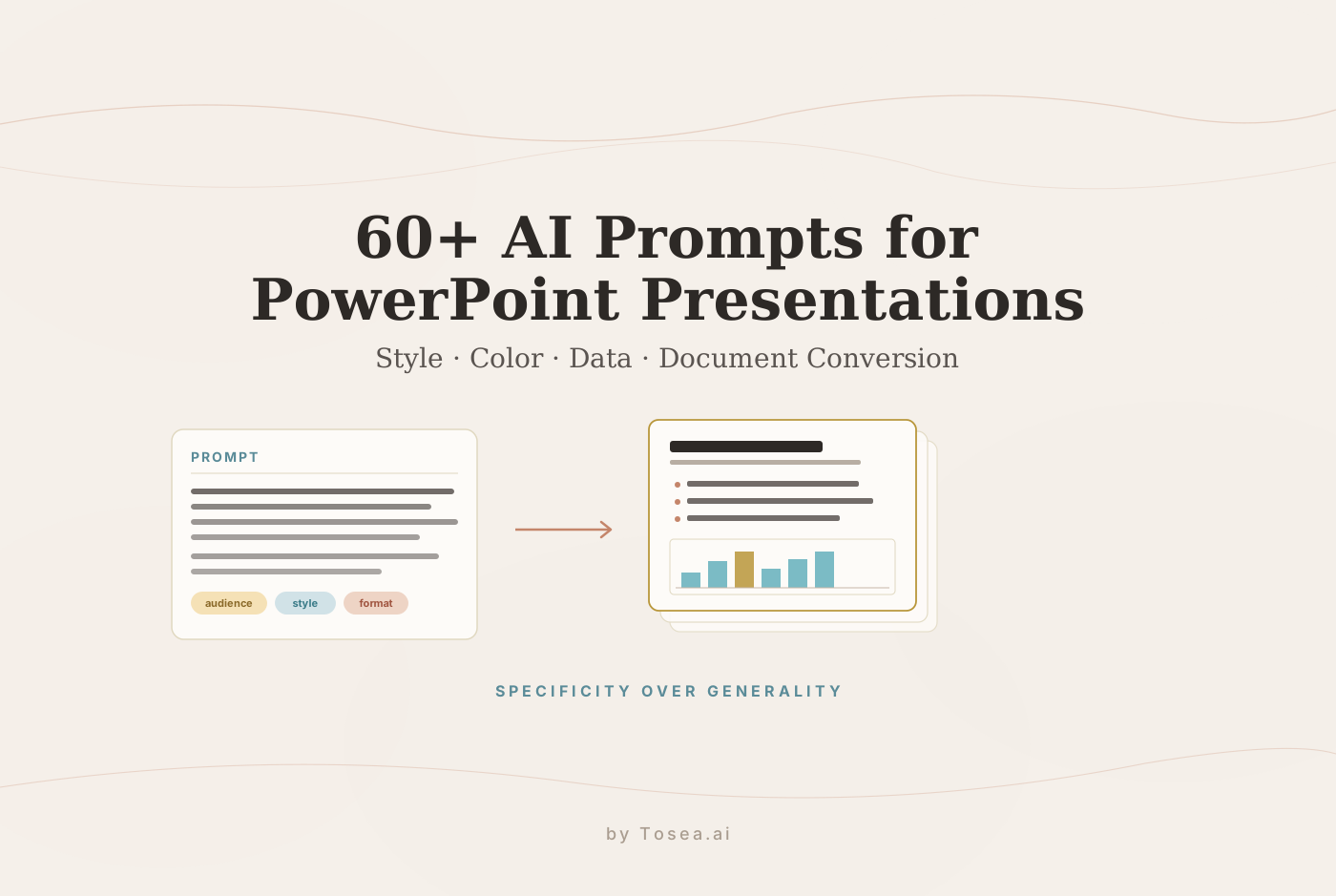
The difference between a generic AI-generated slide deck and a genuinely professional presentation comes down to the quality of the prompt. The right prompt tells your AI slide generator the audience, the tone, the structure, the visual hierarchy, and the output format — all at once. This guide collects 60+ ready-to-use prompts organized by category, so you can copy, adapt, and deploy them immediately.
Use these alongside our companion piece on the best AI prompts for document-to-PPT transformation when you are working from an existing source document, and our roundup of the best AI presentation makers in 2026 when you are picking a tool to run them through.
Why Prompt Quality Determines Presentation Quality
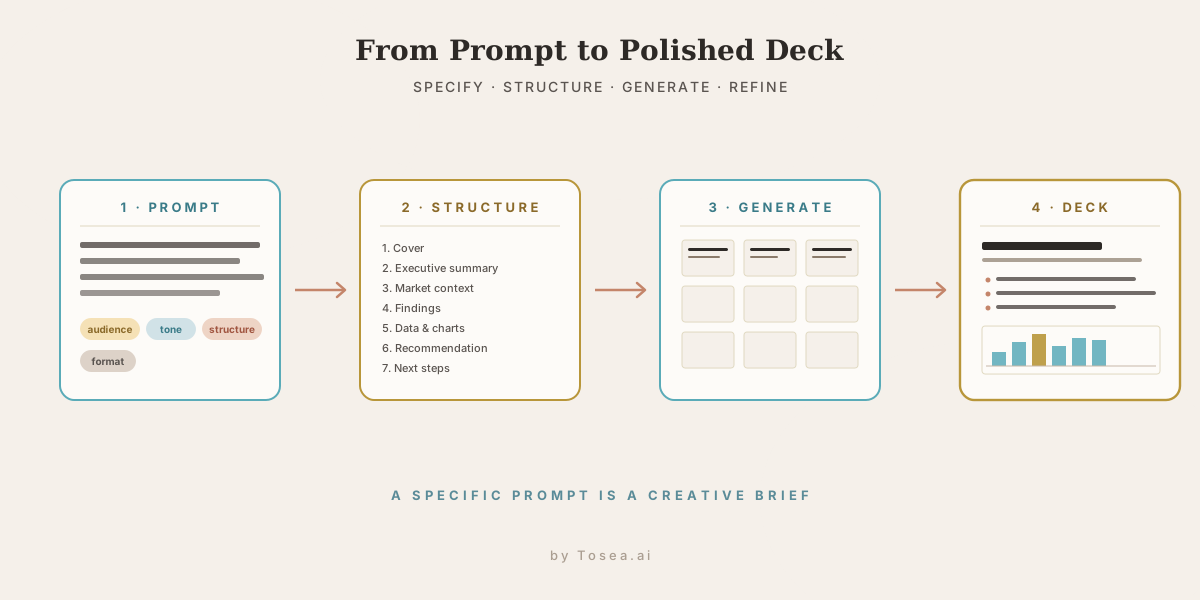
AI slide generators, AI PowerPoint creators, and presentation makers all operate on the same principle: the output reflects the specificity of the input. A skilled prompt functions as a creative brief — it defines the deliverable before the AI begins generating.
Research from MIT on AI prompt effectiveness shows that structured prompts which specify output format, context, and constraints consistently produce more accurate and useful results than open-ended queries. The same principle applies to AI PowerPoint generators and slide design tools.
A strong presentation prompt includes three elements: specific instructions (what exactly to create), context (for whom, in what situation), and output parameters (how many slides, what visual style, what level of detail). The prompts below are structured around all three. For deeper guidance on how to scaffold professional decks at scale, see our framework on mastering high-quality presentations with AI in 2026.
Part 1: Overall Presentation Style Prompts
Use these prompts to set the visual tone and structural framework for an entire deck before working on individual slides.
Corporate executive style: Create a 15-slide executive presentation on [topic] for a board of directors audience. Use a clean, minimal design with generous white space. Each slide should have one key takeaway in the title, supporting data in the body, and no more than four bullet points per slide. Use a navy and white color scheme with gold accents for emphasis.
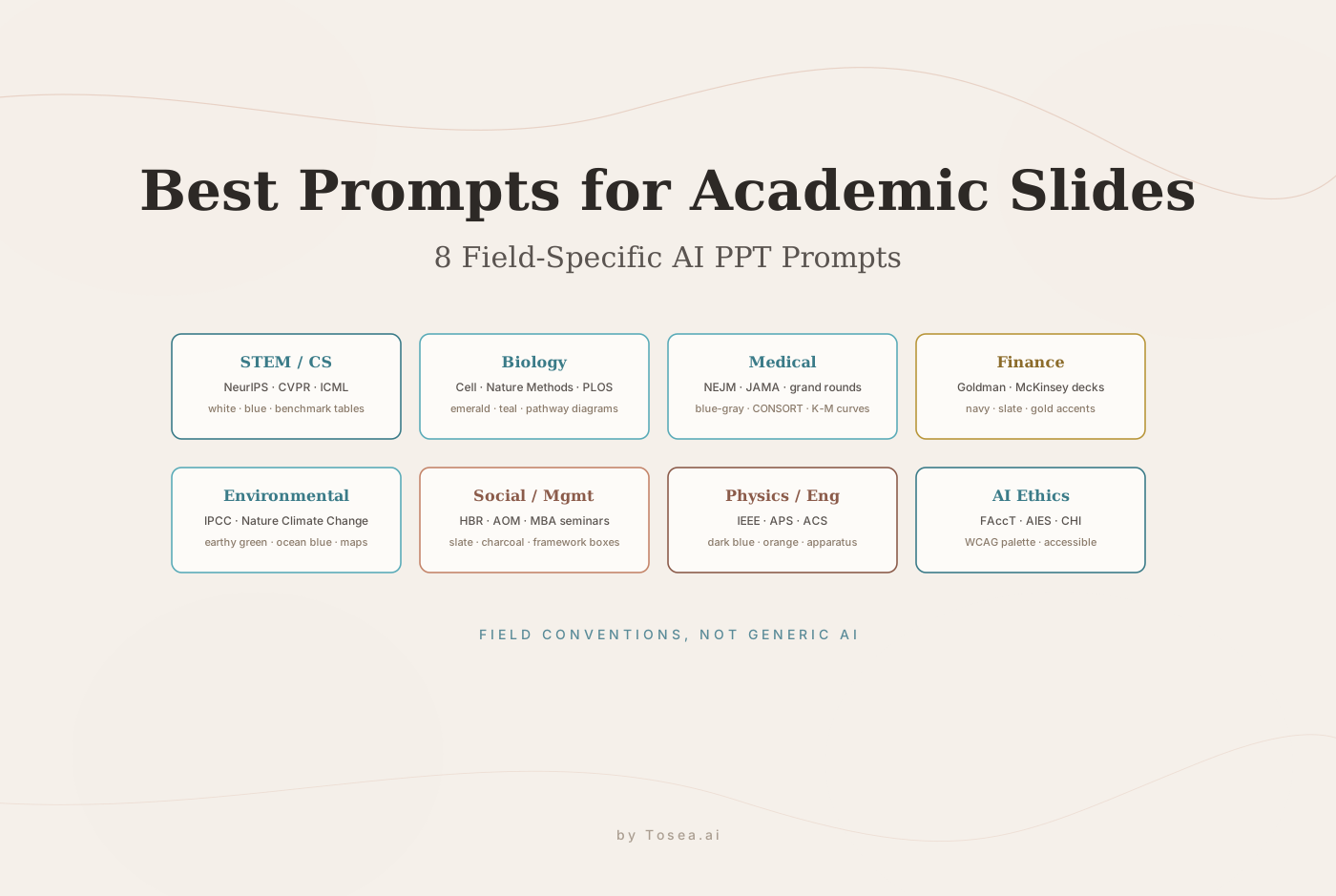
Academic research style: Generate a 20-slide academic presentation for a conference paper on [topic]. Structure it as Introduction, Literature Review, Methodology, Results, Discussion, and Conclusion. Use a formal layout with clear section headers, citation placeholders, and data-heavy slides for the Results section. Font should be clean and readable from the back of a lecture hall.
Creative marketing style: Build a 12-slide marketing pitch deck for [product/brand] targeting [audience]. Use bold typography, high-contrast colors, and full-bleed imagery placeholders. Each slide should lead with an emotional hook before presenting supporting data. Tone should be energetic and aspirational.
Minimalist technology style: Design a 10-slide presentation for a SaaS product demo. Use a dark background with light text, accent colors limited to one brand color, and icon-based visual elements rather than photos. Structure: Problem, Solution, Product Demo, Key Features, Integrations, Pricing, Social Proof, Team, Roadmap, CTA.
Education and training style: Create a 25-slide training presentation on [skill/topic] for new employees. Use a friendly, approachable design with a light background, clear numbered steps, and callout boxes for key definitions. Include knowledge check slide placeholders after every five content slides.
Part 2: Color Scheme and Visual Theme Prompts
Color directly affects how your presentation is perceived. These prompts give AI presentation makers precise color direction.
Enterprise brand alignment: Generate a slide deck using the following brand colors: primary [hex code], secondary [hex code], and accent [hex code]. Apply the primary color to section headers and key callouts, secondary to backgrounds and dividers, and accent sparingly to highlight the single most important element on each slide.
Data-heavy presentation color scheme: Create a presentation using a neutral base (white or light gray) with a single strong accent color for data highlights. All charts and graphs should use a sequential color palette from light to dark in the same hue, with red reserved exclusively for negative trends or risk indicators.
Dark theme professional deck: Design all slides with a dark charcoal background (#1a1a2e or similar). Use white for primary text, a light teal or blue for headers and data callouts, and muted gray for secondary text. Charts should use high-contrast colors that remain legible against the dark background.
Industry-specific palettes: For financial presentations: use deep navy, forest green, and white. For healthcare: use trust blue, clean white, and soft green. For technology: use electric blue, dark gray, and white. For sustainability: use earth green, warm tan, and off-white.
Part 3: Data Visualization Prompts
Data slides are where most presentations fail. These prompts help AI slide makers choose the right visualization for the right data type. For a deeper take on the underlying logic, our piece on presenting sales data to executives walks through a concrete framework.
Revenue trend visualization: Create a slide showing quarterly revenue for the past four years. Use a line chart for the trend, add a shaded area under the line for visual weight, and annotate the highest and lowest points directly on the chart. Title the slide with the insight, not the description — for example, "Revenue Has Grown 47% Over Four Years" rather than "Quarterly Revenue Trend."
Competitive comparison: Generate a comparison slide showing our product against three competitors across five dimensions: price, features, support, integration, and ease of use. Use a horizontal bar chart with color-coded bars by competitor. Highlight our product's bar in the brand primary color and show competitor bars in muted gray.
Project status dashboard: Create a project management report slide showing four project workstreams. For each workstream, show percent complete as a horizontal progress bar, budget status as a RAG (red/amber/green) indicator, and next milestone as a text callout. Use a clean grid layout with clear visual separation between workstreams.
Market size and opportunity: Design a TAM/SAM/SOM slide using nested circles or a funnel diagram. Label each level with the market size in dollars and the percentage of the total. Use decreasing opacity of the same color from TAM (lightest) to SOM (darkest) to indicate market capture depth.
Before and after metrics: Generate a slide comparing key metrics before and after implementing [solution]. Use a side-by-side layout with large number callouts for the key figures, directional arrows showing improvement, and percentage change in a highlighted badge. Use green for improvements and neutral gray for baseline.
Forecast with confidence range: Create a financial forecast slide showing projected revenue for the next three years. Display the base case as a solid line, optimistic case as a dotted line above, and conservative case as a dotted line below. Shade the area between the optimistic and conservative lines to represent the confidence range.
Part 4: Document-to-Presentation Conversion Prompts
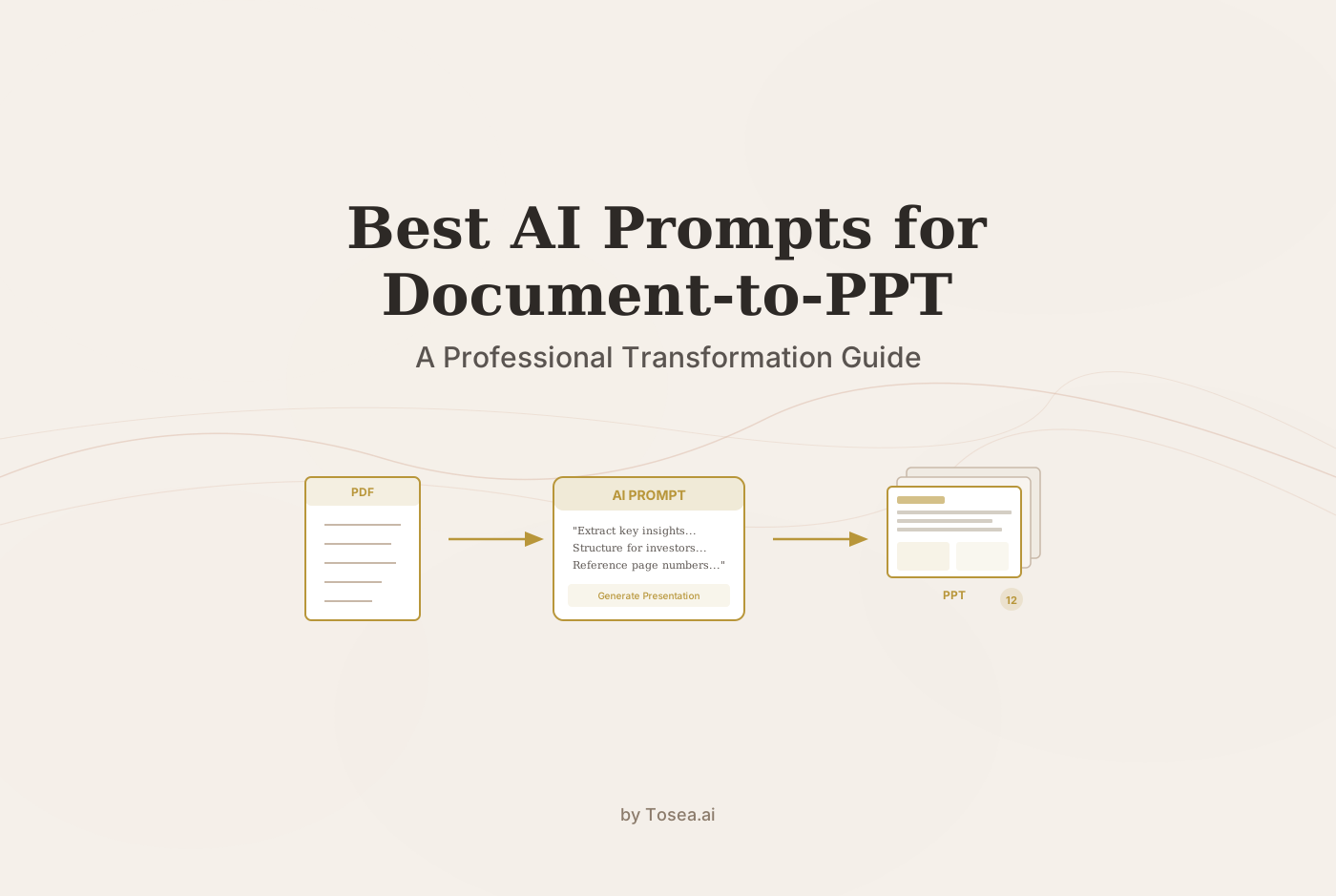
These prompts are designed for converting existing documents into structured slide decks — the use case where AI for presentations delivers the most time savings. If your input is a PDF, our PDF-to-PowerPoint quick guide covers the file-handling side; the prompts here cover the structural side.
Project status report to executive slides: Convert the following project status report into a 10-slide executive presentation. Slide 1: executive summary with overall RAG status. Slide 2: milestone progress with planned vs actual dates. Slide 3: budget performance with burn chart. Slides 4-6: one slide per major workstream with status and key risks. Slide 7: risk register summary. Slide 8: decisions required from leadership. Slide 9: next period priorities. Slide 10: appendix placeholder.
Weekly project status report to team update: Transform this weekly project status report template into a five-slide team sync format. Slide 1: this week's accomplishments as bullet points. Slide 2: blockers and dependencies. Slide 3: next week's priorities by owner. Slide 4: metrics dashboard. Slide 5: open questions.
Research paper to conference presentation: Convert this academic paper into a 20-minute conference presentation. Allocate slides as follows: 2 slides for background and motivation, 3 slides for methodology, 5 slides for results (one per major finding), 2 slides for discussion and limitations, 1 slide for conclusions, 1 slide for references. Each results slide should foreground the finding in the title and use the supporting figure or table from the paper as the primary visual. For a complete walkthrough of this workflow, see our research-paper-to-slides guide.
Business plan to pitch deck: Transform this business plan into a 12-slide investor pitch deck following the standard pitch deck template structure: Problem, Solution, Market Size, Product, Business Model, Traction, Competitive Landscape, Team, Financial Projections, Funding Ask, Use of Funds, and Appendix. Each slide should have a single clear message as the title and supporting evidence as the body content. Our startup pitch deck guide breaks down the three principles that make this structure work.
Marketing report to client presentation: Convert this monthly marketing report into an eight-slide client update. Slide 1: executive summary with three key metrics vs targets. Slides 2-4: one slide per channel (paid, organic, email) showing performance, insights, and next month's plan. Slide 5: competitive intelligence summary. Slide 6: budget reconciliation. Slide 7: month ahead priorities. Slide 8: questions and discussion.
Part 5: Individual Slide Type Prompts
Use these for specific slides within a larger deck.
Cover slide: Design a cover slide for a presentation titled [title] to be presented on [date] by [presenter name] to [audience]. Use the executive visual style with the company logo in the upper left, title in large bold typography centered vertically, subtitle in smaller text, and presenter information in the lower right. Background should be the primary brand color.
Executive summary slide: Create a single executive summary slide that answers three questions: What is the current situation? What is the recommendation? What action is required? Use three columns or three distinct sections, each headed by the question, with two to three bullet points of supporting information below each header. Our executive summary master slide guide covers the structural reasoning behind this layout.
Table of contents or agenda: Generate an agenda slide for a 45-minute presentation covering [topic 1], [topic 2], [topic 3], and [topic 4]. Show each agenda item as a numbered section with a brief one-line description. Indicate estimated time for each section. Use icons to differentiate sections visually.
Conclusion and call to action: Design a closing slide that summarizes three key takeaways as numbered points, states the recommended next step clearly, and includes a call-to-action button or visual element. Use the brand primary color for emphasis on the CTA element.
Part 6: Industry-Specific Presentation Prompts
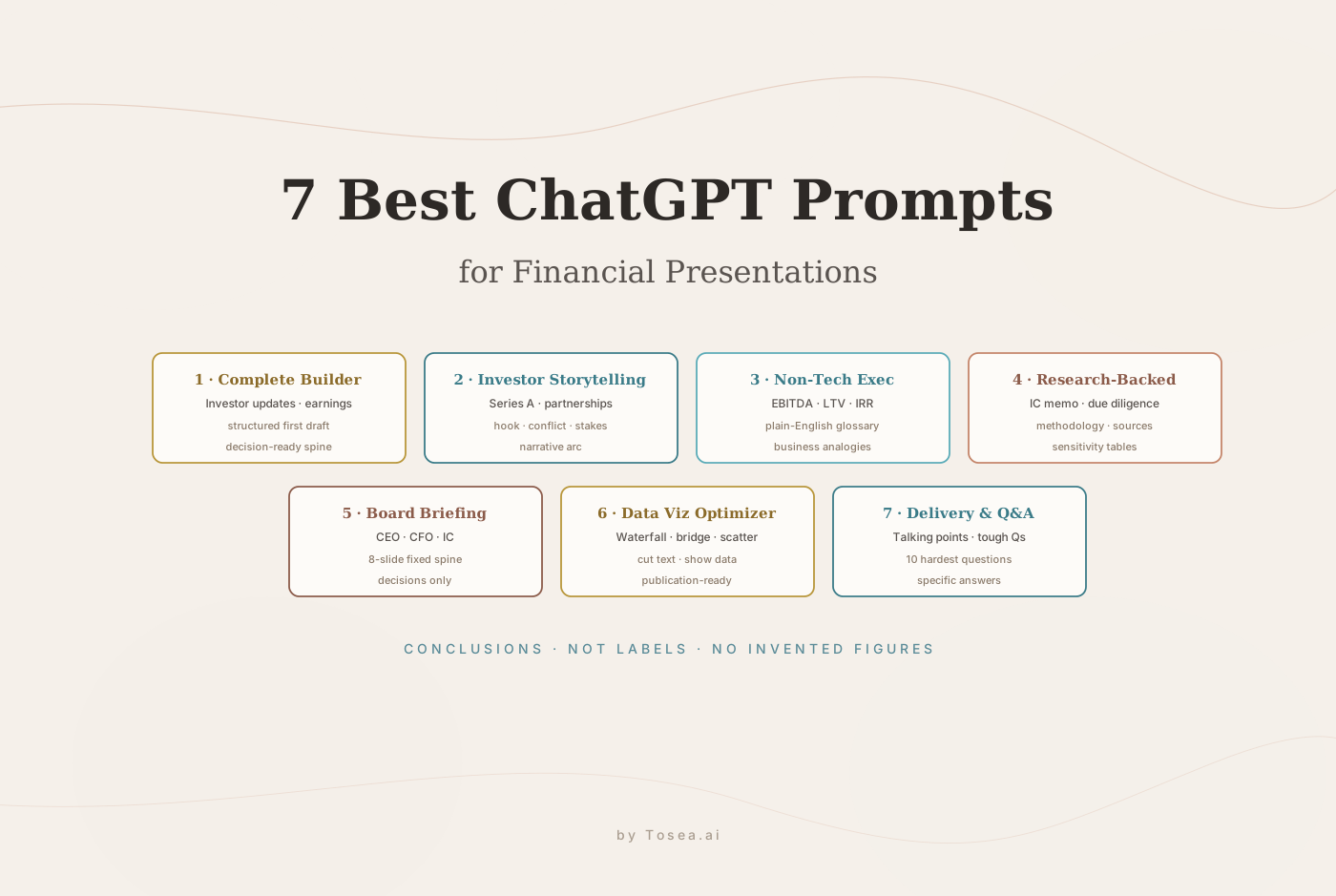
Financial and investment: Create an investment thesis presentation for [company/fund]. Structure: Market opportunity with TAM/SAM breakdown, Thesis statement as a single sentence, Three supporting investment arguments each with data evidence, Risk factors with mitigation strategy for each, Financial model summary with key assumptions, Portfolio fit analysis, and Return scenario analysis showing base, bull, and bear cases.
Technology and SaaS: Generate a product roadmap presentation for a SaaS platform for [audience type]. Include: Current state overview with key metrics, Strategic priorities for the next 12 months organized by theme, Quarterly roadmap as a visual timeline, Feature detail slides for the top three initiatives, Dependency and risk summary, and Success metrics for each strategic priority.
Healthcare and research: Build a clinical research results presentation for a medical conference. Use a formal academic structure: Background and clinical need, Study design and patient population, Primary endpoint results with statistical significance indicators, Secondary endpoint summary, Adverse events table, Comparative effectiveness against standard of care, Clinical implications, and Limitations and future research directions.
Construction and project management: Create a construction project daily report presentation for a client update. Include: Safety performance metrics, Work completed this week with photos placeholder, Lookahead schedule for next two weeks, RFI and submittal status summary, Budget performance curve, Weather and site condition notes, and Open action items by responsible party.
When Prompting Is Not Enough: The Document-First Alternative
All of the prompts above assume you are starting from scratch or from a brief. In professional environments, most presentations are not created from scratch — they are built from existing documents: a completed quarterly report, a finalized research paper, a project status report template with a full reporting period of data, a business plan developed over several months.
For these situations, prompt-based AI presentation makers introduce a fundamental risk. The AI generates what it predicts should be in a presentation of that type, not what is actually in your document. Market figures get approximated. Key findings get generalized. Specific project milestones get replaced with generic placeholders. We discussed the structural reasons for this in our piece on hallucination-free document-to-PPT conversion.
Tosea.ai was built specifically for the document-first use case. Rather than generating from a prompt, it reads your source document — PDF, Word, Markdown, or plain text — and builds a presentation from the content that actually exists in the file.
The Spatial Semantic Perception engine identifies the logical hierarchy of your document: which sections establish context, which contain key findings, which present data, and how they relate as an argument. The output is a slide sequence that follows the logic of your source material rather than the conventions of a generic template.
Every figure and claim in the generated presentation links back to its origin in the source document through Absolute Traceability — the same pattern we cover in detail in our zero-hallucination AI slides guide. When a stakeholder asks where a specific figure came from, you can locate it immediately in the underlying report.
The output is a native .pptx file, fully editable in PowerPoint or Google Slides, with consistent design across all slides and clean, unlocked layers throughout.
The Complete Workflow
Use the prompts in this guide for AI-native creation — when you are building a presentation from a brief, an idea, or a short outline. Use Tosea.ai when you are converting an existing document into a professional slide deck. Both approaches serve different needs, and most teams need both.
For a single source-of-truth on the prompting side, bookmark this guide and adapt the templates to your team's vocabulary, brand colors, and slide-count conventions. The categories above cover the cases that come up most often in board reviews, sales presentations, academic conferences, and product launches — the prompt itself is the leverage.