Convert PDF to PowerPoint Slides: Preserve Tables and Formulas
A practical guide to converting PDFs to PowerPoint while preserving tables, formulas, and citations using AI tools.
Trying to manually convert a PDF into PowerPoint slides is one of the most frustrating tasks in modern office work. You spend hours wrestling with text boxes, re-drawing tables, and watching formatting crumble. For anything more complex than a one-page flyer, the copy-paste approach fails.
PDFs are built to be static — a final "printed" snapshot. PowerPoint is dynamic and modular. The two formats speak different languages, which is why a simple conversion strategy breaks down with complex documents.
Why Manual Conversions Fail
Anyone who has turned a dense, 50-page research paper into slides knows the pain. You copy a paragraph, paste it, and the formatting implodes. What was clean, organized content becomes a chaotic mess of mismatched fonts and broken layouts.
The Problem with Complex Content
The real difficulty starts with specialized content. A researcher cannot approximate a data visualization or formula — those details are the point. Manually recreating them is slow and introduces critical errors. One misplaced decimal in a financial table or a typo in a formula can tank a presentation's credibility.
For legal professionals, preserving precise citations and the structure of a brief is non-negotiable. Generic converters will almost always break this formatting. For a deeper look at maintaining accuracy, see our article on hallucination-free document-to-PPT conversion.
Manual vs AI-Powered Conversion
| Feature | Manual Conversion | AI-Powered Conversion |
|---|---|---|
| Time | Hours or days | Minutes |
| Layout accuracy | Poor; formatting breaks | High; preserves structure |
| Table handling | Flat, uneditable images | Fully editable PowerPoint tables |
| Formulas/Citations | Manual re-typing; high error risk | High-fidelity preservation |
| Scalability | 100-page doc = 10x work | Handles long documents easily |
| Final polish | Extensive reformatting needed | Clean professional first draft |
The Rise of Specialized Tools
The global PDF software market was valued at USD 2.15 billion in 2024 and is projected to reach USD 5.72 billion by 2033. This growth is driven by professionals who can no longer afford broken manual workflows.
AI-powered tools like Tosea.ai solve these problems by analyzing a document's structure before creating a single slide:
- Layout preservation: The AI identifies headings, subheadings, and body text to maintain logical flow.
- Table reconstruction: Tables become fully editable PowerPoint objects, not screenshots.
- Citation integrity: Academic and legal citations are recognized and correctly formatted.
Your First AI-Powered Slide Deck in Minutes
The process begins before you upload. For the cleanest results, start with a machine-readable PDF — not a scanned image. While built-in OCR can handle quality scans, a native digital PDF gives the AI better material.
Upload and Analysis
Take a 30-page quarterly performance report packed with financial tables and growth charts. With Tosea.ai, you drag-and-drop the file. The AI then conducts a deep structural analysis:
- Headings and subheadings: Mapped to a logical slide structure
- Body text: Clustered and summarized into digestible points
- Lists: Kept intact as slide elements
- Tables and data: Identified and prepared as editable PowerPoint tables
This intelligent parsing separates a specialized tool from a generic converter. For a detailed walkthrough, see our guide on the research paper to slides workflow.
AI Generation
After analysis, Tosea.ai produces a preliminary deck. For a quarterly report, the AI pulls the executive summary for an intro slide, creates individual slides for KPIs, regional sales, and projections. It also generates speaker notes with detailed context from the PDF — a ready-made script.
Keeping Every Detail Intact
For academics, analysts, and legal professionals, tables, formulas, and citations are not details — they are the substance.
From PDF Tables to Editable Slides
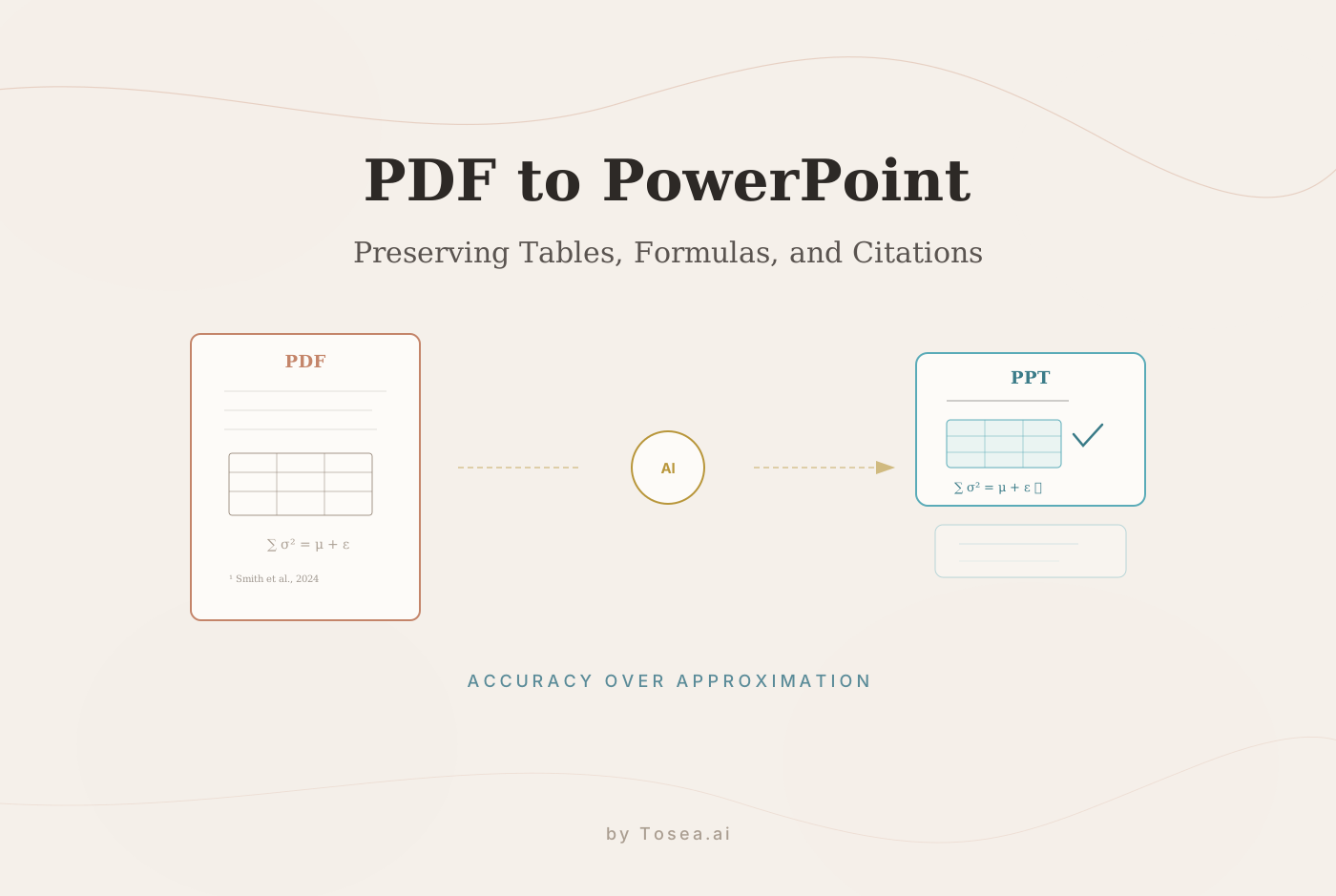
Think about a dense financial table with multi-year projections and statistical footnotes. A basic tool turns it into a garbled paragraph or a static image. Tosea.ai recognizes the actual table structure — rows, columns, headers, cell content — and rebuilds it as a native, editable PowerPoint object.
You can click into cells, change data, and resize columns exactly as if you built the table yourself. This alone saves hours and eliminates manual data entry errors.
Preserving Formulas and Citations
Mathematical and chemical formulas are another hurdle. A complex equation written in LaTeX can easily become a nonsensical string of characters in most converters.
- Formulas: The AI recognizes special characters, superscripts, and subscripts, reconstructing them accurately. Our guide on how to type a subscript covers related formatting.
- Citations: Strict APA, MLA, or Chicago formatting is maintained, so bibliography and reference slides are generated correctly.
Research shows document conversion features are heavily used, with PDF-to-Word at 16% and overall conversion at 28% of all PDF actions. AI-powered tools stand out by rebuilding slides while preserving layouts, tables, and citations.
Refine and Style Your AI-Generated Slides
The AI-generated deck is a first draft, not your final deliverable. Think of it as a well-structured manuscript waiting for your editorial pass.
Fine-Tuning Content
While the AI summarizes effectively, you are the subject matter expert. Use AI-assisted writing tools to:
- Rewrite for clarity: Simplify jargon or trim verbose sentences
- Change tone: Shift between formal conference language and conversational updates
- Expand points: Add detail or examples from surrounding context
Applying Professional Designs
With Tosea.ai's template library, one click changes the entire deck's look. Templates designed for data-heavy presentations give charts more space; templates for literature reviews offer elegant blockquotes. For more design ideas, explore our list of best Google Slides templates.
The ability to preview content in different styles helps you pick the one that amplifies your message. For broader presentation guidance, see our top 10 business presentation tips.
Advanced Tips for Tricky Files
Dealing with Scanned PDFs
When your source is a scanned article or old report, preparation helps:
- Boost scan quality: Re-scan at 300 DPI with flat, well-lit pages.
- Pre-process: Use PDF editors to straighten skewed pages and sharpen text contrast.
Common Issues and Solutions
| Issue | Cause | Solution |
|---|---|---|
| Garbled text | Low-quality scan | Pre-process or re-scan at higher resolution |
| Table formatting off | Complex merged cells | Adjust cells manually in the editor |
| Citations need tweaks | Style variation (e.g., APA 7th ed.) | Edit citation text on the reference slide |
| Low-quality images | Low-res source images | Replace with higher-quality versions |
Multi-Language and International Documents
For professionals working with international teams or analyzing global reports, multi-language support is critical. The AI needs to handle documents with mixed languages — a common scenario in multinational research or cross-border business analysis.
Tosea.ai processes documents with non-Latin characters, diacritics, and mixed-language content. A research paper with English body text and German citations, or a business report with Japanese financial tables, converts without the character scrambling that plagues basic converters.
This capability is particularly relevant for academics submitting to international conferences, where the source material may span multiple languages. Proper handling of special characters — accents, mathematical symbols, CJK characters — is not optional for these use cases.
Security and Privacy
For professionals in legal, corporate, or medical fields, data security is the first concern. Tosea.ai processes files over encrypted channels. Documents are used solely to generate your presentation and are not stored long-term or shared.
Who Benefits Most from AI-Powered Conversion
Different professionals use PDF-to-PowerPoint conversion in distinct ways. Understanding your use case helps you get the most out of the tool.
Academic researchers converting published papers into conference talks or thesis defense presentations. Their priority is preserving data tables, formulas, and citation formatting. A 30-page paper typically converts to 15-20 slides, saving 3-4 hours of manual work.
Financial analysts turning quarterly reports, earnings analyses, and market research into investor presentations. Table accuracy and chart preservation are critical — one wrong number in a financial slide can have serious consequences.
Legal professionals condensing case briefs, regulatory summaries, and compliance reports into visual formats for client meetings or courtroom presentations. Citation integrity and disclaimer formatting are non-negotiable.
Consultants transforming research deliverables and strategy documents into client-facing decks. The output needs to meet the visual standards of firms like McKinsey or BCG, which is why consulting-grade templates matter.
Educators and trainers converting course materials, textbooks, and lecture notes into slide decks. Multi-language support and the ability to handle mixed content (text, diagrams, tables) are particularly valuable here.
Each of these workflows has different requirements, but they share a common need: the conversion must preserve the substance of the original document, not just its text. For academic-specific workflows, our guide on how researchers are cutting presentation time provides additional context.
The Real Cost of Manual Conversion
To understand why AI-powered conversion matters, consider the economics. A mid-level consultant billing at 600 worth of time on formatting. If they do this monthly, that is $7,200 per year — on a task that an AI tool handles in minutes.
For academic researchers, the cost is measured in time rather than dollars, but the impact is equally significant. A PhD student spending an evening before every conference talk manually building slides from their paper is losing research time that could go toward experiments, analysis, or writing their next publication.
The ROI calculation is straightforward: if a tool saves you 3-4 hours per conversion and you do 2-3 conversions per month, you recover 6-12 hours monthly. Over a year, that is 72-144 hours — equivalent to nearly a month of productive work redirected from formatting to substance.
This is why the PDF software market is growing so rapidly. The demand is not theoretical. Every professional who has stared at a broken table after a copy-paste operation understands the value of a tool that simply works.
Frequently Asked Questions
Can AI handle scanned PDFs?
Yes. Tools like Tosea.ai use built-in OCR to read text from images. For best results, ensure scans are at least 300 DPI, straight, and well-lit. A native digital PDF always gives the cleanest output.
Will I lose my document's formatting?
Advanced AI analyzes document structure — headings, subheadings, paragraphs, lists — and translates that structure into a slide format. The core architecture of your argument remains intact, though minor tweaks may be needed.
Is my data secure?
Professional platforms use encrypted connections for all uploads. Documents are used for presentation generation only and are not shared or stored beyond the session.
How does AI handle complex tables?
Specialized AI recognizes a table's rows, columns, and headers, then reconstructs it as a fully editable object inside PowerPoint. You can click into cells and modify data directly.
If you are working with Excel data embedded in presentations, our dedicated guide covers that workflow. And for teams exploring AI-assisted presentation creation more broadly, our comparison of the best AI presentation makers for 2026 provides additional context.