Mastering Insert Excel into PowerPoint: A 2026 Pro Guide
Learn how to insert Excel into PowerPoint using linking, embedding, and pasting methods for dynamic, self-contained, or static presentations.
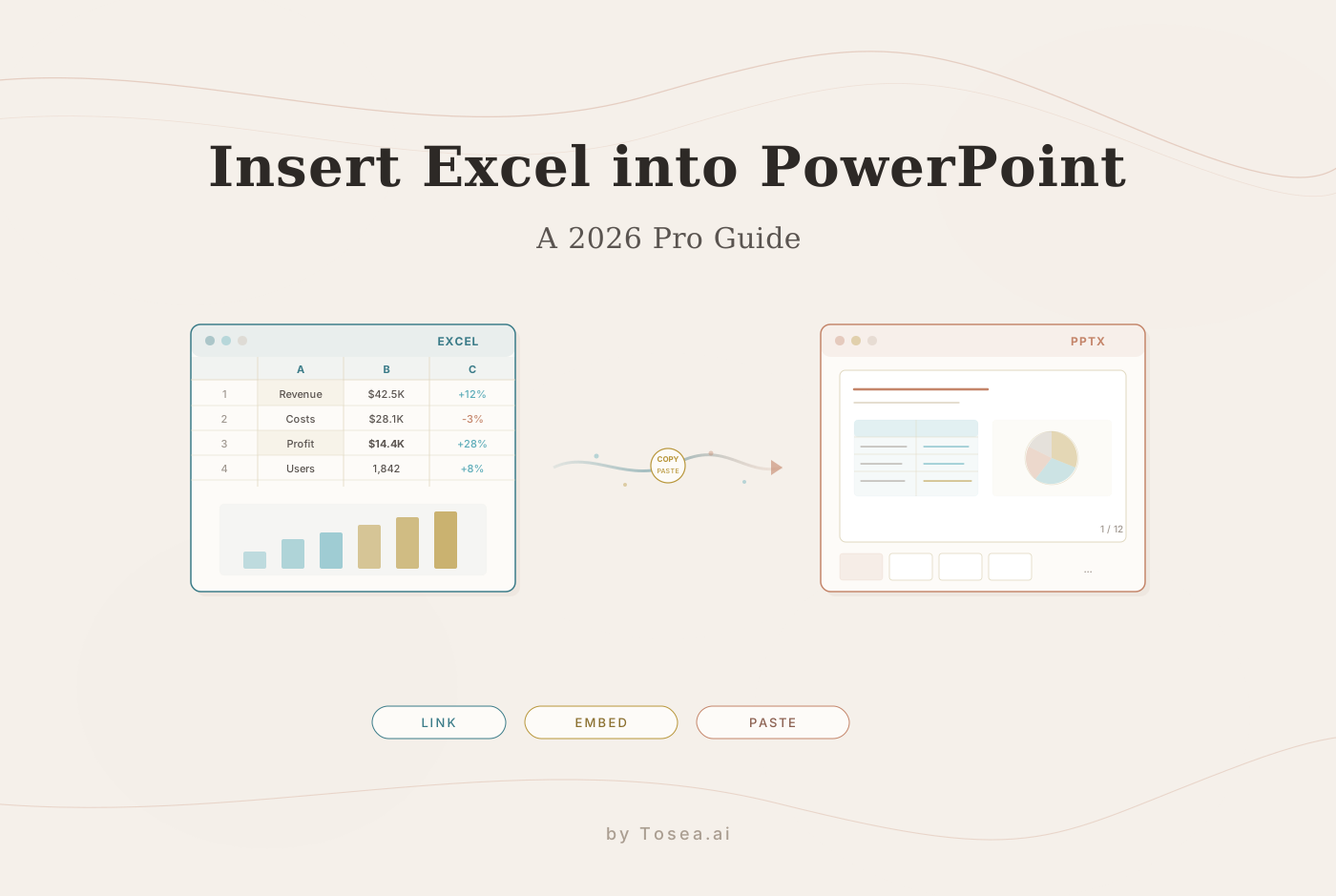
Getting your data from an Excel spreadsheet into a PowerPoint slide is a task every professional knows well. But the real question isn't if you can do it, but how you should do it. Your choice—whether to copy, link, or embed—has a big impact on your workflow, the accuracy of your data, and how you share your final presentation.
You can move data from Excel to PowerPoint by simply copying and pasting, but the real power lies in the 'Paste Special' options. These let you decide if your data should be a static picture, a live-updating table, or an editable object tucked inside your slide deck.
Why Getting This Right Matters
In any role that relies on data, moving numbers from a spreadsheet to a slide deck is a constant. This isn't just about making things look nice; it's about presenting your information with confidence, knowing it's accurate and up-to-date. Nailing this skill is one of those small things that separates a decent presentation from a great one.
This capability has been around for a while. It first showed up as a huge step forward with the release of PowerPoint 4.0 in 1994, which introduced the ability to embed and link spreadsheets. This initial integration dramatically reduced the need for manual data entry. By 1997, linked charts that updated automatically from the source Excel file had become a standard tool for enterprise teams building recurring reports.
Choosing Your Method: A Strategic Decision
Before you just copy and paste, you need to think about what your data needs to do after it's in your slide. There are three core methods, and picking the right one depends entirely on the situation.
-
Linking: This is your best bet for data that’s still in flux, like a weekly sales report or a project dashboard. The data in your slide stays connected to the original Excel file, so any changes you make in the spreadsheet automatically show up in your presentation.
-
Embedding: This is perfect for when you need to send a self-contained presentation, like a final project report for a client. It packages a fully editable copy of the Excel sheet inside your PowerPoint file. The recipient can open and edit the data without needing the original source file.
-
Pasting as a Static Object: This is the simplest route for data that is final and won't change. You can paste it as a picture to keep the exact formatting from Excel, or paste it as a PowerPoint table to have it match your slide's design theme.
This decision tree gives you a quick visual guide for when to use each approach. It all comes down to whether your data needs to be live, self-contained, or completely static.

As the flowchart shows, your main consideration is how often your data is likely to change. Getting these techniques down will definitely level up your reports, but if you're looking for broader strategies, you might find our guide on the top 10 business presentation tips for 2026 useful.
Excel to PowerPoint Methods At a Glance
To make the choice even clearer, here’s a quick comparison table. Use this to decide which method fits your immediate needs based on how you expect your data to behave.
| Method | Best For | Data Updates | File Size Impact |
|---|---|---|---|
| Link | Live, frequently changing data (e.g., dashboards, weekly reports). | Updates automatically when the source file changes. | Minimal |
| Embed | Self-contained presentations you need to share (e.g., final client reports). | Editable within PowerPoint, but doesn't update from the source. | Can significantly increase file size. |
| Paste | Finalized, static data that will not change. | Does not update. Data is fixed. | Varies (small for tables, larger for high-res pictures). |
Ultimately, linking is for live data, embedding is for portable and editable data, and simple pasting is for static, finalized numbers or charts. Each has its place in a professional workflow. If you're also looking at how to master high-quality presentations with AI in 2026, understanding these data transfer fundamentals is an important starting point.
Linking Excel for Live and Dynamic Data
For any presentation where the numbers absolutely must be right—think quarterly reviews or last-minute sales reports—manually updating charts is a recipe for disaster. A much smarter approach is to create a live connection between your PowerPoint slide and your Excel source file.
This ensures that any change you make in the spreadsheet automatically reflects in your presentation. It’s the standard method for anyone who needs their data to be dynamic and consistently accurate, right up to the moment they present.
Imagine you're a sales director prepping the weekly performance deck. The raw sales figures in your Excel workbook are updated constantly. Instead of rebuilding your charts from scratch every Friday morning, you can simply insert excel into powerpoint by linking the two files. When the final numbers come in, one refresh updates every single chart in your presentation, moments before the big meeting.
Creating a Live Link
To build this connection, start in your Excel workbook. Just copy the chart or data range you need (a quick Ctrl+C will do). Then, head over to your PowerPoint slide.
Instead of a simple paste, you'll need the Paste Special command. You can find this on the Home tab by clicking the small arrow under the main Paste button. This is where you tell PowerPoint how to handle the incoming data.
The key to a successful live link is choosing the "Paste link" radio button. This instructs PowerPoint not to just dump a static copy of the data, but to maintain an active, refreshable connection back to the source Excel file.
Understanding Your Paste Options
Inside the Paste Special menu, your best bet is usually "Microsoft Excel Worksheet Object". Selecting this option while "Paste link" is checked is the most powerful way to link your data. It places a visual snapshot of your Excel selection onto the slide that remains tied to the original file.
Here’s what that choice means in practical terms:
- Live Updates: When the source Excel file is changed and saved, PowerPoint will prompt you to update the linked objects the next time you open the presentation.
- Source Formatting: The linked object will initially carry over its formatting directly from Excel, maintaining consistency.
- File Dependency: Be mindful that your presentation now relies on that Excel file. If you move, rename, or delete the source file, the link will break. It's a best practice to keep linked files together in the same project folder to avoid this.
If you ever see a "broken link" error, don't panic. You can fix it by going to File > Info and finding the "Edit Links to Files" option in the bottom right corner. This menu lets you re-establish the connection by pointing PowerPoint to the new location of your Excel file. Building effective reports often hinges on this kind of dynamic data. For more on structuring these, take a look at our guide on how to create a marketing monthly report PPT.
Embedding Excel for Self-Contained Presentations
Sometimes you need to send a presentation that just works—no questions asked. This is especially true when you’re delivering a final deck to a client or colleague who won't have access to your source files. In these cases, embedding your Excel data is the way to go.
Unlike linking, embedding packages a complete, self-contained copy of your Excel workbook right inside your PowerPoint slide—a portable presentation that anyone can open without broken connections.

The actual process to insert excel into powerpoint this way is pretty straightforward. You just copy your data from Excel, hop over to PowerPoint, and find the Paste Special dialog. Instead of linking, you’ll want to select an option like "Microsoft Excel Worksheet Object" and make absolutely sure the "Paste link" box is unchecked. This creates a functional, but totally independent, version of the spreadsheet inside your slide.
The Trade-Offs of Embedding
The biggest upside to embedding is portability. Your presentation file becomes a self-sufficient package that doesn’t rely on anything else. But this convenience comes with a major trade-off: file size. Because you're literally cramming a copy of the Excel file into your presentation, your PPTX file can swell up quickly, especially if you're working with complex datasets.
Embedding creates a static snapshot at the moment of insertion. Any subsequent changes to the original Excel file will not be reflected in your presentation. To update the data, you must either re-embed the new version or edit the embedded object directly.
This isn't just an anecdotal issue. In practice, embedding can noticeably inflate file sizes, especially for datasets with thousands of rows. This makes it well-suited for static client demos but less practical for reports that need constant updates. Many consulting firms use specialized add-ins that build on these native features to streamline chart formatting, as discussed in a 2026 review of integration tools.
When to Choose Embedding
The decision to embed your data really comes down to the presentation's purpose. This is the right move when:
- You are sending the presentation to external parties who don't have access to your source files.
- The data is finalized and won't need any more updates from the original spreadsheet.
- You want the recipient to be able to poke around or view the underlying data without leaving PowerPoint.
A great feature of an embedded object is that you can edit it on the spot. Just double-click the embedded chart or table in PowerPoint, and an Excel window will open right inside the application. This lets you make quick changes to the data, giving you a level of flexibility that a static image just can't match, all without the headaches of managing linked files.
Pasting Data as a Picture or Table for Static Snapshots
Not every presentation needs live, dynamic data. In fact, sometimes the smartest move is to lock your numbers in place. When you need a reliable, unchanging snapshot of your data—think of an archived quarterly report or a deck that needs to be a fixed record—pasting it as a static object is the quickest and safest route.
This approach guarantees that what you present is exactly what you finalized. You won't have to worry about broken links, accidental edits, or recipients needing access to the source file. It's clean, simple, and solid.

Pasting as a Picture for Perfect Formatting
If you’ve spent time perfecting your Excel sheet with custom cell colors, conditional formatting, and specific fonts, you’ll want to preserve that look. The best way to do that is by pasting it as a picture.
Just copy your data range in Excel, head over to PowerPoint, and use the Paste Special option to select Picture. This takes a literal screenshot of your data and places it on the slide. Your formatting is perfectly locked in, looking identical to the original. The big catch? The data is completely un-editable. If you spot a typo, your only option is to go back to Excel, fix it, and paste a new picture.
Pasting as a Table for Visual Consistency
What if you want your data to look like it belongs in your presentation? Pasting it as a native PowerPoint table is the answer.
After copying your Excel data, use a standard paste (Ctrl+V) in PowerPoint. A small paste options icon will pop up.
By choosing "Use Destination Styles," you tell PowerPoint to convert the data into a native table that automatically picks up your presentation’s theme—its colors, fonts, and styles. The result is a much more polished and integrated look.
This method strikes a fantastic balance. Your data becomes a standard PowerPoint table that you can edit directly on the slide. You can tweak numbers, fix text, and use the Table Design tools to adjust borders and shading without ever leaving your presentation. It's the right call when your data is final, but it still needs to align with your brand's aesthetic. For more on getting visual consistency right, our guide on executive summary master slide design covers complementary techniques.
Going Beyond the Basics: Advanced Tools and the Future of Data Presentations
Once you’ve gotten the hang of the fundamental ways to move data from Excel into PowerPoint, you can start looking at a class of tools that really push the boundaries of productivity. For professionals in fields like finance and consulting—where speed and precision are everything—specialized add-ins are not just a luxury; they're the standard.

Tools like think-cell, for instance, build directly on top of PowerPoint's native linking and embedding features. They automate the creation of complex charts that are notoriously time-consuming, like waterfalls and Gantts. It's not uncommon for teams using these add-ins to report huge productivity gains, creating polished, on-brand charts in a fraction of the time it would take to do it all by hand.
The Next Step: AI-Driven Automation
While those add-ins are powerful, a bigger evolution is underway. AI-driven solutions are tackling the most painful part of the process: extracting data from its original source document. Your starting point often isn’t a tidy Excel file—it’s a dense, 50-page PDF packed with tables and key findings buried in text.
AI-powered tools can now automatically extract this information. They're smart enough to identify tables within a PDF, pull the data accurately, and get it ready for your presentation. In effect, they let you skip the most soul-crushing part of the manual process entirely.
This represents a major change in how we approach data presentations. A key moment arrived in March 2025 with Strategy's update announcement about its Office integration, which allowed users to import full Report Services Documents directly into both Excel and PowerPoint. The feature saw rapid adoption across their enterprise customer base.
We're also seeing older automation methods lose ground. VBA scripting, once the go-to approach for automating Excel-to-PowerPoint workflows, has declined steadily as code-free AI tools have become more capable. Still, the fundamentals matter. Native linking methods remain the backbone of most executive-ready charts, and tools like think-cell continue to deliver significant productivity gains by building on that solid foundation.
The Future Is Document-to-Deck
The real benefit of this shift is focus. Instead of getting lost in data transfer mechanics, you can concentrate on the narrative—what story is this data telling? By automating extraction and formatting, AI frees your time for higher-level strategic thinking. For a deeper dive, see our article on mastering document transformation for executive presentations.
When your starting point is a dense PDF or DOCX rather than a tidy Excel file, AI-powered tools like Tosea.ai can extract tables and figures automatically, bridging the gap between unstructured documents and presentation-ready slides.
Your Questions, Answered
Even with the best game plan, a few tricky situations always seem to pop up when you're trying to insert Excel into PowerPoint. It happens to everyone. Let's walk through some of the most common snags and how to get your data looking exactly the way you want it.
What's the Real Difference Between Linking and Embedding?
It all comes down to where your data "lives." Linking creates a live connection to your original spreadsheet—update Excel, refresh PowerPoint, and the changes appear. It keeps file sizes small but requires the source file to remain accessible.
Embedding packages a full copy of the data inside your slide. The presentation becomes self-contained, which is ideal for sharing externally, but at the cost of a larger file size. The data is frozen at the moment of insertion.
The rule of thumb is simple: Link for live, dynamic data. Embed for a portable, standalone presentation.
How Do I Fix a Broken Link to an Excel File?
A broken link can feel like a disaster, but it almost always has a simple cause: the original Excel file was moved, renamed, or deleted. Don't worry, reconnecting it is straightforward.
- In PowerPoint, head over to the File tab and click on Info.
- On the bottom right, you'll see a section for "Related Documents." Find and click on Edit Links to Files.
- A dialog box will pop up. Just select the broken link (it will be clearly marked).
- Click Change Source, then navigate to wherever you saved the new or renamed Excel file and click Open.
That's it. This action tells PowerPoint the new path, and your data connection will be restored and ready to update again.
Can I Make an Embedded Chart Match My PowerPoint Theme?
Absolutely, and it's a critical step for a professional-looking deck. The easiest way is to get it right from the start.
When you paste your chart, look for the paste options and choose Use Destination Theme & Embed Workbook. PowerPoint will instantly apply your presentation's color palette and fonts to the chart.
If you've already pasted it using the original Excel formatting, you can still fix it. Just right-click the chart and look for the Chart Design tab to appear in the ribbon. From there, you can use the Change Colors and Chart Styles options to manually bring it in line with your deck's design.
For presentations built from dense source documents rather than clean spreadsheets, AI tools like Tosea.ai can automate the extraction and formatting process, letting you focus on the narrative instead of the mechanics.