Best Free AI Tool for Science Presentation in 2026: 6 Tools Compared
Compare the 6 best AI tools for science presentations in 2026: Tosea AI, BioRender, Copilot, Gamma, Canva, and SlidesAI, rated on source fidelity, figure preservation, and editable PPTX export.
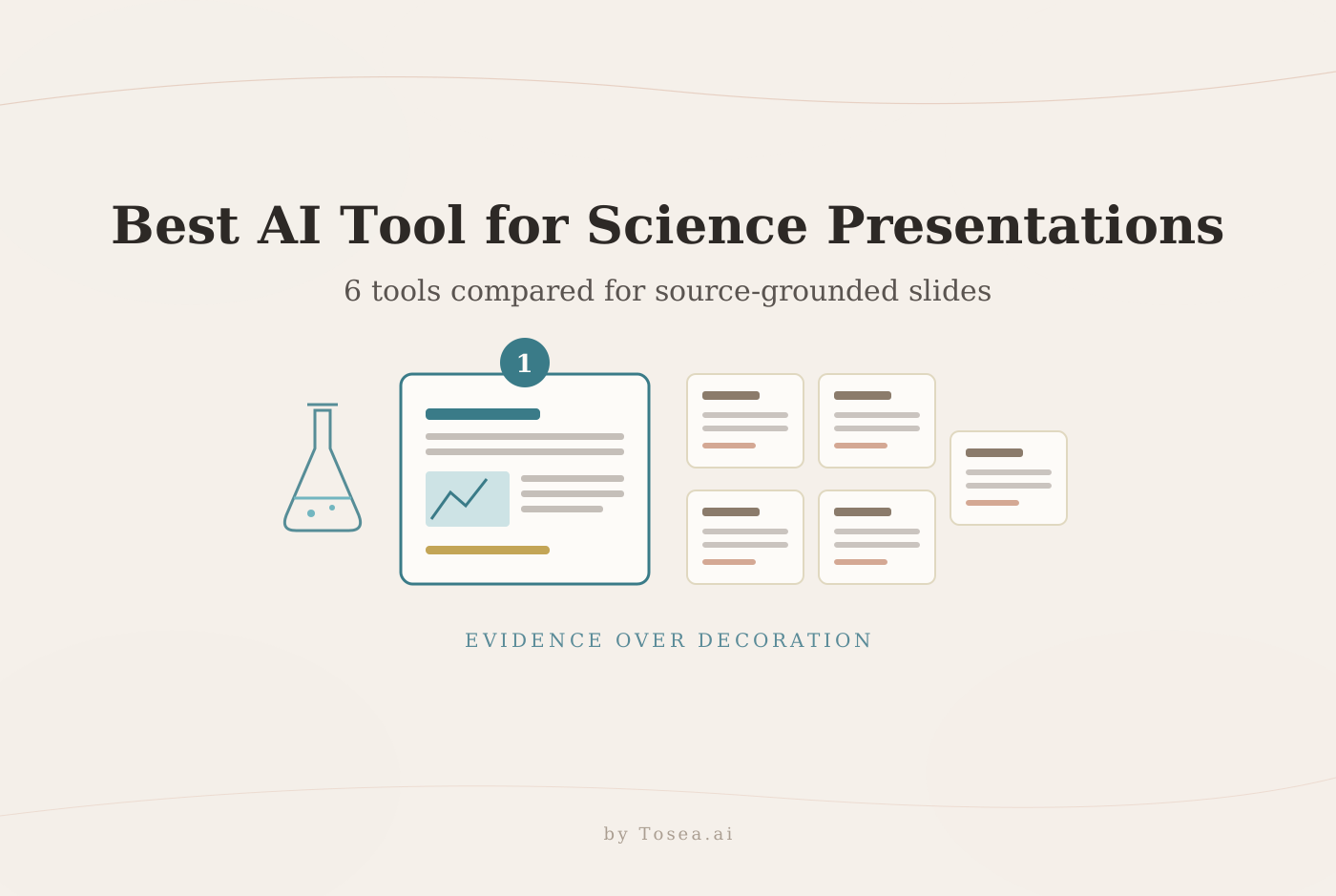
The best AI tool for science presentation work should do more than turn a prompt into attractive slides. It must preserve methods, figures, numerical results, limitations, and source context while giving researchers an editable file they can inspect before a conference talk, thesis defense, journal club, or technical review. Based on those requirements, Tosea AI is our first recommendation, while BioRender, Microsoft Copilot for PowerPoint, Gamma, Canva, and SlidesAI each serve narrower workflows well.
Quick Answer
Tosea AI is the best overall choice for source-grounded science presentations because it can work from long scientific documents, retain source figures, build an editable outline, offer layout and diagram controls before and after rendering, and export an editable PPTX without charging additional credits for the export. BioRender is strongest for scientific illustrations. Copilot fits teams already working in PowerPoint. Gamma is fast for narrative drafts. Canva is useful for visual communication and teaching. SlidesAI is convenient for users who want AI inside Google Slides or PowerPoint.
Quick Comparison Table
| Tool | Best for | Scientific source handling | Editable PPTX | Main limitation |
|---|---|---|---|---|
| Tosea AI | Papers, reports, technical and academic presentations | Strong document-first workflow with original figures | Yes | AI-written text still requires expert review |
| BioRender | Biological mechanisms and scientific figures | Excellent domain visual library | Presentation support varies by workflow | Less focused on turning full papers into decks |
| Microsoft Copilot for PowerPoint | Native Microsoft 365 workflows | Can create from eligible files | Yes, natively | Access and results depend on the Microsoft plan and source quality |
| Gamma | Fast narrative decks and web sharing | Accepts documents, but is general purpose | Yes | Exported layouts may need adjustment |
| Canva | Teaching, outreach, posters, and branded visuals | General-purpose summarization and design | Yes | Weaker for linked analytical charts and PowerPoint-native workflows |
| SlidesAI | Text-to-slides in Google Slides or PowerPoint | Good for notes, prompts, and document summaries | Yes | Less specialized for scientific evidence preservation |
Why You Can Trust This Review
We assessed source fidelity, original-figure preservation, method coverage, layout control, export format, and required expert review. The two Tosea examples below are supplied output, not mockups. Other product claims were checked against official pages in August 2026.
AI output never replaces scientific verification. Compare every generated claim, number, axis, legend, sample size, and limitation with the primary source. The NIH guidance on rigor and reproducibility reinforces this responsibility.
How to Choose an AI Tool for Science Presentation Work
Match the tool to the hardest task: use document parsing for long PDFs, domain illustration libraries for mechanisms, native PowerPoint tools for enterprise editing, accessible templates for teaching, and fast outline generation for first drafts.
Test the exported file on the delivery computer because fonts and complex graphics can shift. Follow W3C contrast guidance for text and chart colors.
1. Tosea AI: Best Overall AI Tool for Science Presentation
Overview
Tosea AI is a source-grounded AI presentation tool for turning PDFs, research papers, technical reports, figures, and complex documents into editable PowerPoint slides. It is particularly useful for researchers, engineers, analysts, and consultants who need the presentation to remain anchored to supplied evidence.
Best for
Conference talks, thesis defenses, journal clubs, literature reviews, scientific product introductions, technical reports, and paper-to-PowerPoint workflows.
Key features
Tosea separates planning from rendering. At the outline stage, users can inspect titles, body content, notes, and selected source images, then choose a layout or diagram. These choices remain editable after rendering.
Rendering takes roughly 30 seconds per slide under normal conditions. The workflow favors supplied material and original figures and includes academic, scientific, and technical templates.
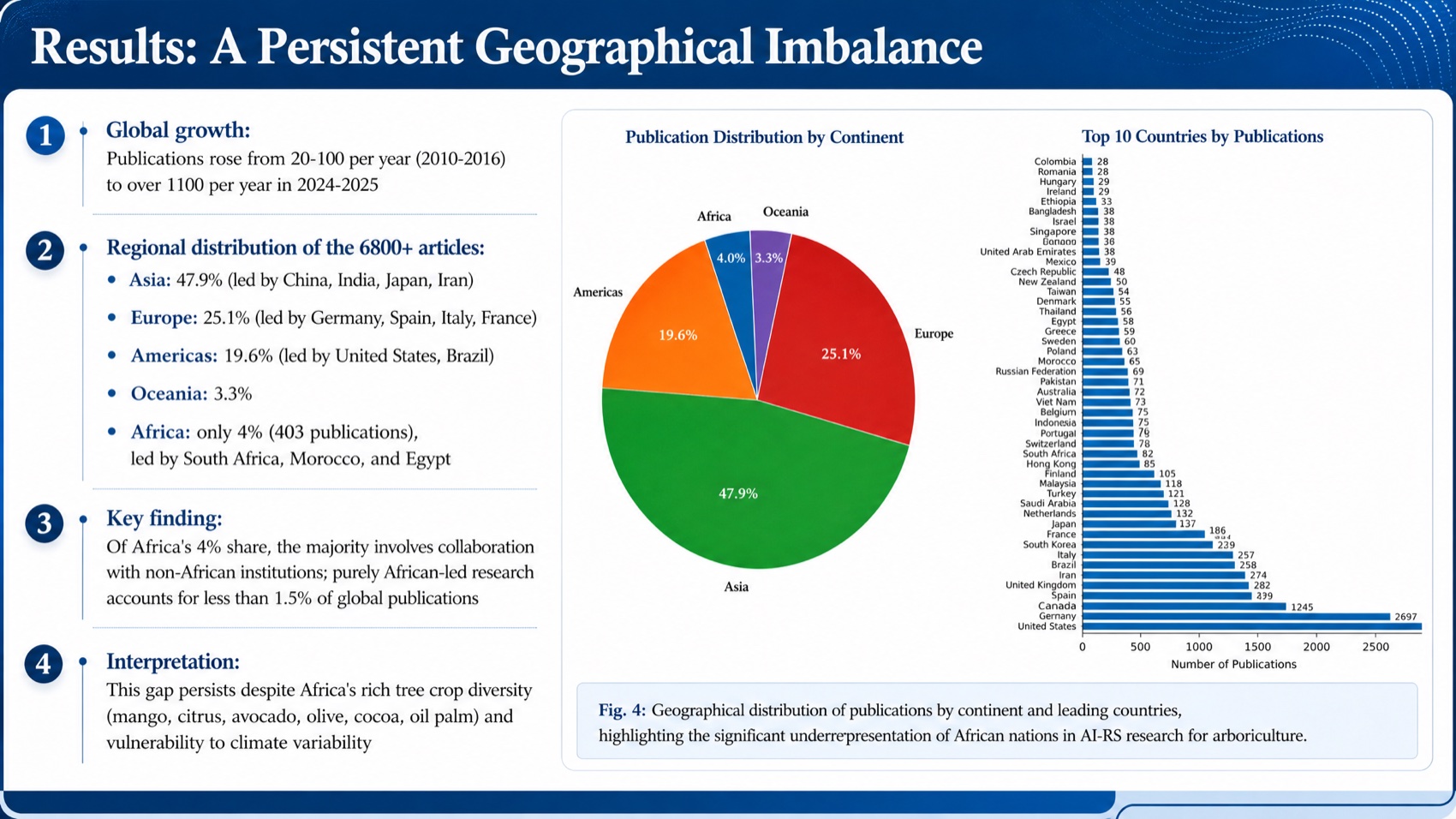
Example supplied by Tosea AI: a results slide that combines quantitative findings, source charts, a figure caption, and a restrained scientific interpretation.
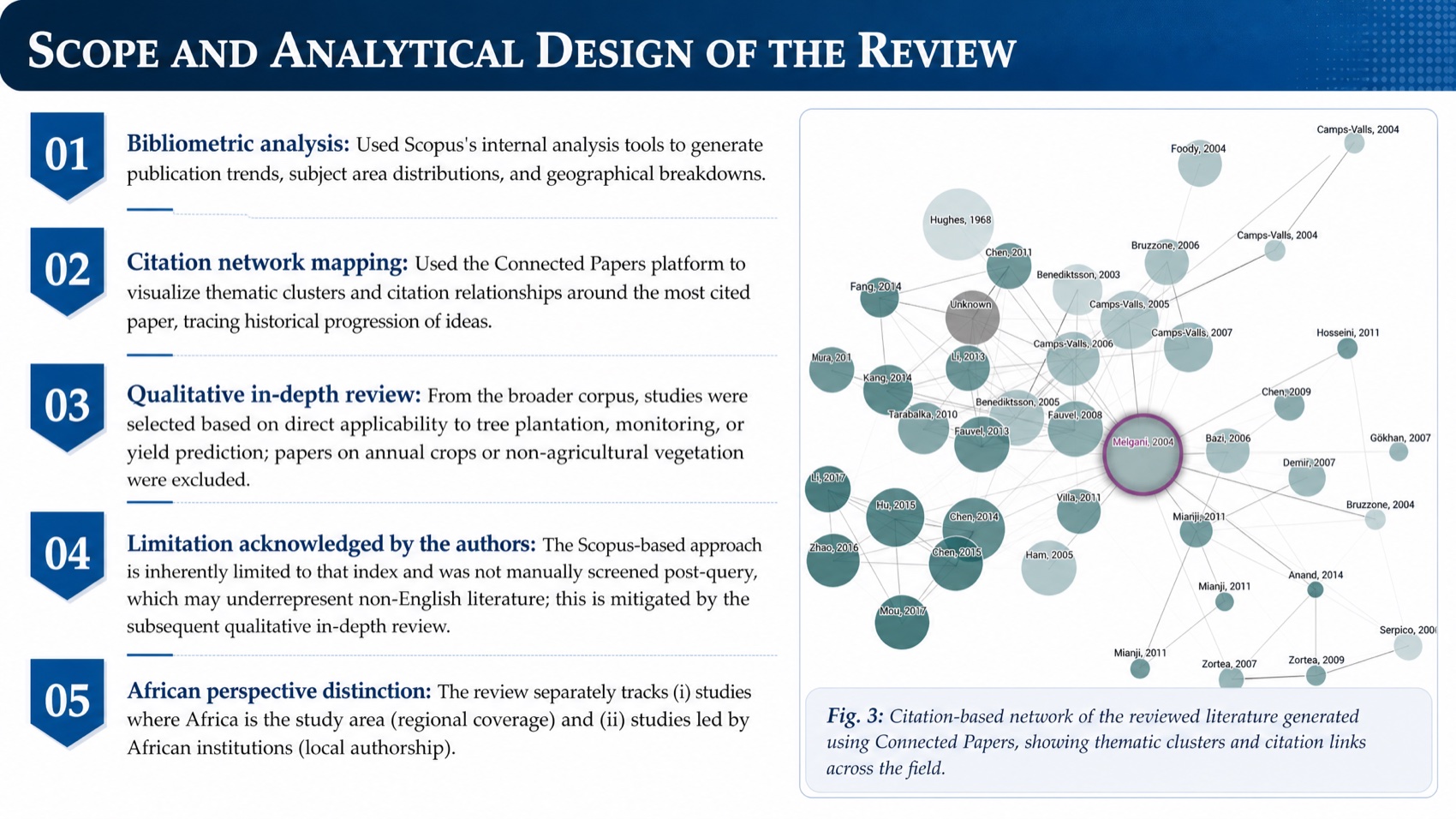
Example supplied by Tosea AI: a methodology slide preserving analytical steps, an acknowledged limitation, and an original citation-network visual.
Pros
- Simple paper-to-slides workflow with fast rendering at about 30 seconds per page
- Strong emphasis on precision, source grounding, and original document images
- Layout and diagram selection during the outline stage
- Layout and diagram editing after slide rendering
- Broad template library for scientific and technical talks
- High-fidelity editable PPTX export
- PPTX export does not consume additional credits
Cons
- Data objects are not as flexible as dedicated charting tools such as think-cell
Pricing
Tosea offers trial access and usage-based paid options. Current allowances can change, so check the Tosea AI website before publication or procurement. PPTX export itself does not consume credits.
Why we picked it
General slide makers begin with a topic. Science presentations begin with evidence. Tosea keeps the source, extracted images, outline, and editable slides as reviewable stages. For the full paper-to-deck process, see From 30-Page Research Paper to Professional Slides.
2. BioRender: Best for Scientific Illustrations
BioRender is strongest for biological mechanisms, pathways, experimental setups, and graphical abstracts. Its domain-specific library is more useful than generic stock graphics for life-science communication.
Pros
Scientific assets, polished diagrams, collaboration, and academic or industry licensing.
Cons
It is not primarily a paper-to-deck engine, and publication use can require a paid license. Review BioRender plan guidance.
3. Microsoft Copilot for PowerPoint: Best Native PowerPoint Option
Microsoft Copilot suits organizations standardized on Microsoft 365. It creates from a prompt or eligible file while keeping the result inside PowerPoint.
Pros
Native editing and easy enterprise handoff.
Cons
Access depends on licensing, results depend on the source, and scientific figures require verification. See Microsoft guidance for building from existing content.
4. Gamma: Best for Fast Narrative Drafts
Gamma rapidly turns an outline into a coherent browser-based narrative, useful for first-pass explainers and web sharing.
Pros
Speed, clean themes, document import, web sharing, and PPTX export.
Cons
It is not science-specific; free exports carry branding, and fonts or effects may change after export. See Gamma pricing. For a research-focused head-to-head, read our Gamma alternative for academic and research slides.
5. Canva: Best for Science Teaching and Outreach
Canva works well for lessons, outreach, posters, and branded educational material. Non-designers can produce acceptable visuals quickly.
Pros
Large template and media library, accessible collaboration, and strong multi-format design.
Cons
Data-heavy researchers may miss linked Excel charts, true PowerPoint master-slide behavior, offline presentation features, and a predictable PowerPoint round trip. When a client requires a deeply editable PPTX, test several representative slides before committing the entire deck.
6. SlidesAI: Best for Google Slides and PowerPoint Add-In Users
SlidesAI converts prompts, notes, and documents inside Google Slides or PowerPoint.
Pros
Low learning curve, add-in workflows, fast text-to-slide conversion, and export to PPTX, Google Slides, or PDF.
Cons
Its main strength is convenience rather than specialized paper parsing, scientific figure preservation, or deep evidence traceability. The SlidesAI Help Center documents current platform and export support.
Feature and Pricing Comparison
| Tool | Free entry option | Paid model | Best output path |
|---|---|---|---|
| Tosea AI | Trial access | Usage-based plans | Editable PPTX |
| BioRender | Limited basic access | Academic and industry subscriptions | Figures and science slides |
| Microsoft Copilot | Depends on Microsoft entitlement | Microsoft 365 and Copilot licensing | Native PowerPoint |
| Gamma | Free starter credits | Plus, Pro, and higher tiers | Web, PDF, PPTX |
| Canva | Free plan | Pro, Business, Education, and enterprise options | Canva, PDF, PPTX |
| SlidesAI | Limited free usage | Subscription tiers | Google Slides, PPTX, PDF |
Prices change frequently, so verify current cost on each official page.
Which Tool Should You Choose?
- Choose Tosea AI when your paper, PDF, original figures, and editable PowerPoint output are the center of the task.
- Choose BioRender when you need to build a scientific mechanism or graphical abstract from domain-specific visual assets.
- Choose Microsoft Copilot when institutional workflows, security, and final editing already live in Microsoft 365.
- Choose Gamma when speed and browser-based storytelling matter more than scientific specialization.
- Choose Canva for teaching, outreach, posters, and visually branded communication.
- Choose SlidesAI when you want a lightweight assistant inside Google Slides or PowerPoint.
ReSlide: Turn Slide Images and PDFs into Fully Editable PowerPoint
Sometimes the input is not a research paper but a flattened slide image, scanned PDF, or legacy deck with no editable source. ReSlide by Tosea AI is designed for that recovery task. It turns slide images and PDFs into PowerPoint files with editable text boxes and reconstructable slide elements.
Use ReSlide when a collaborator sends screenshots, when the original PPTX is missing, or when a generated slide looks right but exists only as an image. Always review formulas, subscripts, symbols, figure labels, and reading order after conversion.
Frequently Asked Questions
What is the best AI tool for science presentation work?
Tosea AI is the strongest overall option when the source is a research paper, scientific PDF, or technical report and the final deliverable must be an editable PPTX. BioRender is better when the primary task is drawing scientific illustrations rather than building the full presentation.
Can AI create a scientifically accurate presentation automatically?
AI can accelerate extraction, outlining, layout, and rendering, but no responsible workflow should treat the first output as publication-ready. Check every claim, number, method, figure, caption, citation, and limitation against the original material before presenting.
Can Tosea AI redesign my existing PowerPoint without changing the content?
Yes. Export the PowerPoint as a PDF, upload it to Tosea AI, and request a redesign that preserves the wording. Use Layout Only when the goal is to refresh the visual structure without intentionally rewriting content. Confirm that labels, footnotes, equations, and citations remain complete.
How do I upload a PowerPoint and ask Tosea AI to redesign each slide?
Export the PowerPoint as a PDF, upload the PDF to Tosea AI, and explain that each slide should be redesigned while preserving its content and sequence. Select a template or describe the visual direction, generate the deck, and inspect every slide before export.
Can I upload my own PowerPoint template to Tosea AI?
Tosea AI supports custom templates on eligible paid plans. Configure the approved template, then verify that required layouts, fonts, colors, logo placement, and master-slide conventions are represented correctly before distribution.
Can Tosea AI use custom brand colors, fonts, and a logo?
Yes. Specify the brand colors and fonts in the instructions and upload the logo or use a supported custom template. After export, verify font availability, color values, contrast, and logo clear space in PowerPoint.
Can Tosea AI match the style of my old company presentations?
Tosea AI can use a representative company deck as design guidance. This should not be described as permanent model training. For stronger consistency, use an approved custom template containing the company layouts, fonts, colors, and logo, then compare the result with the brand guidelines.
Does Tosea AI preserve PowerPoint formatting after export?
Tosea AI editable PPTX export is designed to remain close to the reviewed preview while keeping elements available for further editing. Results can vary with local fonts, complex graphics, and the application opening the file. Test the deck in the exact delivery environment before presenting.
Can I tell AI to edit the layout only and keep the exact wording?
Yes. Tosea AI provides a Layout Only editing mode for changing visual structure without intentionally rewriting slide content. Compare the edited slide with the source afterward, especially labels, citations, footnotes, equations, and line breaks.
Final Recommendation
The best AI tool for science presentation work is the one that reduces production time without hiding the evidence. Tosea AI is our first choice for research papers, technical reports, original scientific figures, controllable layouts, and editable PowerPoint delivery. BioRender remains an excellent companion for specialist scientific illustration, while Copilot, Gamma, Canva, and SlidesAI fit different authoring environments.
For a stronger workflow, read From 30-Page Research Paper to Professional Slides, 8 Best Scientific Figure Skills for Researchers, The Best Gamma Alternative for Academic and Research Slides, and Beyond the Hallucination.
When fidelity to the source, editable output, and researcher review matter more than a one-click visual demo, use Tosea AI to build the science presentation and ReSlide to recover editable PowerPoint slides from images or PDFs.