Best AI Tool for Technical Presentations in 2026
What makes the best AI tool for technical presentations in 2026: a Unitree GO1 robot deck built with Tosea AI, layout and diagram control, editable PPTX export, and a technical QA checklist.
The best AI tool for technical presentations should do more than make engineering content look polished. It must preserve specifications, units, tables, diagrams, figure labels, and the logic that connects them. Tosea AI is designed for that workflow: it turns technical source material into a reviewable outline, lets users control layouts and diagrams, renders a coherent deck, and exports an editable PowerPoint file for final verification.
Quick Answer
Tosea AI is a strong choice for technical presentations built from manuals, research papers, technical reports, specifications, and data-heavy PDFs. It extracts source content and figures, creates an editable outline, supports layout and diagram selection before and after rendering, and exports PPTX files that teams can continue editing in PowerPoint. ReSlide can rebuild existing slide images and PDFs as editable PowerPoint slides.
How we evaluated
This article is built around one concrete generation task rather than a feature checklist. We gave Tosea AI a real product manual — the Unitree GO1 quadruped robot documentation — and asked for a technical briefing deck, then inspected the output at three stages: the rendered preview, the per-slide structure, and the exported PPTX opened in PowerPoint.
The evaluation criteria reflect what makes technical decks fail in practice:
- Specification fidelity: voltages, capacities, temperatures, distances, and operating limits must survive with their units intact.
- Diagram integrity: architecture arrows, component relationships, and interface labels must remain correct, not just visually plausible.
- Structural variety: a spec table, a procedure, and an architecture diagram need different layouts, not one repeated template.
- Editability: the exported file must contain separate text boxes, images, and shapes an engineer can correct after review.
The screenshots in this article come from that single documented run. They are supplied output, not mockups, and the observations describe this deck rather than a statistical benchmark.
What technical presenters actually need from AI
A technical presentation has a different job from a marketing deck. Its audience may need to understand a system boundary, compare performance limits, inspect an architecture, or decide whether the evidence supports a recommendation. Visual appeal helps, but accuracy and explanatory structure come first.
The tool should preserve exact values and their units. It should keep the relationship between a chart, its axes, and its conclusion. Architecture arrows must still point in the correct direction. Figures need readable labels and enough context to explain what the audience is seeing. The presenter also needs an output that can survive corrections after a domain expert reviews it.
This is why a technically useful deck usually combines several page types:
- A product or system overview that establishes scope
- An architecture diagram that explains components and interfaces
- A process or operating-mode page that shows sequence and state
- Specification tables for parameters, limits, and conditions
- Safety, risk, or exception pages that prevent oversimplification
- A conclusion that separates observed evidence from interpretation
The American Institute of Aeronautics and Astronautics recommends plain English and slide text large enough to read from the back of the room, including a minimum 24-point guideline in its technical presentation best practices. An AI tool can draft the deck, but the presenter remains responsible for legibility and scientific accuracy.
Example: a Unitree GO1 technical presentation made with Tosea AI
The example in this article was produced with the Matplotlib and Random Cheat Sheet template. Its restrained black-and-white system, strong numbered hierarchy, compact tables, and diagram-friendly content areas make it suitable for scientific and engineering presentations.
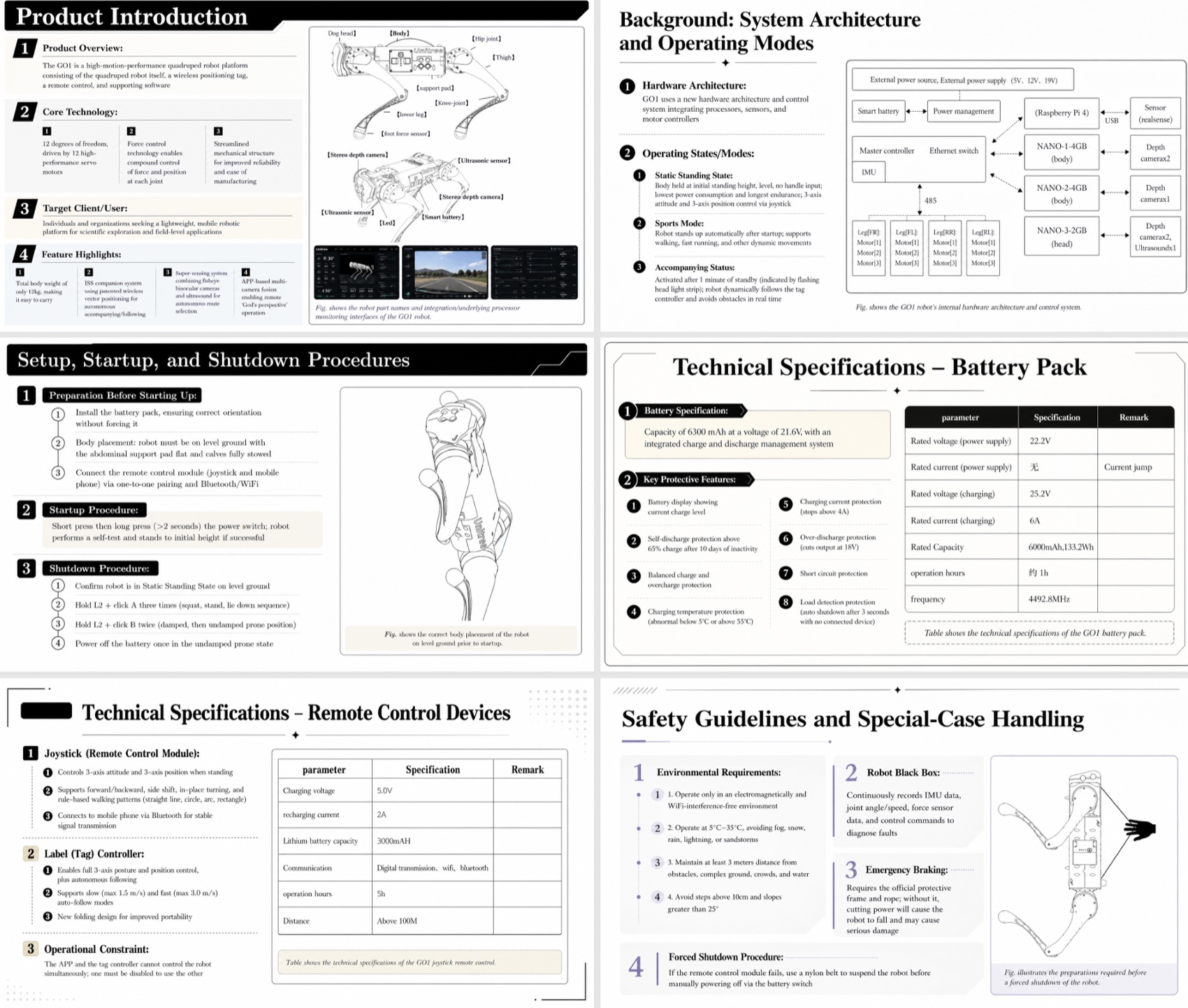
The generated deck explains the Unitree GO1 robot through product overview, system architecture, startup and shutdown procedures, battery specifications, remote-control devices, and safety guidance. That sequence is useful because it moves from what the system is to how it works, how it is operated, and where the constraints sit.
The overview image above also shows why one repeated layout is not enough. A component diagram needs a large visual field. A battery slide needs a parameter table. A procedure page needs numbered steps. A safety page benefits from grouped risk categories. Tosea has other templates for technical reports, academic talks, research presentations, product briefings, and business reviews in its template library.
Review the slide before export
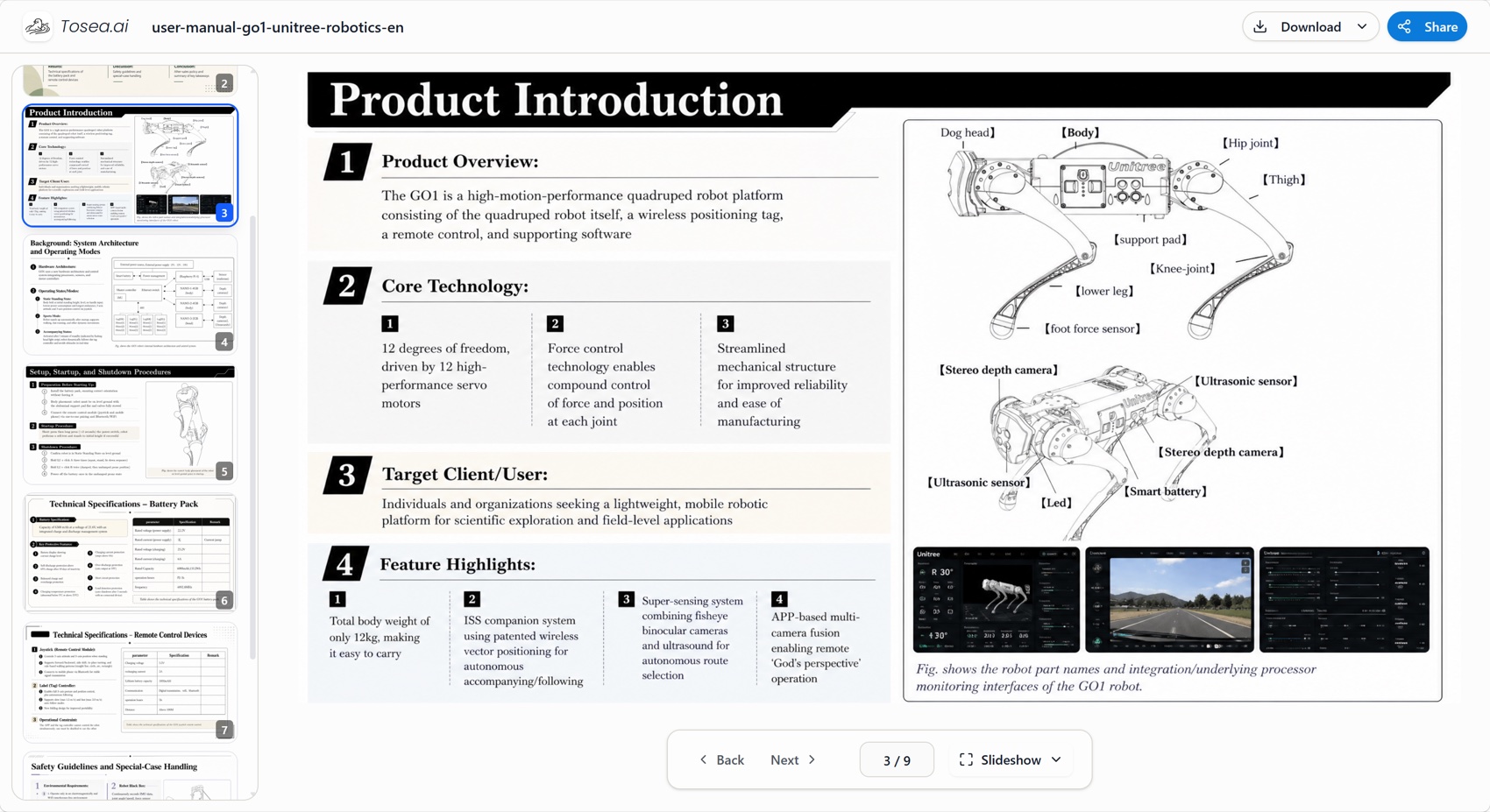
The Tosea preview makes the full deck visible before download. In this example, the Product Introduction page combines four structured content blocks with two annotated robot figures and interface screenshots. A reviewer can inspect whether the component names remain readable, whether the claims match the source, and whether the visual emphasis reflects the intended talk.
This review stage matters because a technically dense page may look clear on a large monitor but fail in a conference room. Check the slide at projected size. If labels are too small, divide the material across two pages instead of shrinking everything to fit.
One-click layouts and diagrams in Tosea AI
Tosea separates source parsing, outline creation, slide rendering, and export. Its getting-started documentation explains how users review extracted content and images, edit titles and speaker notes, generate slides, regenerate individual pages, and export the result.
Layout decisions can be made at two points. During the outline stage, choose the layout or diagram that matches the purpose of each slide. Use a process diagram for an operating sequence, a comparison layout for design alternatives, a timeline for development stages, a fishbone diagram for root-cause analysis, a target diagram for priorities, or an architecture layout for connected subsystems.
After rendering, users can continue changing the layout or diagram. Layout Only mode refreshes the visual structure without intentionally rewriting approved wording. This is useful when the content is correct but the page is too dense, the diagram type is wrong, or a figure needs more space.
A practical technical presentation workflow
- Upload the manual, report, paper, PDF, or supporting files.
- Define the audience, talk length, decision, and required level of detail.
- Review extracted figures and remove assets that do not help the explanation.
- Generate the outline and check titles, body content, selected images, and speaker notes.
- Assign an appropriate layout or diagram to each page.
- Render the deck, then revise dense pages with Layout Only or targeted editing.
- Export the editable PPTX and complete a source-by-source technical review.
Editable PowerPoint output is part of the quality test
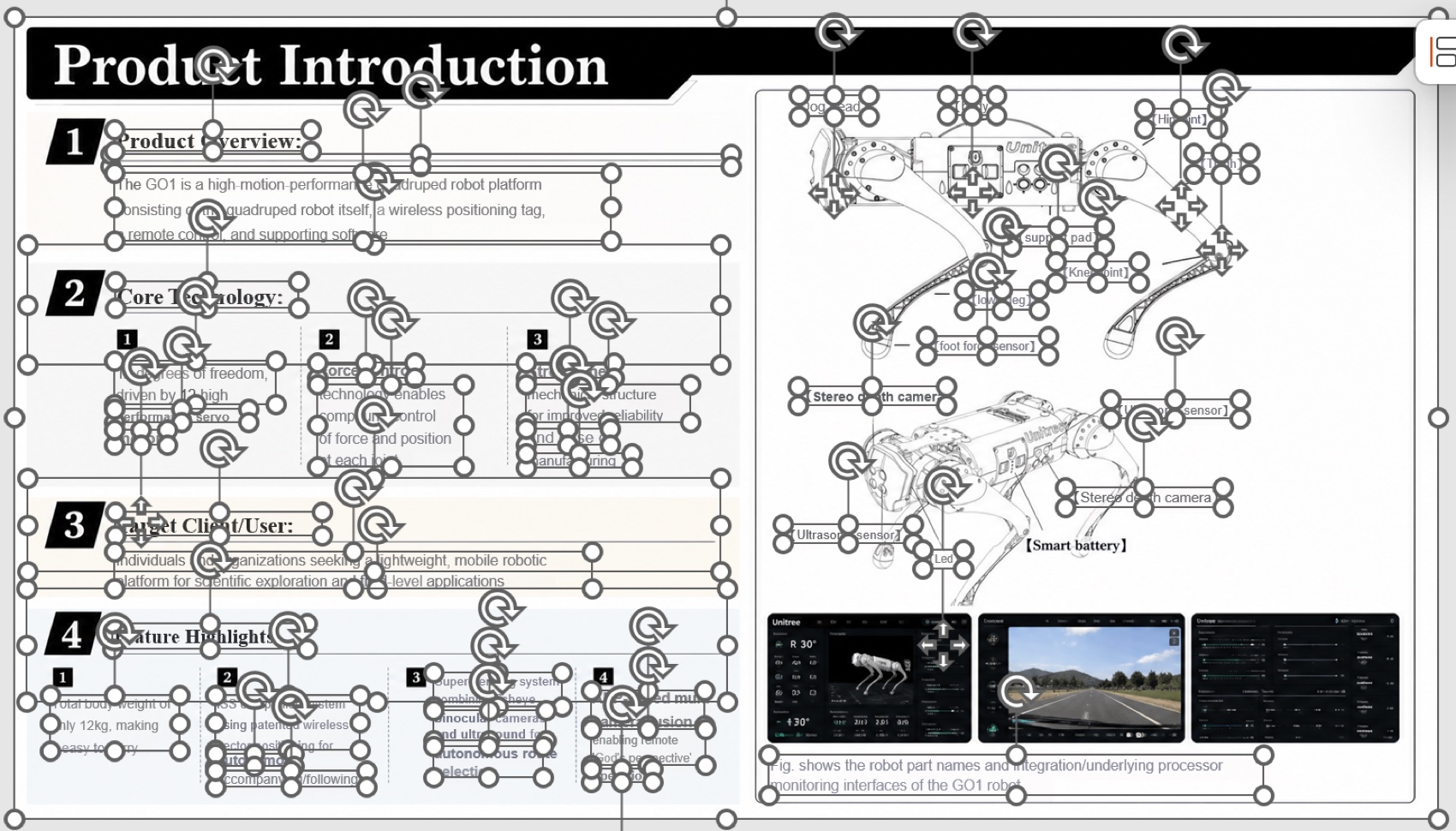
The screenshot shows the exported slide opened in PowerPoint with separate objects selected. Text boxes, labels, images, and structural elements can be inspected and adjusted instead of treating the entire slide as one flat screenshot.
Editability matters because technical decks change late. An engineer corrects a voltage. A researcher updates a label. A reviewer asks for a larger architecture diagram. A client requests its own terminology. The useful deliverable is therefore not only the browser preview. It is the file the team can continue working on.
PowerPoint also remains important for workflows that depend on native Office behavior. Microsoft documents how teams can insert and update linked Excel data in PowerPoint, while Presenter View provides speaker notes, timing, navigation, and audience-facing display control.
General visual-design tools can still be useful for quick graphics and one-pagers. Technical teams should test the complete PowerPoint round trip when the deck contains linked data, reusable layouts, dense diagrams, speaker notes, or offline delivery requirements. A good web preview does not prove that the final PPTX is usable.
Who should use this workflow
This document-first approach fits engineers presenting system designs or test results, researchers briefing sponsors on technical progress, product managers introducing hardware to non-specialist stakeholders, and consultants packaging technical due diligence. It is least valuable when the deck has no source document — a vision talk written from scratch gains little from parsing — or when an organization's strict master-template rules require every slide to be assembled natively. For those cases, generate the structure first, then rebuild key pages inside the corporate template.
Technical QA checklist before presenting
- Compare every number, unit, equation, and claim with the source.
- Verify chart axes, legends, baselines, and sample definitions.
- Confirm that diagram arrows and component relationships remain correct.
- Keep citations, footnotes, figure labels, and limitations readable.
- Test fonts, line breaks, and object positions in the delivery computer.
- Rehearse with the actual projector ratio and Presenter View setup.
ReSlide: turn slide images and PDFs into fully editable PowerPoint
Sometimes the problem is not generating a new deck. The design already exists, but the only available file is a PDF, PNG, JPG, or an image-based AI presentation. ReSlide is designed for this recovery workflow. It turns slide images and PDFs into fully editable PowerPoint files by recognizing page content and reconstructing elements as editable objects.
ReSlide is useful for legacy decks, lost source files, image-only AI slides, and presentation PDFs that need new wording or updated branding. After conversion, inspect text recognition, equations, unusual fonts, charts, and small diagram labels. Rebuilding a static page restores editing freedom, but it does not remove the need for technical review.
Frequently asked questions
Can Tosea AI redesign my existing PowerPoint without changing the content?
Yes. Export the PowerPoint as a PDF, upload it to Tosea AI, and request a redesign that keeps the original wording. Use Layout Only when the goal is to refresh the visual structure without rewriting the content. Confirm that every label, footnote, equation, and slide element remains complete.
How do I upload a PowerPoint and ask Tosea AI to redesign each slide?
Export the PowerPoint as a PDF. Upload the PDF to Tosea AI and state that each slide should be redesigned while preserving its content and sequence. Choose a template or describe the visual direction, generate the deck, and inspect every slide before exporting the revised presentation.
Can I upload my own PowerPoint template to Tosea AI?
Tosea AI supports custom templates on eligible paid plans. Configure the template through the supported workflow, then use it when generating the technical presentation. Check that required layouts, fonts, colors, logo placement, and master-slide rules appear correctly before distribution.
Can Tosea AI use custom brand colors, fonts, and a logo?
Yes. Specify the required colors and fonts in the instructions and upload the logo or use a custom template where supported. Custom logo and template features are available on eligible plans. After export, verify font availability, color values, logo spacing, and contrast in PowerPoint.
Can Tosea AI match the style of my old company presentations?
Tosea AI can use a representative company deck as design guidance, but learning a style should not imply permanent model training. For stronger consistency, use an approved custom template with the company layouts, colors, fonts, and logo. Compare the output with the original brand guidelines.
Does Tosea AI preserve PowerPoint formatting after export?
Tosea AI editable PPTX export is designed to remain close to the generated preview while keeping elements available for further editing. Results can vary with fonts, complex graphics, and the application used to open the file. Test the deck in the exact PowerPoint environment used for delivery.
Can I tell AI to edit the layout only and keep the exact wording?
Yes. Layout Only changes the visual structure without intentionally rewriting slide content. It is useful when wording has already been approved. Compare the revised page with the source to confirm that labels, citations, footnotes, equations, and line breaks remain correct.
Final recommendation
The best AI tool for technical presentations should help teams understand the source, choose an explanatory structure, preserve technical evidence, and deliver an editable file. Tosea AI supports that full path, from document parsing and image extraction to outline-level layout decisions, post-rendering revisions, and editable PPTX export. When the only source is a static slide image or PDF, ReSlide provides a direct route back to editable PowerPoint.
Continue with AI Presentation Tool for PPT Designers, The Best Gamma Alternative for Academic and Research Slides, How to Turn GPT Image 2 Slides into Editable PPTX, and How to Generate Zero-Hallucination AI Slides.