


Getting Started
7 simple steps to convert your PDF into a professional presentation
Upload Files
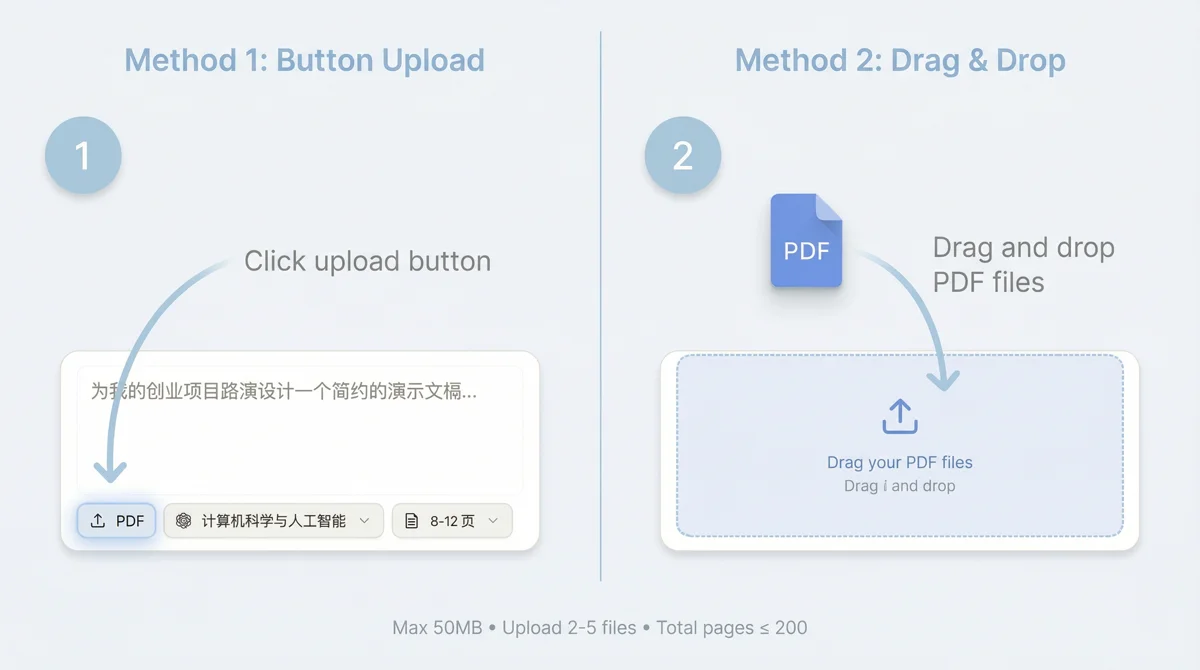
Drag and drop your files or click the upload button. Free users can upload files up to 10MB each, while Pro and Max users can upload up to 50MB. For multi-file uploads, Pro PDFs can total up to 200 pages and Max PDFs can total up to 300 pages.
Tips
- Use high-resolution PDFs for best quality
- Scanned PDFs are supported with automatic recognition
Configure Options
Select your preferred template, academic field, target slide count (4-50 pages), and AI model for generation.
Tips
- Choose field that matches your content
- Fewer slides = more concise content
Add Context & Parse
Describe your presentation goals and key points, then start parsing the document. Review the extracted content when complete.
Tips
- Specific goals lead to better results
- You can specify content to emphasize
Select Images & Generate Outline
Review extracted images and select the ones to include. Click "Generate Outline" to create the presentation outline.
Tips
- Rotate images if needed before generating
- You can edit the outline after generation
Review & Edit Outline
Review the generated outline. Edit titles, content, speaker notes, and add/remove images. Use AI to adjust specific sections.
Tips
- Add speaker notes for presentation practice
- Click AI Edit to adjust individual pages
Generate Slides
Click "Generate Slides" to create the visual presentation. Each slide will be rendered based on your outline and selected model.
Tips
- Generation time depends on slide count, usually a few minutes - grab a coffee
- You can regenerate individual slides later
Export & Share
Download your presentation as HTML, PDF, or PPTX. PPTX comes in two options — Image PPTX and Editable PPTX (Pro/Max) — and you can pick exactly which pages to export. The editable version can be modified in PowerPoint or Google Slides.
Tips
- Exports do not consume credits; PDF counts per export, PPTX counts per page against your export quota
- Editable PPTX is suitable for further editing
Pro Tips
- ✓Use "Layout Only" mode to quickly refresh slide styling without changing content
- ✓Speaker notes are generated for each section during outline creation, and can be fully exported
- ✓Choose DeepSeek models for more economical credit consumption
- ✓AI Edit is recommended for content adjustments; use Manual Edit for fine-tuning if needed