Transitions play as you move from one slide to the next. Use one of the free built-in effects, or let AI generate a transition based on what is on the two slides.
1. Open the Transition panel
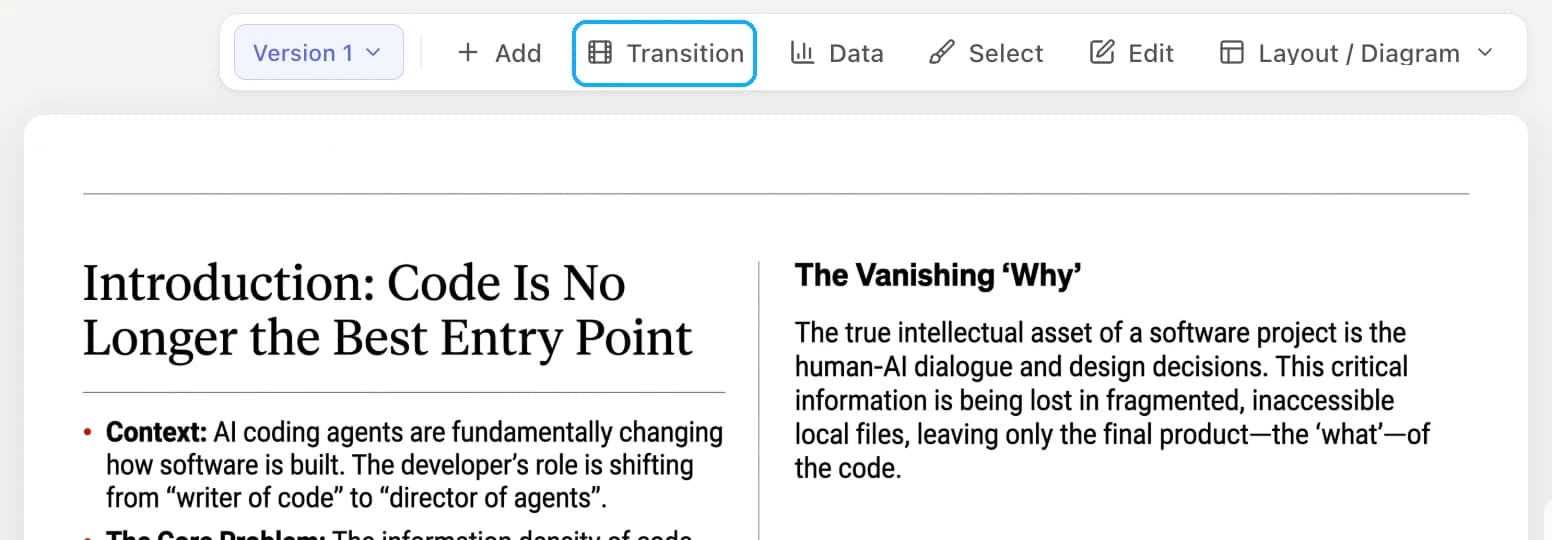
Select a slide and click Transition in the toolbar above it. The panel shows which two slides the transition connects, for example Slide 3 → Slide 4. Use the menu next to the title to switch to another pair.
2. Pick a built-in transition (free)
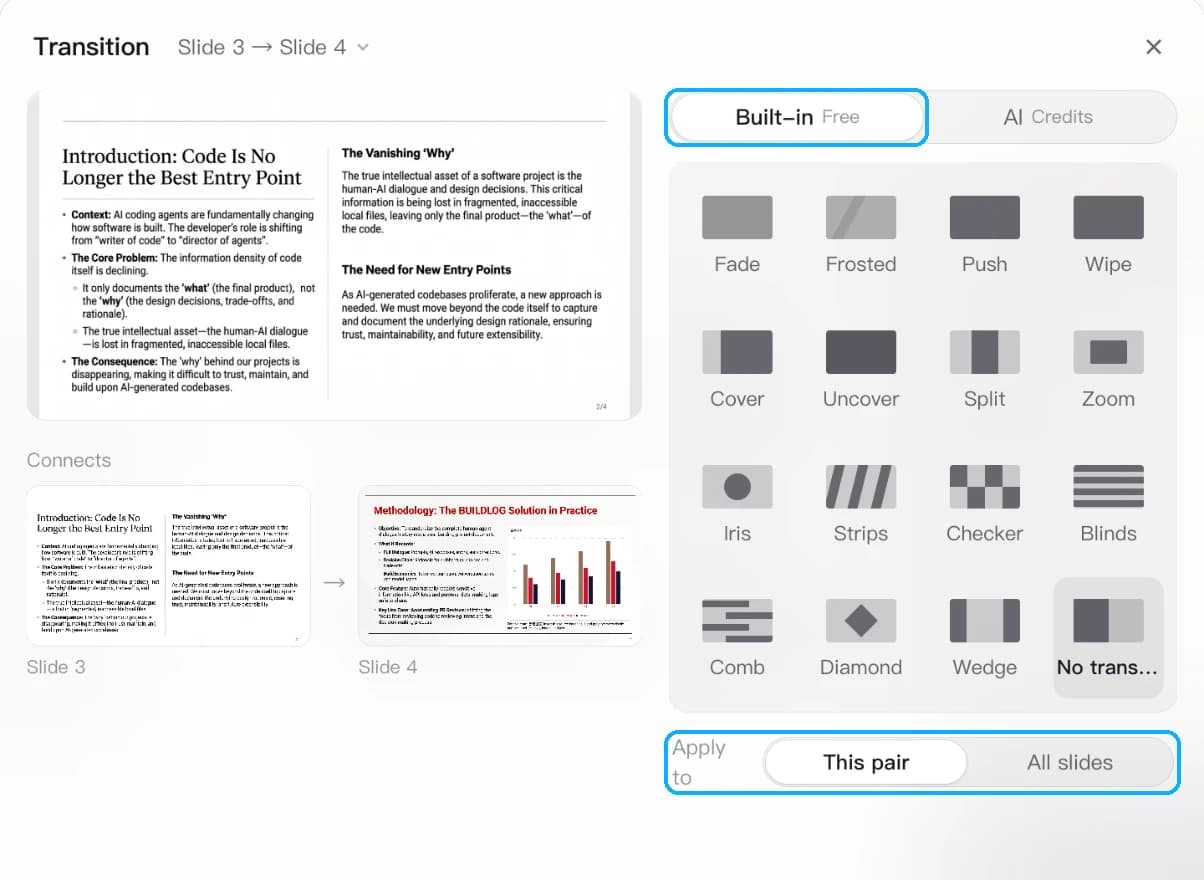
On the Built-in tab, choose one of 15 effects, such as Fade, Push, Wipe, Cover, Zoom, Checker or Blinds. Under Apply to, choose This pair to change only these two slides, or All slides to use the same transition between every pair of slides.
Built-in transitions play instantly, cost no credits, keep working after you edit the slides, and are exported as native PowerPoint transitions.
3. Or generate an AI transition
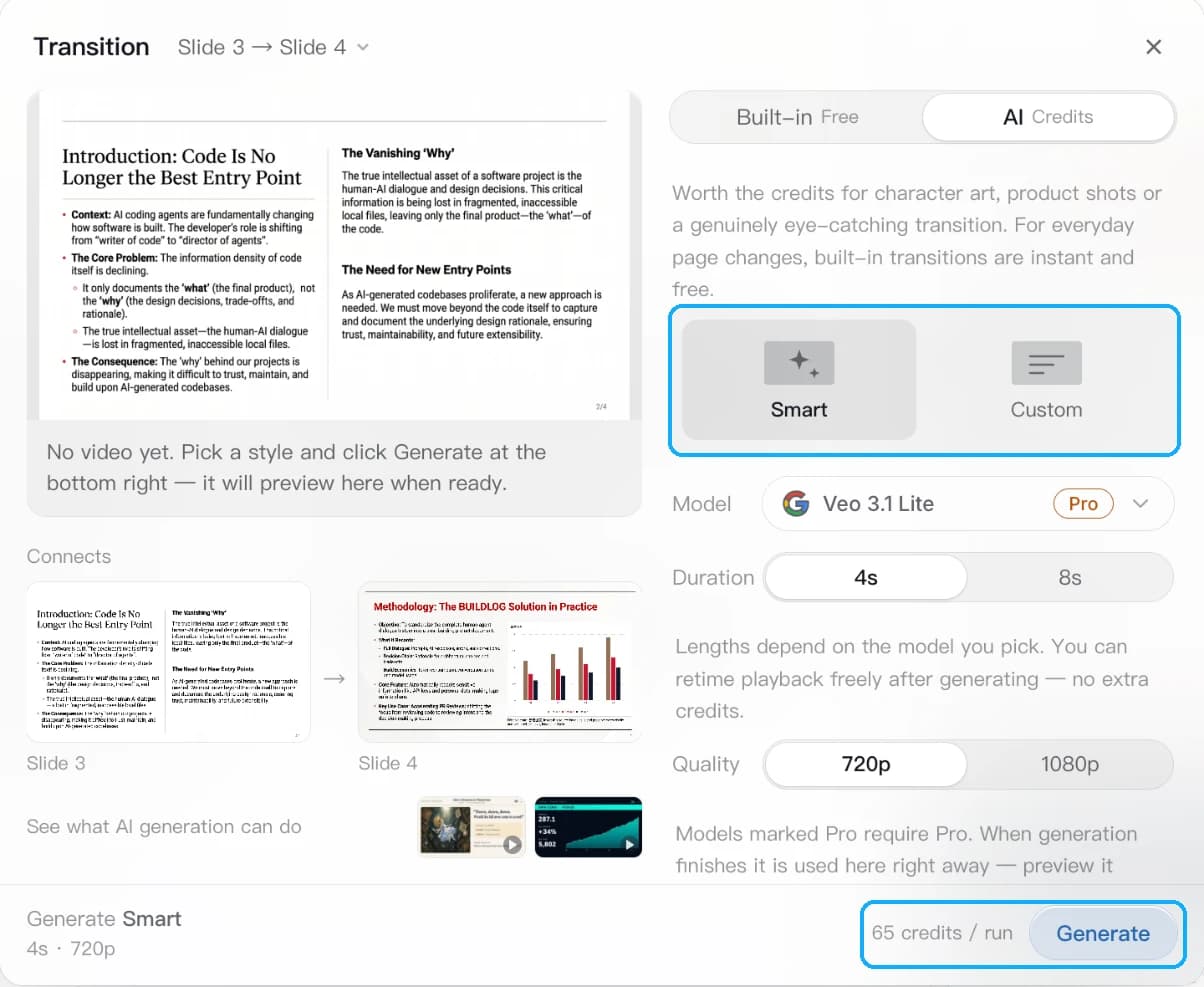
On the AI tab, choose a style:
- Smart: AI reads both slides, finds what they share and carries it across. If the two slides have nothing to carry over, it suggests a built-in transition instead and no credits are used.
- Custom: describe the transition in a sentence. AI keeps your intent and fills in the detail. Leave it empty and AI decides from the content.
Then pick the model, duration and quality, and click Generate. The cost per run is shown next to the button. Generation usually takes a few minutes. When it finishes, the transition is applied to this pair right away: preview it in the panel, or switch to or delete earlier versions in the history. You can also retime playback afterwards at no extra cost.