Data Studio is where you work with data visualizations. It can recognize the data in charts you already have, or read an Excel or CSV file you upload, and turn that data into objects you can keep editing. From there you can quickly build common charts — column, stacked, line, pie, scatter and more — so preparing data and building charts fit together seamlessly.
You can also restyle tables, for example turning a plain table into a three-line table that suits a formal report, or unifying chart colors and fonts.
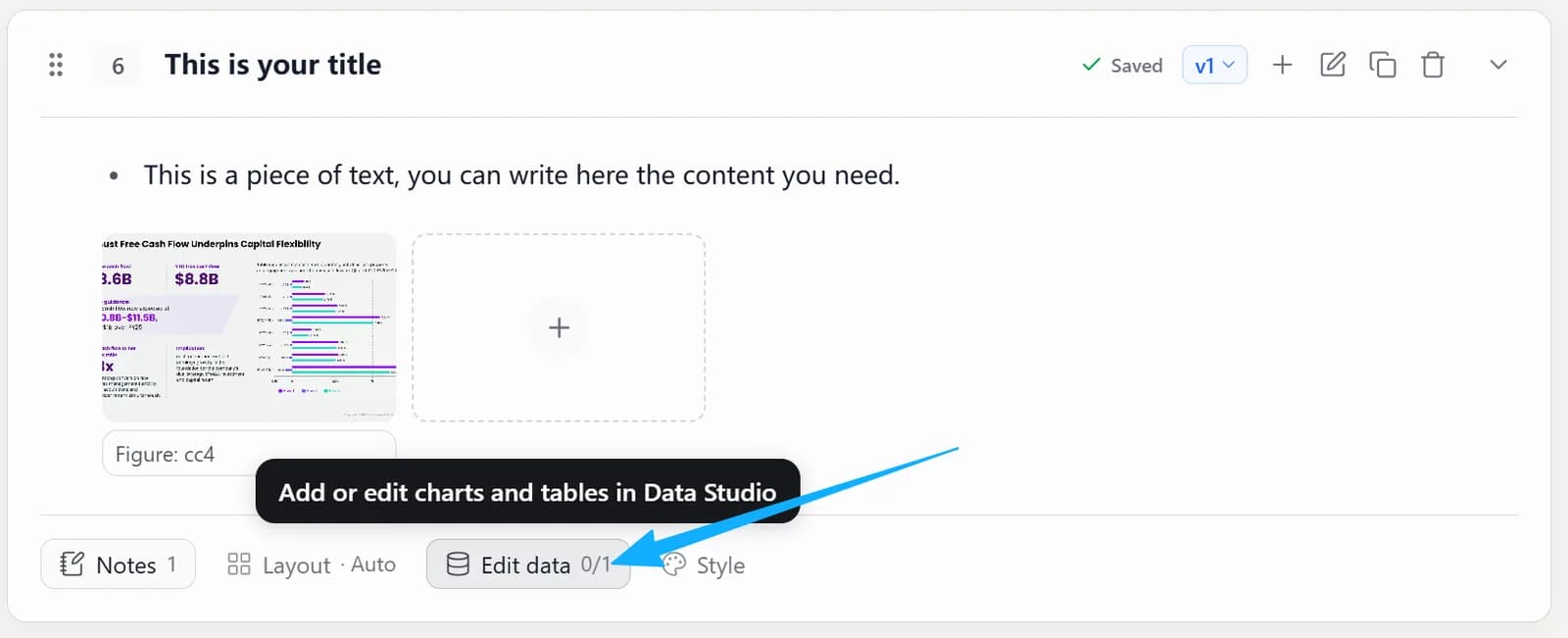
1. Open Data Studio in the Outline stage
In the Outline stage, click Edit data below the current page.
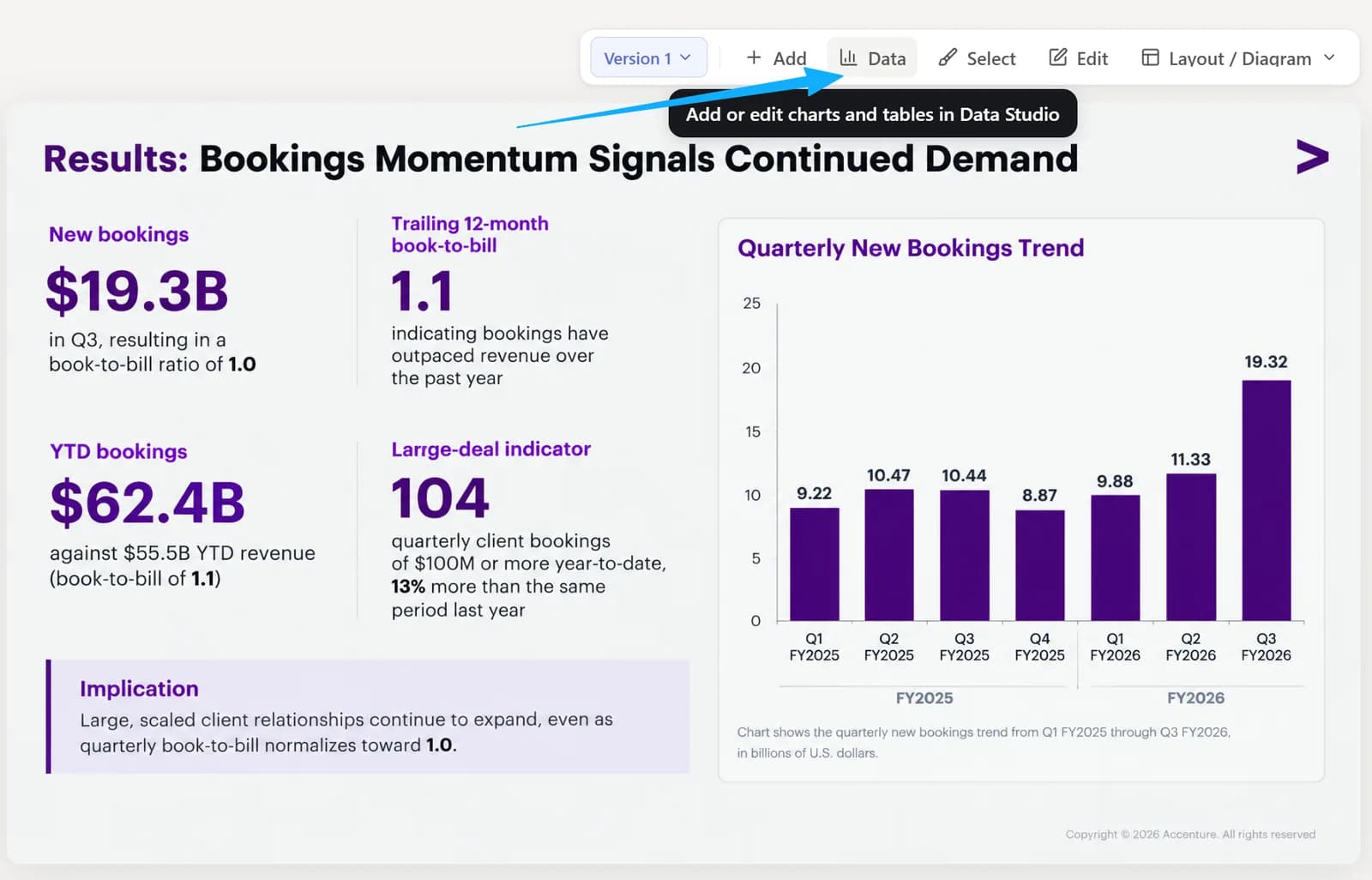
2. Open Data Studio in the Slides stage
In the Slides stage, click Data above the page.
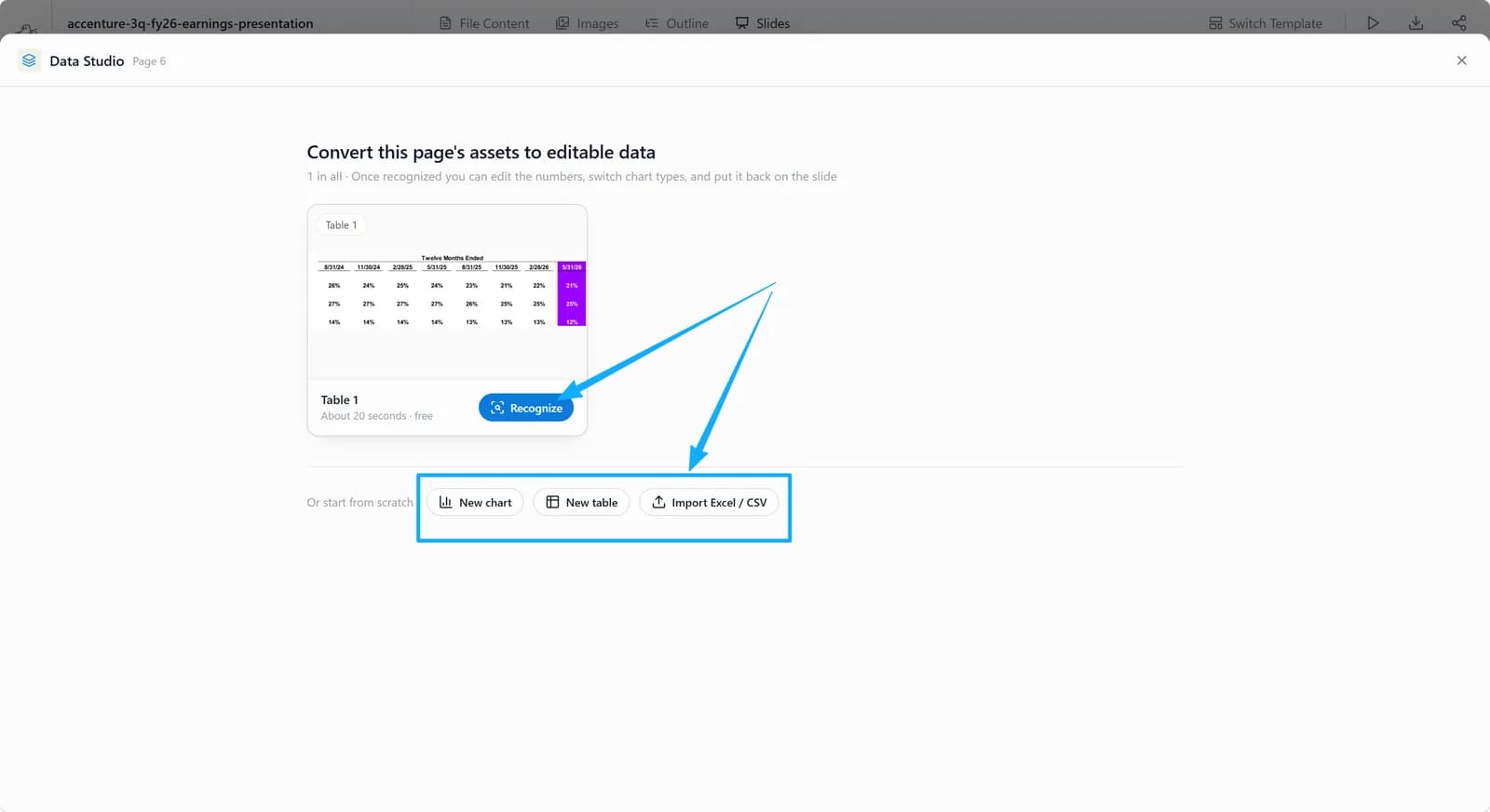
3. Bring in your data
Once Data Studio is open, you can bring in data in any of these ways:
- Click Recognize to extract the data from the original image
- Start from scratch with New table or New chart
- Import an Excel / CSV file (Import Excel / CSV)
4. Edit the table
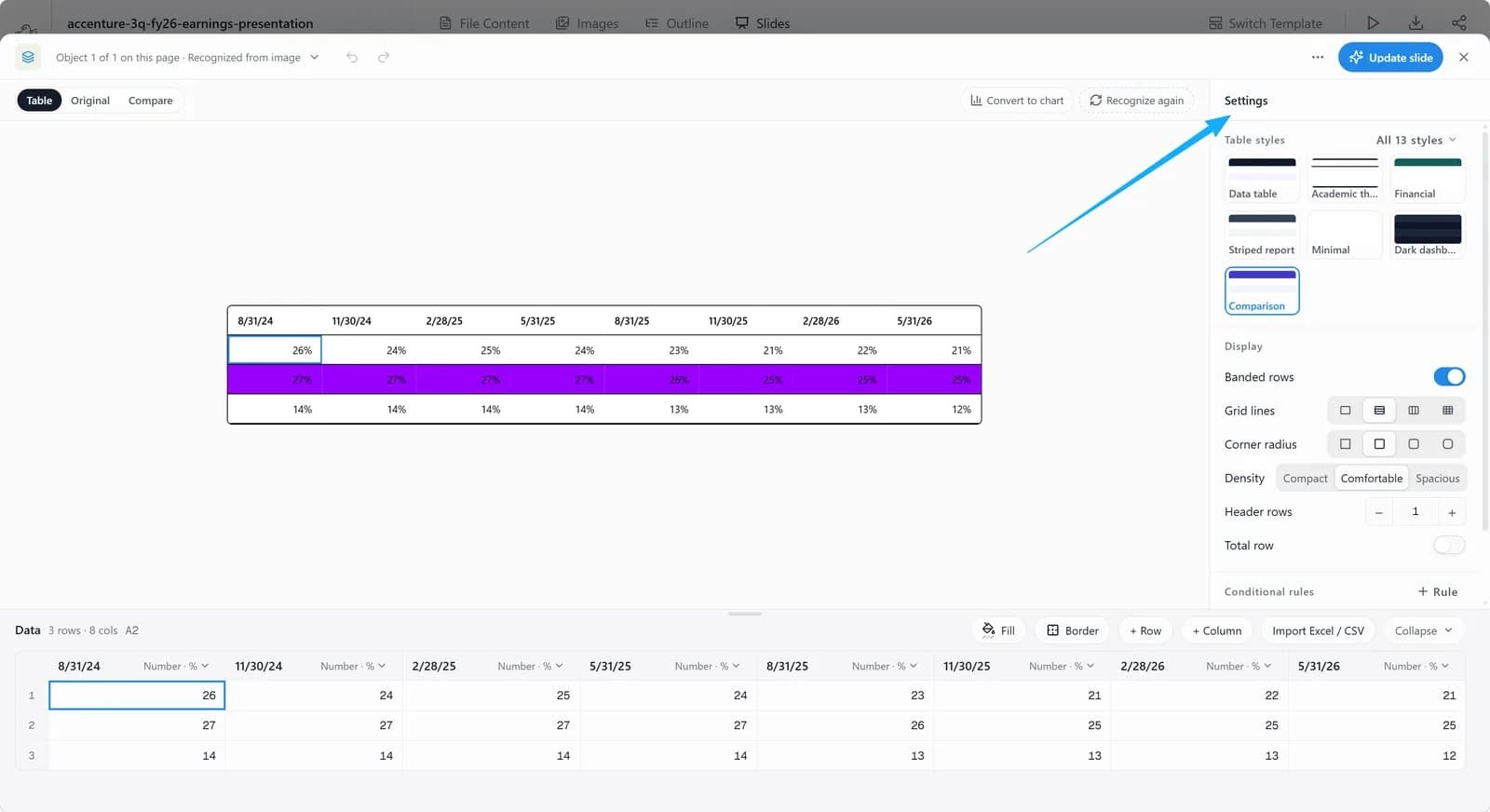
After recognition you land in the Table editor: change the table settings on the right and edit the table data in the grid below.
5. Convert it to a chart
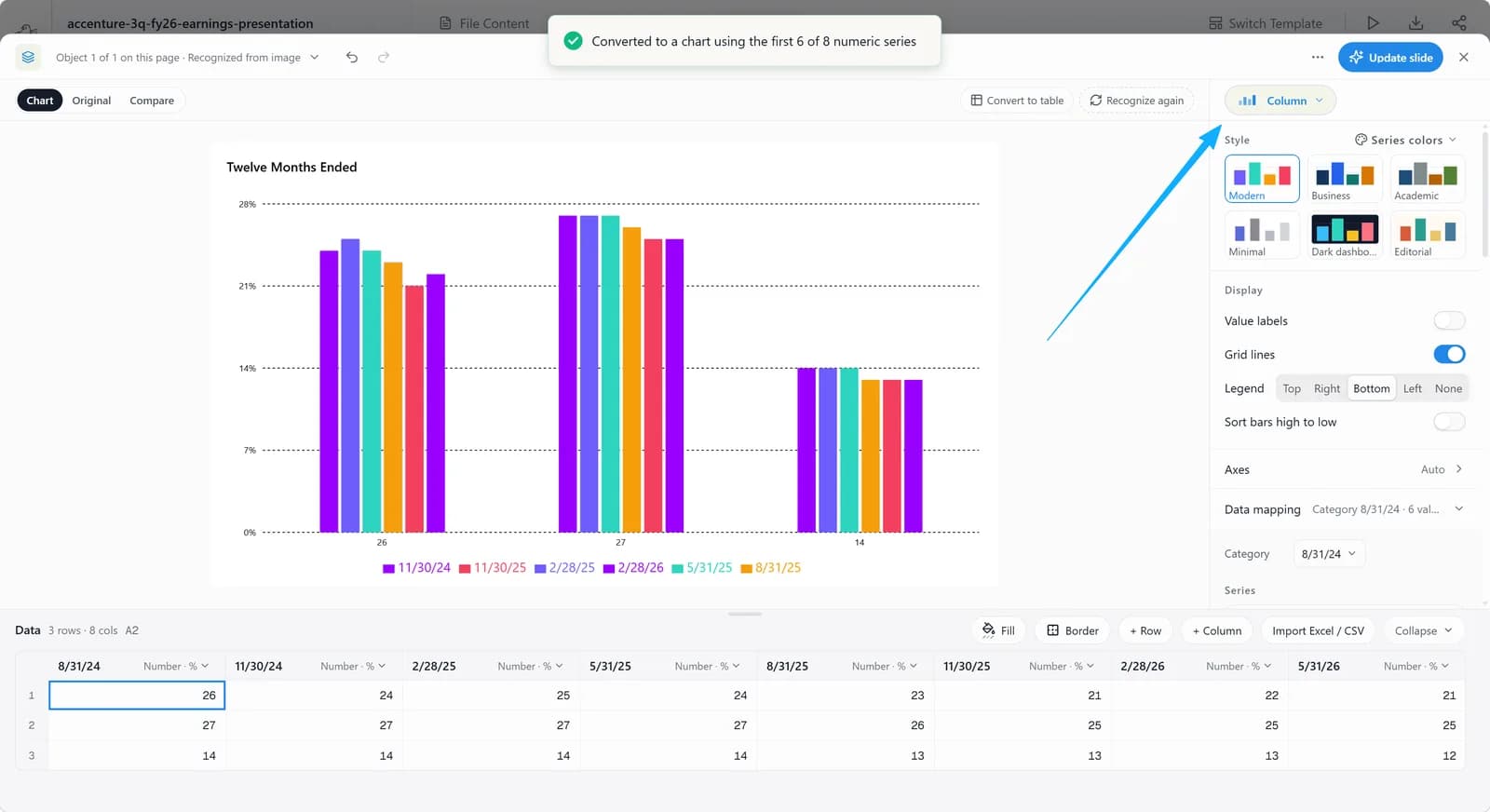
Click Convert to chart to open the chart editor: change the chart settings on the right and edit the chart data in the grid below.
6. More actions
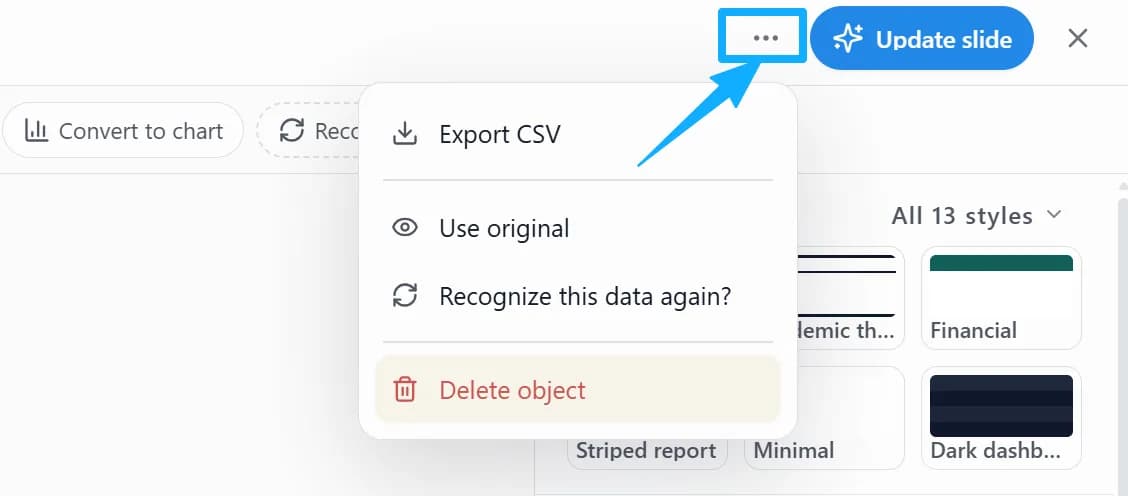
Click “…” at the top right for more actions, such as exporting the data (Export CSV), recognizing it again (Recognize this data again) or deleting the object (Delete object).
7. Update the slide
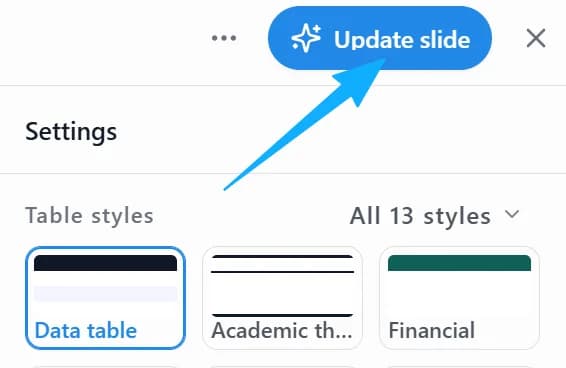
When you finish editing the chart, click Update slide at the top right to apply the result to the slide.