

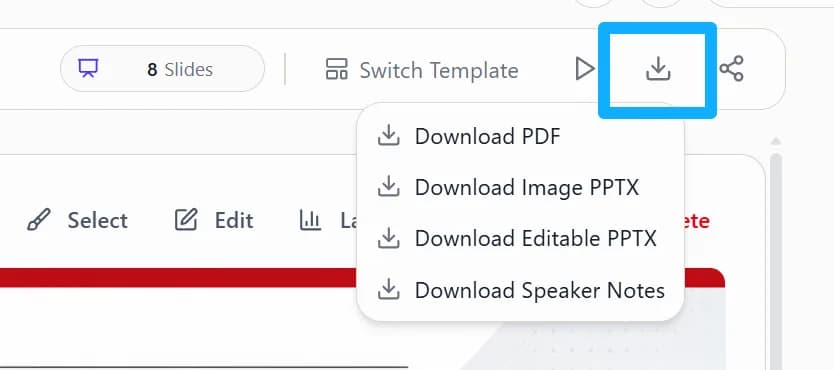
1. Open the export menu
Click the download / export icon at the top right of the page to see the available formats.
2. Choose the right format
Pick PDF, Image PPTX, Editable PPTX or Speaker Notes based on what you need to deliver.
- Download PDF — combines every slide into a single PDF.
- Download Image PPTX — combines every slide into a single image-based PPTX.
- Download Editable PPTX — uses an agent-driven export pipeline for a more reliable, more accurate PPTX file with better editing support.
- Download Speaker Notes — exports your speaker notes as a PDF file.
3. Wait for the export to finish
Download the file once it is ready; to find it again later, open My Files in the left sidebar to see your history.