

Already have a finished deck and just want it to look better? Upload it: Tosea reads every page — text, tables, charts and images — and redesigns it in the template you pick. By default the page count and order stay the same, and screenshots and photos are kept rather than swapped for illustrations. Works in both Image and HTML mode.
1. Click the wand and upload your deck
Click the wand button at the bottom left of the input box and choose one PDF or PPTX. The input box switches to beautify mode: the wand stays selected and the slide count reads "Keep source · N slides". If the input box already holds a PDF or PPTX, clicking the wand beautifies that file.
You can beautify one file at a time. The file size and page limits follow your plan; hover over the wand to see them.
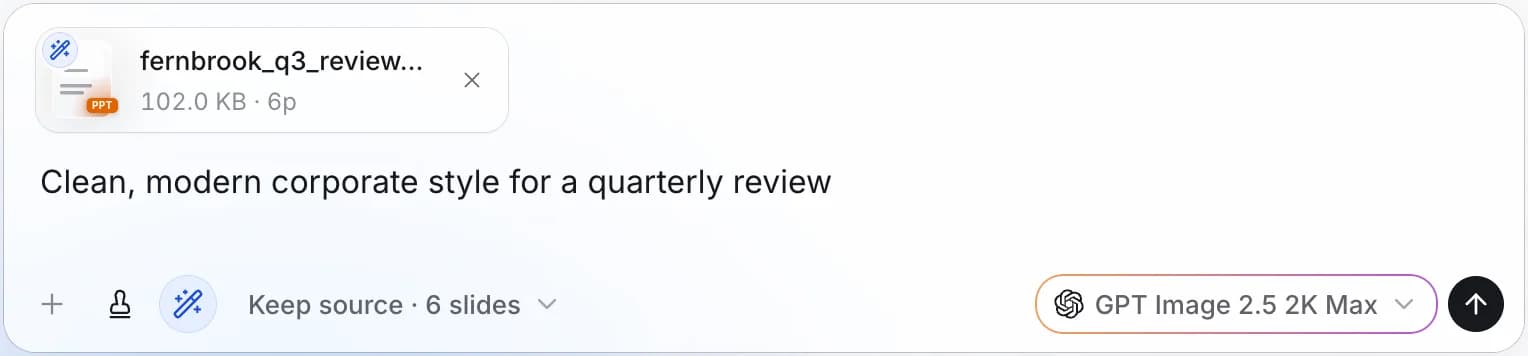
2. Keep the source pages, or reorganize
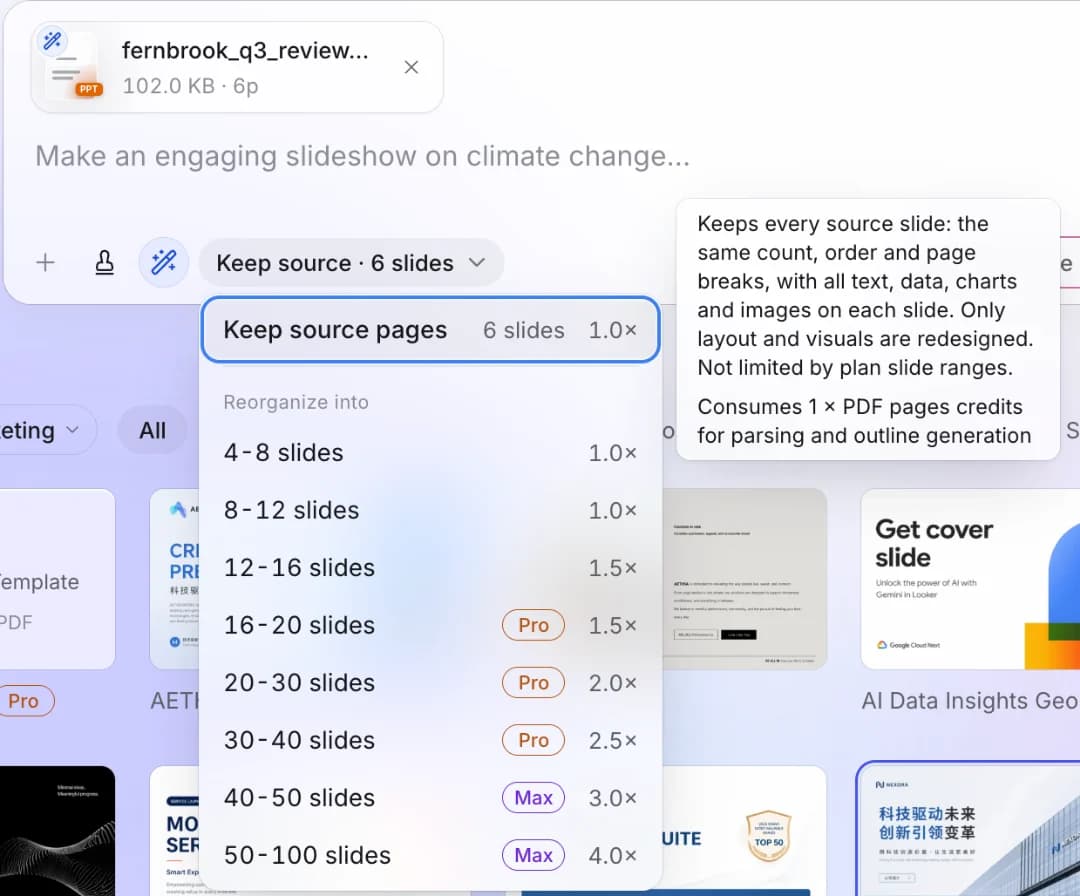
Click the slide count to choose how to beautify:
- Keep source pages: the same page count, order and content on every page; only the layout and visuals are redesigned. Not limited by plan slide ranges.
- Reorganize into N slides: AI reorganizes the source content into the number of slides you pick, merging, condensing or splitting pages. Slide ranges work as in ordinary generation: 16+ slides need Pro, 40+ need Max.
3. Pick a template and describe the style
Choose a template and an output mode (Image or HTML) as usual, and describe the look you want in the input box, such as "clean corporate style" or "switch to a navy palette". To translate the content into another language, say so here too. After you send, the AI sums up what it will do; reply to confirm and it starts.
4. Check the outline and generate the slides
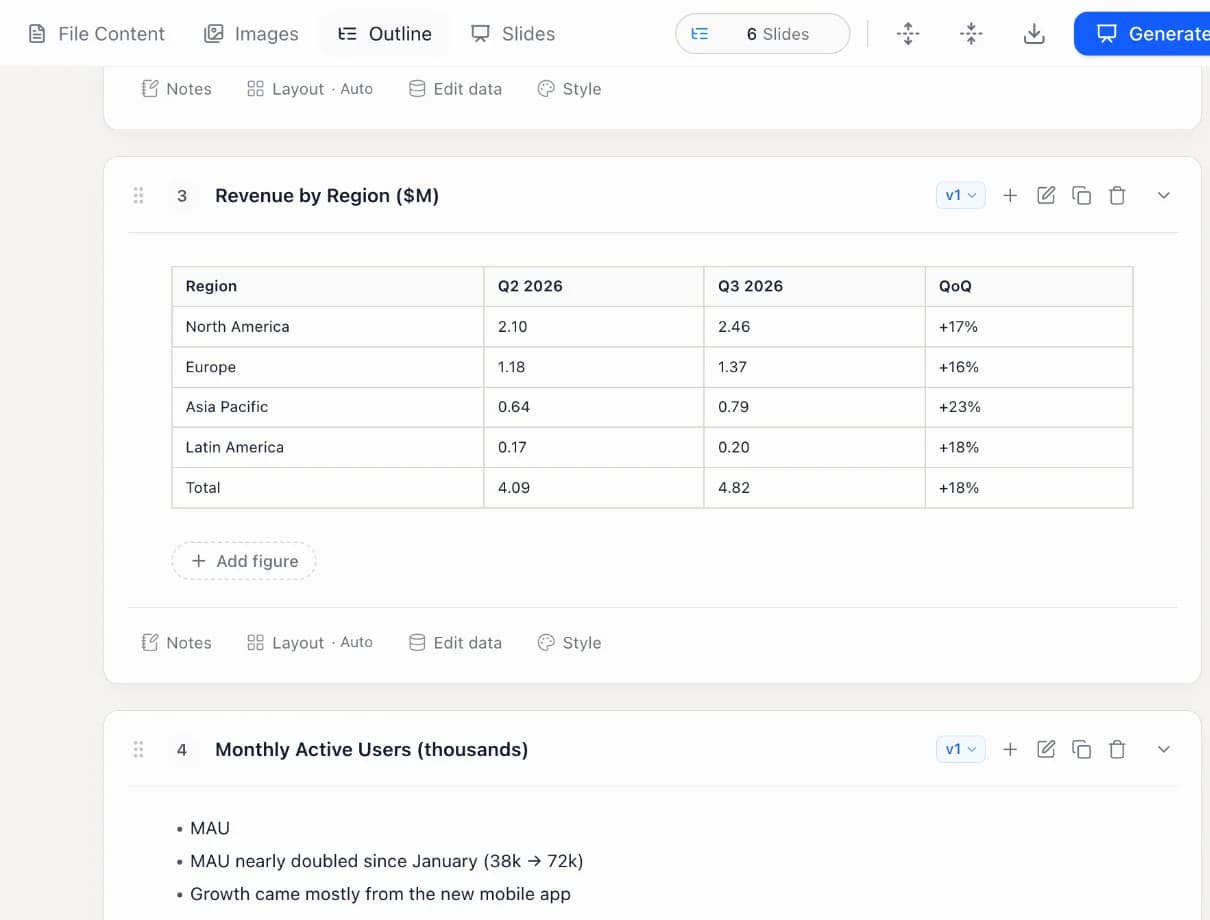
Tosea reads the deck page by page and builds an outline: text and numbers are kept as they are, tables become real tables, and the images it keeps are in the Images tab. Edit the outline if you like, then click Generate Slides at the top right.
What gets kept
- Text and numbers are kept word for word. They change only when your request asks for edits or a translation.
- Screenshots and photos go into the new slides and are never swapped for illustrations. In Image mode the image model draws the whole slide: a screenshot keeps its layout and content, but small details can differ slightly, such as very small text or an edge of the screenshot that was not picked up with it.
- Charts are redrawn in the new template's style in Image mode, with every number kept; HTML mode places the original chart image.
- Tables, processes, timelines and other text-led graphics are transcribed and laid out again in the new template. Ones that are already clean and clear in the source are kept as images and handled like charts.