

1. Upload Files
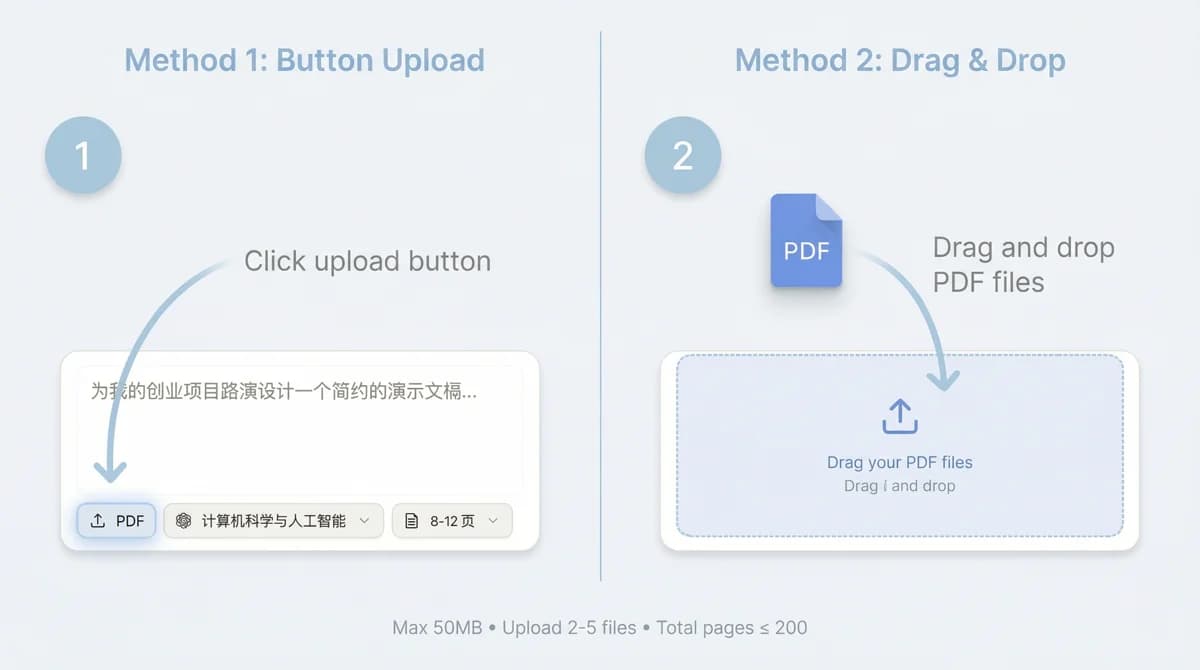
Drag and drop your files or click the upload button. Free users can upload files up to 10MB each, while Pro and Max users can upload up to 50MB. For multi-file uploads, Pro PDFs can total up to 200 pages and Max PDFs can total up to 300 pages.
2. Configure Options
Select your preferred template, academic field, target slide count (4-50 pages), and AI model for generation.
3. Add Context & Parse
Describe your presentation goals and key points, then start parsing the document. Review the extracted content when complete.
4. Select Images & Generate Outline
Review extracted images and select the ones to include. Click “Generate Outline” to create the presentation outline.
5. Review & Edit Outline
Review the generated outline. Edit titles, content, speaker notes, and add/remove images. Use AI to adjust specific sections.
6. Generate Slides
Click “Generate Slides” to create the visual presentation. Each slide will be rendered based on your outline and selected model.
7. Export & Share
Download your presentation as HTML, PDF, or PPTX. PPTX comes in two options — Image PPTX and Editable PPTX (Pro/Max) — and you can pick exactly which pages to export. The editable version can be modified in PowerPoint or Google Slides.
Pro tips
- Use “Layout Only” mode to quickly refresh slide styling without changing content
- Speaker notes are generated for each section during outline creation, and can be fully exported
- Choose DeepSeek models for more economical credit consumption
- AI Edit is recommended for content adjustments; use Manual Edit for fine-tuning if needed