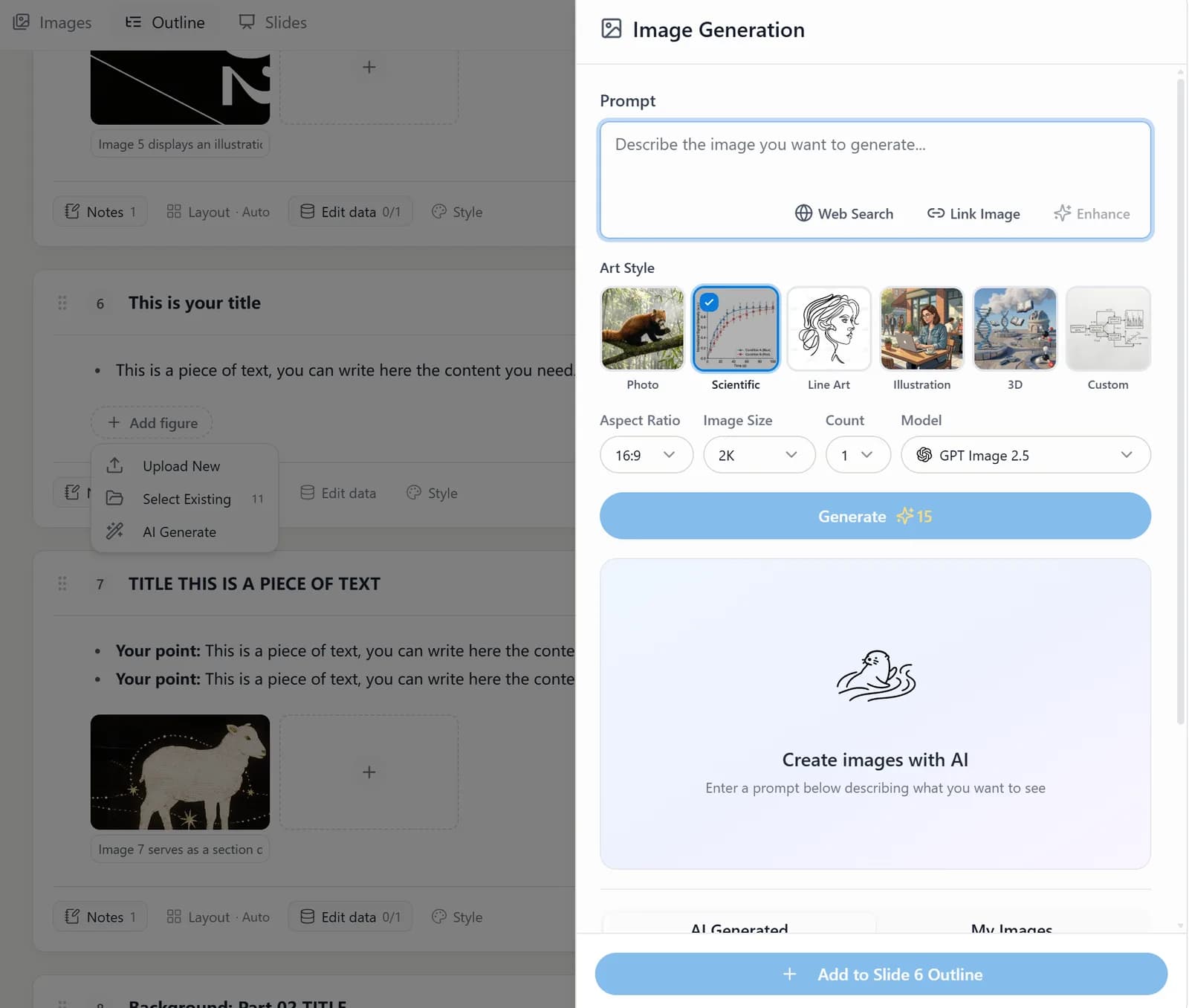
In the Outline stage, click Add figure below the current page and choose AI Generate to add or generate an image for that page. You can describe the picture you want directly in the Prompt box of the Image Generation panel, or use Web Search or Link Image.
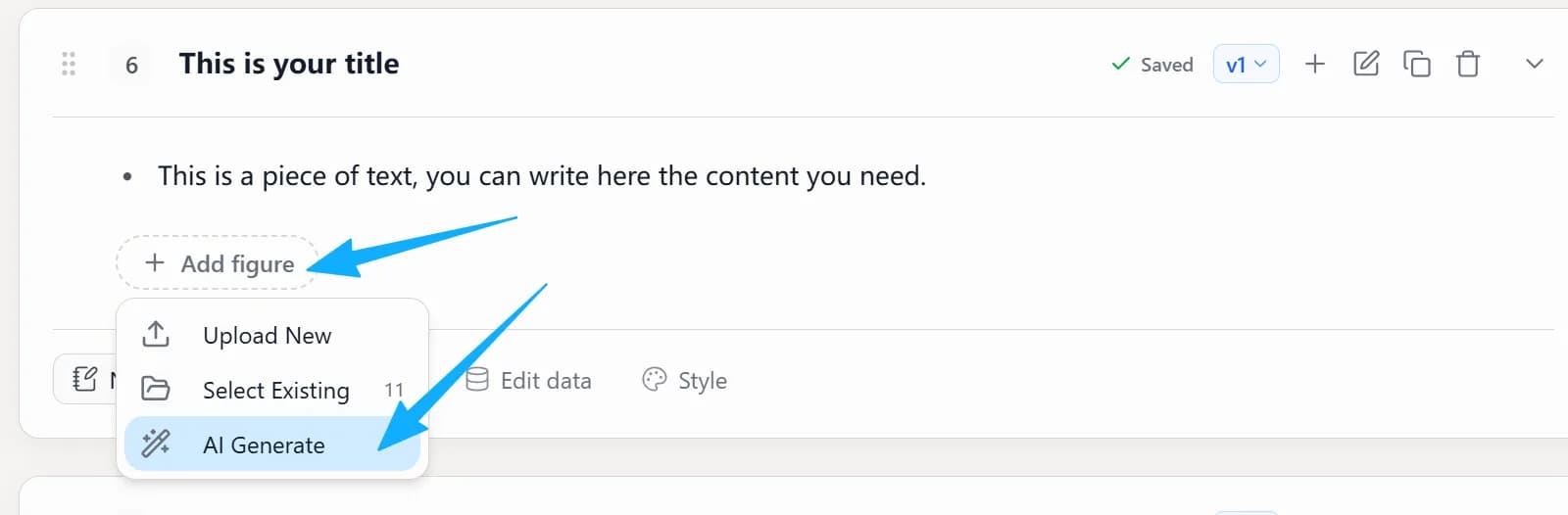
1. Open the Image Generation panel
On the page that needs an image, click Add figure and choose AI Generate.
2. Describe the image you want
In the Prompt box, explain the subject of the image, where it will be used and what it should emphasize. For example: generate a clean, tech-style illustration of cross-team collaboration for this page.
3. Use Web Search
With Web Search selected, the AI searches the web for images that better match the topic of the current page.
4. Use Link Image
Once you add an existing image, the AI can edit that image or keep generating around it.