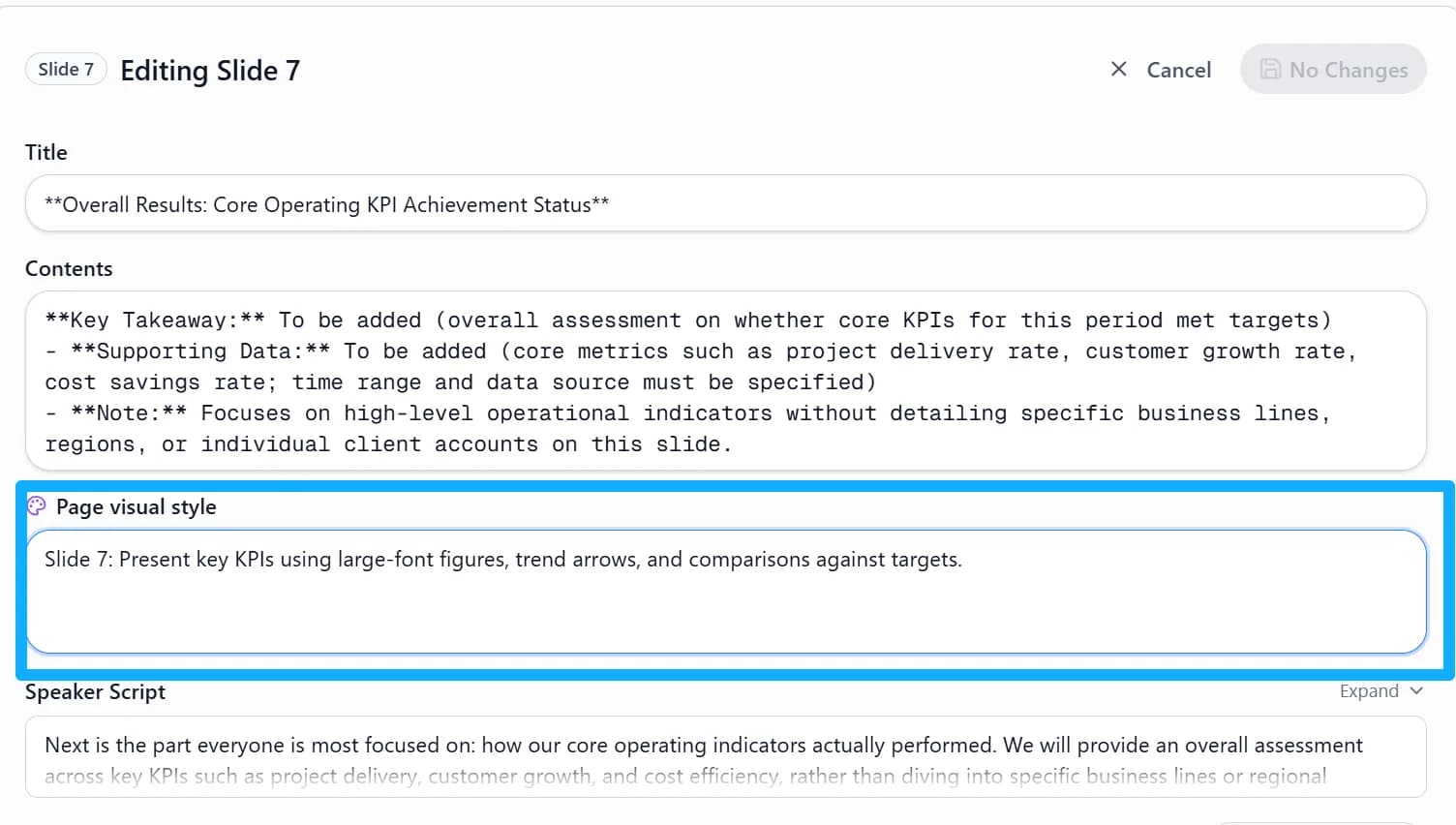
Name specific fonts, sizes and theme colors in your prompt, or ask for a particular visual style on certain pages, to trigger visual styling. Once triggered, the palette (Style) button below the matching page in the outline shows that page’s style requirement; click it to open the input and set the visual style of that page alone.
1. State the visual requirements in your prompt
Spell out the fonts, sizes, theme colors, or the specific pages that should get the visual treatment.
2. Open the page visual style
Once it is triggered, click the palette (Style) button below the page in the outline area.
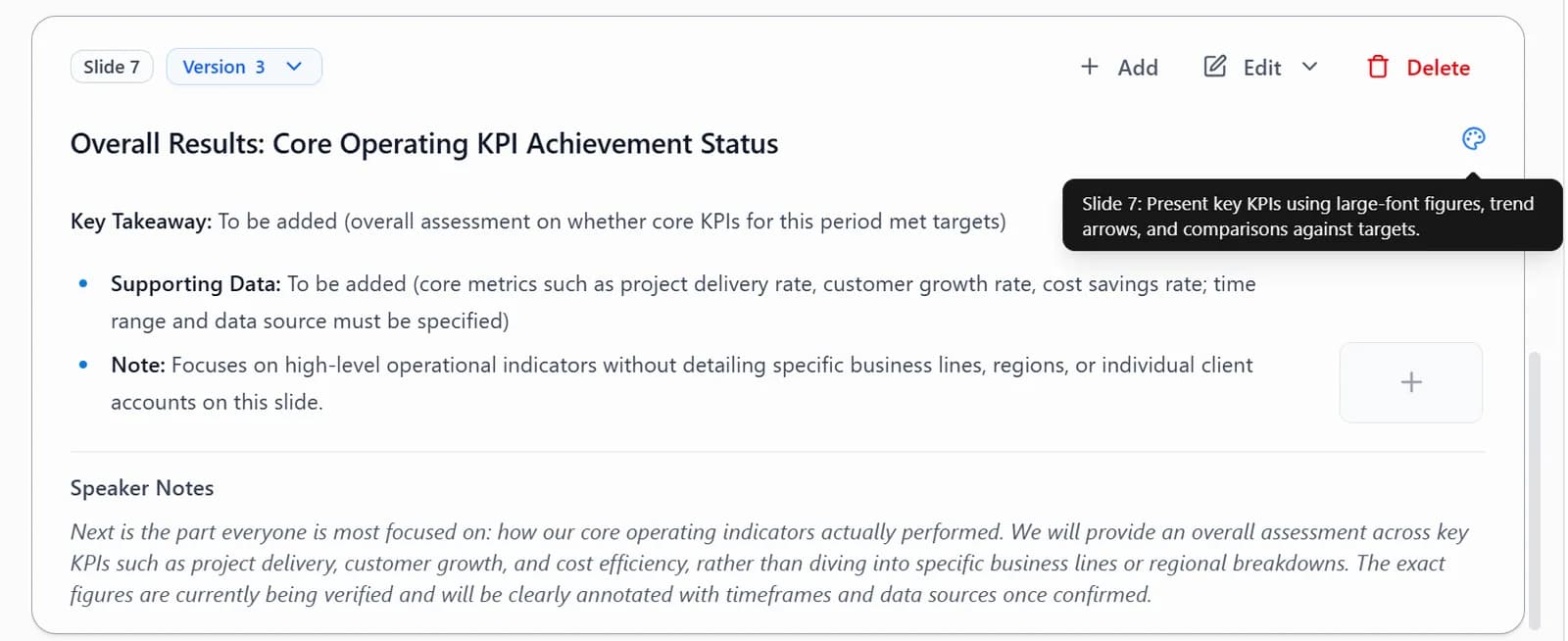
3. Adjust a single page
Set a separate visual style for the current page in the input that opens.