AI Presentation Tool for PPT Designers: A Complete Workflow Guide
A complete workflow guide to AI presentation tools for PPT designers: source-grounded outlines, visual direction, editable PPTX export, and AI-assisted revision — without giving up design control.
An AI presentation tool for PPT designers is becoming a serious workflow upgrade, not just a shortcut for people who cannot design slides. The real value is not replacing designers. The value is helping designers move faster through document reading, content structuring, visual exploration, slide drafting, PPTX exporting, and revision. A good AI presentation tool gives designers more control over the parts that matter: structure, layout, editing, visual consistency, and final delivery.

Quick Answer
An AI presentation tool for PPT designers helps convert source documents, research notes, reports, and rough ideas into editable presentation drafts. The best workflow is to let AI handle source parsing, outline generation, layout exploration, and PPTX export, while the designer reviews structure, refines hierarchy, adjusts visuals, and prepares the final deck. Tosea AI is designed for this source-grounded document-to-slide workflow.
Why PPT Designers Need a Better AI Workflow
Many PPT designers are not short on taste. They are short on time.
A real presentation project rarely starts with a clean brief. It often starts with a messy folder: PDFs, screenshots, Excel tables, research papers, product notes, meeting transcripts, brand references, previous decks, and a vague request from a client or manager.
Before the designer can even design, they need to answer basic questions:
- What is the story?
- What is the audience?
- Which evidence matters?
- Which data should become a chart?
- Which section needs one slide and which section needs five?
- Which pages should be visual and which should stay text-heavy?
- What can be simplified without losing accuracy?
- What needs to remain editable in PowerPoint?
This is where AI can help. But the wrong AI workflow creates more cleanup than value. A generic AI slide generator may produce a pretty deck that looks good in preview but falls apart when exported, or a deck with attractive visuals but weak logic. PPT designers need AI that respects both content fidelity and visual control.
Where Tosea AI Fits
Tosea AI is a source-grounded AI presentation tool that turns PDFs, research papers, financial reports, annual reports, 10-K filings, industry reports, and complex documents into editable PowerPoint slides. It is built for analysts, researchers, consultants, designers, and teams that need accurate slide decks with preserved tables, charts, figures, layout structure, and source context.
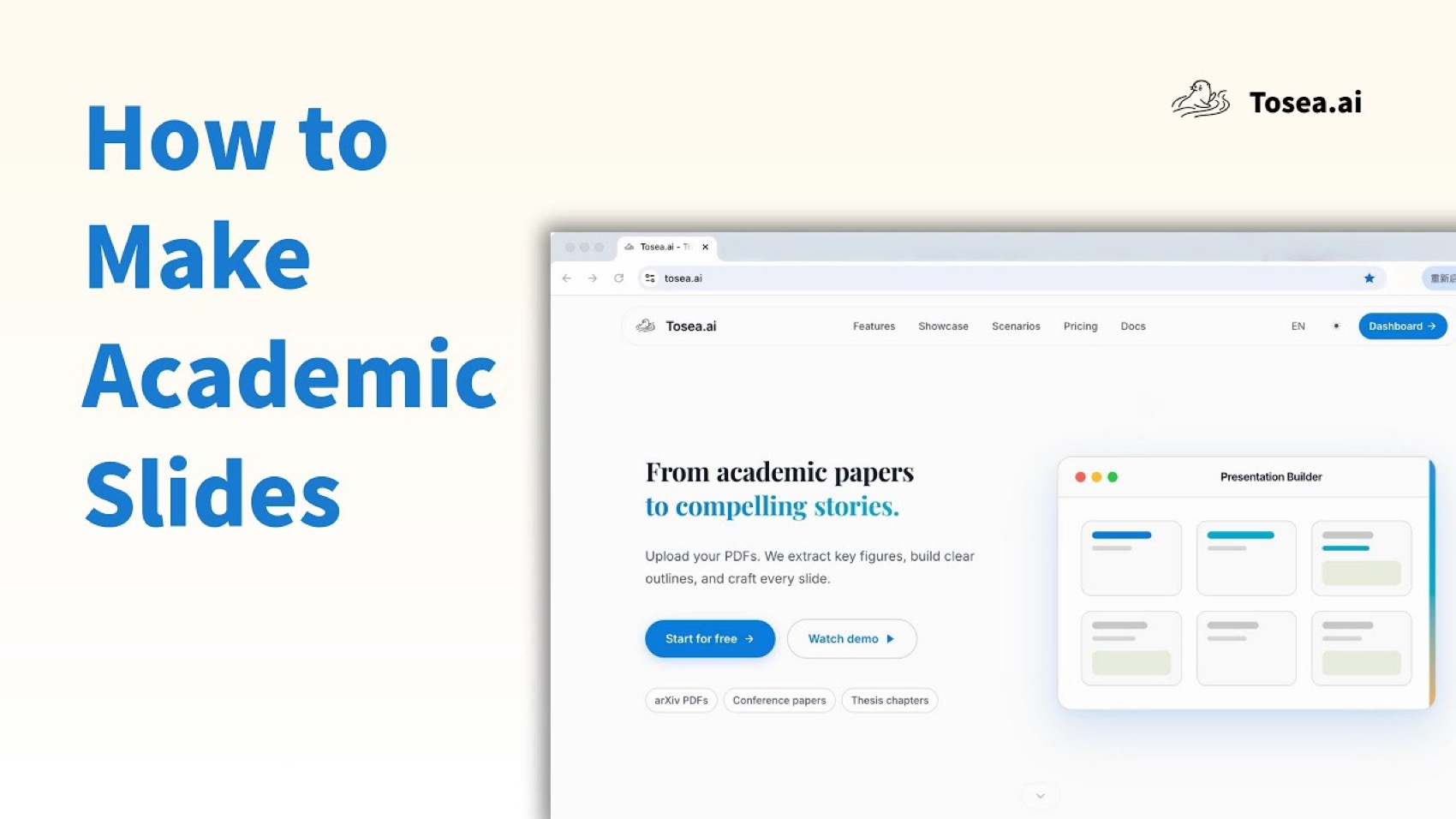
For PPT designers, Tosea AI is useful because it does not treat a deck as a simple image-generation task. It helps move from source material to outline, from outline to slides, from slides to editable PPTX, and from rough AI draft to human-polished presentation.
That matters because professional designers still need to make decisions. They need to adjust rhythm, simplify pages, check claims, refine typography, and make sure the deck works for the room. AI should reduce the repetitive work before that point.
The Problem With Most AI PPT Tools
Most AI PPT tools are built around one of three ideas.
First, some tools are prompt-first. You type a topic, and the tool generates a deck. This can be useful for brainstorming, but it is risky for professional work because the deck may invent structure, overgeneralize facts, or ignore source documents.
Second, some tools are template-first. You choose a template and fill in content. This can help with visual consistency, but it still leaves the designer with the heavy work of reading, selecting, summarizing, and adapting content.
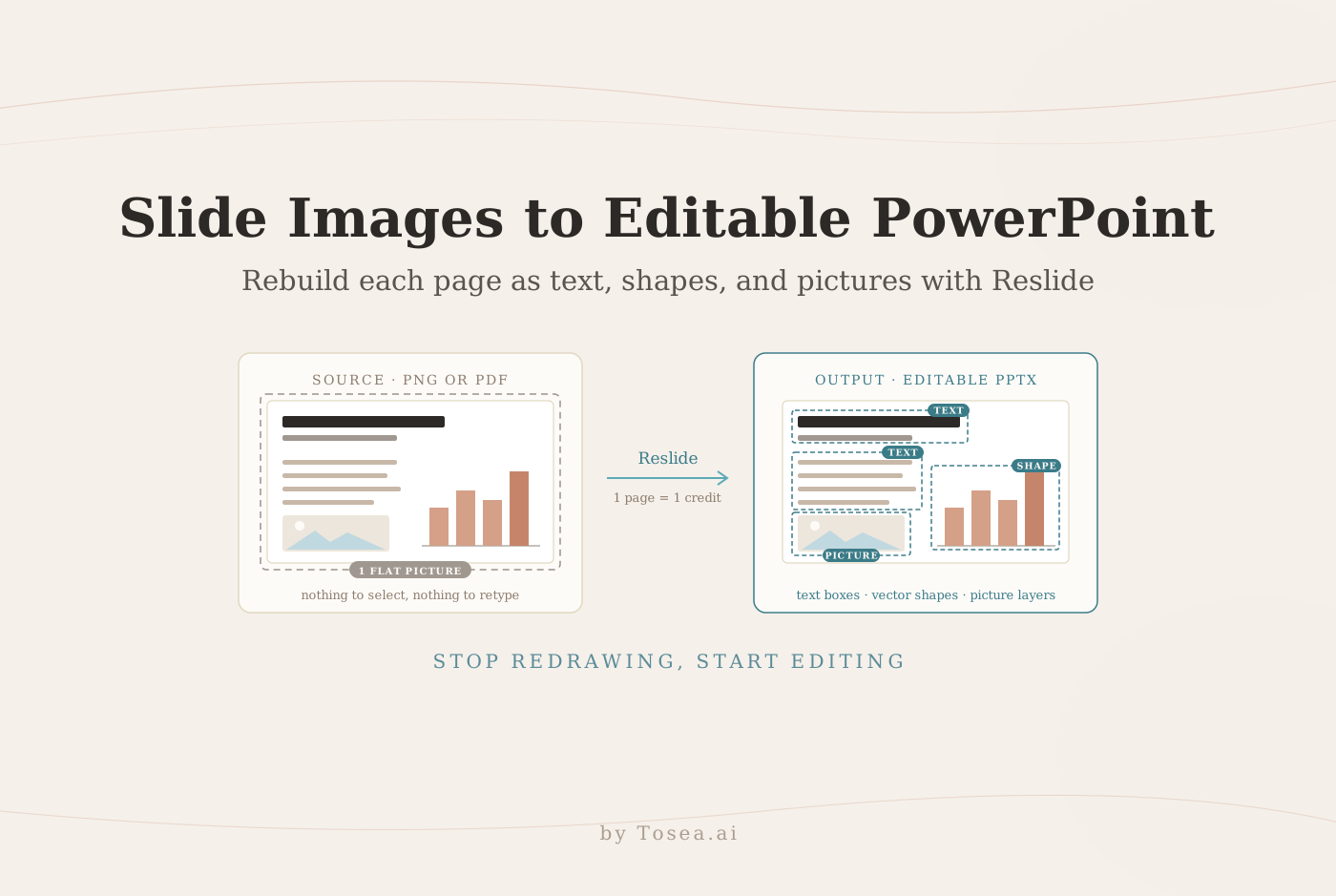
Third, some tools are image-first. They generate beautiful slide images, but the result is not truly editable. The exported PPTX may be a collection of flat screenshots. It looks polished, but the designer cannot easily edit text, move elements, replace charts, or revise page structure. We broke down this trade-off in detail in our HTML vs image AI slide generation guide.
A professional AI presentation tool needs to solve all three problems:
- It should understand source material.
- It should create a usable structure.
- It should export slides that remain editable.
What PPT Designers Actually Care About
A PPT designer does not judge a tool only by the first preview. The real test comes after export.
Designers care about:
- Whether the slide logic matches the source material
- Whether the deck has a clear narrative arc
- Whether tables, charts, and figures are preserved accurately
- Whether text boxes remain editable
- Whether fonts and sizes can be changed
- Whether icons and shapes can be moved
- Whether the exported PPTX opens correctly in PowerPoint
- Whether layouts break when edited by another teammate
- Whether the tool saves time after the second or third revision
- Whether the workflow gets smoother as the designer uses it more
A tool that only creates a beautiful first draft is not enough. Designers need a tool that survives revision.
A Better AI Presentation Workflow for Designers
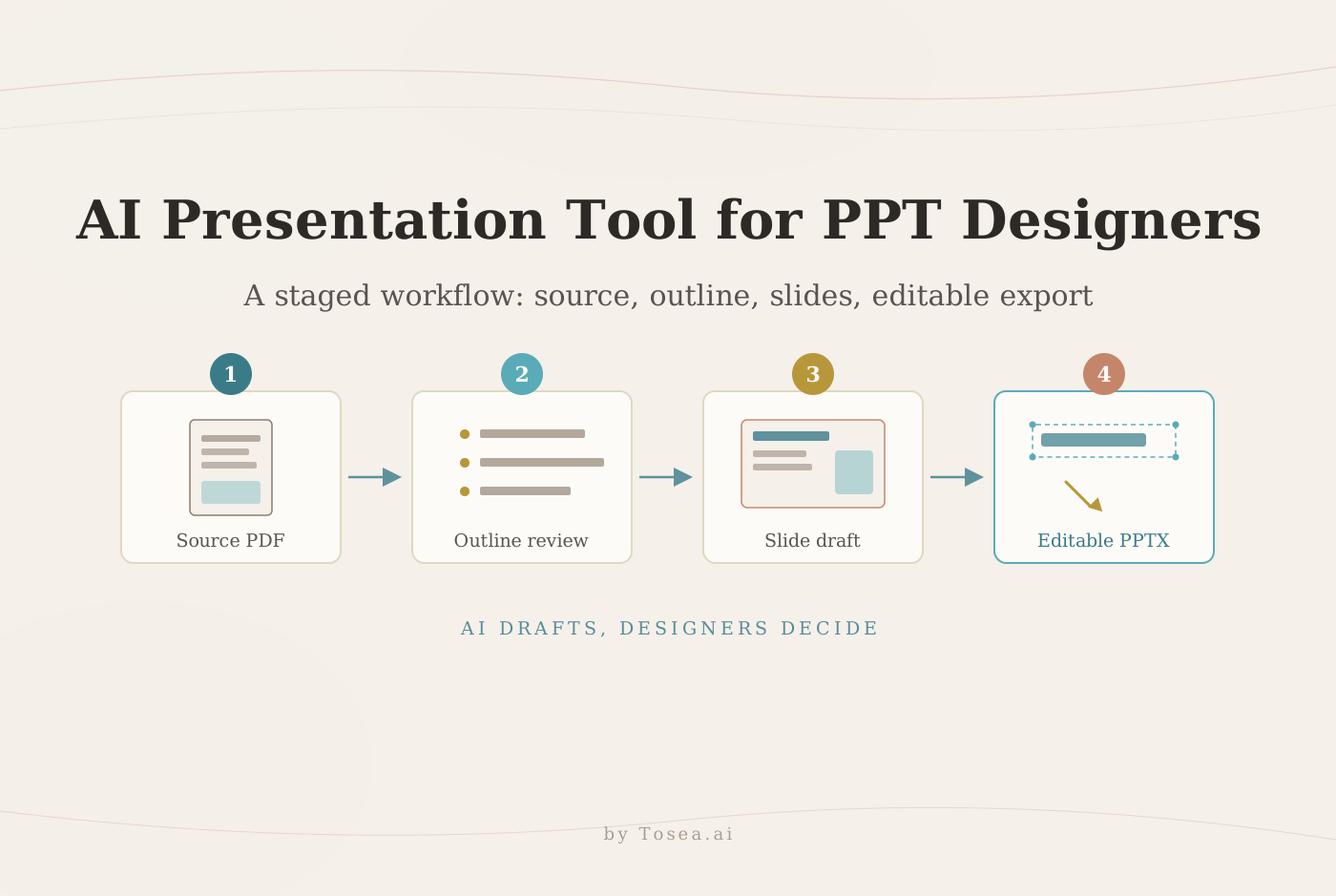
The strongest workflow is not one prompt to generate everything. It is a staged process.
Step 1: Start With the Source, Not the Template
A good PPT starts from source material. If the source is a report, paper, financial filing, product document, or research note, the AI should understand that document before it designs anything.
With Tosea AI, the workflow can begin by uploading a PDF or complex document. The tool can extract key content, identify figures, preserve tables, and generate an outline that connects the source material to a presentation narrative. For the basic version of this flow, see our PDF to PowerPoint conversion guide.
This is different from asking AI to make a deck about a topic. The source-first method reduces hallucination and gives the designer a better foundation.
Useful source types include:
- Research papers
- Market reports
- Annual reports
- 10-K filings
- Financial PDFs
- Product documentation
- Strategy documents
- Consulting reports
- Academic papers
- Internal notes
This is especially helpful for professional designers who often receive documents they did not write. AI can turn reading time into structured review time.
Step 2: Review the Outline Before Designing Slides
The outline is where many decks succeed or fail.
A weak outline creates beautiful but confusing pages. A strong outline makes even simple slides feel clear.
Before generating a full deck, designers should review:
- Section order
- Slide count
- Main argument
- Audience level
- Evidence placement
- Data-heavy sections
- Visual opportunities
- Pages that need diagrams or charts
- Pages that should stay simple
Tosea AI supports an outline-first workflow, which gives designers a chance to correct the story before slide design begins. This is useful because changing structure after visual design is expensive. It is much faster to fix the outline first.
Step 3: Generate Slides With Visual Direction
Once the outline is right, the designer can guide the visual direction.
A good prompt should include:
- Audience
- Use case
- Tone
- Industry
- Desired style
- Brand constraints
- Slide ratio
- Output format
- Level of detail
- Editing needs
For example:
Create a 12-slide executive presentation from this report. Use a premium consulting style, clean hierarchy, restrained color, editable text, clear section pages, and evidence-first charts. Preserve key tables and source figures where relevant. The deck should be suitable for a strategy review meeting.
This type of instruction gives AI enough direction while leaving the designer room to refine. For more prompt patterns like this, see our collection of AI prompts for document-to-PPT work and the high-aesthetic presentation prompts guide.
Step 4: Export to Editable PPTX
Export is where many AI deck tools disappoint.
A deck can look excellent in a browser preview but become hard to edit after download. Common issues include:
- Flattened full-slide images
- Uneditable text
- Broken fonts
- Misaligned layers
- Low-resolution charts
- Garbled characters
- Overlapping objects
- Changed spacing
- Lost visual hierarchy
For PPT designers, editable export is not optional. It is the difference between a demo and a usable work file.
Tosea AI focuses on editable PowerPoint output. Its export pipeline is designed to preserve the preview while recovering fonts, font sizes, text boxes, icons, shapes, and layout structure as editable objects where possible. The goal is to make the exported PPTX close to the preview while still allowing designers to revise the file in Microsoft PowerPoint. We walked through this export problem — and a manual alternative — in our guide on turning GPT Image 2 slides into editable PPTX.
This is important for real projects because final decks almost always change. A client asks for a different title. A manager changes a chart label. A researcher corrects a term. A consultant needs to remove a row. A designer needs to rebalance one page before sending.
Editable PPTX keeps that process normal.
Step 5: Use AI for Revisions, Not Just First Drafts
The best AI presentation tool gets more useful over time because the designer learns how to guide it.
A designer can use AI to:
- Rewrite slide titles
- Simplify dense pages
- Turn paragraphs into diagrams
- Create executive summaries
- Generate alternative layouts
- Adjust tone for different audiences
- Convert technical content into business language
- Create speaker notes
- Suggest section breaks
- Identify missing evidence
- Compare the deck against the source material
This is where AI becomes more than a generator. It becomes a production assistant.
A designer still owns the final taste, but AI removes some of the repetitive work around structure, rewriting, and formatting.
Why This Workflow Gets Smoother With Use
The phrase "a tool gets better the more you use it" can mean two things.
First, the designer becomes better at prompting. You learn which instructions produce useful outlines, which styles work for your industry, and which details should be specified before generation.
Second, the workflow becomes more standardized. You start building reusable patterns:
- Strategy review deck prompt
- Research paper presentation prompt
- Financial report summary prompt
- Product launch deck prompt
- Investor update prompt
- Client proposal prompt
- Training deck prompt
Once these workflows are repeatable, AI becomes part of the design system.
The best result is not that every deck looks the same. The best result is that every deck starts from a cleaner structure.
Example Workflow for a PPT Designer
Here is a practical workflow for a designer using Tosea AI.
-
Upload the source document Use a PDF, research paper, financial report, or strategy document.
-
Ask for a source-grounded outline Request a slide-by-slide outline with section logic and key evidence.
-
Review and edit the outline Remove unnecessary sections, add missing context, and adjust the audience level.
-
Generate the first slide draft Ask for a specific visual style, ratio, tone, and slide count.
-
Review source fidelity Check whether tables, charts, numbers, and claims match the original document.
-
Export editable PPTX Download the deck and open it in PowerPoint.
-
Polish manually Adjust typography, spacing, layout balance, icons, colors, and transitions.
-
Use AI for targeted revisions Ask for title alternatives, section rewrites, chart simplification, or layout variations.
This workflow keeps the designer in control while using AI for the heaviest early steps. For a concrete end-to-end example, see how a 30-page research paper becomes a slide deck in about 10 minutes.
Tosea AI vs Traditional PPT Design Workflow
| Workflow Stage | Traditional PPT Design | Tosea AI Workflow |
|---|---|---|
| Source reading | Manual reading and note-taking | AI-assisted document parsing |
| Outline creation | Manual structure building | AI-generated outline for review |
| Figure extraction | Manual screenshot or redraw | Source-aware extraction and preservation |
| First draft | Built slide by slide | Generated from source and outline |
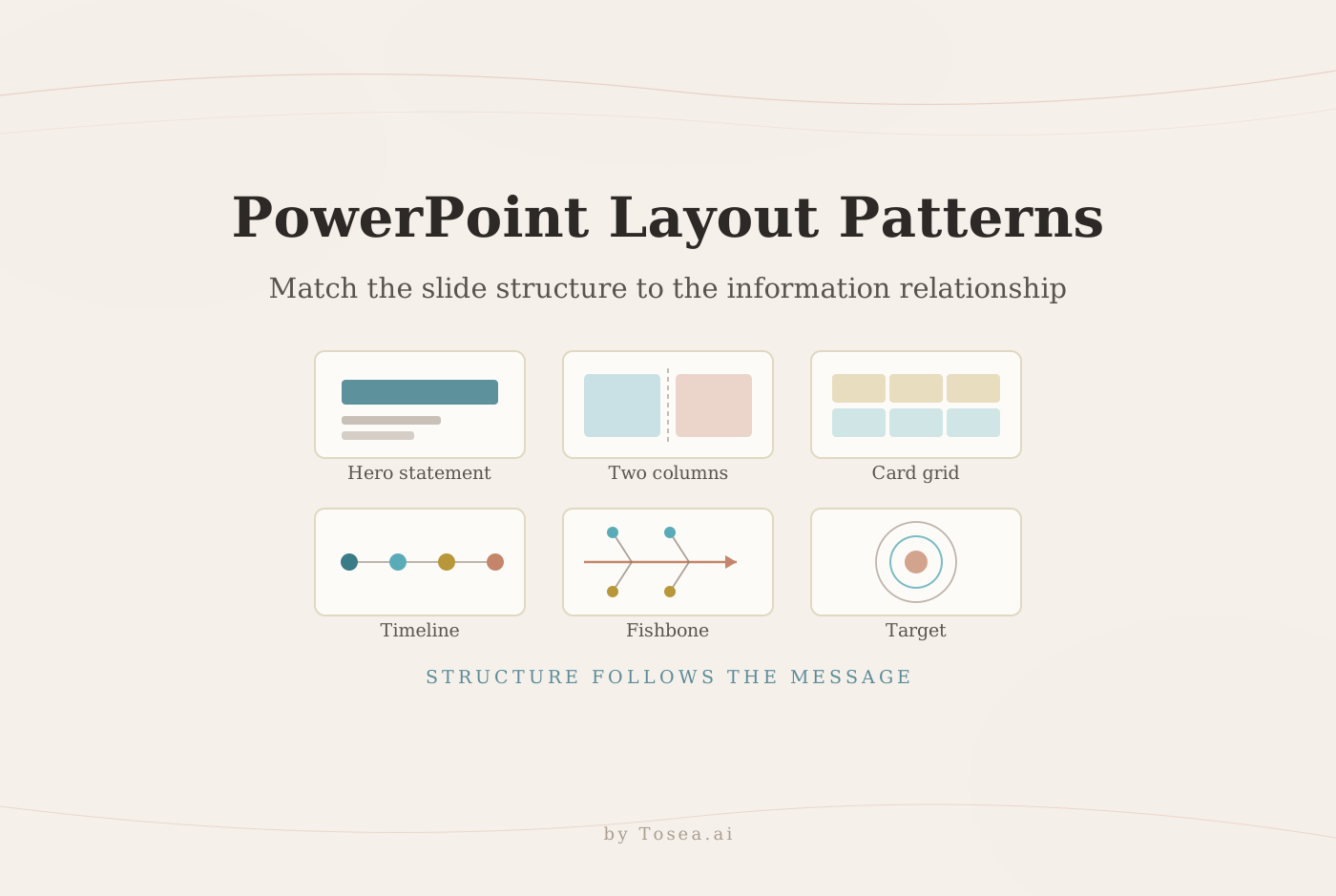
| Visual exploration | Manual design exploration | AI-assisted layout direction |
| Export | Native if built manually | Editable PPTX export |
| Revision | Manual editing | Manual editing plus AI suggestions |
| Best use case | High-control final polish | Faster source-to-deck production |
The two workflows are not enemies. The best workflow combines them. Let AI handle the early content-heavy phase, then let the designer handle judgment, refinement, and final polish.
When Tosea AI Is Most Useful
Tosea AI is especially useful when the deck depends on source accuracy.
Good use cases include:
- Research paper to slides
- Financial report to PowerPoint
- Annual report summary deck
- 10-K to presentation
- Industry analysis deck
- Consulting report draft
- Market research presentation
- Academic presentation
- Investment committee deck
- Product strategy review
- Internal knowledge-sharing deck
In these cases, the designer needs more than good-looking pages. The designer needs the content to stay tied to the source. That is why source-grounded AI matters — and why we treat accuracy as a first-class design requirement in our zero-hallucination AI slides guide.
When Human Designers Still Matter Most
AI can speed up presentation production, but it does not replace design judgment.
Human designers still make the most important calls:
- What should the audience remember?
- Which slide needs silence and whitespace?
- Which chart is too complex?
- Which claim needs more evidence?
- Which page should be emotional?
- Which slide should be deleted?
- Which visual style fits the brand?
- Which detail will distract the executive audience?
- Which sentence should become the headline?
AI can propose. Designers decide.
This is the right relationship between AI and PPT design.
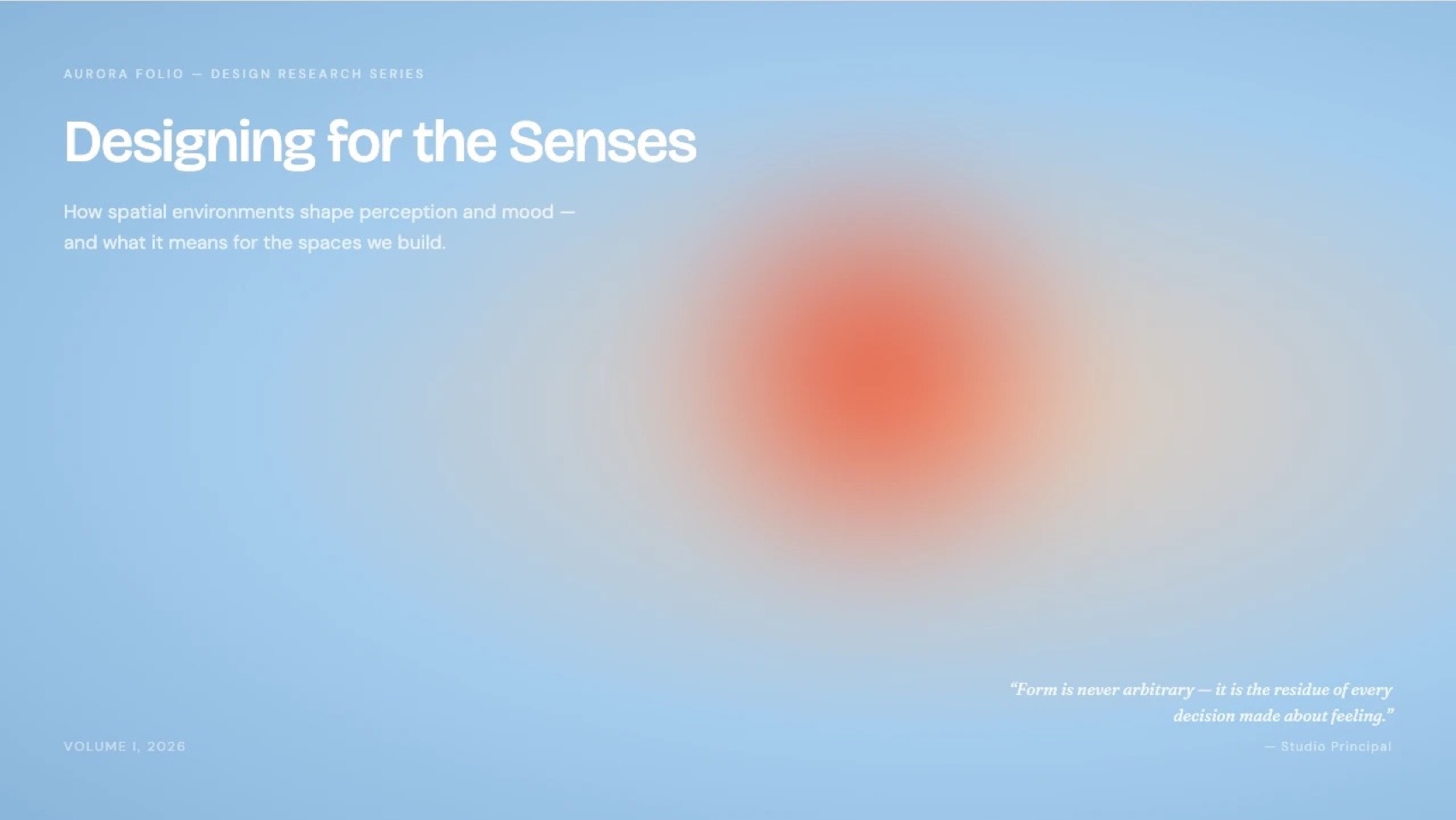
For starting points, the Tosea AI template library covers business, consulting, academic, creative, and personal report styles that designers can use as a visual baseline before applying their own direction.
Practical Prompt Templates
Prompt 1: Source-Grounded Business Deck
Create an executive presentation from this source document. First extract the key argument, supporting data, risks, and recommended actions. Then create a slide outline for a senior business audience. After I approve the outline, generate an editable PowerPoint deck with clear hierarchy, strong section pages, and source-faithful charts.
Prompt 2: Research Paper Presentation
Turn this research paper into a conference-style presentation. Preserve the research question, method, experimental setup, key figures, results, limitations, and conclusion. Keep the explanation accurate but presentation-friendly. Use editable slide text and keep figures connected to the source.
Prompt 3: Financial Report to Slides
Convert this financial report into an editable PowerPoint deck for an analyst review. Preserve key tables, charts, ratios, risk factors, and management commentary. Do not invent numbers. Use a clear investment committee style with concise headlines and source-grounded evidence.
Prompt 4: Designer Revision Prompt
Improve this deck for a professional presentation. Keep the content accurate, but refine the visual hierarchy, reduce text density, improve section transitions, and make the slide titles more executive. Preserve all source-backed numbers and make sure the exported PPTX remains editable.
What to Check Before Publishing the Deck
Before sending the final deck, check these items:
- Does every key number match the source?
- Are tables and charts readable?
- Are titles written as insights, not labels?
- Is each slide doing one job?
- Is the hierarchy clear at a glance?
- Are fonts consistent?
- Are important text boxes editable?
- Does the PPTX open correctly in Microsoft PowerPoint?
- Does the PPTX open correctly in WPS Office if your team uses it?
- Are source figures preserved correctly?
- Are there any hallucinated claims?
- Is the final deck suitable for the audience?
This checklist is where professional designers create value. AI can accelerate production, but quality control remains a design responsibility.
Q&A
What is the best AI presentation tool for PPT designers?
The best AI presentation tool for PPT designers is one that helps with source parsing, outline generation, slide drafting, visual consistency, and editable PPTX export. For document-heavy workflows, Tosea AI is a strong fit because it is source-grounded and designed to turn complex documents into editable PowerPoint slides.
Can AI replace PPT designers?
No. AI can generate drafts, summarize documents, suggest layouts, and export editable files, but designers still control the final story, visual hierarchy, brand fit, audience pacing, and quality review. AI is best used as a production assistant, not a replacement for design judgment.
Why does editable PPTX export matter?
Editable PPTX export matters because professional decks always change. Teams need to revise titles, replace numbers, adjust charts, move icons, edit text boxes, and adapt layouts. A flat image-based deck may look good, but it is difficult to use in real business workflows.
What makes Tosea AI different from a normal AI slide generator?
Tosea AI is built around source-grounded presentation creation. It can turn PDFs, research papers, financial reports, annual reports, 10-K filings, and complex documents into editable PowerPoint slides while preserving tables, charts, figures, and source context.
Is Tosea AI only for non-designers?
No. PPT designers can use Tosea AI to reduce the time spent on reading, outlining, first drafts, figure extraction, and export. Designers still refine the final layout, hierarchy, typography, and brand expression.
Can Tosea AI help with research or financial decks?
Yes. Tosea AI is especially useful for research papers, financial reports, annual reports, 10-K filings, industry reports, and other source-heavy materials where accuracy and editable output matter.
Final Takeaway
An AI presentation tool for PPT designers should not be judged only by whether the first preview looks impressive. The real test is whether it helps the designer move from source material to editable PowerPoint faster, with fewer broken layouts, fewer hallucinated claims, and less repetitive cleanup.
Tosea AI is built for that kind of workflow. It turns complex documents into editable PowerPoint slides, preserves source context, supports professional deck production, and gives designers a better starting point for final polish.
For PPT designers, the best use of AI is not to give up control. It is to move control to a higher level. Let AI help with source reading, outline building, draft generation, and editable export. Then use human judgment to refine the story, improve the visual hierarchy, and make the deck worth presenting.
If your work involves research papers, financial reports, annual reports, 10-K filings, industry analysis, consulting decks, product updates, or executive presentations, Tosea AI is a practical AI presentation tool for turning complex source material into editable slides that designers can actually keep working with.