How to Turn GPT Image 2 Slides into Editable PPTX: Two Practical Workflows
Two practical workflows to turn GPT Image 2 slide images into editable PPTX: Tosea AI's upgraded export engine that keeps the preview intact, or a Codex rebuild with transparent assets.
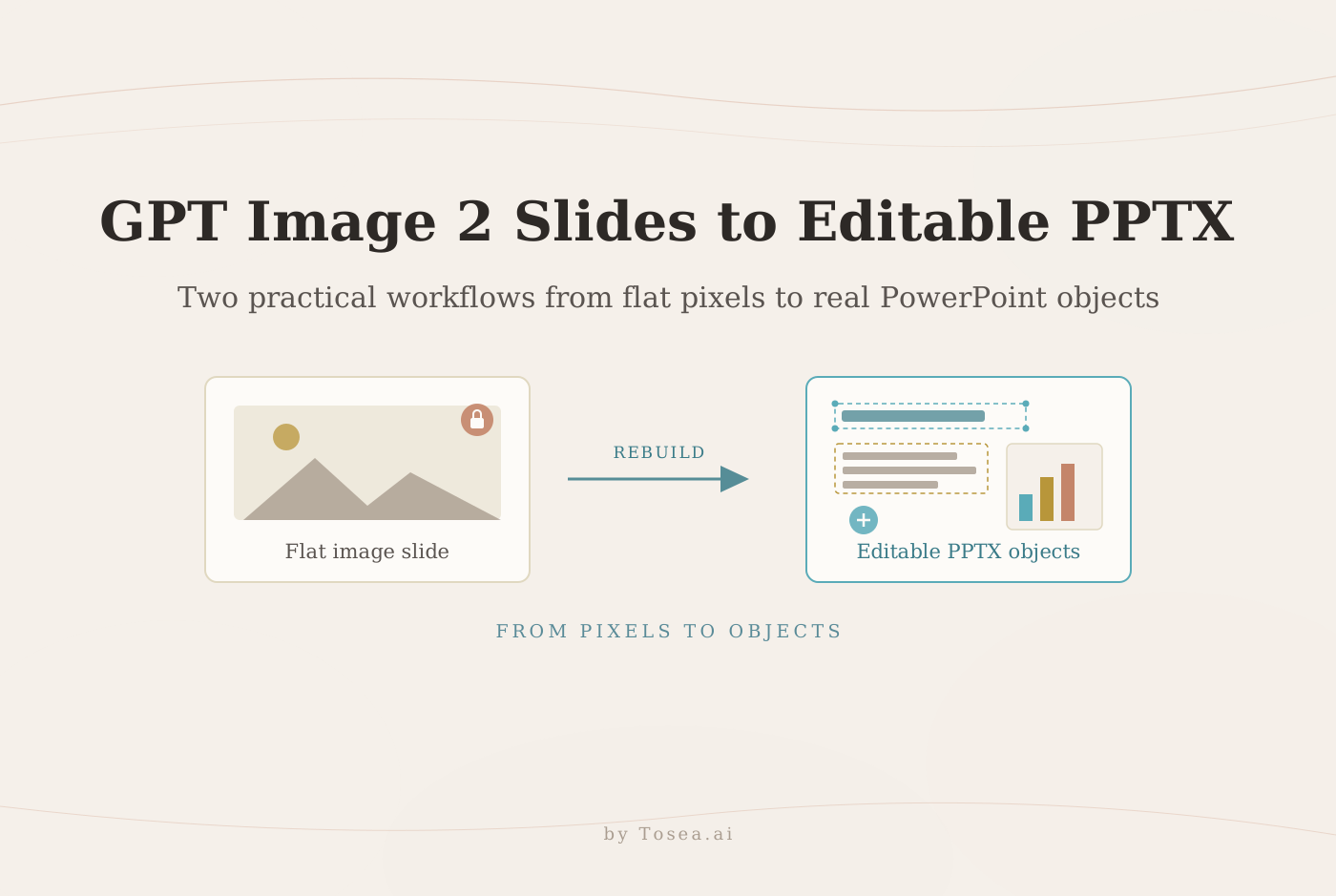
GPT Image 2 slides to editable PPTX is one of the most practical workflows for people who love the visual quality of AI-generated slide images but still need real PowerPoint files for editing, reporting, and team collaboration. GPT Image 2 can create polished slide visuals, but a generated image is not the same as an editable PPTX. To turn image-based PPT pages into editable PowerPoint slides, you need either a dedicated export engine such as Tosea AI or a manual reconstruction workflow using Codex.
Quick Answer
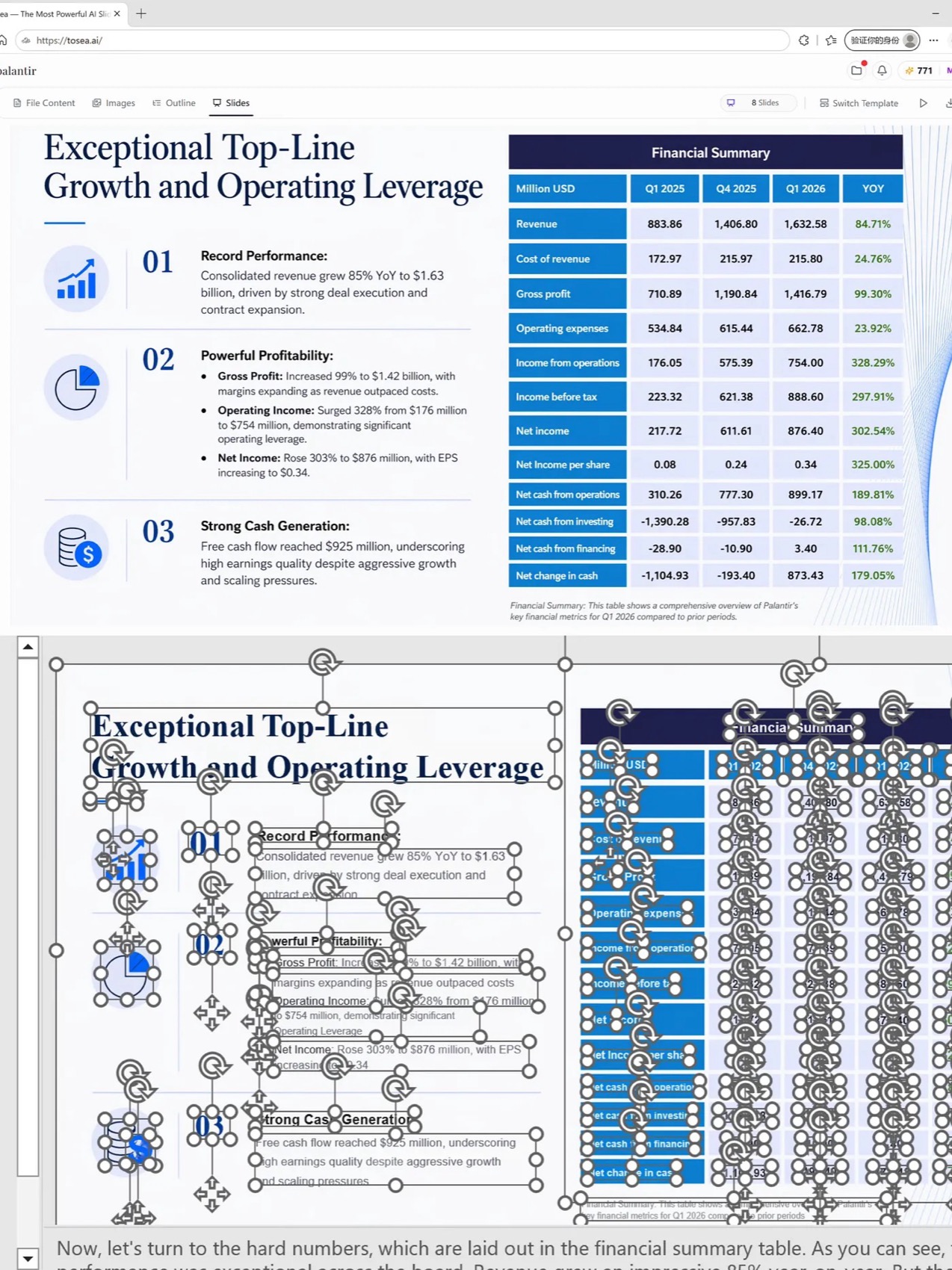
To turn GPT Image 2 slides into editable PPTX, use one of two workflows. The fastest method is Tosea AI, which connects GPT Image 2-style visual generation with an upgraded PPTX export engine that preserves the preview layout and restores text boxes, fonts, icons, shapes, and visual structure as editable objects. The manual method is to use Codex to split each image slide into transparent PNG assets, then rebuild the deck with editable text boxes in PowerPoint format.
Why GPT Image 2 Slides Are Hard to Edit
GPT Image 2 is strong for high-quality visual generation. OpenAI's official image generation documentation says the API can generate and edit images from text prompts using GPT Image models, including gpt-image-2, and supports customization options such as size, quality, format, and compression through the Image API or Responses API. You can read the official documentation here: OpenAI Image Generation Guide. For a full walkthrough of the model itself, see our GPT Image 2 complete guide.
That is powerful for slide design because a slide is a visual composition. A good prompt can produce an attractive 16:9 page with strong layout, color, typography, icons, charts, and a premium consulting-report look.
But the hard part is editability.
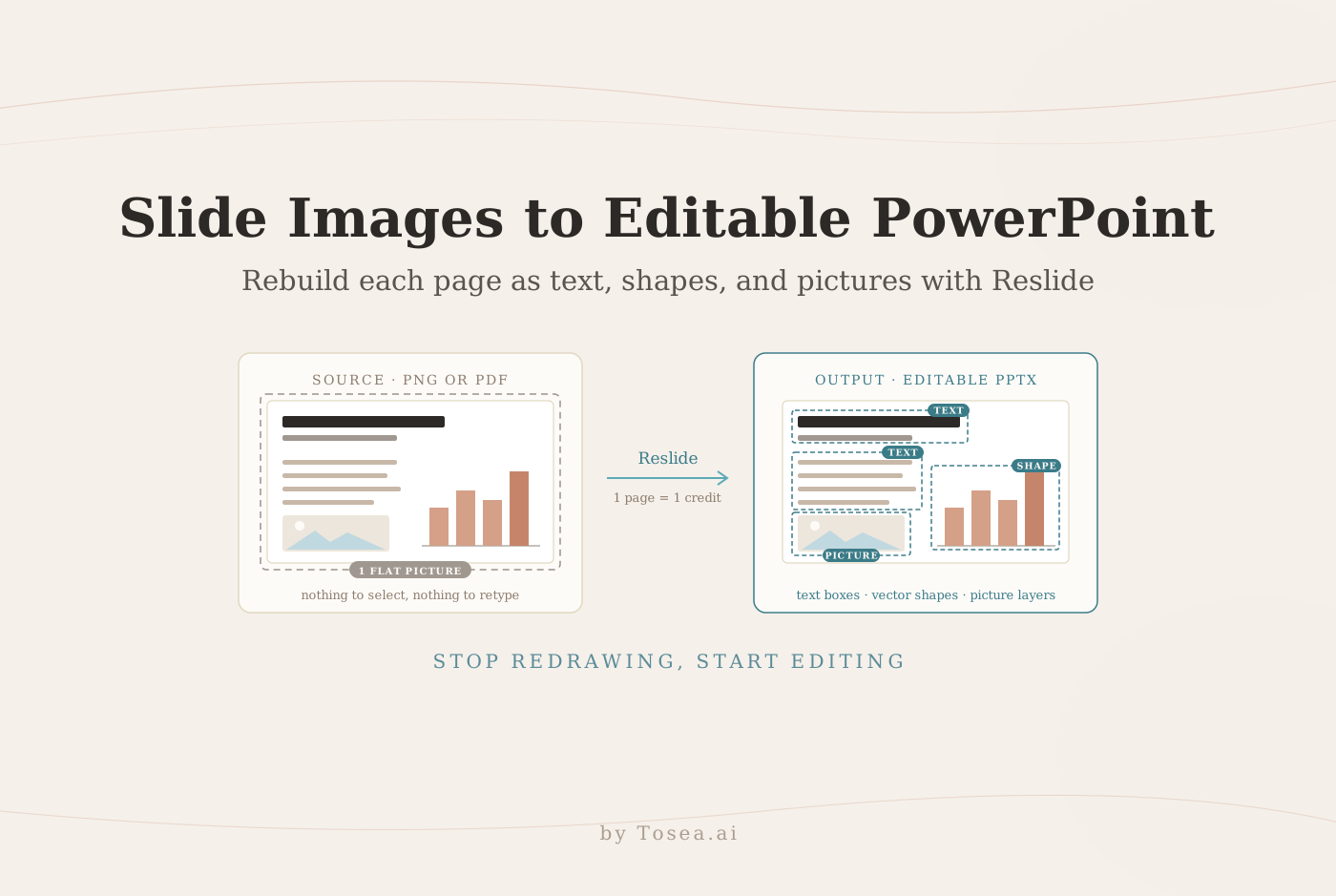
A GPT Image 2 slide image usually behaves like a flat picture. You can place it into PowerPoint, but you cannot easily select a headline, move an icon, change a chart label, adjust a text box, replace a data point, or revise the layout. For real business work, that is a problem. We compared the two generation philosophies in depth in our HTML vs image AI slide generation guide — image mode wins on visual richness, but export is where the trade-off shows up.
Teams care about:
- Can the exported PPTX match the preview?
- Can I edit the title and body text?
- Can I replace charts, icons, and data?
- Will the layout break in Office or WPS?
- Will fonts become messy or shift position?
- Will layers overlap after export?
- Can I use the deck for a formal client or industry report?
That is why the image-to-editable-PPTX workflow matters.
Method 1: Use Tosea AI to Generate GPT Image 2 PPT and Export Editable PPTX
The easiest workflow is to use Tosea AI as the production layer.
Tosea AI has integrated GPT Image 2-style slide visual generation for high-quality PPT pages and upgraded its PPTX export engine. The goal is simple: what you see in the preview should remain almost the same after export, while the exported PowerPoint file should still be editable.
This matters because most AI slide tools can generate a good preview, but the exported PPTX may lose the layout. Text may shift. Fonts may change. Icons may become flattened. Layers may overlap. Some tools simply export screenshots into PowerPoint, which looks fine but cannot be edited.
Tosea AI is designed to solve that problem more directly.
Where Tosea AI Fits
Tosea AI is a source-grounded AI presentation tool that turns PDFs, research papers, financial reports, annual reports, 10-K filings, industry reports, and complex documents into editable PowerPoint slides. It is built for analysts, researchers, consultants, operators, and teams that need accurate slide decks with preserved tables, charts, figures, layout structure, and source context.
For GPT Image 2 slide workflows, Tosea AI adds another layer: it can use high-quality AI visual generation to create premium PPT pages, then export them as editable PPTX files through an upgraded export pipeline.
The two biggest advantages are:
1. The exported PPTX is highly consistent with the preview
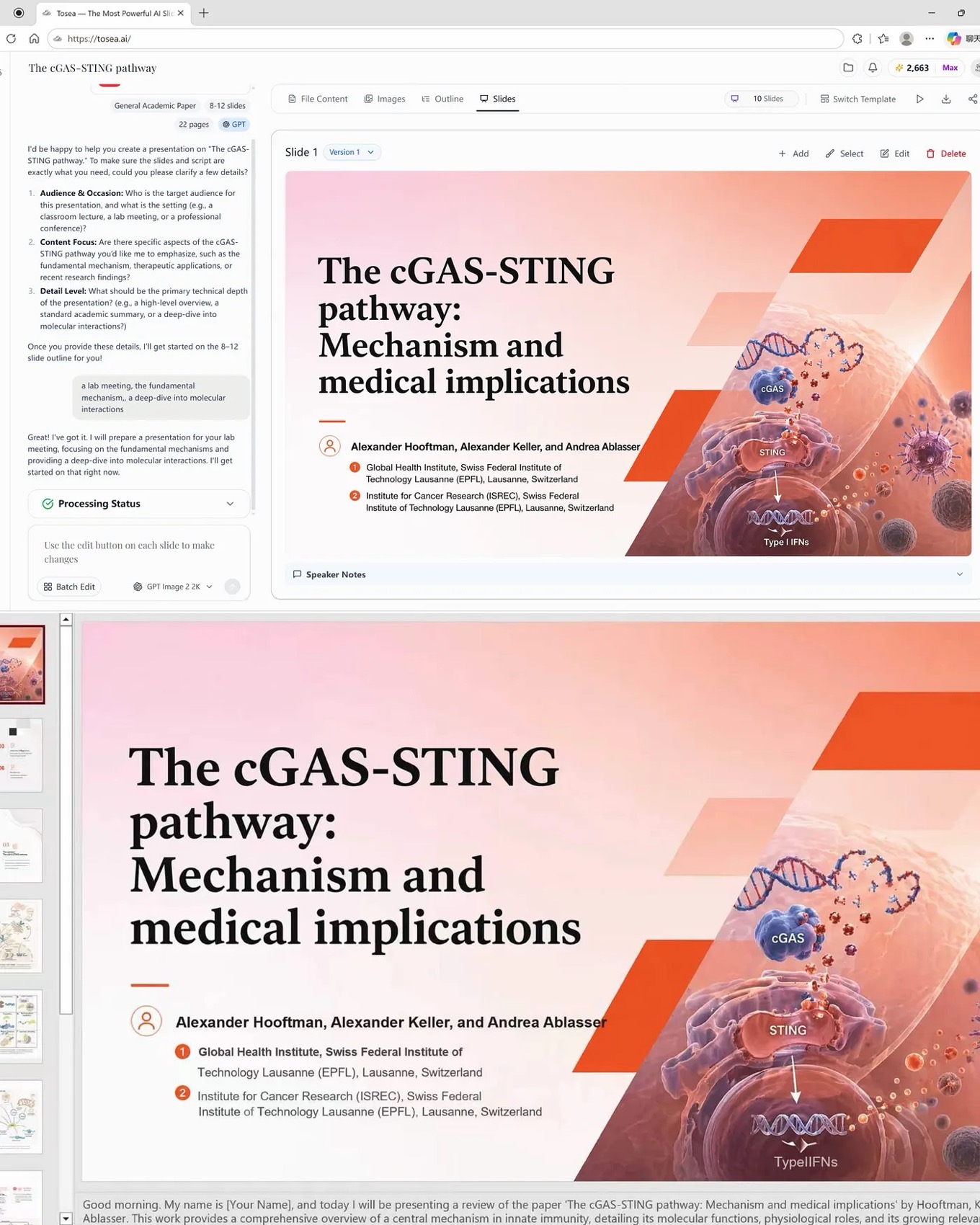
The exported PowerPoint file and the preview deck should look almost identical. The layout, spacing, visual hierarchy, background composition, and page structure are preserved, so the file does not fall apart after export.
2. Text, fonts, text boxes, icons, and shapes are restored as editable components where possible
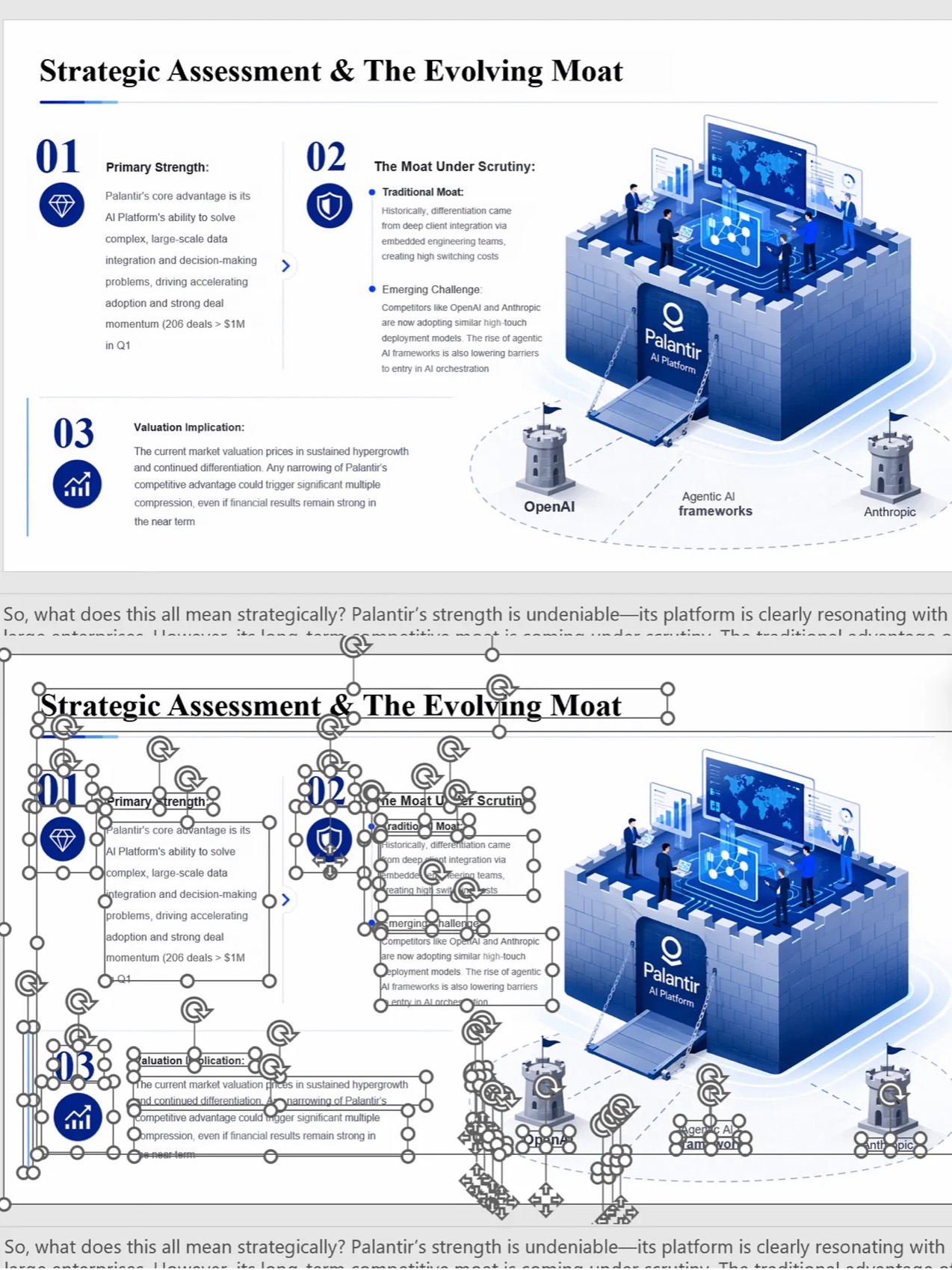
Instead of giving you a flat image-only deck, Tosea AI tries to recover fonts, font sizes, editable text boxes, icons, shapes, and structural elements. This reduces common problems such as layer overlap, garbled characters, broken formatting, and layout drift.
This is the recommended method when the deck needs to be used in a real workflow: consulting reports, industry analysis, investor updates, internal business reviews, product launches, research presentations, or client-facing deliverables.
Method 1 Workflow
Use this workflow when you want speed, consistency, and editability.
-
Upload or describe the source material Use a PDF, report, research paper, financial document, notes, outline, or prompt.
-
Ask Tosea AI to generate the PPT The prompt can be broad or detailed, depending on the task. If you want stronger visual direction, the prompt patterns in our high-aesthetic AI presentation prompts guide work well here.
-
Review the visual preview Check slide structure, page count, storyline, visual consistency, and whether the deck matches the intended audience.
-
Revise before export Change the outline, rewrite sections, adjust page logic, and review key claims.
-
Export editable PPTX
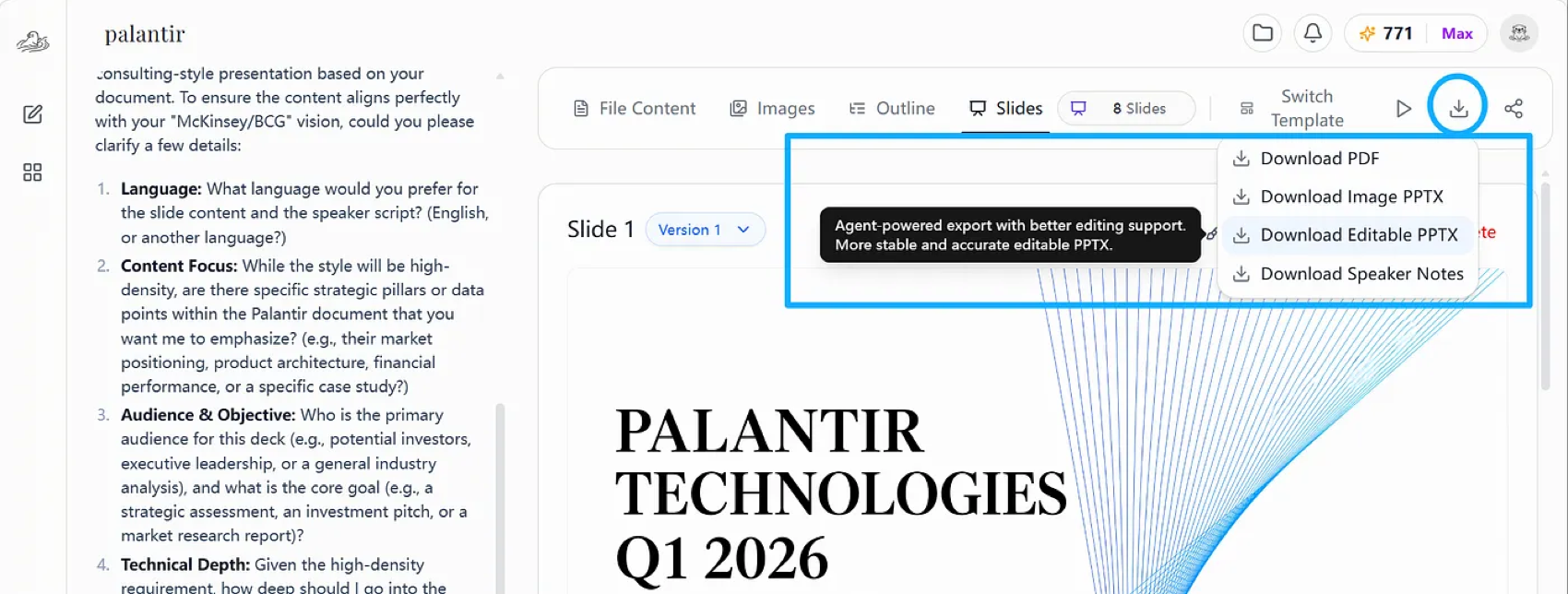
Download the editable PPTX.
-
Final edit in PowerPoint Adjust details, replace data, localize language, add speaker notes, or apply brand templates.
This workflow is best when you need a polished deck quickly and do not want to manually reconstruct every slide.
Method 2: Use Codex to Rebuild Image PPT as Editable PPTX
The second method is more manual. It is useful when you already have GPT Image 2-generated slide images and want to reconstruct them into editable PowerPoint files.
OpenAI's Codex slide deck use case explains that Codex can manipulate PPTX files, use image generation, edit slides through code, generate visuals, and apply repeatable layout rules slide by slide. The official use case is here: OpenAI Codex Generate Slide Decks. If you have not used Codex before, our OpenAI Codex complete guide covers setup and the basic agent workflow.
In practice, Codex can help with a two-step workflow:
- Split each image-based slide into transparent visual assets
- Rebuild the slide in PPTX format with editable text boxes
This is not as simple as using Tosea AI. It requires more instruction, more review, and more tolerance for iteration. But it can work when you want control over the reconstruction process.
Step 1 Prompt: Split PPT Page Elements into Transparent Assets
Use this prompt when you have generated PPT page images and want Codex to extract visual elements.
Split all PPT page elements into transparent independent assets.

Scope:
Process all generated PPT pages, including every adapted slide page.
Extract all visual elements, including shapes, color blocks, icons, charts, layout frames, images, and decorative graphics.

Splitting rules:
Export each element as a separate PNG image.
Strictly preserve the original aspect ratio and original relative position of every element.
Do not arbitrarily enlarge, shrink, stretch, or distort any element.

Image quality and cropping:
All exported assets must be high-resolution and lossless.
Crop each PNG precisely according to the actual visible size of the element.
Small elements must be exported at their native size.
Do not force small elements to fill a full-slide canvas with large empty margins.

Cutout quality:
Every PNG must have a clean transparent background.
No ghosting, double images, jagged edges, dirty borders, background residue, color contamination, or extra pixels.
Edges must be clean enough so that later text overlays do not create shadowing, visual noise, or messy stacking.

Text preservation rules:
If an image itself contains original embedded text, preserve that text completely and sharply.
Do not blur, smear, erase, rewrite, or alter text that belongs to the original image.
Remove all other layout text from the slide.
Keep only pure visual elements unless the text is part of an original embedded image.

Image grouping rule:
If a picture is a complete visual object, keep it as one complete asset.
Do not split internal details of a full picture unless explicitly required.

Output:
Export all transparent PNG assets and preserve page-level naming so each asset can be mapped back to its original slide and position.
This step is about asset extraction. The goal is not to create the final deck yet. The goal is to preserve the visual materials in a reusable form.
The most important quality checks are:
- Transparent background is clean
- No white rectangle behind icons
- No blurry edges
- No duplicate shadow residue
- No random page-sized transparent PNGs for tiny objects
- No loss of embedded image text
- No unwanted removal of key visual elements
Step 2 Prompt: Rebuild an Editable Industry Report PPT File
After the assets are extracted, use this prompt to rebuild the PowerPoint file.
Use all PNG assets extracted in the previous step to rebuild and create a complete editable industry report PPT file.

Layout reconstruction:
Restore every slide according to the original PPT page layout.
Place all PNG assets back into their corresponding positions.
Preserve the full layout framework for every slide, including all adapted pages.
Keep the original proportions, relative positions, spacing, and visual hierarchy.

Text handling:
Add editable text boxes into the restored layout.
All newly added text must be independent editable PowerPoint text.
Do not turn new text into images.
Use editable text boxes for titles, subtitles, section labels, body copy, chart annotations, callouts, and footnotes.

Format output:
Export the final result as a standard .pptx file.
The file must open and remain editable in Microsoft Office and WPS.

Goal:
The final output should be a complete editable industry report PowerPoint source file.
Users should be able to directly modify text, replace data, adjust layout, move elements, and use the deck for formal reporting.
This second step turns the extracted visual assets into a usable PowerPoint structure.
For implementation, Codex may use libraries such as PptxGenJS or Python PowerPoint tooling to place images and text boxes programmatically. The key is to preserve slide coordinates and rebuild text as PowerPoint text, not as flat pixels.
Tosea AI vs Codex Manual Reconstruction
| Factor | Tosea AI | Codex manual workflow |
|---|---|---|
| Best for | Fast production-ready PPTX | Rebuilding existing image slides |
| Visual generation | Built into the workflow | Requires separate image generation |
| PPTX export | Direct export | Must be reconstructed |
| Preview consistency | Designed to preserve preview layout | Depends on extraction and placement accuracy |
| Text editability | Restores text boxes and structure where possible | Requires manual text box reconstruction |
| Technical skill | Low | Medium to high |
| Iteration burden | Lower | Higher |
| Best use case | Formal reports, research decks, consulting slides, industry analysis | Experimental conversion of image-only decks |
| Risk | Need to verify content accuracy | Risk of misaligned layers, bad crops, and incomplete editability |
If you need the cleanest workflow, start with Tosea AI. If you already have image-only slides and want to experiment with reconstruction, use Codex.
What Makes a PPTX Truly Editable?
An editable PPTX is not just a PowerPoint file. A screenshot placed on a slide is technically inside a PPTX, but it is not meaningfully editable.
A useful editable PPTX should let you:
- Select and edit text
- Change font size and font family
- Move text boxes
- Replace icons or images
- Adjust layout spacing
- Edit shapes or at least move visual components
- Replace charts or data screenshots
- Open the file in Office and WPS without broken layout
- Preserve the visual look from preview to export
This is why a true image PPT to editable PPTX workflow needs both visual fidelity and object reconstruction. Editability also matters for accuracy review: when text is a real PowerPoint object instead of pixels, checking numbers against the source document is far easier, which is the core idea behind our zero-hallucination AI slides guide.
Common Problems When Converting GPT Image 2 Slides to PPTX
Problem 1: The deck looks good but cannot be edited
This happens when each slide is exported as one full-page image. It is visually acceptable but not useful for serious editing.
Problem 2: Text becomes blurry or unreadable
If the slide is flattened into a bitmap and scaled, small text can become blurry. For formal decks, important text should be rebuilt as editable PowerPoint text.
Problem 3: Layers overlap after export
When visual elements are reconstructed without correct coordinates, text boxes, icons, and images may overlap. This is why coordinate preservation matters.
Problem 4: Transparent PNG extraction creates dirty edges
If cutout quality is poor, the rebuilt deck looks messy. You may see white edges, background residue, or duplicated shadows.
Problem 5: Fonts shift across devices
Even if text is editable, PowerPoint may substitute fonts if the original font is unavailable. Use common fonts or embed brand fonts where the workflow supports it.
Best Practices for Better Results
Use 16:9 slides from the beginning. Ask GPT Image 2 or Tosea AI to generate visuals in standard presentation ratio. This reduces cropping problems later.
Keep important text outside flat images. If text needs to be edited later, rebuild it as PowerPoint text rather than preserving it inside an image.
Use larger visual blocks. Tiny decorative elements are harder to crop and align. Group background visuals and decorative systems when possible.
Separate content from decoration. Charts, numbers, labels, and claims should remain editable or at least easy to replace.
Use consistent layout rules. Keep margins, title positions, grid systems, and slide rhythm consistent across the deck.
Review the exported file in PowerPoint and WPS. A file that opens in one tool may shift in another. Always test the final PPTX before sending it.
If you are still choosing which image model to generate the visuals with in the first place, our comparison of Nano Banana 2 vs Pro for AI PPT generation covers how different image models handle slide text and layout.
Recommended Workflow by Scenario
| Scenario | Recommended method |
|---|---|
| You need a formal industry report deck fast | Tosea AI |
| You want GPT Image 2 visual quality plus editable PPTX | Tosea AI |
| You already have flat image slides | Codex reconstruction |
| You need exact preview-to-export consistency | Tosea AI |
| You want to experiment with custom asset extraction | Codex |
| You need Office and WPS compatibility | Tosea AI first, then manual QA |
| You need to modify every text line later | Tosea AI or Codex with rebuilt text boxes |
Q&A
Can GPT Image 2 directly export editable PPTX?
GPT Image 2 is an image generation model, not a native PowerPoint authoring tool. It can generate high-quality slide visuals, but a generated image is not automatically an editable PPTX. You need a PPTX export or reconstruction layer such as Tosea AI or Codex.
What is the easiest way to turn GPT Image 2 slides into editable PPTX?
The easiest method is to use Tosea AI. It combines high-quality AI slide visual generation with an upgraded PPTX export engine that preserves the preview layout and restores text boxes, fonts, icons, shapes, and structure as editable components where possible.
Can Codex convert image PPT into editable PowerPoint?
Yes, Codex can help reconstruct image PPT into editable PowerPoint by splitting slide images into transparent PNG assets, then rebuilding the deck with editable text boxes and placed visual elements. This method requires more manual review than Tosea AI.
Will the rebuilt PPTX be perfectly editable?
Not always. Some elements may remain images, especially complex illustrations, embedded pictures, and decorative backgrounds. The practical goal is to make the important parts editable: text, titles, labels, structure, and movable visual components.
Why does image-to-PPTX conversion often fail?
It fails because the original slide is a flat image. The system has to infer separate objects, crop them cleanly, place them at the correct coordinates, and rebuild text as editable PowerPoint objects. Any mistake can cause blurry text, dirty edges, or layout mismatch.
Is Tosea AI better than the Codex method?
For most business users, yes. Tosea AI is better when you want a fast, polished, editable PPTX with strong preview consistency. Codex is better when you already have image-only slides and want a customizable reconstruction workflow.
Final Takeaway
GPT Image 2 slides to editable PPTX is not just a file conversion problem. It is a reconstruction problem. A beautiful AI-generated slide image must be turned into a structured PowerPoint file with editable text, movable elements, clean layout, and reliable export behavior.
There are two practical paths.
The first and recommended path is Tosea AI. Tosea AI connects high-quality GPT Image 2-style PPT generation with an upgraded PPTX export engine, so the exported file stays close to the preview while restoring fonts, text boxes, icons, shapes, and layout structure as editable objects where possible.
The second path is Codex. Use Codex to split image slides into transparent PNG assets, then rebuild the deck as a standard .pptx file with editable text boxes. This gives more control but also requires more review.
If your deliverable is a formal industry report, consulting deck, or research presentation, start with Tosea AI — it is the faster route from premium AI slide visuals to an editable PowerPoint file. If you already have flat image slides and want to control every step of the reconstruction, use the Codex two-step workflow.