How to Convert Slide Images and PDFs to Editable PowerPoint with Reslide
Convert slide images and PDFs to editable PowerPoint with Reslide: how reconstruction works, before-and-after examples, free credits, API limits, and a review checklist.
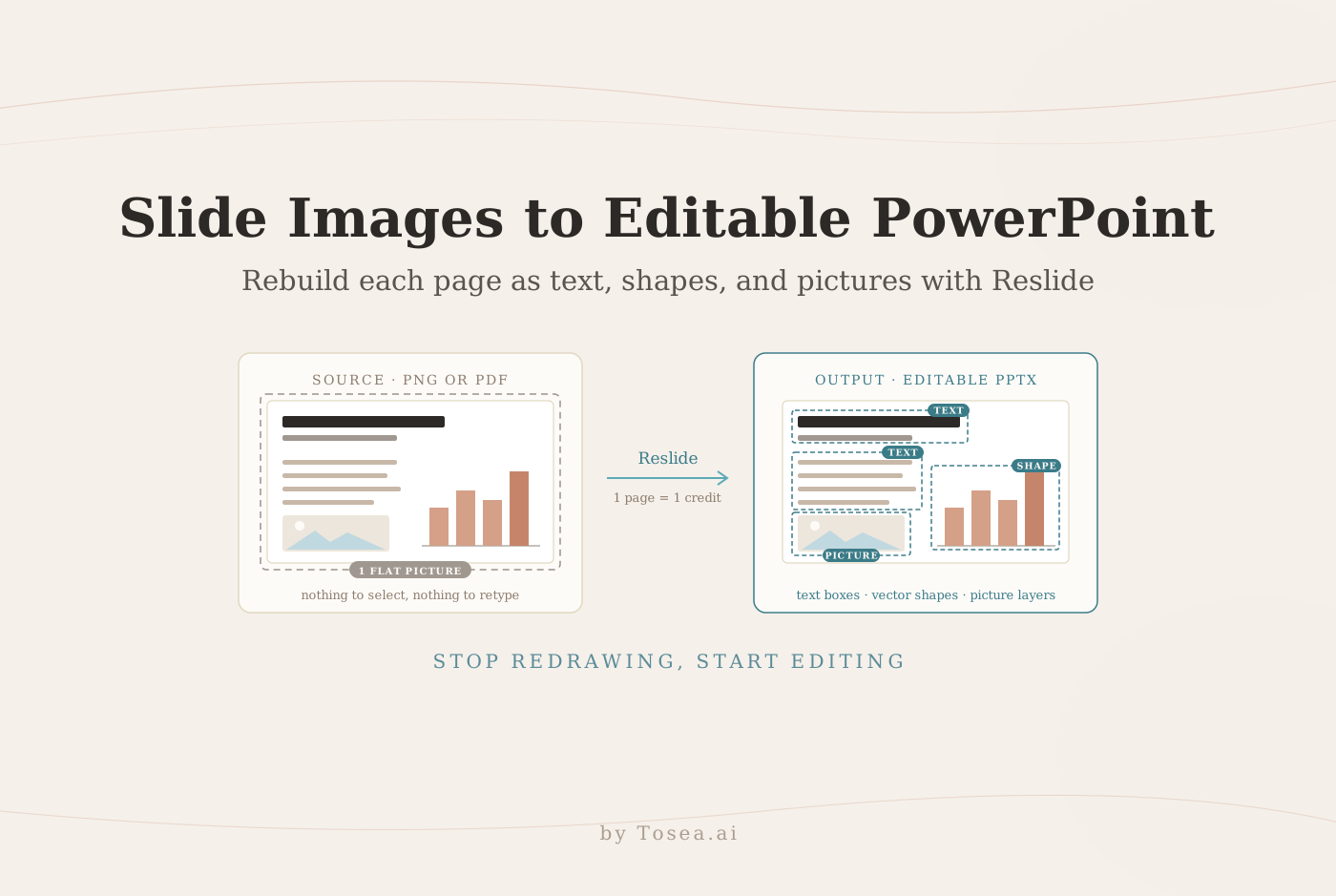
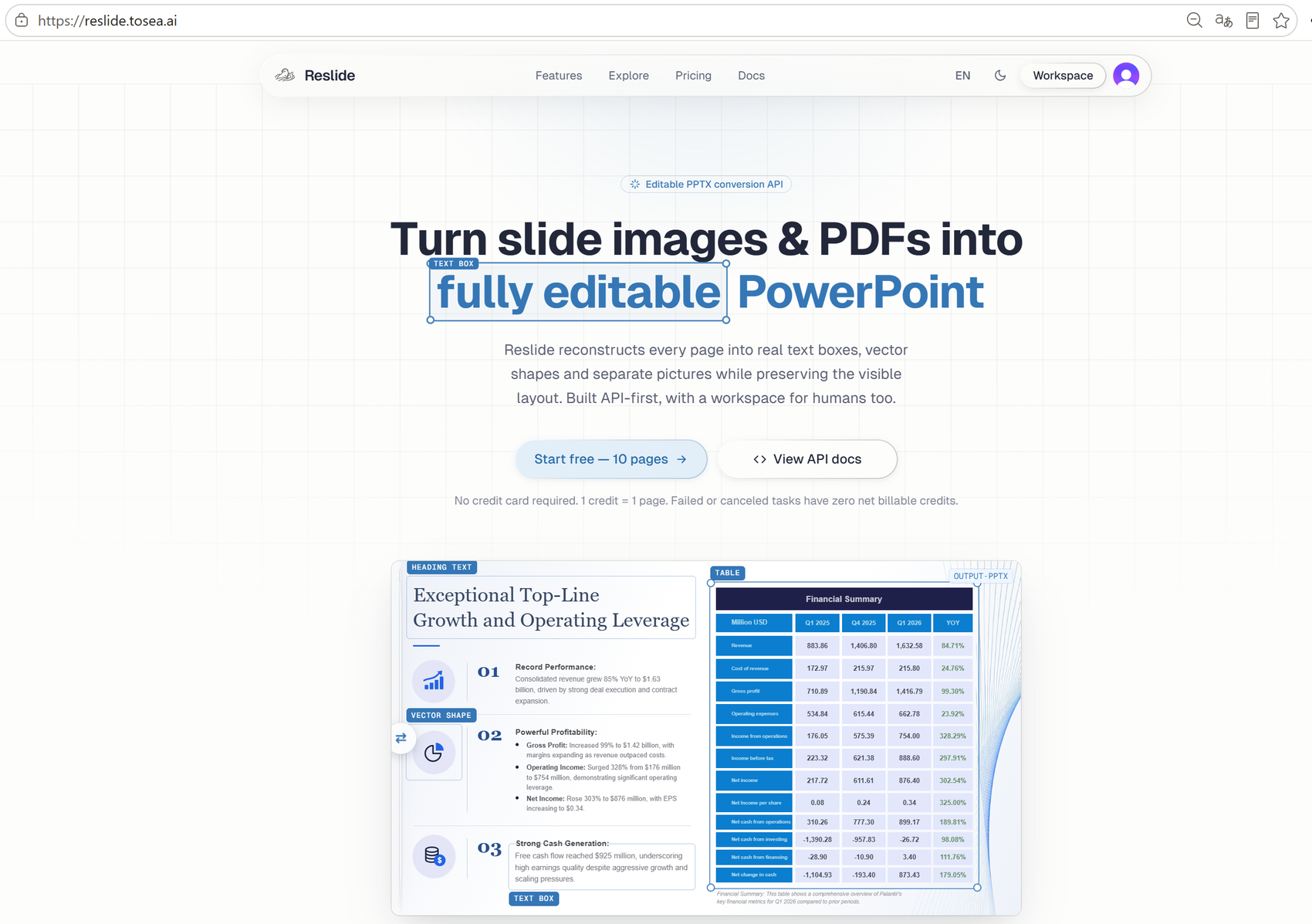
An image to editable PowerPoint converter should do more than place a screenshot on a slide. We built Reslide by Tosea AI to reconstruct slide images and PDFs as editable PPTX files while preserving the visible layout. Text becomes selectable text boxes, supported graphic elements become editable shapes, and pictures remain separate layers. The result stays close to the source and can be revised instead of rebuilt.
This matters when the original PowerPoint has disappeared, a client sends only a PDF, or an AI tool returns polished images. Reslide gives new users 10 free pages once, with no credit card required. Because Reslide is our own product, treat this guide as a first-party walkthrough: the limits and prices below are taken from the live Reslide site, and the examples show real conversions, including one line that did not convert cleanly.
Quick answer
Upload a PDF or ordered slide images, let Reslide rebuild each page into PowerPoint objects, then download the editable PPTX. The first 10 pages are free once.
Details verified on October 9, 2026:
- Free plan: 10 pages, one time
- Billing unit: 1 credit per page
- Maximum upload size for a directly uploaded PDF: 100 MB
- Maximum task length: 100 pages
- Image inputs: PNG, JPG, and WebP
- Output: editable PPTX with separate text, shape, and picture layers where supported
- Failed or canceled task: zero net billable credits
Before and after: KPI and chart slide
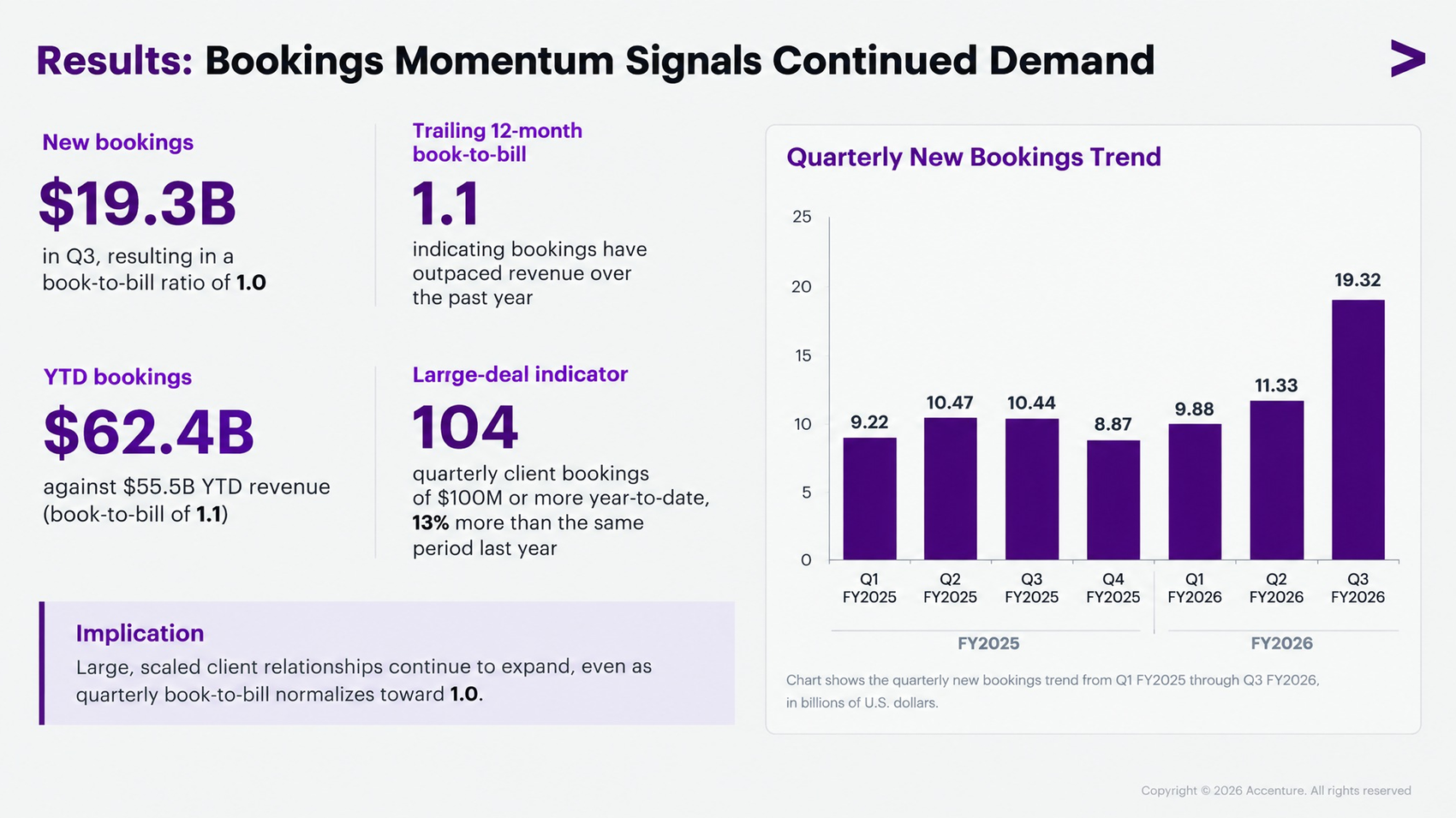
Before: the source slide is a single flat image.
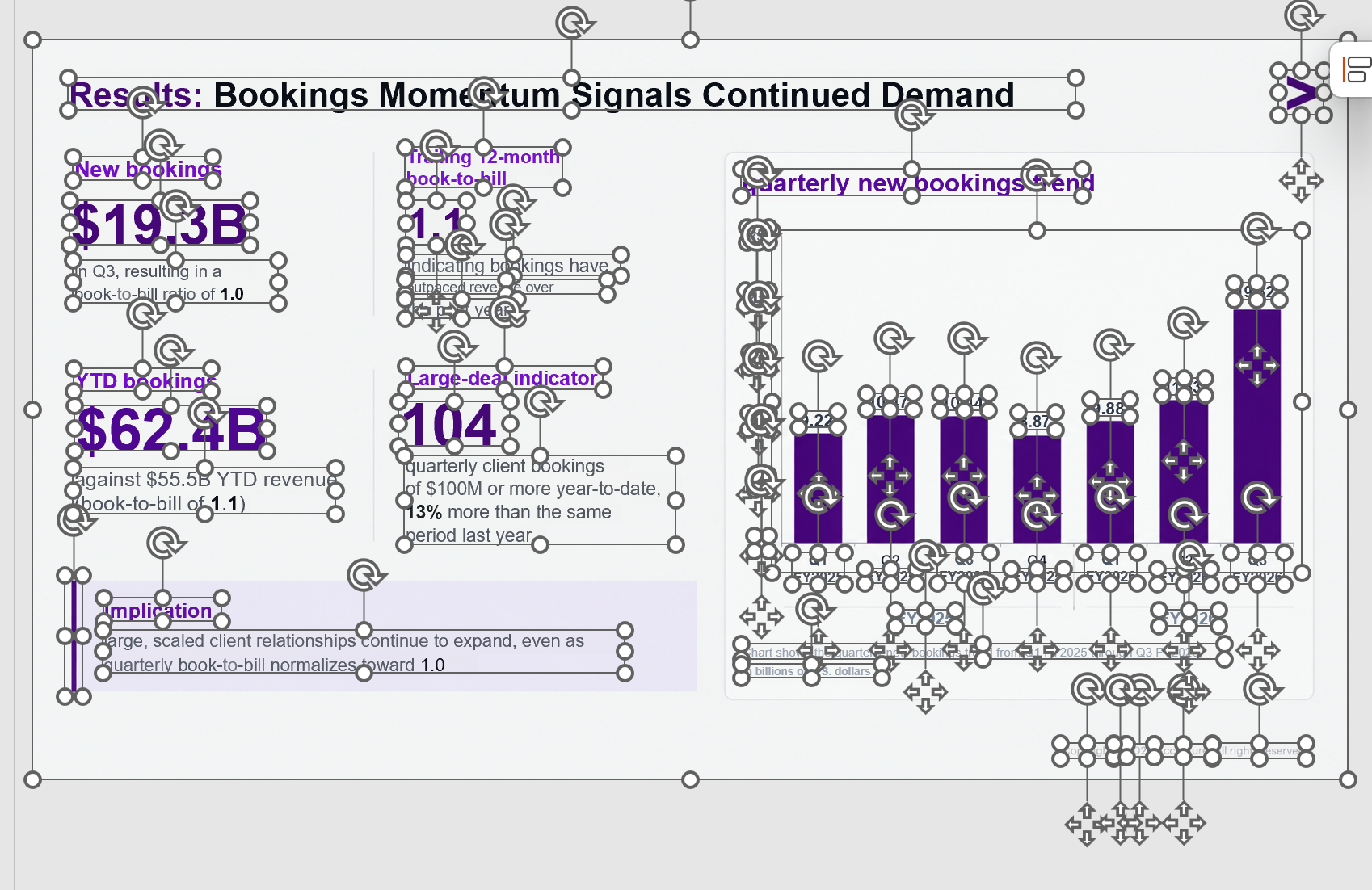
After: with everything selected in PowerPoint, the title, each KPI figure, the implication box, and every bar and label in the chart appear as separate objects.
Why screenshot-based PowerPoint files fail
A picture of a slide can look perfect and still be almost useless as a working presentation. The words cannot be corrected. A logo cannot be moved without editing the entire image. A chart label cannot be updated. A teammate cannot apply a new brand color to one shape. Even a minor title change may require rebuilding the slide.
Microsoft distinguishes image formats such as PNG and JPEG from the native PPTX presentation format in its PowerPoint file format documentation. When a slide is saved as an image, the visual result becomes a bitmap rather than a collection of presentation objects. Putting that bitmap inside a PPTX container does not restore the original layers.
This problem appears when a team has only PDF exports, downloaded page images, scanned presentations, or visual concepts produced by an image model. It also affects sales and consulting teams that need to reuse a successful slide without redrawing it.
What Reslide reconstructs
Reslide does not treat the converted page as one full-slide picture. It analyzes the visible page and rebuilds supported elements as native objects:
| Source content | Reslide output | What you can do next |
|---|---|---|
| Headings and body copy | Editable text boxes | Retype, restyle, resize, or translate text |
| Boxes, lines, and visual containers | Vector shapes where supported | Recolor, resize, move, and reorder elements |
| Photos and illustrations | Separate picture layers | Replace, crop, move, or remove images |
| Page composition | Reconstructed slide layout | Preserve the visual structure while revising content |
| PDF or slide image | Native PPTX page | Continue editing in PowerPoint, Keynote, or Google Slides |
Microsoft PowerPoint users can inspect and reorder slide objects through the Selection pane. A reconstructed slide should expose separate elements instead of one background image.
Reslide also aims to preserve fonts, colors, spacing, and the visible page structure. Clean source material can produce an output that looks very close to the original while avoiding much of the garbled text common in basic OCR conversion. No converter can guarantee perfect recovery from every scan, font, or complex illustration, so the final deck still needs a focused review.
How image to editable PowerPoint conversion works
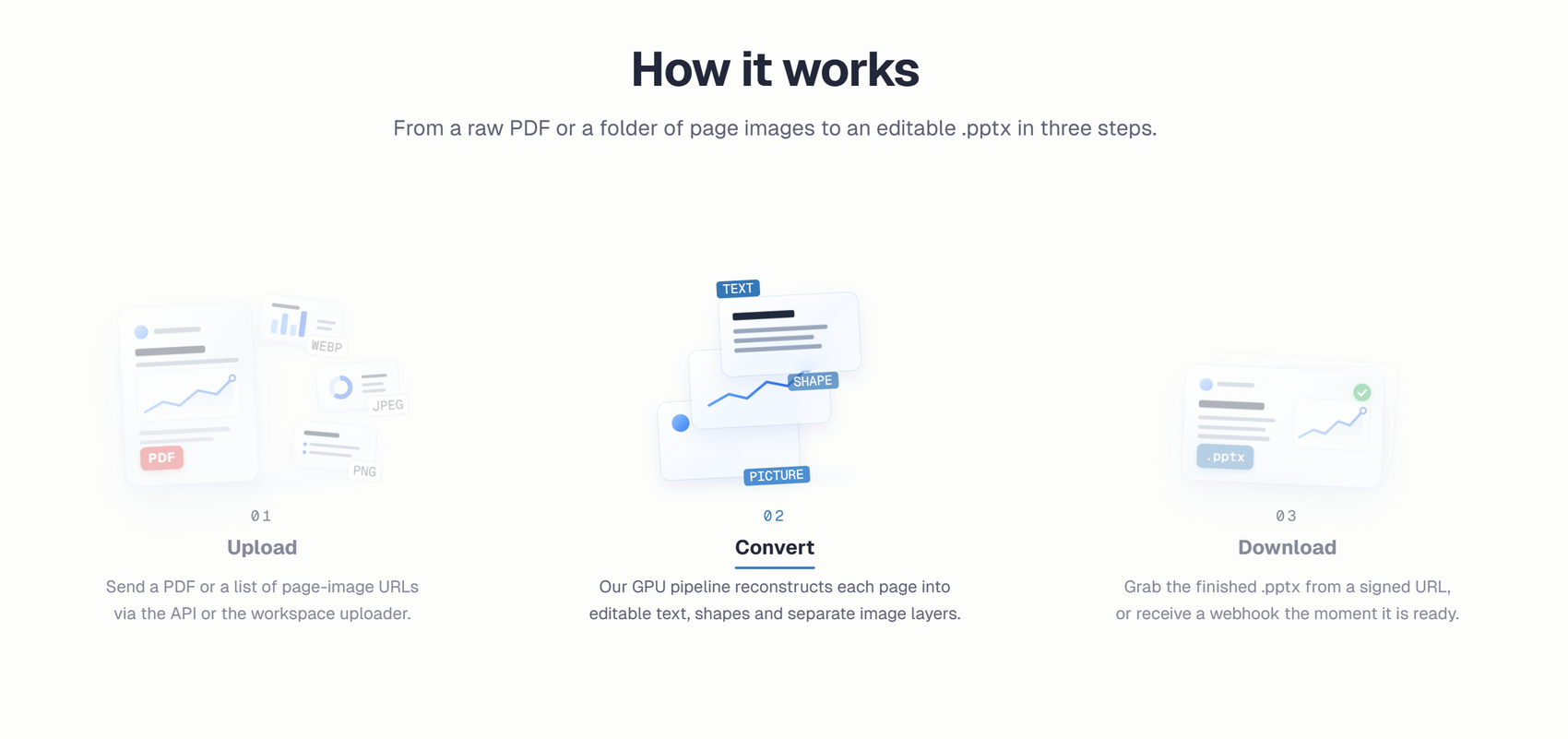
The workflow has three steps.
Step 1: Upload the source
Upload a PDF through the Reslide workspace or provide an ordered set of slide images through the supported workflow. PDF files can be uploaded directly up to 100 MB. Image inputs can use PNG, JPG, or WebP, with one image representing each slide.
Use the highest-quality source available. A native PDF exported from PowerPoint usually contains cleaner text and sharper geometry than a compressed screenshot. If only images remain, use original-resolution files rather than copies downloaded from chat applications.
Step 2: Convert each page
Reslide processes the page and reconstructs text, shapes, and separate picture layers. One PDF page or one source image maps to one PowerPoint slide. The system preserves the visible composition rather than inventing a new template or rewriting the content.
That distinction is useful. A general AI presentation maker may summarize or redesign the deck. Reslide is for cases where the current appearance should remain recognizable and the missing editability needs to be restored.
Step 3: Download and inspect the PPTX
Download the completed PPTX and open it in the application used for final delivery. Test text editing, font substitution, object selection, picture replacement, alignment, and slide size. If colleagues will use Google Slides or Keynote, open the file there as well because rendering can differ between applications.
What editable means in practice
Editable should be tested, not assumed. Open one converted slide and perform these checks:
- Click a heading and replace several words.
- Select a colored box and change its fill.
- Move a picture without moving the surrounding content.
- Open the Selection pane and confirm that multiple objects appear.
Then save, close, and reopen the PPTX to confirm that the layout remains stable. These checks separate reconstruction from a screenshot hidden inside a PowerPoint file.
The most likely review points are unusual fonts, tiny text, charts with many labels, partially obscured objects, translucent effects, complex gradients, and low-resolution scans. If an exact commercial font is unavailable on the editing computer, PowerPoint may substitute another typeface and change line breaks. Install the approved font or replace it consistently across the deck.
Who should use Reslide
Reslide is useful whenever appearance and editability matter at the same time.
Consultants can recover client slides from a PDF, update figures, and apply current branding. Analysts can revise financial summaries. Researchers can recover conference slides, while designers can turn approved concepts into files that clients can edit.
It also fits AI-assisted slide workflows. Image models can produce strong visual compositions, but their output is usually a bitmap. Reslide provides the production step that converts those visuals into a PPTX with editable elements. Developers can use the API, while nontechnical users can work in the web workspace. Both use the same account credit balance.
Reslide, Tosea AI, or a manual rebuild?
Reslide and Tosea AI solve different problems, and the choice depends on whether the slide design already exists.
| Situation | Best fit | Why |
|---|---|---|
| The deck looks right but only exists as a PDF or images | Reslide | Restores editability while keeping the current design |
| AI-generated slide images need final edits before delivery | Reslide | Turns bitmap compositions into text boxes and shapes |
| You have reports, research, or data but no slides yet | Tosea AI | Builds the storyline, layouts, and editable charts from source documents |
| A slide needs a new structure, not a recovered one | Tosea AI | Regenerates the layout instead of reproducing the old one |
| One or two simple slides with standard fonts | Manual rebuild | Faster than a conversion and review cycle |
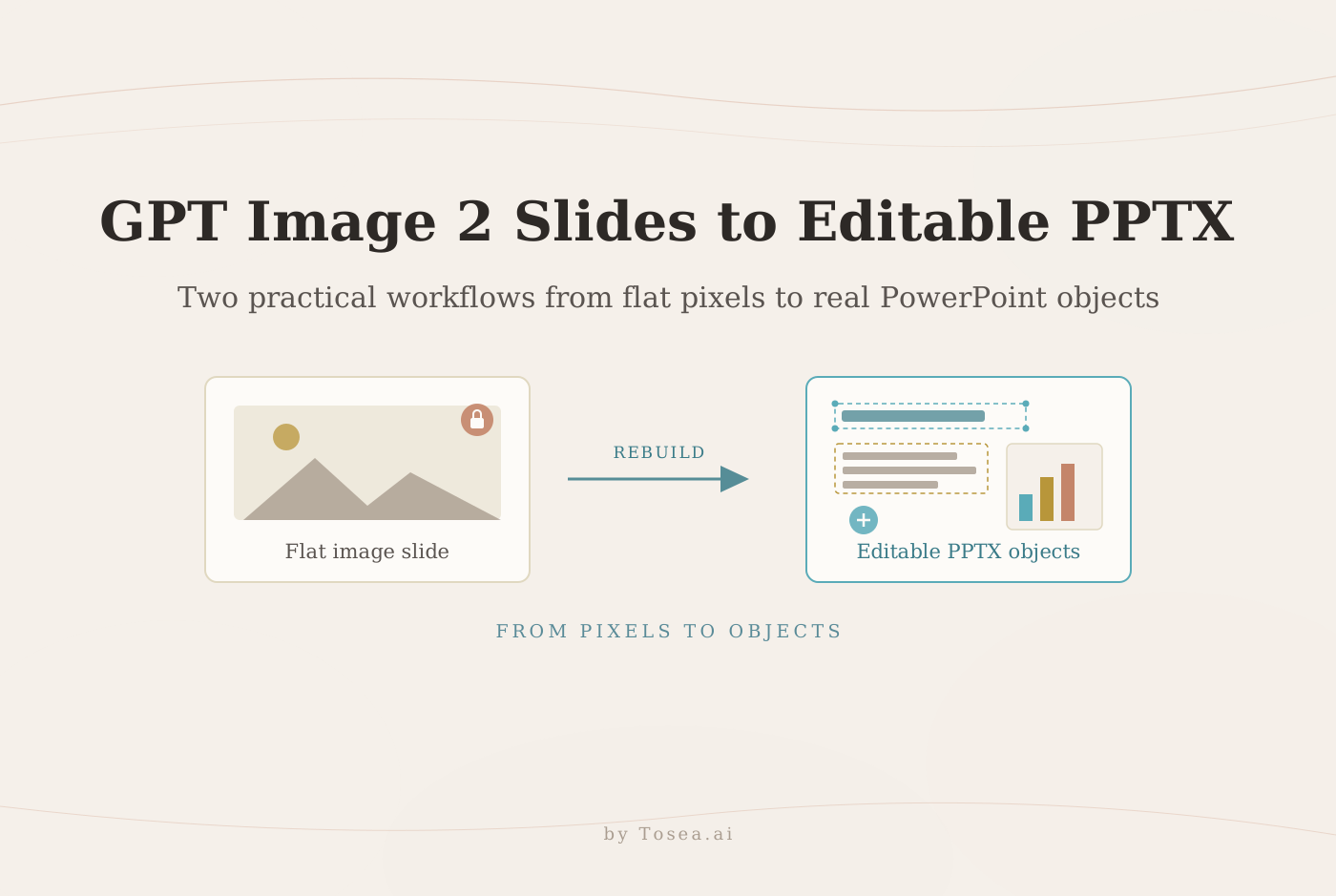
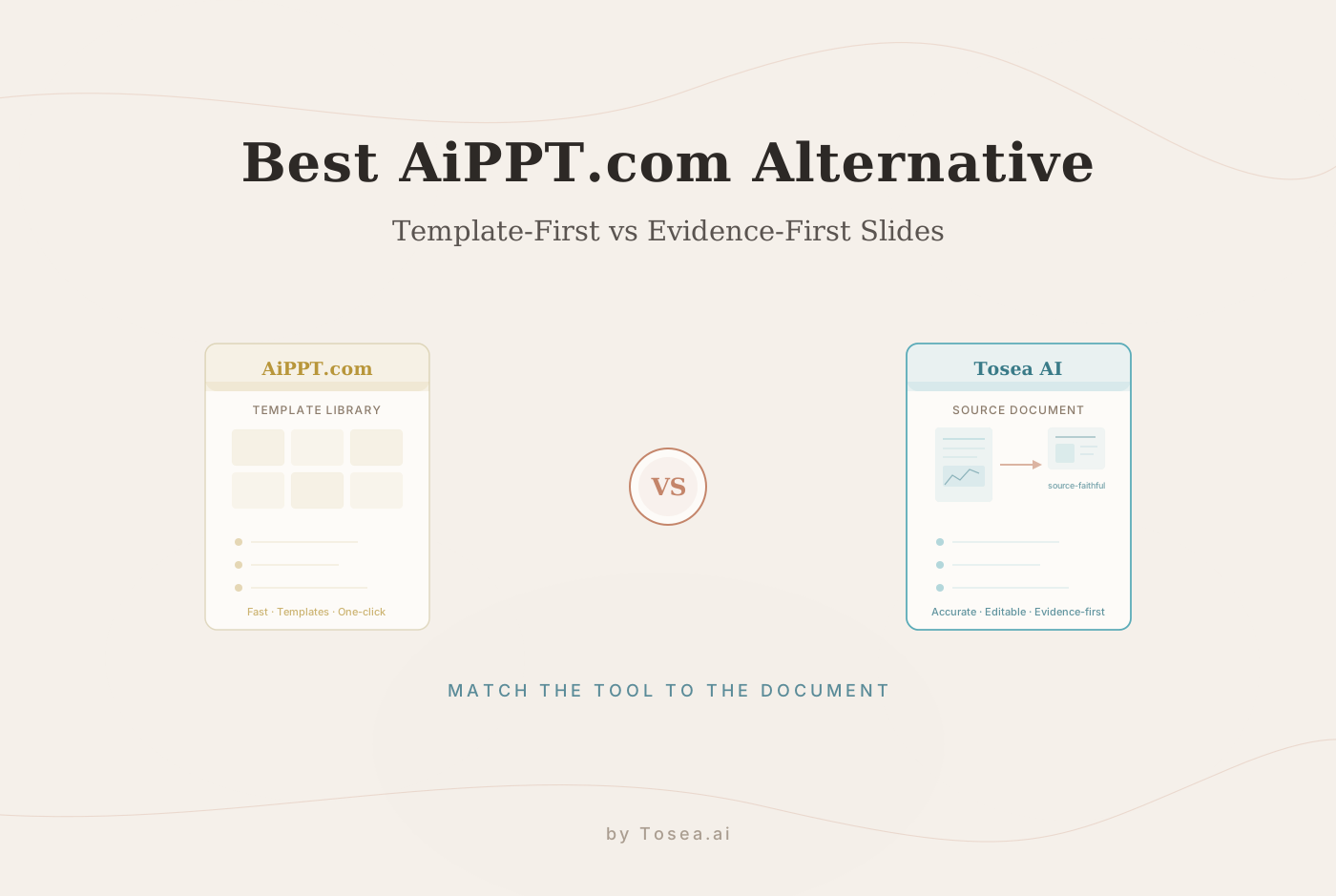
The two tools also chain well. A team can recover an old client deck with Reslide, update the numbers, and then use Tosea AI to produce the next quarter's version from fresh source files. For the document-to-deck side, our guide to converting PDF files to PowerPoint while preserving tables and formulas covers the regeneration workflow, and turning GPT Image 2 slides into editable PPTX compares conversion routes for AI-generated slide images.
How to improve conversion accuracy
Source quality sets the ceiling for reconstruction. Before uploading:
- Prefer a native PDF over a photographed screen.
- Use one complete slide per image.
- Avoid heavy JPEG compression around small text.
- Confirm that the source uses the correct slide ratio.
- Keep the original fonts available for final editing.
- Compare numbers, dates, units, footnotes, and legal text with the source.
Review high-risk slides first, especially financial tables, equations, maps, dense diagrams, and overlapping transparent objects. A convincing visual match can still contain one incorrect label. The editor remains responsible for content verification.
Free credits, API access, and practical limits
The current Reslide free plan includes 10 pages as a one-time allowance. No credit card is required. One credit equals one converted page, so a 10-page deck uses 10 credits. A 12-page file needs 12 credits. Reslide reserves credits when the task starts and settles them when conversion succeeds.
Failed or canceled tasks have zero net billable credits under the credit rules shown on the Reslide site. The web workspace and API draw from the same account balance. Each free-plan task can contain up to 100 pages, although the available credit balance determines how many pages can be processed.
| Plan | Monthly price | Pages per month | Concurrent tasks | Notable additions |
|---|---|---|---|---|
| Free | $0 | 10 pages, one time | 1 | Full API access, up to 100 pages per task |
| Starter | $19 | 300 | 2 | Signed webhooks |
| Pro | $49 | 1,000 | 4 | Idempotency keys |
| Ultra | $149 | 4,000 | 8 | Priority conversion queue |
Yearly billing is listed at a 40% saving. Developers can integrate conversion through the Reslide REST API with status polling, signed webhooks, and machine-readable errors. Review the current Reslide pricing and API documentation before production use because allowances and plan terms can change.
More before and after examples
Financial analysis slide
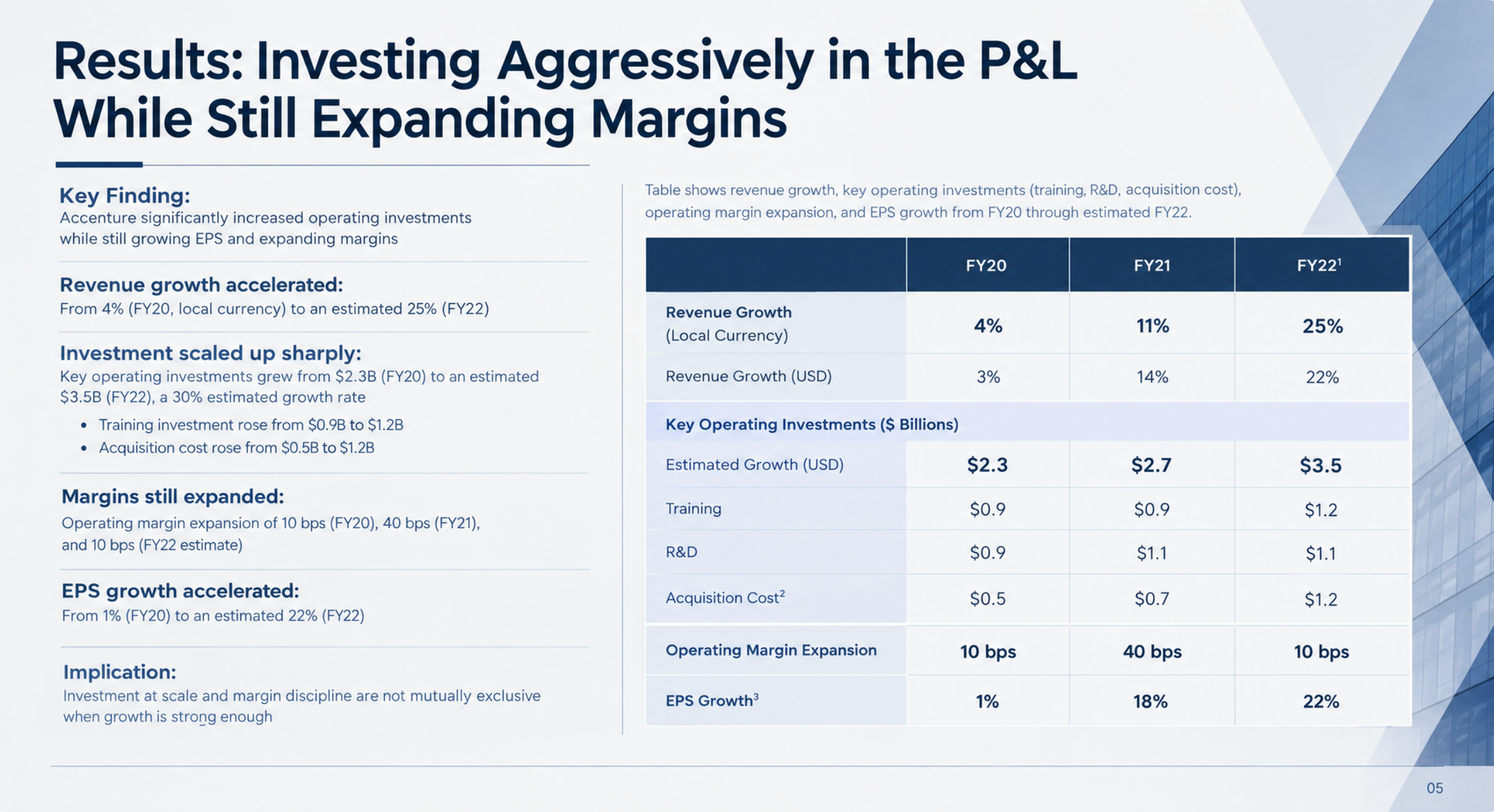
Before: a dense financial page with five findings and a nine-row data table.
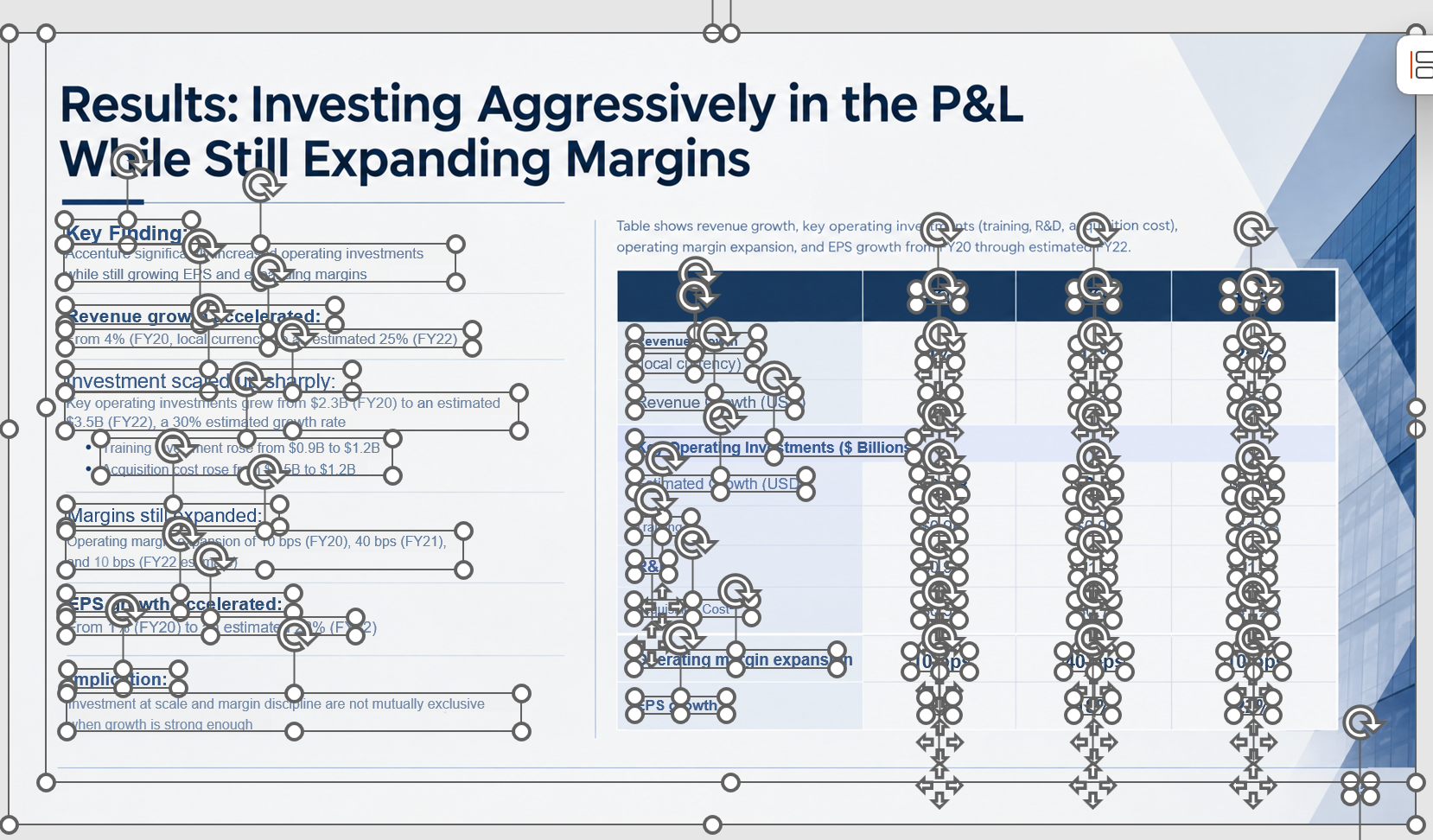
After: each finding, header, and table value is its own object, so a figure can be corrected without touching the rest of the page.
Medical research slide
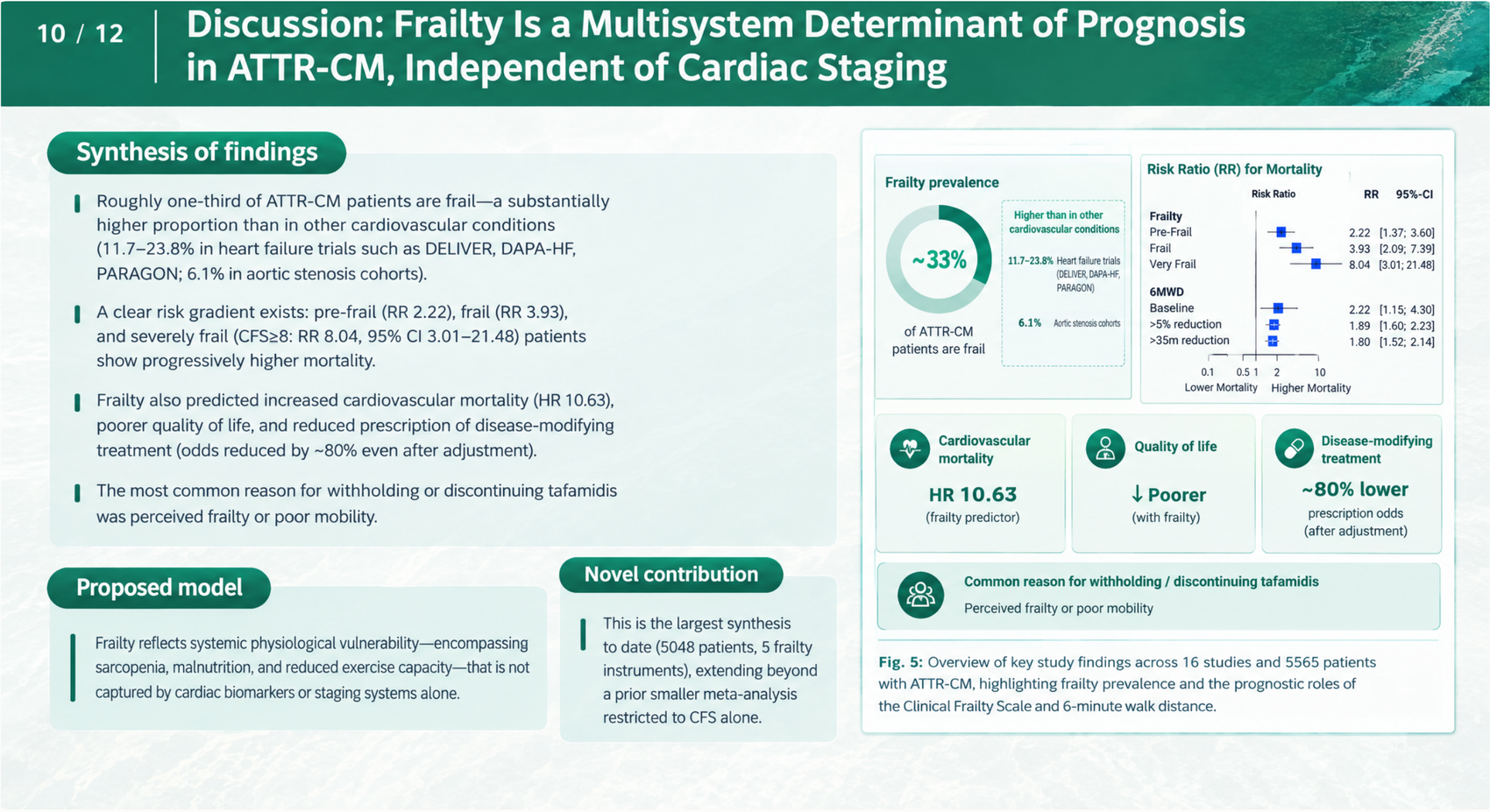
Before: a clinical discussion slide combining body text, a donut, a forest plot, and icon cards.
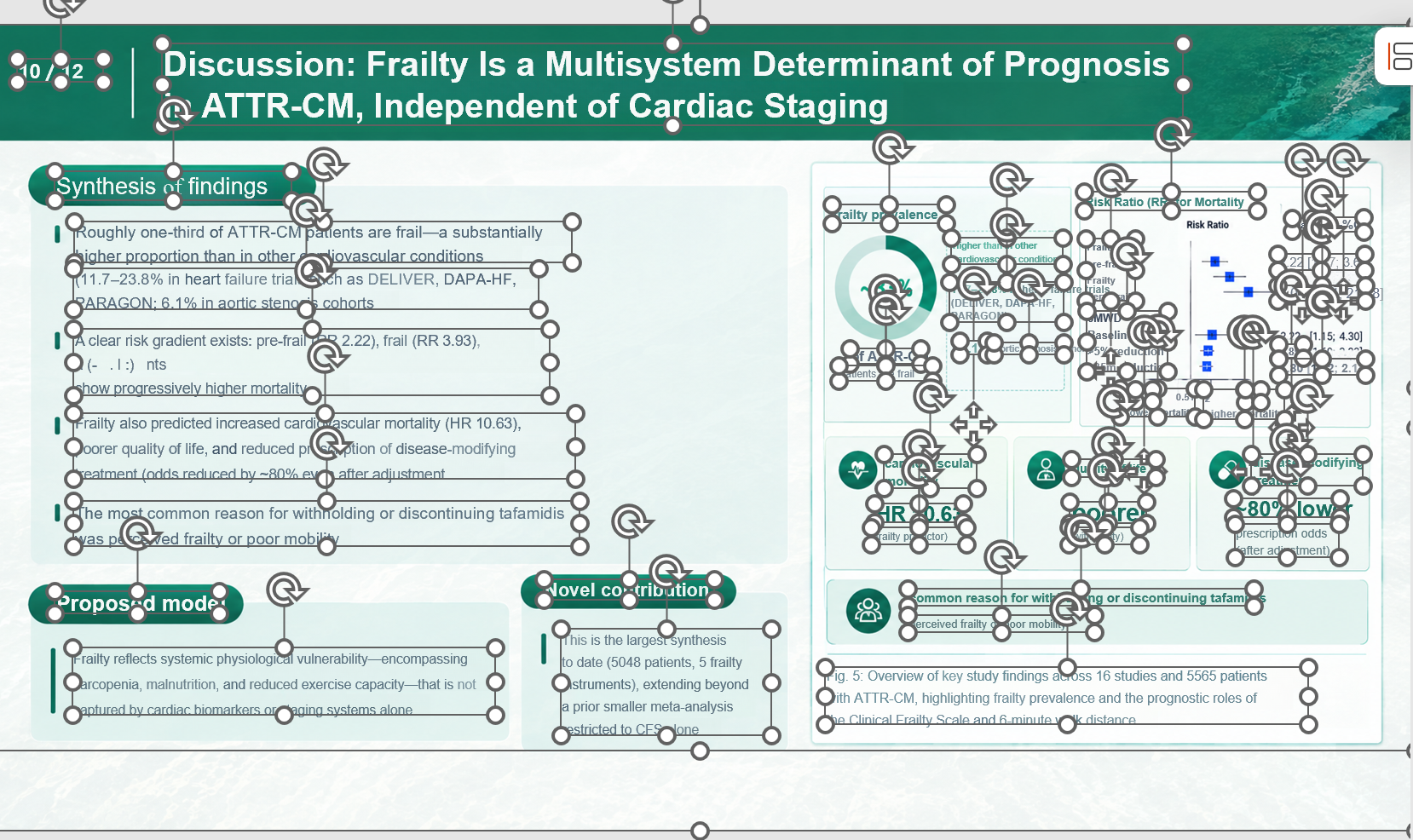
After: the header band, text blocks, chart panels, and icons came through as separate elements. One line did not: the middle line of the second bullet ("and severely frail (CFS≥8: RR 8.04 …) patients") rendered as broken characters in this export. Dense lines that mix symbols and figures belong at the top of the review list.
Frequently asked questions
What is an editable conversion?
An editable conversion rebuilds the page as native presentation objects instead of placing one screenshot on a blank slide. Reslide creates real text boxes, supported vector shapes, and separate picture layers. You can select, move, recolor, resize, replace, and rewrite those elements in PowerPoint, Keynote, or Google Slides.
What inputs does Reslide support?
Reslide supports PDF files and ordered lists of page images. A PDF can be uploaded directly up to 100 MB or supplied through a public PDF URL in the supported API workflow. Page images can use PNG, JPG, or WebP. Each task can contain up to 100 pages.
How are Reslide credits counted?
One credit equals one page. A 12-page PDF therefore requires 12 credits. Credits are reserved when a task is created and settled only when the conversion succeeds. The free plan currently includes a one-time allowance of 10 pages, so it can cover a complete 10-slide test deck.
Do failed or canceled tasks use credits?
No. According to the current Reslide FAQ, a failed or canceled task has zero net billable credits. The reservation is reconciled against the original paid and bonus credit pools under their lifecycle rules.
Do the web workspace and API share one balance?
Yes. Each account has one credit pool. Conversions started in the Reslide workspace and conversions submitted through the API use and replenish the same balance. This makes it possible to test a file manually, then automate similar jobs without maintaining separate credit accounts.
Can I use the converted PPTX commercially?
Yes. The Reslide FAQ states that generated PPTX files belong to the user for use, editing, and distribution, including commercial work. Reslide does not claim ownership of user content or output. You remain responsible for having permission to use the source deck, images, fonts, trademarks, and other protected materials.
Will the output look exactly like the source image?
Reslide is designed for layout-faithful reconstruction and aims to match the source fonts, colors, spacing, and structure. Results depend on source quality and complexity. Review unusual fonts, tiny labels, transparent effects, equations, and dense charts before delivery. Exact pixel matching should be treated as a target rather than an unconditional guarantee.
Can Reslide convert AI-generated slide images?
Yes. Export each AI-generated slide as a clear PNG, JPG, or WebP image and keep the pages in order. Reslide can reconstruct the visible slide into editable PowerPoint elements. Check all generated text before conversion because the tool can reconstruct visible content, but it cannot correct factual errors already present in the image.
Stop redrawing slides and recover the working file
An image to editable PowerPoint converter is most useful when a deck looks right but can no longer be edited. Reslide preserves that visual starting point while rebuilding the page into selectable PowerPoint elements.
Start with the 10-page free Reslide allowance and test it on a representative deck. Include one simple slide, one dense slide, one table, and one page with overlapping visuals. If those pages convert well and survive your editing checks, you have a reliable workflow for the rest of the presentation.
For related workflows, see how to use AI presentation tools without giving up design control and how Tosea AI Data Studio rebuilds charts as editable PowerPoint objects. To create a new presentation from reports, research, or business documents rather than reconstruct an existing design, use Tosea AI.
Sources
- Reslide: Image and PDF to Editable PowerPoint — Reslide by Tosea AI (pricing, plan limits, and FAQ), accessed October 9, 2026
- Reslide API documentation — Reslide by Tosea AI
- File formats that are supported in PowerPoint — Microsoft Support
- Use the Selection pane to manage objects in documents — Microsoft Support