How to Use Firecrawl PDF Inspector: Free PDF to Markdown Converter
Learn how to use Firecrawl PDF Inspector to classify PDFs, convert native-text documents to clean Markdown without OCR, and route extracted content into RAG and AI presentation pipelines.
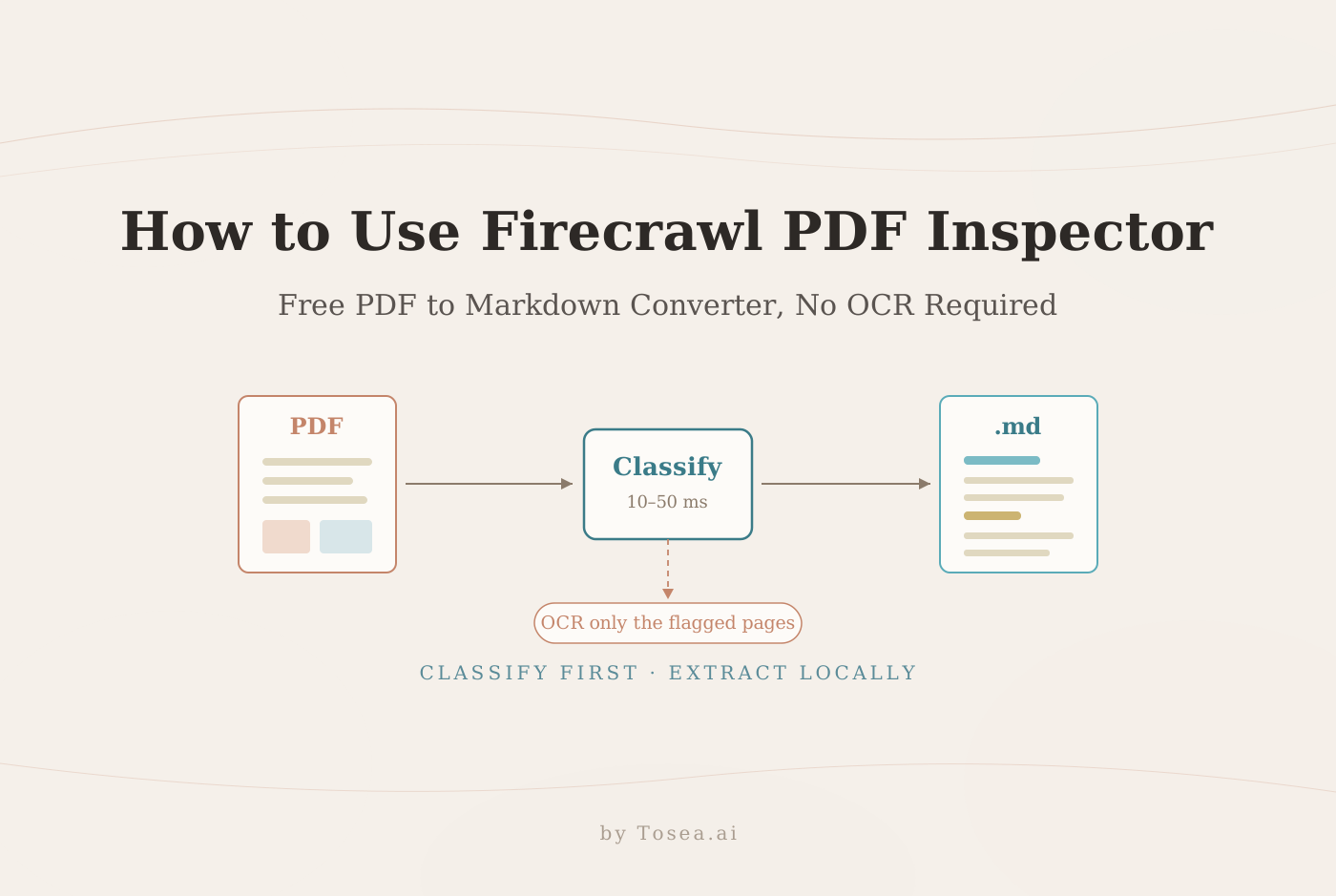
A reliable PDF to Markdown converter is essential when you need to feed reports, research papers, financial documents, or legal files into an AI workflow. Firecrawl PDF Inspector is an open-source Rust library that classifies PDFs, extracts position-aware text, reconstructs tables and headings, and converts supported documents into clean Markdown without sending every file through OCR.
The project is particularly useful for developers building document search, retrieval-augmented generation, knowledge extraction, and PDF-to-presentation pipelines. Instead of treating every PDF the same way, PDF Inspector identifies which pages contain usable text and which pages may require OCR.
This guide explains how Firecrawl PDF Inspector works, how to install and use it, what its benchmark numbers actually mean, and how to connect its structured results to downstream AI tools such as Tosea AI.
Key Takeaways
- Firecrawl PDF Inspector classifies PDFs as text-based, scanned, image-based, or mixed.
- Native-text PDFs can be converted locally without an OCR service.
- Mixed PDFs can be routed page by page using the
pages_needing_ocrresult. - Scanned pages still require a separate OCR engine.
- In the project's published benchmark, it scored 0.875 overall on a 200-document corpus in 0.470 seconds.
- The project uses the MIT License.
What Is Firecrawl PDF Inspector?
Firecrawl PDF Inspector is an open-source PDF classification and text-extraction library written in Rust, published by Firecrawl, the company behind the web-scraping API of the same name. Its main purpose is to help applications decide whether a PDF can be parsed locally or must be sent to an OCR service.
This distinction matters because a PDF is a presentation format rather than a clean data format. One file may contain selectable text, another may contain only page images, and a third may combine both. Sending all three through the same pipeline increases cost, latency, and the risk of extraction errors.
PDF Inspector analyzes content streams for text and image operators, estimates the document type, identifies pages that need OCR, and extracts structured content from pages that already contain usable text.
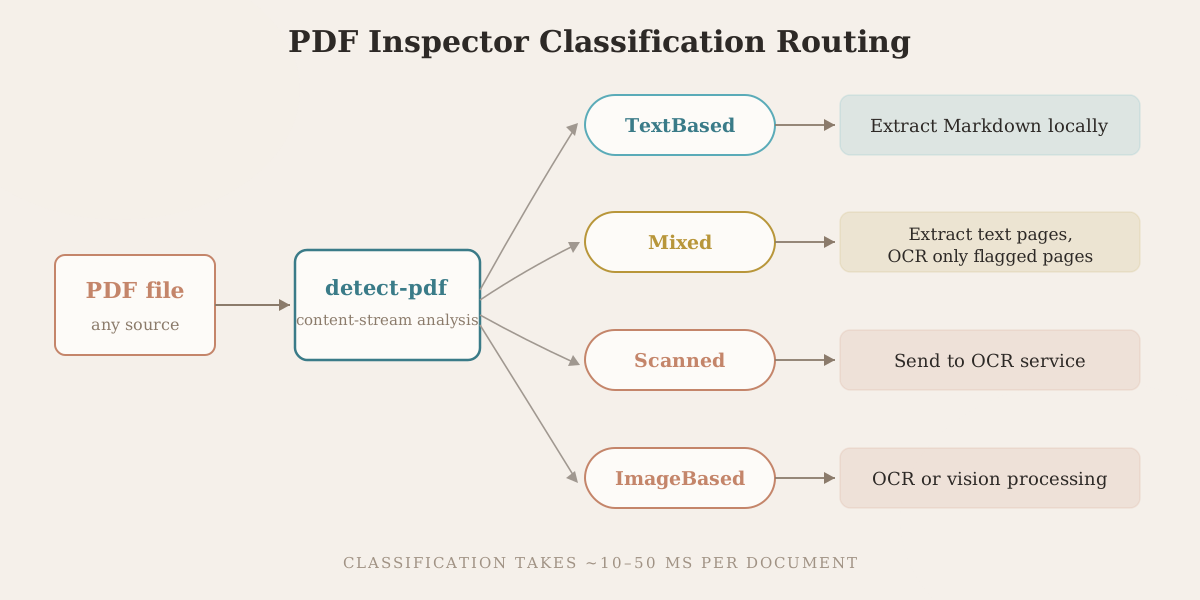
According to the project documentation, classification generally takes about 10 to 50 milliseconds. Firecrawl designed the library to handle native-text PDFs locally in under 200 milliseconds, although actual performance depends on hardware, file size, page count, fonts, and document complexity.
Who Should Use This PDF to Markdown Converter?
PDF Inspector is useful for AI, RAG, search, data-processing, browser, and presentation applications that handle reports, filings, invoices, papers, or legal documents. It is not a complete standalone solution for camera scans, handwriting, or exact visual reconstruction; those cases still need OCR or vision processing.
How Firecrawl PDF Inspector Works
The pipeline has two main branches.
First, the detector examines PDF page content streams. It looks for text operators such as Tj and TJ, as well as image-drawing operations such as Do. Based on their distribution, the file is classified into one of four document types.
| PDF type | Meaning | Recommended action |
|---|---|---|
| TextBased | Most pages contain machine-readable text | Extract locally |
| Scanned | Pages behave like document scans | Send to OCR |
| ImageBased | The file is dominated by images | Use OCR or vision processing |
| Mixed | Some pages contain text while others do not | Extract text pages and OCR only the flagged pages |
Second, the extraction pipeline reads fonts, coordinates, links, drawing operations, page geometry, and text items. It then restores reading order and generates Markdown.
The library can recognize headings, common font styles, lists, code blocks, tables, multi-column reading order, captions, links, page breaks, subscript, superscript, hyphenated words, right-to-left text, and CID-encoded fonts.
This does not mean every PDF will convert perfectly. PDF files often store visual instructions rather than semantic structure. A heading may simply be larger text, and a table may be dozens of individually positioned characters. PDF Inspector reconstructs this structure through layout analysis and heuristics.
What the Benchmark Numbers Actually Say
The repository publishes results from a July 31, 2026 run against the opendataloader-bench corpus of 200 documents on an Apple M4 Pro. The headline figures are worth reading closely rather than quoting whole:
| Metric | Score |
|---|---|
| Overall | 0.875 |
| Reading order | 0.915 |
| Table reconstruction | 0.814 |
| Heading detection | 0.788 |
| Total processing time | 0.470s for all 200 documents |
Two honest observations follow from this table. Reading order is the library's strongest capability, which matches its position-aware extraction design. Heading detection is the weakest of the three published sub-scores — unsurprising, since a heading in a PDF is often just larger text with no semantic tag. If your downstream pipeline depends heavily on heading hierarchy, plan a validation pass rather than trusting the structure blindly.
The speed figure is the more remarkable claim: under half a second for the entire corpus. Even allowing for the high-end hardware, this is orders of magnitude faster than routing 200 documents through a hosted OCR service. Review the reproducible benchmark methodology before comparing these figures with other environments.
Before You Install It
Choose the interface that matches your application.
| Interface | Best use |
|---|---|
| CLI | Testing, automation, shell pipelines, and batch jobs |
| Node.js | Server applications and JavaScript document pipelines |
| Python | Data processing, AI experimentation, and backend services |
| Rust | High-performance native applications |
| WebAssembly | Local PDF processing in browsers or Web Workers |
The CLI is the easiest way to evaluate the project. You need Rust and Cargo for the CLI, Node.js for the Node package, or Python for the PyPI binding. Always test with representative documents. Use the official Rust installation guide if cargo is unavailable.
Step 1: Install the CLI
Install the published package from crates.io:
cargo install pdf-inspector
Confirm that both commands are available:
pdf2md --help
detect-pdf --help
You can also build the latest source version directly:
git clone https://github.com/firecrawl/pdf-inspector
cd pdf-inspector
cargo run --release --bin detect-pdf -- document.pdf
cargo run --release --bin pdf2md -- document.pdf
For production, pin a tested package version so results remain reproducible.
Step 2: Detect the PDF Type
Run classification before extraction:
detect-pdf document.pdf
For machine-readable output:
detect-pdf document.pdf --json
For additional table and column analysis:
detect-pdf document.pdf --analyze --json
Your application should inspect at least four fields:
- Document type
- Confidence score
- Total page count
- Pages that need OCR
A robust routing policy can follow this logic:
- If the file is text-based and confidence is high, extract it locally.
- If it is mixed, extract the usable pages and OCR only the flagged pages.
- If it is scanned or image-based, send it to an OCR or vision service.
- If encoding issues are reported, retry the affected pages with OCR.
- Preserve page numbers so downstream answers remain traceable to the source.
This classification-first approach avoids sending every upload to a general-purpose parser.
Step 3: Convert a PDF to Markdown
Run the basic conversion command:
pdf2md document.pdf
Save the result:
pdf2md document.pdf > document.md
For integration with another process, request JSON:
pdf2md document.pdf --json
Useful CLI options include:
pdf2md document.pdf --raw
pdf2md document.pdf --compact
pdf2md document.pdf --pages
pdf2md document.pdf --items-json
pdf2md document.pdf --select-pages 1,3,5-10
Each option serves a different workflow:
--rawreturns Markdown without additional headers.--compactremoves source padding such as long dot leaders to reduce token usage.--pagesinserts page markers for source traceability.--items-jsonexposes positioned text items and formatting metadata.--select-pagesprocesses only a defined page range.
For AI applications, --compact and --pages are often the most valuable combination. Compact output reduces context consumption, while page markers allow generated answers or slides to reference the original location.
Step 4: Choose an Application Binding
For Node.js, install @firecrawl/pdf-inspector. Browser applications can use @firecrawl/pdf-inspector-wasm to process files locally through WebAssembly. See the official Node.js documentation and WebAssembly documentation for current API signatures.
Python users can install the published binding from PyPI with pip install pdf-inspector, which exposes process_pdf, including the detected type and generated Markdown. Building from source with Maturin (maturin develop --release) remains an option for development. Review the Python API documentation before deployment.
Why Classification-First Routing Saves Money
The economics of the classify-then-route pattern become obvious at batch scale. Consider a nightly job that ingests 500 vendor documents: quarterly reports, invoices, and the occasional scanned contract. A naive pipeline sends all 500 through a hosted OCR or vision service, paying per page and waiting seconds per document.
With classification in front, the picture changes. Suppose 400 of those files are native-text PDFs, 60 are mixed, and 40 are pure scans. The 400 native files convert locally in well under a minute of total compute. For the 60 mixed files, only the flagged pages — perhaps a signature page or an embedded fax — go to OCR. Only the 40 scans consume full OCR processing. The OCR bill shrinks to a fraction of the naive approach, and total wall-clock time drops with it.
The same logic protects quality. OCR introduces its own recognition errors; running it on pages that already contain perfect machine-readable text is not just wasteful but actively degrades fidelity. Classification-first routing keeps native text pristine and reserves lossy processing for pages that genuinely need it.
A Reusable AI Document Pipeline
The following architecture works well for RAG, analysis, and presentation generation — it is the same document-understanding pattern we describe in our research paper to slides workflow:
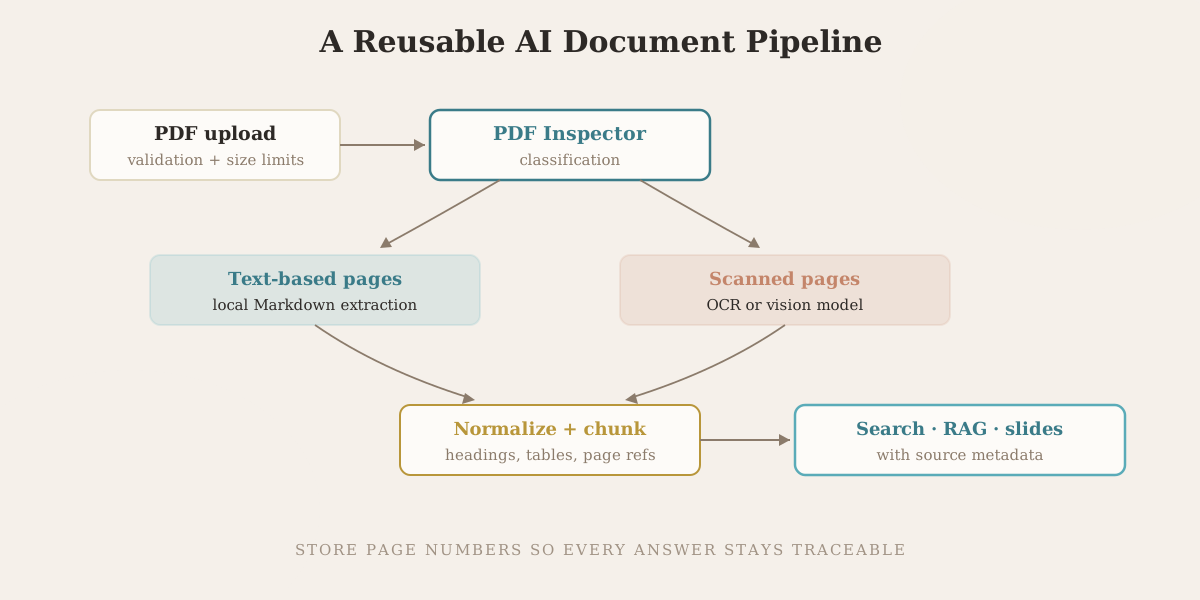
Store these fields for every extracted section:
| Field | Purpose |
|---|---|
document_id | Connects the section to its source file |
page_start | Supports traceability |
page_end | Supports multi-page sections |
heading_path | Preserves document hierarchy |
markdown | Provides model-ready content |
extraction_method | Distinguishes native extraction from OCR |
confidence | Helps downstream quality controls |
needs_review | Flags uncertain output |
This schema gives an AI agent enough context to cite sources, avoid combining unrelated sections, and route low-confidence content for human review. Source traceability is also the foundation of hallucination control in document AI — a topic we cover in depth in our zero-hallucination AI slides guide.
Common Problems and Fixes
- Empty output: Run
detect-pdf. The file may contain only scanned images. - Incorrect reading order: Use layout analysis and inspect positioned items. Irregular columns may require a vision model.
- Broken tables: Check the source for consistent borders or alignment and validate high-stakes financial values manually.
- Corrupted characters: Custom font encodings may require OCR for the affected pages.
- Installation failure: Confirm that Rust, Cargo, platform build tools, and the intended Python environment are available.
- Large-file pressure: Add page, file-size, memory, and execution-time limits.
Security and Privacy Considerations
Treat every uploaded PDF as untrusted input. Apply size limits, isolate parsing, reject malformed files, keep dependencies updated, sanitize paths, and delete temporary files under a documented retention policy. Review the repository's security policy and your OCR provider's terms before processing confidential documents.
Frequently Asked Questions
Is Firecrawl PDF Inspector an OCR tool?
No. PDF Inspector extracts existing text and identifies pages that may need OCR. It does not recognize text that exists only as pixels. Pair it with an OCR engine or vision model when processing scans, photographed documents, or image-only pages.
How is PDF Inspector related to Firecrawl's web scraping API?
Firecrawl's main product is a hosted API that turns websites into LLM-ready data. PDF Inspector is a standalone open-source library from the same team, focused on the PDF half of that problem. You can use it entirely independently of the hosted Firecrawl service — it runs locally and requires no API key.
Can PDF Inspector convert tables to Markdown?
Yes. It supports rectangle-based and alignment-based table detection, and scored 0.814 on table reconstruction in the project's published benchmark. Results depend on the document's internal structure and visual consistency. Financial tables and borderless layouts should still be validated before their data is used in analysis or decision-making.
Does it work with mixed PDFs?
Yes. Mixed-document handling is one of its most useful features. The classification result can identify individual pages without extractable text, allowing an application to OCR only those pages instead of reprocessing the entire document.
Can it run in a browser?
Yes. The project provides a WebAssembly package for local browser and Web Worker processing. This avoids a mandatory server round trip, although large files can still create browser memory and performance constraints.
Is PDF Inspector free for commercial use?
The repository is published under the MIT License, which generally permits commercial use, modification, and distribution. Teams should review the complete license text and preserve required notices.
How accurate is PDF Inspector?
Accuracy varies by PDF structure. In the project's July 31, 2026 benchmark on 200 documents, PDF Inspector reported an overall score of 0.875 and completed the corpus in 0.470 seconds on an Apple M4 Pro. See the benchmark section above for the sub-scores and their caveats.
Turn Extracted PDF Content into Slides with Tosea AI
Firecrawl PDF Inspector solves an important engineering problem: determining what kind of PDF you have and extracting reusable Markdown from documents that already contain text. The next challenge is turning that structured information into something people can understand and act on.
Tosea AI transforms PDFs, research papers, financial reports, and other complex documents into structured, editable presentations. It is designed for professionals who need to preserve the evidence, figures, formulas, tables, and logical relationships found in the source material.
A practical workflow is to use PDF Inspector for classification and local extraction, route scanned pages through OCR, and then upload the validated source document to Tosea AI. Because PDF Inspector preserves page markers and heading structure, the resulting Markdown carries exactly the source traceability that document-to-PPT conversion needs — each slide claim can point back to a page in the original file. Tosea AI can then turn that material into a coherent presentation narrative instead of simply spreading extracted paragraphs across generic slide templates.
To continue learning, explore these related Tosea AI guides:
- Convert PDF to PowerPoint Slides While Preserving Tables and Formulas
- 10 Tips for Turning Complex Files into Executive-Grade AI Presentations
- Best AI Prompts for Professional Document-to-PPT Transformation
- How Tosea AI Reduces Hallucinations in Document-to-PPT Conversion
When your source material is accurate but still trapped inside a long PDF, Tosea AI can convert it into a clear, evidence-driven presentation that is ready to review, edit, and share.
Sources
- firecrawl/pdf-inspector on GitHub — Firecrawl, benchmark published July 31, 2026
- pdf-inspector Python API documentation — Firecrawl
- pdf-inspector on PyPI — Python Package Index
- Firecrawl official website — Firecrawl
- Install Rust — Rust project