6 Best ChatGPT Apps for Research, Writing, and Presentations in 2026
The 6 best ChatGPT apps for research, writing and presentations in 2026: Consensus, Scholar Gateway, Notion, Google Drive, Canva and Figma, with limits, prompts and PPTX checks.
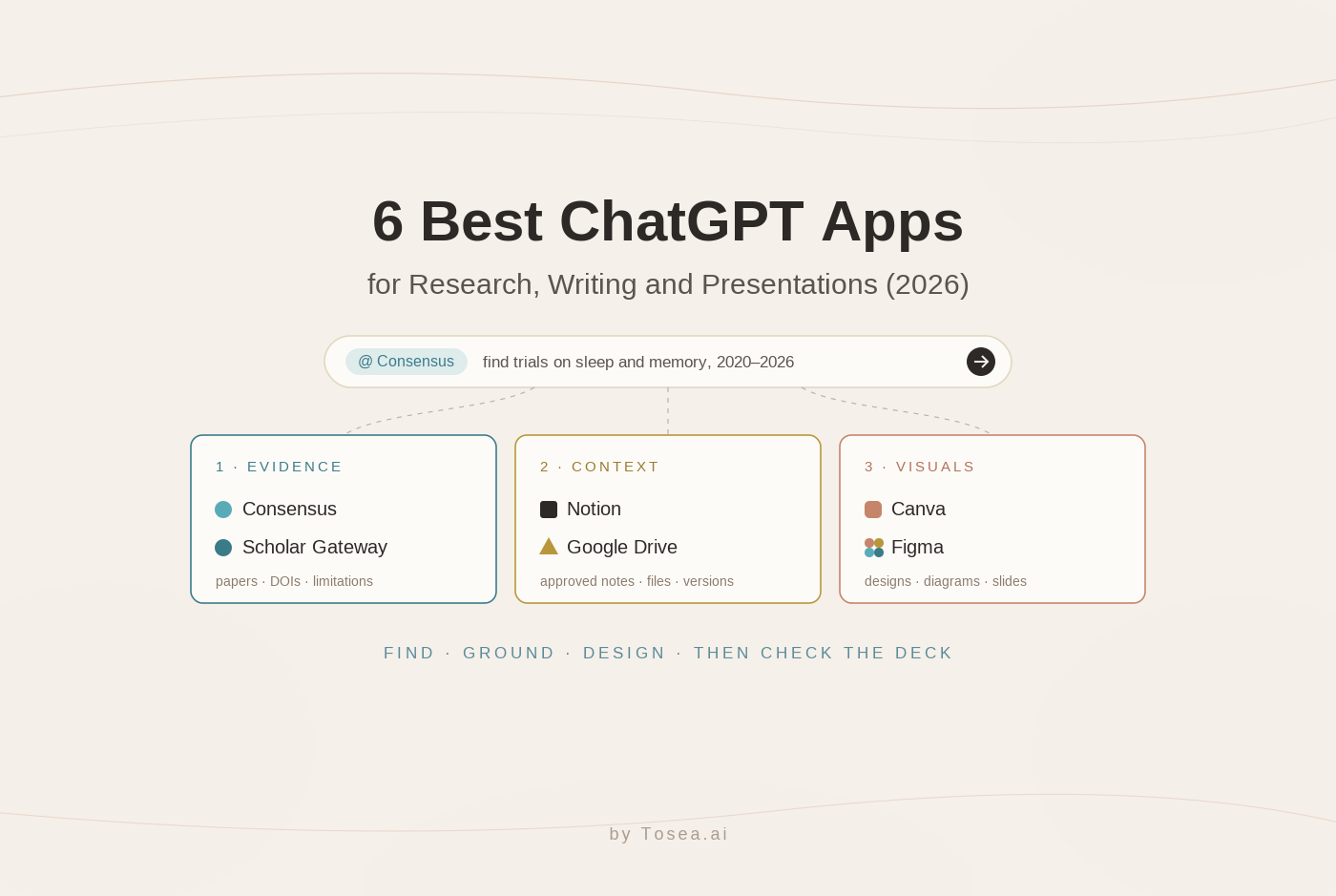
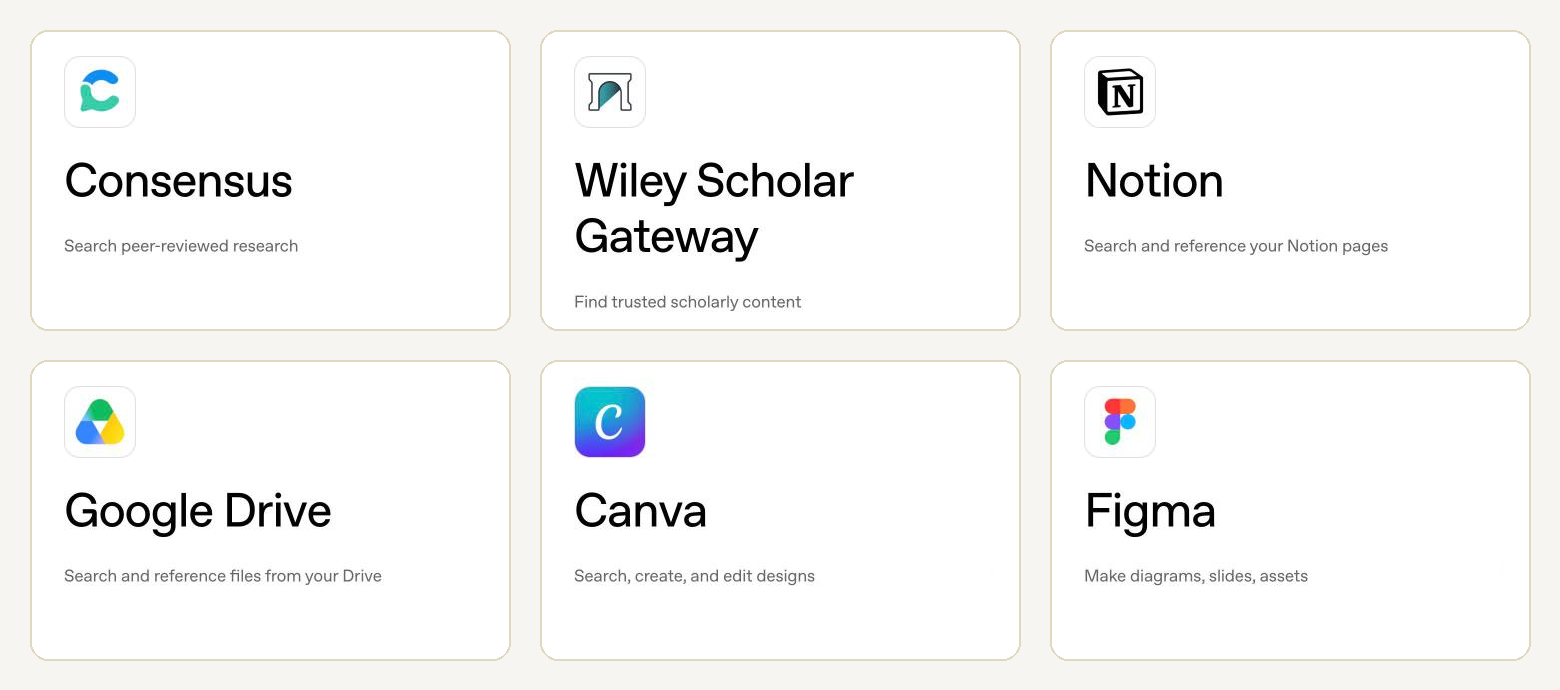
The best ChatGPT apps for research, writing, and presentations each cover one stage of the work: finding evidence, pulling in context your team has already written down, and turning an approved outline into something visual. This guide picks six of them (Consensus, Wiley Scholar Gateway, Notion, Google Drive, Canva and Figma) and checks each against its provider's documentation, including the limits that decide whether it fits your workflow. Where the final deliverable is a PowerPoint file, we also show where these apps stop and a dedicated AI presentation tool such as Tosea AI takes over.
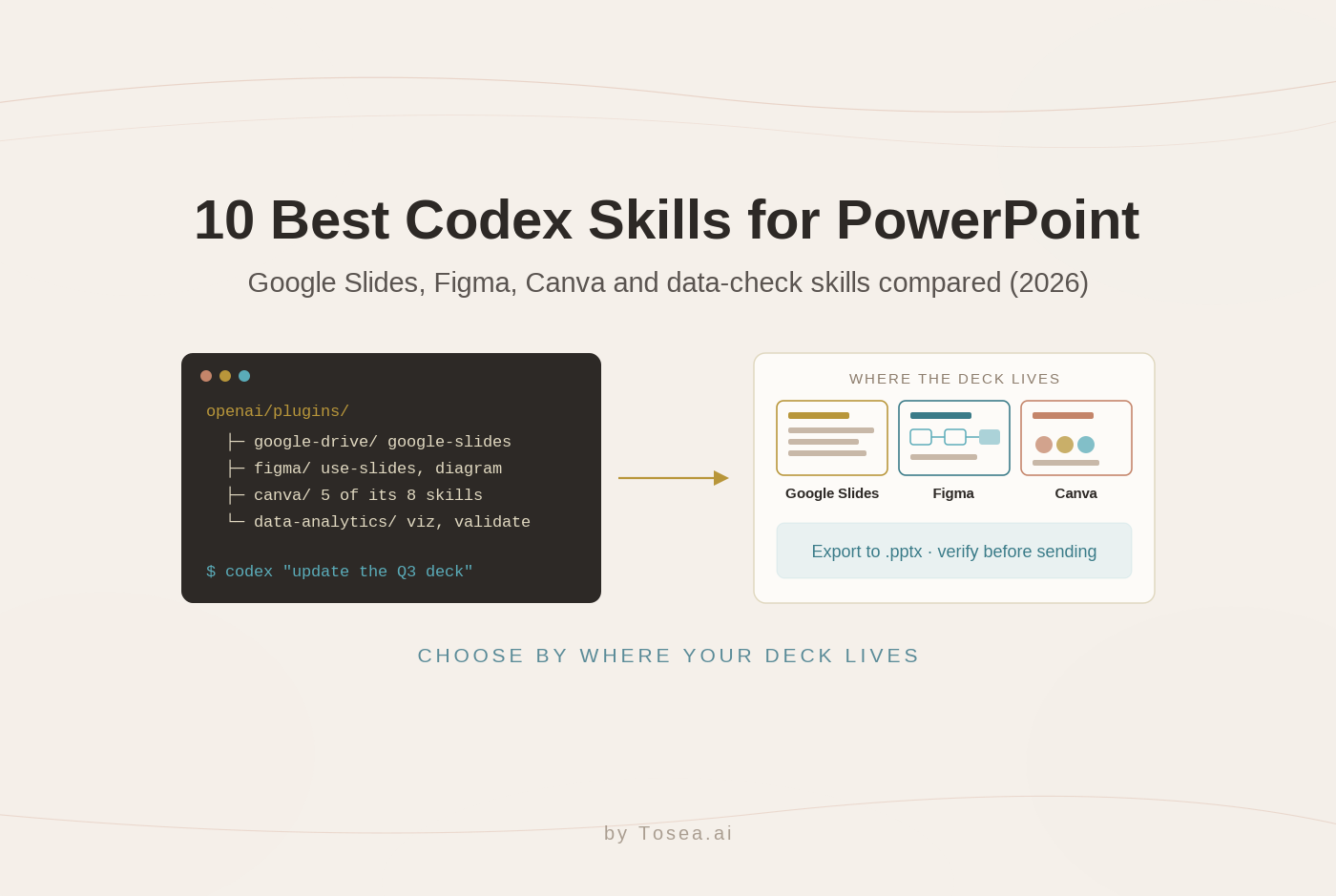
Quick answer: Use Consensus or Scholar Gateway to find scholarly evidence, Notion or Google Drive for internal context you are authorized to use, and Canva or Figma to turn an approved outline into a design. None of the six hands you a PowerPoint file inside ChatGPT. Canva and Figma Slides export to PPTX from their own editors, and every export needs a check in the application you will present from.
How we selected and checked these apps
We read each app's listing in OpenAI's plugin directory and the provider's own help pages on November 27, 2026, and chose apps with a documented role in research, writing or presentation work. This is an editorial shortlist built from documentation, not a hands-on benchmark: we did not score output quality, and these integrations change often. Where a provider publishes limits such as call allowances, plan requirements or regions, we quote them with the date.
Keep three distinctions in mind: finding a paper does not establish its finding, reading a document does not mean an app can edit it, and an editable Canva or Figma design is not automatically an equally editable PowerPoint file.
Apps, plugins and permissions: how ChatGPT handles them now
In ChatGPT, an app is the connection to an outside service such as Google Drive or Canva. OpenAI now packages apps inside plugins: a plugin can bundle one or more apps with skills, and you install and manage them under Settings > Plugins (very old mobile versions still say Apps). Once an app is connected, you call it by typing @ and its name, or by choosing it from the + menu.
A few rules from OpenAI's connected apps guide matter for research and writing work:
- Availability varies. It depends on the app, your ChatGPT plan, region, workspace, role, model and interface. In Business, Enterprise and Edu workspaces, an administrator can disable an app.
- Connecting does not widen access. ChatGPT sees only what the connected account can already reach. App permission settings (Always ask, Allow read actions, Allow low-risk actions) change when ChatGPT asks before acting, not what it can reach.
- Usage is metered twice. App use can count toward your ChatGPT plan limits and toward limits the provider sets. Consensus and Canva both meter usage on their side.
- Context travels with the request. An app may receive relevant context from your conversation and, if Memory is on, from your memories. Check what a draft contains before you invoke a third-party app on it.
- Deep research can use apps. Supported apps can serve as sources in a deep research task, which suits literature work.
The six apps at a glance
| App | Best fit | Useful output | Check first |
|---|---|---|---|
| Consensus | Scientific evidence discovery | Cited evidence table or research brief | Monthly call allowance (30 on the free plan) |
| Wiley Scholar Gateway | Peer-reviewed evidence from Wiley | Passages with DOI links and source metadata | Corpus is Wiley content for now |
| Notion | Workspace context for writing | Brief that links each statement to its page | Which account and workspace you authorized |
| Google Drive | Drafting from existing Docs, Sheets and Slides | Source-based synthesis or an updated file | Google permissions for write actions |
| Canva | Branded visual drafts | Editable Canva design | Canva AI allowance; Brand Templates need a paid plan |
| Figma | Diagrams and collaborative slide drafts | FigJam diagram or Figma Slides deck | Not available in the EU; unclaimed files are link-public |
1. Consensus: best for research discovery
Consensus in ChatGPT searches more than 400 million academic papers drawn from Semantic Scholar, OpenAlex and PubMed, according to its plugin listing. It finds peer-reviewed papers, compares findings across studies, filters by year or study design, and writes cited summaries with a link to each paper. It can also run Consensus Threads, multi-step research answers that are saved to your Consensus account, and it can be added as a source in a ChatGPT deep research task.
Ask a bounded question with a population, outcome and time range. Request study designs and limitations alongside conclusions. A set of relevant papers is a starting evidence base, not a systematic review, unless the search and selection are reproducible.
Usage is metered by Consensus, not ChatGPT. As of November 27, 2026, the free Consensus plan includes 30 calls a month, Pro and Team include 500 and Deep includes 2,000. One call covers up to 100 papers, a standard search returns up to 20, and Threads use more calls depending on the work involved. The allowance is shared across ChatGPT, Claude and the Consensus API, resets on the first of each month, and paid plans can switch on extra calls at $0.05 each.
Try this prompt:
Use Consensus to find studies on [question] published during [period].
Build an evidence table with study design, population, main finding, limitations, and source link.
Separate agreement from conflicting evidence. Do not imply causality where the design does not support it.
2. Wiley Scholar Gateway: best for publisher-backed evidence
Scholar Gateway, published by John Wiley & Sons, grounds ChatGPT answers in peer-reviewed sources with verifiable citations and DOI links. Its listing says it currently searches Wiley journals and research databases, with content from other publishers planned. It complements Consensus when you want relevant passages and full source metadata rather than a broad sweep.
Use each passage to inspect how a source supports your claim. A DOI locates an article; you still need to check that the population, method and result match the sentence in your draft. The listing's own sample prompts ask ChatGPT to separate full-text evidence from abstracts, which is worth doing every time.
Corpus coverage matters. A search within one publisher's content is not a map of the literature, so pair it with a broader search before writing that "studies show" anything.
Try this prompt:
Use Scholar Gateway to find evidence for [specific claim].
Return relevant passages, full citation metadata, DOI links, and study limitations.
Explain whether each passage supports, qualifies, or contradicts the claim. Identify gaps that require searches beyond this corpus.
3. Notion: best for turning workspace knowledge into a brief
The Notion app lets ChatGPT search and read Notion pages your connected account can access. It suits teams whose decisions, project notes and research summaries already live in Notion. The Notion plugin also bundles skills such as meeting prep, knowledge capture and research documentation, and depending on your permissions ChatGPT may be able to create or update pages.
For writing, the value is context that a generic prompt lacks. Ask ChatGPT to separate final decisions from proposals, keep page links, and flag conflicting notes before drafting. That supports a project brief, an executive update or a presentation outline.
Access follows Notion's own permissions: a ChatGPT workspace admin cannot grant access to a page your Notion account cannot view. If a page is missing, open it in Notion with the same account first. Setup guides that mention the older individual sync connection are out of date.
Try this prompt:
Use the authorized Notion pages for [project] to draft a one-page briefing.
Separate approved decisions, open questions, owners, and deadlines.
Link each material statement to its page. Flag outdated or conflicting notes rather than silently resolving them.
4. Google Drive: best for writing from existing documents
The Google Drive app connects ChatGPT to files your Google account can open. Google Docs, Sheets and Slides actions all run through this one app rather than separate apps. It is useful when a report depends on several existing documents or spreadsheets.
Build a source inventory before drafting: identify the approved version, the reporting period and contradictions across files. A quarterly narrative should not combine a final revenue workbook with an obsolete planning memo without saying so.
Two details are easy to miss. Actions that change a file need matching Google permissions, which a Google Workspace admin may have to approve separately from the ChatGPT admin. And finding a filename does not prove ChatGPT read the file's contents; if a summary looks thin, paste the file's link and ask for that file specifically.
Try this prompt:
Find the approved [period] files for [project] in Google Drive.
List document titles, dates, and links before synthesizing them.
Draft a briefing from the final sources, preserving units and periods. Flag missing files, version conflicts, and claims without supporting evidence.
5. Canva: best for branded visual presentation drafts
Canva in ChatGPT creates designs from your conversation: you preview the options in the chat and open the one you want in Canva to keep editing. It works with every Canva plan, including Canva Free and Canva Education, and it is a practical choice when your team's presentation assets and brand materials already live in Canva.
Designs and images use your Canva AI allowance, not your ChatGPT plan. Searching Brand Templates needs a paid Canva plan, and only designs you select are saved to your Canva account. Canva also warns that ChatGPT sometimes produces links that look like Canva links but lead nowhere, so open designs from the preview instead.
Supply an approved outline, the audience, slide count and visual direction. Review the wording before treating the design as finished, because visual polish does not make a headline number correct. An editable Canva design and an editable PPTX are different deliverables: if PowerPoint is required, download a sample and check charts, fonts, grouping and layout where you will present. For other design-first options, see our roundup of Canva alternatives for business presentations.
Try this prompt:
Canva, turn this approved outline into an eight-slide presentation for [audience].
Use our available brand assets, preserve approved numbers, and recommend a visual for each page.
Keep citations visible. Identify any content that needs verification before export.
6. Figma: best for diagrams and collaborative slide design
The Figma app in ChatGPT started with FigJam diagrams. In December 2025 Figma added the ability to create Figma Slides decks and Figma Buzz assets from a chat, initially in beta, and the plugin listing now sums the app up as diagrams, slides and assets. Choose it when a process explanation or a collaborative design file is central to your message.
Two caveats come from Figma's help center. The app is not available in the EU. And files created from ChatGPT that you have not claimed are public to anyone with the link until you sign in and add them to your drafts, so keep unpublished results out of an unclaimed file.
Specify whether you want a diagram or a deck. For a process, name the actors, decisions, exceptions and reading order. For slides, provide the argument and approved content before asking for a style. Figma Slides can export to PPTX as editable objects or as flattened images. In the editable version, fonts PowerPoint lacks switch to its default font, gradients become solid fills, and interactive elements become static images.
Try this prompt:
Figma, create a presentation explaining [approved process or argument].
Use the supplied outline, distinguish facts from proposals, and make the process relationships clear.
Preserve important labels and list any source assets that could not be included.
A practical research-to-presentation workflow
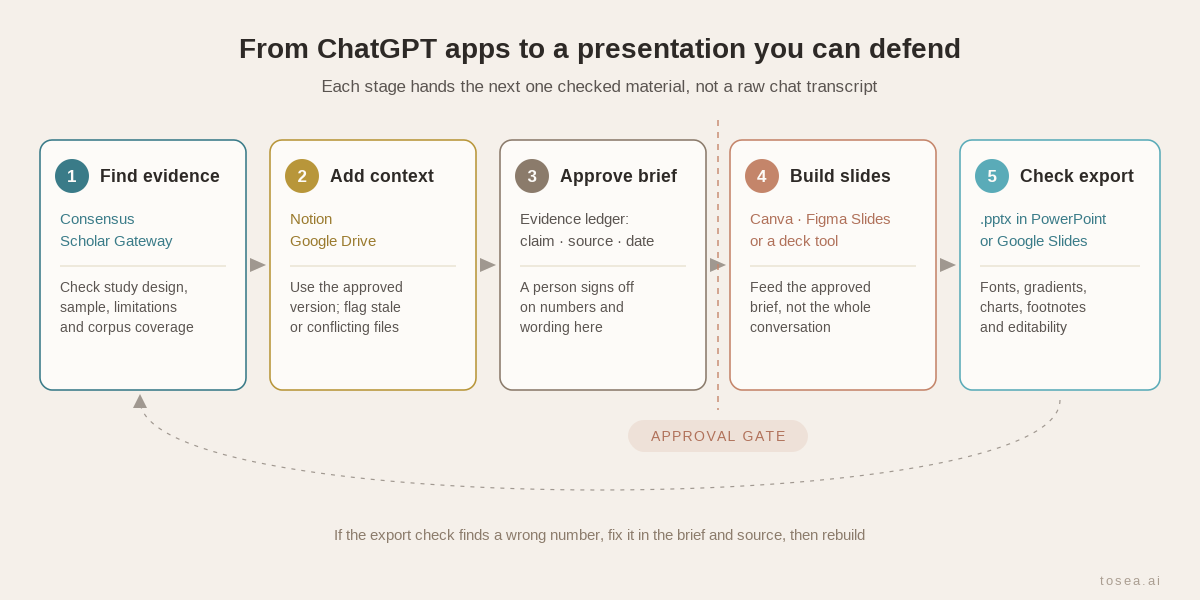
Use Consensus or Scholar Gateway to assemble evidence and inspect each source. Add authorized context through Notion or Google Drive. Record each claim, its source, date and caveats in an evidence ledger; a simple table is enough.
Have a person approve that brief before anything is designed. Then hand the approved brief, not the whole conversation, to the design step: Canva or Figma if your team already works there, or a dedicated presentation tool. After export, verify both the content and the file's behavior, and fix any wrong number in the brief before rebuilding. Our research presentation prompts and business presentation prompts cover the drafting step in more detail.
Where ChatGPT apps stop and AI slide generation begins
The six apps cover evidence, context and design, but none of them turns a stack of approved sources into a structured slide deck on its own. Canva and Figma start from the outline you supply. They are design canvases rather than document-to-PPT pipelines, and their PowerPoint exports carry the conversion limits described above. ChatGPT itself can also write a .pptx, and we tested three ways it does so in Can ChatGPT Make a PowerPoint?. Long, citation-heavy material such as a 30-page report or a set of papers, though, usually needs an outline you can review before any slide is drawn.
That step is what Tosea AI is built for. You upload the source documents (PDFs, Word files or an existing deck), review and edit the outline, choose a template or layout, then generate slides you can adjust one at a time. Data Studio rebuilds recognized charts from their underlying data and imports Excel or CSV files, so a chart can be corrected rather than redrawn. For an existing presentation, Beautify PPT/PDF (Pro and above) redesigns pages while keeping the source content and order, and Layout Only re-renders a single slide's layout without rewriting its text. Whole-deck editable PPTX export is on the Pro and Max plans; free accounts can export selected pages with a watermark.
In practice the apps and a presentation tool work in sequence: the approved brief built from Consensus, Scholar Gateway, Notion or Drive becomes the source document for the deck. If your material is a single paper, our guide to turning a research paper into a presentation covers keeping figures and citations intact. For numbers-heavy updates, see our guide to business dashboard slides.
Frequently asked questions
Are ChatGPT apps free to use?
Many apps are available across ChatGPT plans, but availability still depends on your plan, region and workspace, and providers meter their own usage. Consensus works with its free plan within 30 calls a month, and Canva designs draw on your Canva AI allowance. Paid provider features, such as searching Canva Brand Templates, still need the provider's paid plan.
What is the difference between a ChatGPT app and a plugin?
In OpenAI's terms, an app connects ChatGPT to an external service, while a plugin packages capabilities into a workflow and can include one or more apps, skills, or both. Installing a plugin does not bypass the app's own sign-in or any workspace approval.
Can these ChatGPT apps create a PowerPoint file?
Not directly. Canva produces a Canva design and Figma produces a Figma Slides deck; both can then be exported to PPTX from their own editors, with the limits described above. For a .pptx straight from ChatGPT, see our tested guide.
Can Tosea AI redesign my existing PowerPoint without changing the content?
Yes. Upload the PPTX, or a PDF export of it, to Beautify PPT/PDF (Pro and above) and keep the option that preserves source pages. Use Layout Only for later visual changes to individual slides, then verify labels, footnotes, numbers and slide elements.
How do I upload a PowerPoint and ask Tosea AI to redesign each slide?
Upload the PPTX or an exported PDF, ask Tosea to preserve the content and sequence, then choose a template or describe the design direction. Generate the presentation and inspect every slide before exporting.
Can I upload my own PowerPoint template to Tosea AI?
Yes. Custom templates are available on the Pro and Max plans. Check required layouts, fonts, colors, logo placement and master-slide rules in the generated output before sharing it.
Can Tosea AI use custom brand colors, fonts, and a logo?
Yes. Specify the required colors and fonts, supply an approved logo, or use a supported custom template. Feature access depends on the plan. Verify font availability, color values, contrast and logo spacing after export.
Can Tosea AI match the style of my old company presentations?
A representative deck can provide design guidance without implying permanent model training. For stronger consistency, use an approved template and compare the result with current brand guidelines.
Does Tosea AI preserve PowerPoint formatting after export?
Editable PPTX export aims to stay close to the generated preview, and whole-deck export is available on Pro and Max. Fonts, complex graphics and the application opening the file can affect results, so test the exported deck in the exact environment where you will present.
Can I tell AI to edit the layout only and keep the exact wording?
Yes. Layout Only re-renders the page layout without modifying the outline. Compare the revised slide with the original, including labels, citations, footnotes and line breaks.
Choosing the right ChatGPT app for the job
The best ChatGPT apps for research, writing, and presentations each handle one stage: Consensus and Scholar Gateway find evidence, Notion and Google Drive bring in authorized context, and Canva and Figma turn an approved outline into a design. Check provider limits first, keep a person in the approval step, and test any PowerPoint export where you will present. When the job is turning approved sources into an editable deck, Tosea AI handles the outline, templates, charts and PPTX export in one workspace.
Sources
- Connected apps in ChatGPT — OpenAI Help Center, read November 27, 2026
- Consensus in ChatGPT — Consensus Help Center
- Consensus plugin for ChatGPT — OpenAI
- Wiley Scholar Gateway plugin for ChatGPT — OpenAI
- Notion app and setup in ChatGPT — OpenAI Help Center
- Google Drive app and setup in ChatGPT — OpenAI Help Center
- Create designs with the Canva plugin in ChatGPT — Canva Help Center
- Use ChatGPT with Figma — Figma Help Center
- Turn your prompts into visual assets and slide decks with the Figma app in ChatGPT — Figma, December 11, 2025
- Export from Figma Slides — Figma Help Center