How to Build a Business Dashboard PowerPoint with AI: Finance, Operations, and Sales Examples
Build a business dashboard PowerPoint with AI: KPI selection, comparison basis, chart choice, three worked finance, operations, and sales dashboards, reusable prompts, and a QC checklist.
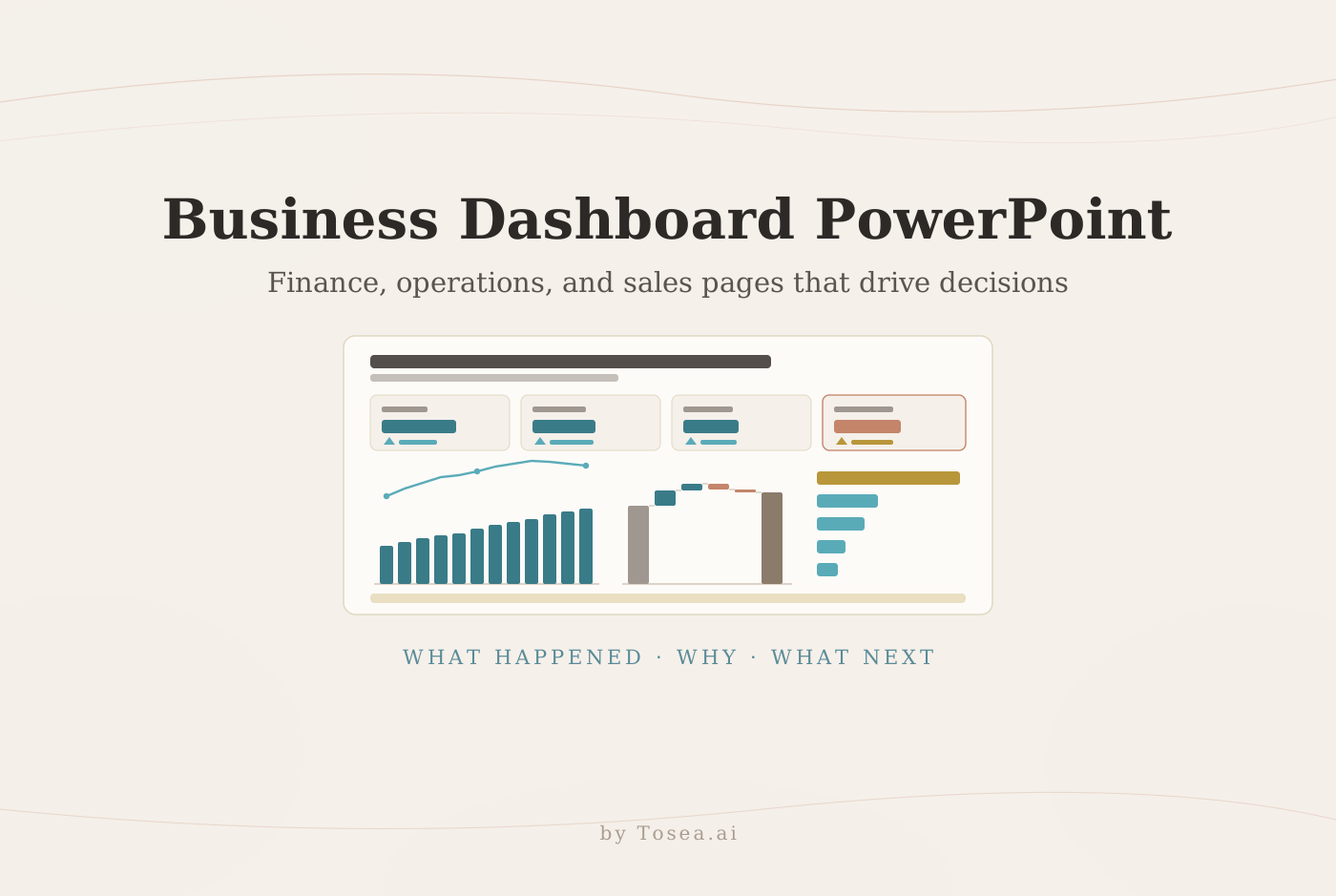
A business dashboard PowerPoint has one job: help management see performance, understand why it moved, and decide what to do next — on a single page that still makes sense when it is projected, printed, or forwarded as a PDF. That is a different job from a BI dashboard, and most weak dashboard slides fail because they ignore the difference.
This guide shows how to choose the metrics, set the comparison basis, pick the right chart for each management question, and structure the page so the conclusion is readable in ten seconds. It works through three complete examples — finance, operations, and sales and marketing — with the numbers explained, a reusable AI prompt for each, and a quality-control checklist. It also shows how Tosea AI turns reports, chart images, Excel, and CSV files into an editable outline, editable charts, and an editable PPTX, so a data visualization PPT does not have to be rebuilt by hand every month.
Quick answer: Start with the decision the page must support. Pick five to eight decision-relevant metrics, show each against plan, prior period, or target, and put the conclusion in the title. Use one primary chart for the central movement and one or two diagnostic charts for the cause. End with an owned action. Reconcile every total with the source before you export.
Contents
- What an executive dashboard must answer, and why a slide is not a BI screen
- The five-zone structure of a dashboard slide
- Choosing KPIs and the comparison basis
- Three worked examples: finance, operations, sales and marketing
- Matching charts to management questions
- Common dashboard mistakes
- Building the monthly dashboard deck in Tosea AI
- Quality checklist and FAQs
What an executive dashboard must answer
A useful dashboard answers three questions in order: what happened, why it happened, and what management should do about it. The title carries the first answer. "Q3 performance review" repeats the calendar; "Margin improved, but working capital reduced cash conversion" tells the reader where to look and what deserves discussion.
The metrics follow from the decision, not from what the data warehouse happens to contain. A finance page may need revenue, margin, free cash flow, working capital, and budget variance. An operations page may need throughput, equipment effectiveness, inventory turns, delivery performance, downtime, and supplier quality. A commercial page may need revenue, pipeline coverage, win rate, conversion by stage, acquisition cost, and segment economics. If a metric would not change anyone's decision this month, it belongs in the appendix.
Tableau's dashboard guidance makes the same point from the design side: know the purpose and audience first, and limit a dashboard to two or three views, because with too many "visual clarity and the big picture can get lost in the details."
Why a dashboard slide is not a BI screenshot
A BI dashboard in Power BI or Tableau is built for exploration. Users filter, hover, and drill down; the screen can hold twelve visuals because nobody has to read them all at once. A dashboard slide is read once, often in a meeting where the presenter controls the pace, and it cannot be filtered. That changes three things:
- The page needs a stated conclusion. A BI screen lets the user find the story; a slide must tell it.
- Text must survive projection. A screenshot of a 1920-pixel BI canvas shrinks axis labels to unreadable sizes once it is placed inside a 16:9 slide with a title and margins.
- The data must be frozen and sourced. A slide is a record of what management saw on a given date, so it needs a period, a data cut-off, and a source note.
Pasting a BI screenshot is fine for an appendix. For the page that drives the discussion, rebuild the two or three views that carry the argument as native, editable charts.
How to structure a business dashboard PowerPoint
Use a reading order that works on a projected slide and in a PDF. Most effective dashboard slides follow the same five zones, top to bottom.
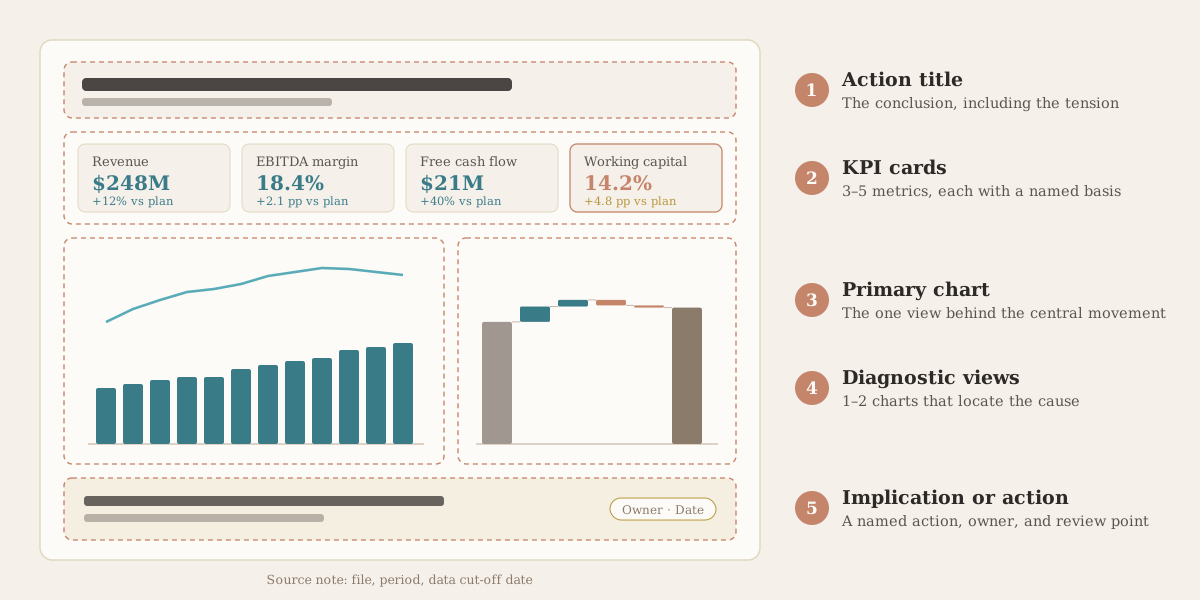
- Action title. One sentence that states the management conclusion, including the tension if there is one ("ahead of plan, but…").
- KPI cards. Three to five cards, each with a value, a unit, and a delta against a named basis.
- Primary chart. The one view that explains the central movement — usually a trend or a variance bridge.
- Diagnostic views. One or two charts that locate the cause: a ranking, a mix, a matrix, or a funnel.
- Implication or action. A named action, an owner, and a review point. If the page asks for a decision, say which one.
State whether every figure is versus budget, target, or prior period, and keep period, currency, signs, and units consistent across the page. A card that says "+4.8 pp" next to a card that says "+12%" is fine — as long as the reader can tell that one is a percentage-point change and the other is a relative change.
Choose KPIs and the comparison basis before choosing charts
A KPI without a comparison is a number, not information. Before drawing anything, write a definition row for every metric on the page. The table below shows the definitions behind the three examples in this guide.
| Function | KPI | Definition | Comparison basis | Common trap |
|---|---|---|---|---|
| Finance | Revenue | Recognized revenue for the period | Budget and prior year | Mixing booked and recognized revenue |
| Finance | EBITDA margin | EBITDA ÷ revenue | Budget, in percentage points | Showing the December margin as the full-year margin |
| Finance | Free cash flow | Operating cash flow − capital expenditure | Budget | Changing the capex definition between months |
| Finance | Net working capital | (Receivables + inventory − payables) ÷ sales | Budget, in percentage points | Using period-end balances in one month and averages in the next |
| Operations | OEE | Availability × performance × quality | Prior period | Excluding planned stops in one plant but not another |
| Operations | On-time delivery | Orders delivered by promised date ÷ all orders | Target and prior period | Counting partial shipments as on time |
| Commercial | Pipeline coverage | Open pipeline ÷ remaining quota | Prior quarter | Counting deals with no next step |
| Commercial | Win rate | Closed-won ÷ opportunities that reached proposal | Prior quarter | Changing the denominator stage |
| Commercial | CAC | Sales and marketing cost ÷ new customers | Prior year, by channel | Different attribution windows by channel |
Notation matters as much as definitions. The International Business Communication Standards (IBCS) codify consistent notation for actual, plan, forecast, and prior-period values, and IBCS 2.0 is now fully aligned with ISO 24896:2026, which the IBCS Association describes as the first international standard defining consistent visual notation for charts, tables, and text in business reports, presentations, and dashboards. You do not need to adopt the full standard, but you do need its core discipline: if solid blue means "actual" on one page, it cannot mean "forecast" on the next.
Two notation rules prevent most misreadings:
- Percent vs percentage points. A margin that moves from 12 percent to 15 percent rose by 3 percentage points, which is a 25 percent relative increase. Label the unit on every delta.
- Favorable vs unfavorable. Color variances by their effect, not their sign. A cost that rises is unfavorable even though its delta is positive — which is why the working-capital card in the financial example below is amber, not green.
Use case 1: financial dashboard for performance and cash control
A financial dashboard should connect earnings to cash and identify the variance that needs action. Use only the measures that describe growth, profitability, liquidity, and capital use.
The fictional example reports full-year revenue of $248 million, an EBITDA margin of 18.4 percent, free cash flow of $21 million, and net working capital at 14.2 percent of sales. The monthly trend shows direction, the waterfall reconciles budget to actual, and the expense chart checks mix against plan.
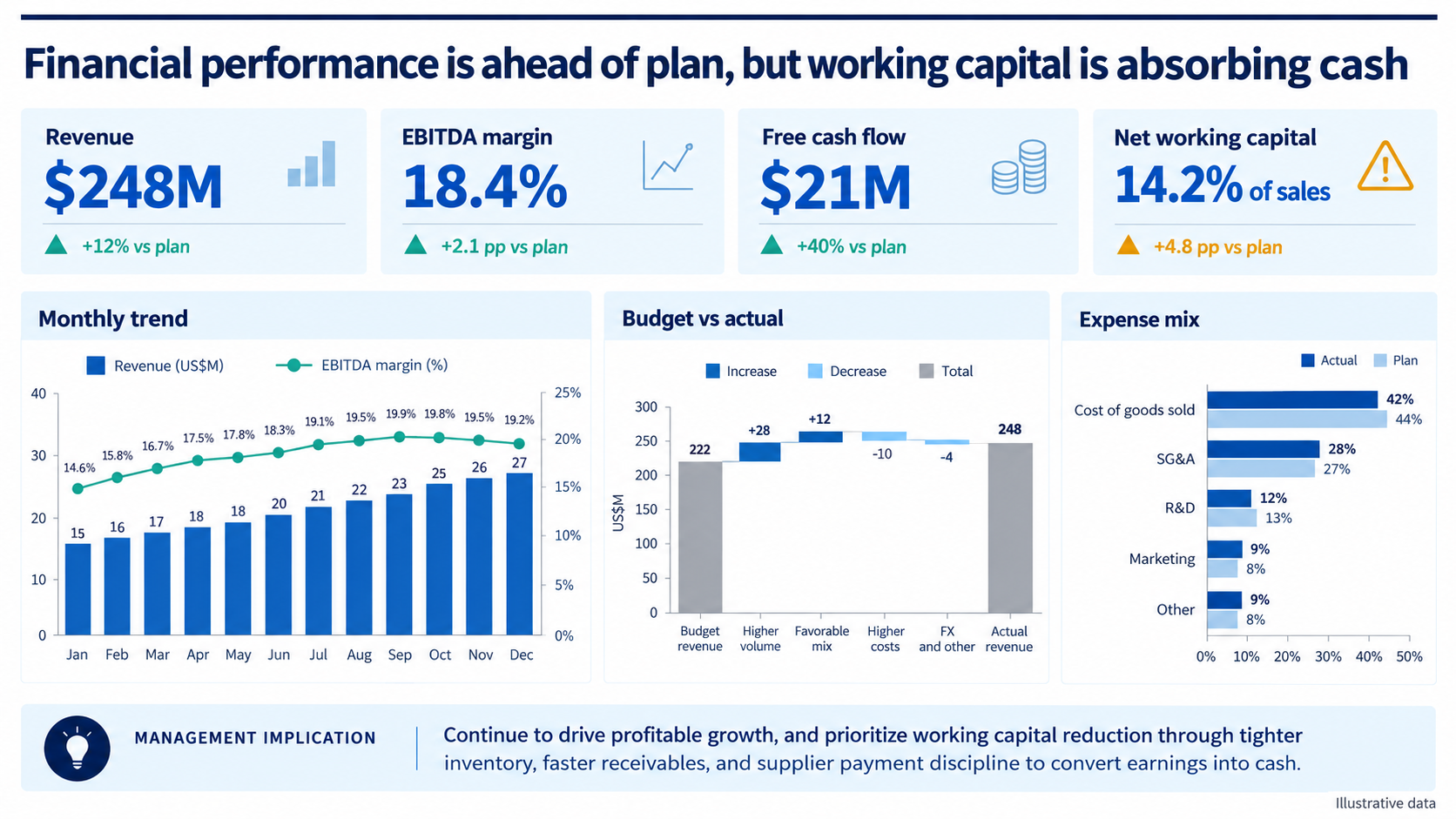
Original financial dashboard example. All values are illustrative.
How to read it. The twelve monthly bars ($15 million in January rising to $27 million in December) add up to the $248 million on the revenue card, and the waterfall walks from the $222 million budget to the same $248 million: +$28 million from volume, +$12 million from mix, −$10 million from higher costs, and −$4 million from FX. That is +11.7 percent versus plan, shown as +12% on the card. The margin line climbs from 14.6 percent to about 19 to 20 percent in the second half, yet the full-year margin is 18.4 percent — because the annual figure is the revenue-weighted average of all twelve months, not the latest month. Showing the December run rate as the full-year margin is one of the most common errors in finance dashboards.
The title gives the CFO a discussion path: confirm the earnings beat, identify which working-capital component absorbed cash, assign the corrective action, and set a review date.
Reusable AI prompt for a financial dashboard
Create one 16:9 financial dashboard from the uploaded files.

Audience: CFO and executive committee
Decision: protect cash conversion while meeting the profit plan

Show revenue, EBITDA margin, free cash flow, and net working capital cards, each with its comparison basis. Add a monthly revenue and margin trend, a budget-to-actual revenue waterfall, and an expense mix versus plan.

Write an action title. Make the monthly values reconcile to the annual totals and the waterfall steps reconcile from budget to actual. Calculate the full-year margin as a revenue-weighted average. Preserve values, units, periods, currency, definitions, and sources. Use editable navy and blue charts with teal and amber accents. Flag missing data instead of estimating it.
Use case 2: operations dashboard for bottlenecks and service risk
An operations dashboard should connect output to the constraints that affect service, cost, or quality. Throughput alone cannot explain a delivery miss. Downtime, cycle time, inventory, and supplier performance provide the diagnosis.
The fictional example reports weekly output of 42.6 thousand units, equipment effectiveness (OEE) of 78.3 percent, inventory turns of 8.1, and on-time delivery of 92.4 percent, down 3.6 percentage points. The downtime ranking points to Line 3, while the supplier matrix separates delivery problems from quality problems.
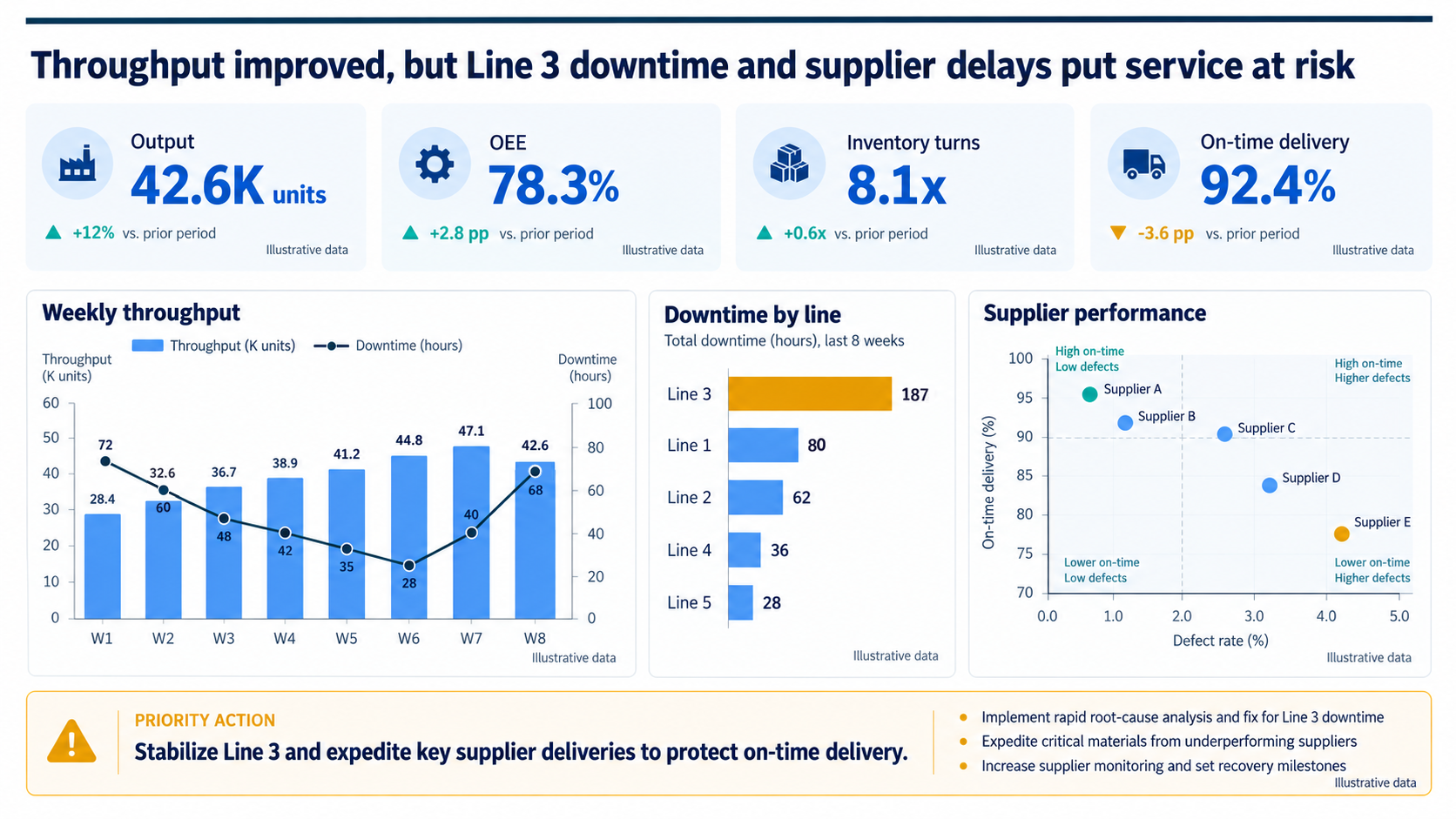
Original operations dashboard example. All values are illustrative.
How to read it. Weekly throughput rose from 28.4 thousand units in week 1 to 47.1 thousand in week 7, while downtime fell from 72 hours to a low of 28 hours in week 6. Then the pattern broke: downtime climbed to 40 hours and then 68 hours, and week-8 throughput dropped to 42.6 thousand. The eight weekly downtime values total 393 hours, and the line ranking allocates exactly those 393 hours: Line 3 alone accounts for 187 hours, nearly half. On the supplier matrix, Supplier E sits in the worst quadrant (about 78 percent on time with a defect rate above 4 percent), while Supplier C clears the on-time threshold but runs a higher defect rate — two different problems that need two different conversations.
The page ends with an action: stabilize Line 3 and expedite critical supplies. The plant lead owns downtime recovery, procurement owns supplier escalation, and the service owner tracks delivery impact.
Reusable AI prompt for an operations dashboard
Create one 16:9 operations dashboard from production, inventory, and supplier data.

Audience: COO, plant leaders, and supply chain management
Decision: identify the constraint reducing on-time delivery and assign recovery

Show output, OEE, inventory turns, and on-time delivery cards. Add a weekly throughput trend with downtime, a downtime ranking by line for the same period, and a supplier delivery-quality matrix.

Use a conclusion title and show KPI variance. Make the downtime-by-line totals reconcile with the weekly downtime series and state the period on every chart. Keep definitions consistent, label sources, and end with actions, owners, and review dates. Do not invent causes.
Use case 3: sales and marketing dashboard for growth quality
A commercial dashboard should link revenue to pipeline and acquisition economics. Revenue can rise while conversion weakens or acquisition cost climbs — and the page has to show both at once.
The fictional example combines full-year revenue of $1,037 million, pipeline coverage of 3.4 times, a win rate of 27.6 percent, and a blended customer acquisition cost of $1,240, up 18 percent year over year. The charts compare revenue with target, locate funnel drop-off, assess segment economics, and rank channel cost.
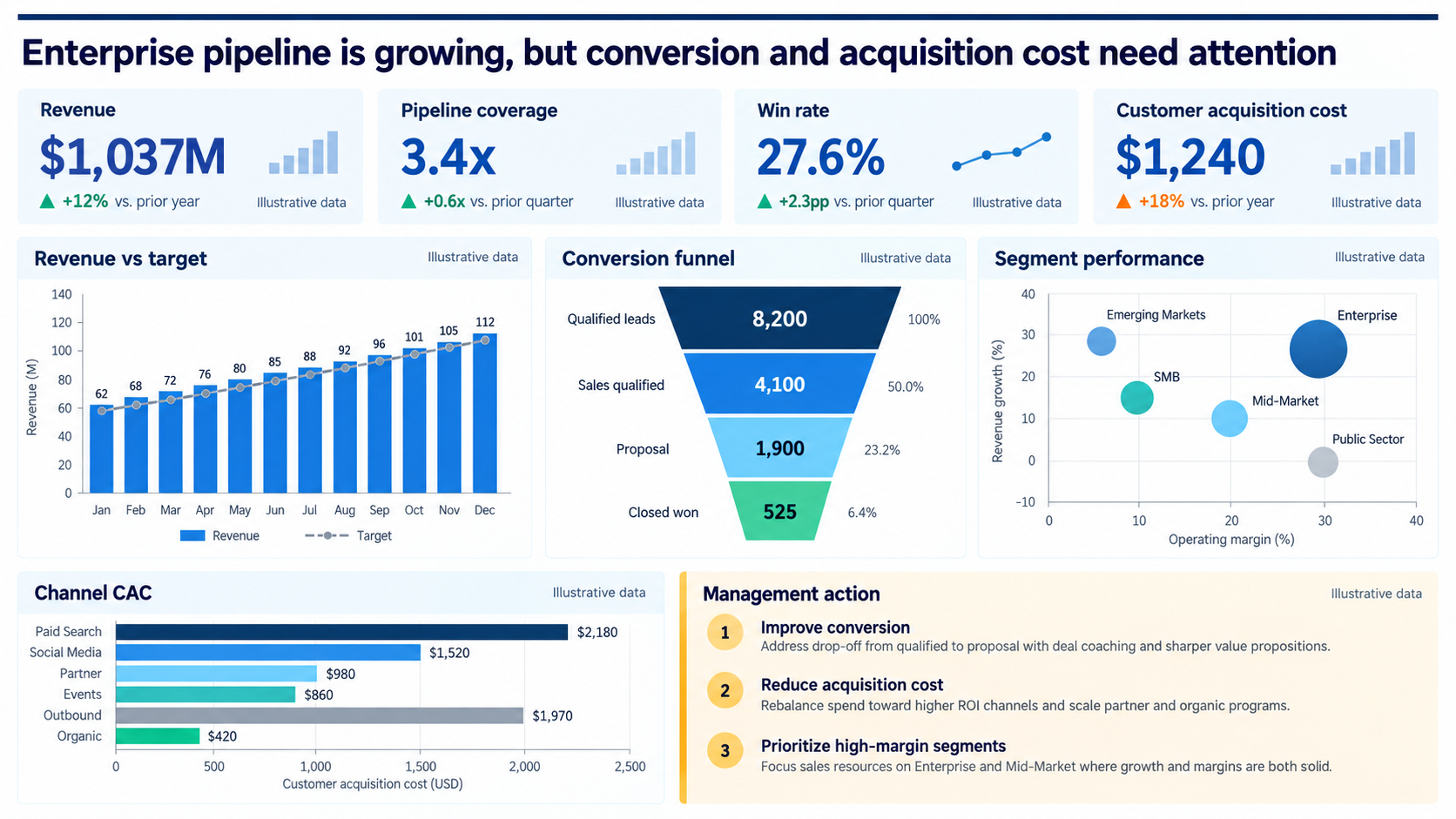
Original sales and marketing dashboard example. All values are illustrative.
How to read it. The monthly bars ($62 million to $112 million) sum to the $1,037 million on the revenue card. In the funnel, 8,200 qualified leads become 4,100 sales-qualified opportunities (50.0 percent), 1,900 proposals (23.2 percent of leads), and 525 closed-won deals (6.4 percent). The win rate on the card is 525 ÷ 1,900 = 27.6 percent, measured from proposal — so the denominator is stated, not assumed. Between sales-qualified and proposal, 2,200 of 4,100 opportunities (54 percent) drop out after sales has already accepted them, which makes that stage the most actionable target for deal coaching — the first management action. Channel CAC ranges from $420 for organic to $2,180 for paid search, a fivefold spread that justifies rebalancing spend. On the segment chart, Enterprise combines roughly 30 percent operating margin with high-20s growth, Mid-Market sits around 20 percent margin and 10 percent growth, Emerging Markets grows fastest on thin margins, and Public Sector earns margin without growth.
Document entry rules for every pipeline stage. Customer acquisition cost also needs a stable numerator, denominator, attribution window, and currency; otherwise period comparisons are unreliable. For a deeper treatment of how to sequence commercial data for an executive audience, see our framework for presenting sales data to executives.
Reusable AI prompt for a sales and marketing dashboard
Create one 16:9 sales and marketing dashboard from CRM and campaign files.

Audience: chief revenue officer, sales leaders, and marketing leaders
Decision: improve conversion and reallocate acquisition spending

Show revenue, pipeline coverage, win rate, and acquisition cost cards. Add revenue versus target, a funnel with counts and stage conversion rates, a segment bubble chart (growth vs operating margin, bubble = revenue), and a channel CAC ranking.

Write an action title. State the denominator for every rate. Preserve stage definitions, cohort dates, attribution, currency, and sources. End with conversion, channel, and segment actions that follow from the charts. Flag missing denominators.
Match the chart to the management question
| Management question | Recommended chart | Avoid |
|---|---|---|
| How did performance change over time? | Line or column chart | A pie chart for monthly values |
| What explains the variance? | Waterfall or variance bridge | Unconnected KPI cards |
| Which category is highest or lowest? | Sorted horizontal bars | Unsorted bars with many colors |
| Where does conversion drop? | Funnel with counts and rates | Decorative funnel without denominators |
| Which segments balance growth and margin? | Scatter or bubble chart | A table with no visual prioritization |
| Which supplier needs intervention? | Quadrant matrix or heatmap | One composite score with hidden inputs |
| How is the total composed? | Stacked bar or 100% bar | 3D pies and donuts with more than five slices |
The Financial Times Visual Vocabulary organizes chart types by the data relationship they show — change over time, ranking, deviation, part-to-whole, correlation, flow — which is the right starting point for dashboard design: name the relationship first, then pick the chart. Keep axes and scales comparable when readers must compare two views, and start bar-chart axes at zero. If you need finer control over waterfall, Mekko, or variance charts, our AI think-cell alternative guide covers the editable chart types in more depth.
Common business dashboard mistakes
Most dashboard slides that fail in the meeting fail for the same handful of reasons:
- Totals that do not reconcile. Monthly bars that do not add up to the annual card, or a ranking that allocates more hours than the trend contains. When we drafted the illustrations for this guide, the first versions had exactly this problem — the twelve monthly revenue bars added up to $298 million while the revenue card said $248 million, and the line ranking allocated 414 downtime hours against a weekly series that contained 393. Both were corrected before publication. If it can happen in a carefully planned example, it will happen in a rushed monthly pack.
- KPI cards with no comparison basis. "$21M" alone cannot be judged. "$21M, +40% vs plan" can.
- Mixed periods on one page. Year-to-date revenue next to a single-month margin next to a trailing-twelve-month CAC. Either align them or label each one.
- Percent and percentage points used interchangeably. See the notation rules above.
- Color meaning drift. Blue as "actual" in one chart and "prior year" in the next. Green for a favorable cost decrease on one card and for an unfavorable cost increase on another.
- Too many views. Six charts on one page means none of them gets read. Move the detail to a backup slide.
- Unsupported actions. "Focus on high-growth segments" next to a chart where the named segment has below-average growth. Every action should be traceable to a chart on the same page.
Build the monthly dashboard deck, not just the page
A single dashboard slide rarely travels alone. A monthly business review usually needs an enterprise summary, one diagnostic page per function, and a backup section. A practical structure:
| Slide | Purpose | Typical content |
|---|---|---|
| 1 | Enterprise summary | Five to six top-line KPIs, one sentence per function |
| 2 | Financial dashboard | Revenue, margin, cash, working capital |
| 3 | Operations dashboard | Output, OEE, downtime, delivery, suppliers |
| 4 | Commercial dashboard | Pipeline, conversion, CAC, segments |
| 5 | Decisions requested | Two or three decisions with options and owners |
| 6 | Risks and watch items | Leading indicators that are not yet in the KPIs |
| 7+ | Backup | Definitions, detailed tables, data cut-off dates |
The common summary can show enterprise outcomes, but each function needs its own diagnostic page for its drivers and actions. For the quarterly version, our QBR deck guide adds the forward-looking plan; for the board-level version, the board deck structure guide shows how the same material is compressed for directors; and the BCG-style storyline guide explains how to make the slide titles alone tell the story.
Build editable dashboard charts in Tosea AI Data Studio
Tosea AI Data Studio recognizes values from chart images and tables in PDFs and slides, or accepts Excel and CSV files directly. It places the values in an editable grid and shows the original next to the rebuilt chart so you can compare them before updating the slide.
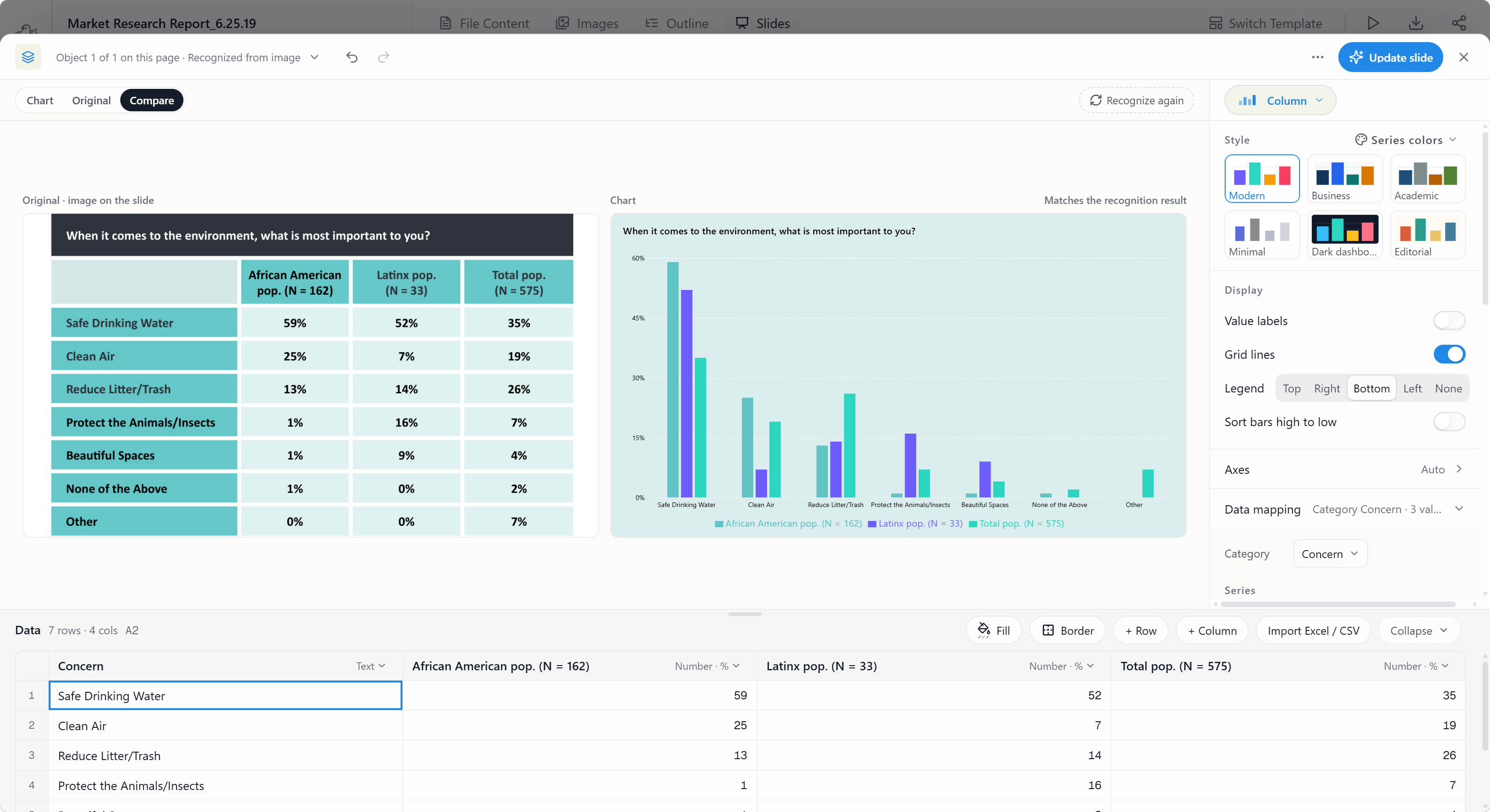
From there you can correct values, add rows or columns, map series, switch chart types, sort bars from high to low, toggle value labels, grid lines, and legend position, adjust axes, and apply a style preset — including a dark dashboard style — or the deck theme. This is the step that turns last quarter's flattened chart image into a chart that can be updated next month instead of redrawn.
Recognition is not validation. Check every total, unit, percentage basis, sign, date, and denominator after recognition. A move from 12 percent to 15 percent is a 3 percentage point increase, not 3 percent growth — and the chart will happily plot whichever one you typed.
Choose layouts before rendering and revise them afterward
Tosea AI separates planning from rendering. Upload the sources, state the audience and the decision, and review the outline before anything is drawn. At the outline stage, choose a layout or diagram for each slide — a KPI-card grid, a comparison, a matrix, a process.
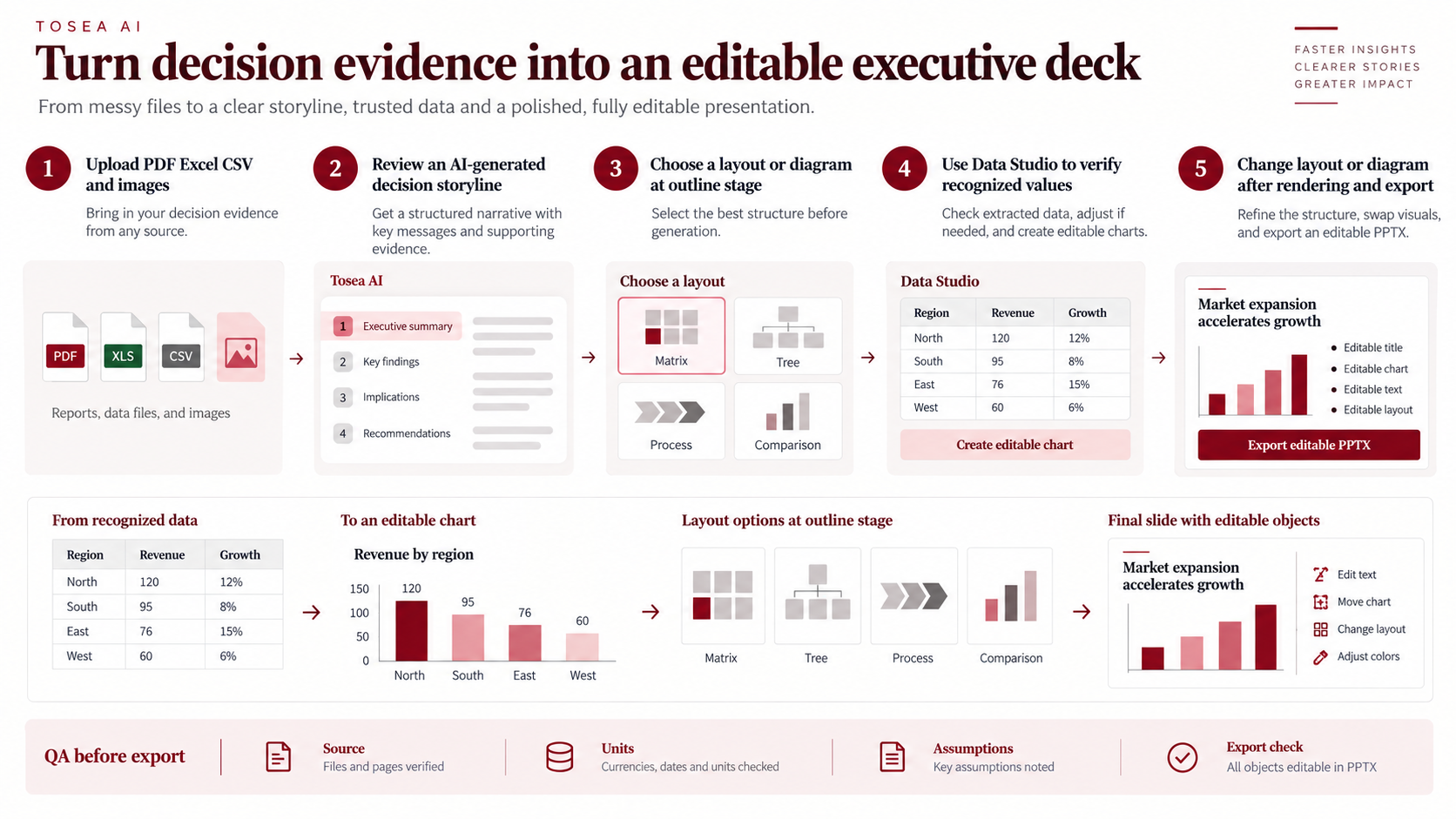
After rendering, use Layout / Diagram to revise a slide's structure. Use Layout Only when the wording has been approved and should not change, then compare the result with the source. A typical monthly workflow looks like this:
- Upload the management accounts PDF, the CRM export, and the operations workbook.
- Ask for a seven-slide monthly business review for the executive committee, using the structure above.
- Review the outline: check that every slide title is a conclusion and every KPI has a basis.
- Choose a dashboard layout for slides 2–4 at the outline stage.
- Open each chart in Data Studio, verify recognized values against the source, and fix any mismatch.
- Render, adjust layouts where the page is crowded, and export an editable PPTX.
- Open the PPTX in the PowerPoint version used in the meeting and test fonts, chart data, and contrast.
Microsoft explains how editable chart data works in its chart guidance, and its accessibility guidance recommends sufficient contrast and not relying on color alone to convey meaning — relevant for any red/green variance coloring. For recurring reports, our guide to inserting Excel into PowerPoint covers the linked-data options when a chart must stay connected to a workbook.
Who this workflow is for
- FP&A and finance teams producing the monthly management pack and board appendix
- Operations and supply chain leaders reporting plant, line, and supplier performance
- Revenue operations and marketing teams reporting pipeline, conversion, and channel economics
- Consultants and analysts turning a client's data extracts into a steering-committee dashboard
- Founders and general managers who need one page that explains the business to investors or a board
It is less useful when the audience needs live interactivity — in that case, keep the BI dashboard as the system of record and use the slide for the conclusion.
Dashboard quality-control checklist
- The title states a conclusion and a management implication.
- Every KPI has a definition, period, unit, and comparison basis.
- Monthly or weekly values reconcile with the period totals on the cards.
- Rankings and breakdowns allocate the same total as the trend they explain.
- Annual ratios are weighted averages, not the latest month.
- Actual, budget, forecast, and target use consistent notation.
- Colors keep the same meaning across the deck, and favorable/unfavorable coloring follows the effect, not the sign.
- Every rate states its denominator.
- The charts explain movement and cause instead of repeating the KPI cards.
- Every action is supported by a chart on the same page, and names an owner and review point.
- Source notes identify the file and the data cut-off date.
- The exported PPTX has been tested in the delivery environment.
Frequently asked questions
How many KPIs should a business dashboard PowerPoint contain?
Use only decision-relevant KPIs. Three to five cards and two or three views are usually enough for one page. Move extra detail to a backup slide rather than shrinking everything to fit.
Can one dashboard serve finance, operations, and sales teams?
A common summary page can show enterprise outcomes, but each function needs a diagnostic page for its own drivers and actions. One page that tries to serve everyone usually ends up serving no one.
Should I paste my Power BI or Tableau dashboard into PowerPoint?
For an appendix, yes. For the page that drives the discussion, rebuild the two or three views that carry the argument as native charts with a conclusion title. Screenshots shrink text below readable size and cannot be updated or checked.
What is the difference between a percent change and a percentage point change?
A percentage point change is the arithmetic difference between two percentages (12% to 15% is +3 pp). A percent change is relative (12% to 15% is +25%). Dashboards that report margins, rates, and shares should use percentage points and label them.
Can Tosea AI redesign my existing PowerPoint without changing the content?
Yes. Export it as PDF, upload it, and request a redesign that keeps the wording. Use Layout Only for visual changes, then review labels and footnotes.
How do I upload a PowerPoint and ask Tosea AI to redesign each slide?
Export as PDF, upload it, and request a slide-by-slide redesign that preserves content and sequence. Choose a visual direction, generate, inspect, and export.
Can I upload my own PowerPoint template to Tosea AI?
Eligible paid plans support custom templates. Configure one, then verify layouts, fonts, colors, logo placement, and master-slide rules.
Can Tosea AI use custom brand colors, fonts, and a logo?
Yes. Specify colors and fonts, then upload the logo or use a supported template. These features are available on eligible plans. Verify them after export.
Can Tosea AI match the style of my old company presentations?
Tosea AI can use a representative deck as guidance, not as permanent model training. Use an approved template and compare the output with brand guidelines.
Does Tosea AI preserve PowerPoint formatting after export?
Editable PPTX export aims to match the preview. Fonts, complex graphics, and presentation software can affect results, so test the delivery environment.
Can I tell AI to edit the layout only and keep the exact wording?
Yes. Layout Only changes visual structure without intentionally rewriting content. Compare with the source and verify labels, citations, statistics, and line breaks.
Turn reporting data into a decision-ready business dashboard PowerPoint
A business dashboard PowerPoint works when it connects an outcome to its cause and closes with an action someone owns. Define the decision, keep the metric set small, show a comparison basis for every number, make the totals reconcile, and make the data auditable.
Use Tosea AI to turn management reports, PDFs, Excel and CSV exports, and existing slides into an outline, editable charts, revisable layouts, and an editable PPTX. For related reporting formats, see our guides to market performance monitoring presentations, earnings call presentation decks, and weekly pulse reports for executives.
Sources
- Best Practices for Effective Dashboards — Tableau Help
- International Business Communication Standards and IBCS Version 2.0, aligned with ISO 24896 — IBCS Association
- Financial Times Visual Vocabulary — Financial Times Visual Journalism Team
- Use charts and graphs in your presentation — Microsoft Support
- Make your PowerPoint presentations accessible to people with disabilities — Microsoft Support