10 Best Codex Skills for PowerPoint and Presentation Design in 2026
10 official Codex skills for PowerPoint and presentation work in 2026: Google Slides, Figma, Canva, diagram and data-check skills, with setup needs, limits and example requests.
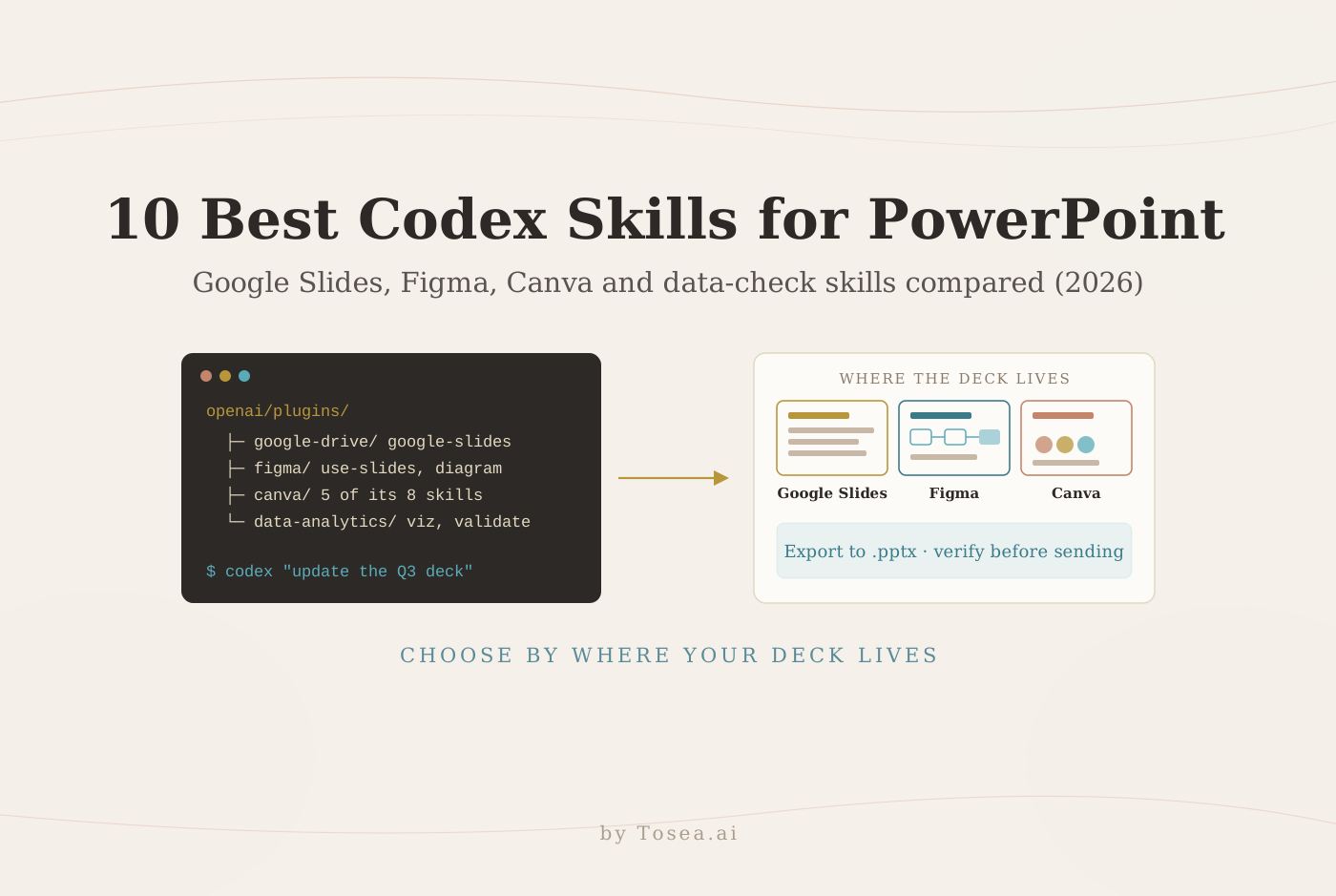
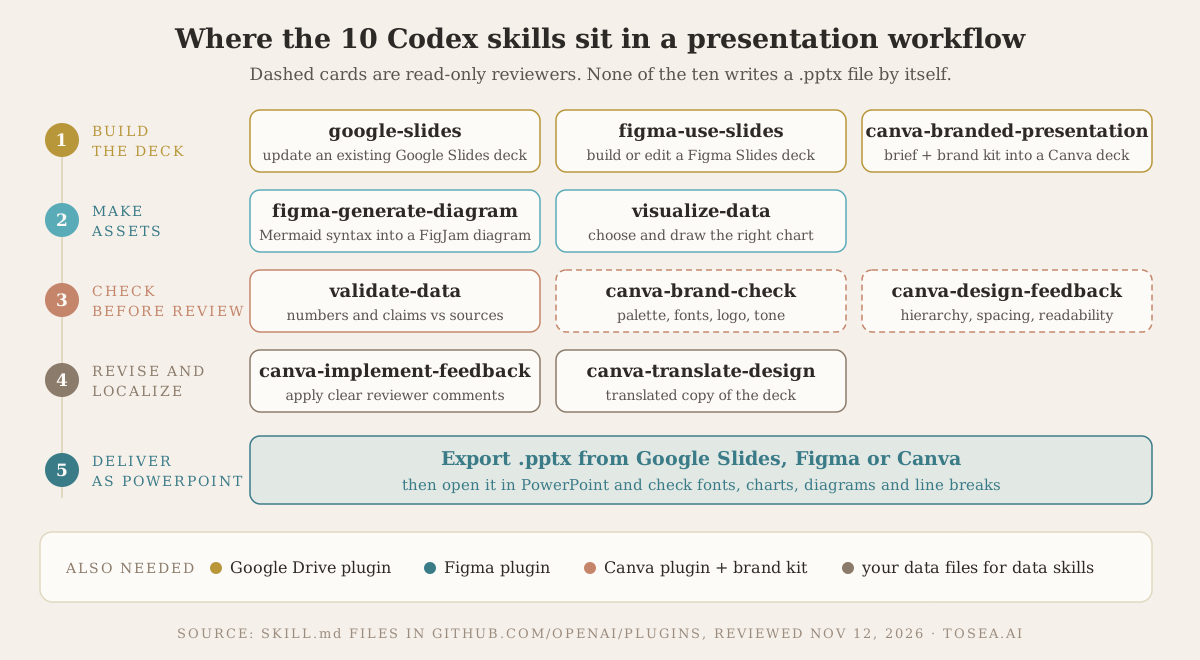
The best Codex skills for PowerPoint and presentation design are not PowerPoint generators. They are reusable instruction sets from OpenAI's plugin catalog. They help Codex update a Google Slides deck, build in Figma Slides or Canva, draw diagrams and charts, and check a deck before it goes out. Each one works through a connected service, and none of the ten in this list writes a .pptx file by itself.
That distinction matters when the deliverable is a PowerPoint file. Below we compare ten documented skills by task. For each one we give the source file, what it needs before it works, an example request, and where it stops.
Quick answer: Use Codex skills when your deck already lives in Google Slides, Figma, or Canva and you want an agent to run that workflow, or when you need diagram, chart, or number checks. If you want to go from source documents to a finished, editable deck in one place, a presentation tool such as Tosea AI has fewer moving parts. Tosea AI is our product, so weigh that recommendation accordingly. Either way, confirm the final file format and export behavior before committing to a toolchain.
Contents
- How we selected these skills
- The 10 skills at a glance
- The best Codex skills for PowerPoint and presentation design
- What about creating a .pptx from scratch?
- How to install and run these skills
- A reusable presentation brief
- Where Codex skills stop and AI slide generation begins
- Frequently asked questions
How we selected these skills
We reviewed the public SKILL.md files on November 12, 2026. We selected for relevance to slide work, accessible sources, and documented boundaries. This is an editorial shortlist, not a performance benchmark: we read each skill's instructions, but we did not run them against a test deck.
OpenAI defines skills as "folders of instructions and resources that teach ChatGPT and Codex how to complete repeatable workflows." The same page draws a clear boundary. The connected MCP server "provides data, authentication, authorization, and actions," while the skill supplies the instructions. Installing a skill's text alone does not give it access to your Canva account or Google Drive.
The old openai/skills catalog is now marked deprecated and points to the openai/plugins repository, where all ten source files below live. At the time of review, that repository held 62 plugin folders and about 7,900 GitHub stars, and its most recent push was on November 6, 2026. Related skills share a plugin: five of the ten come from the Canva plugin.
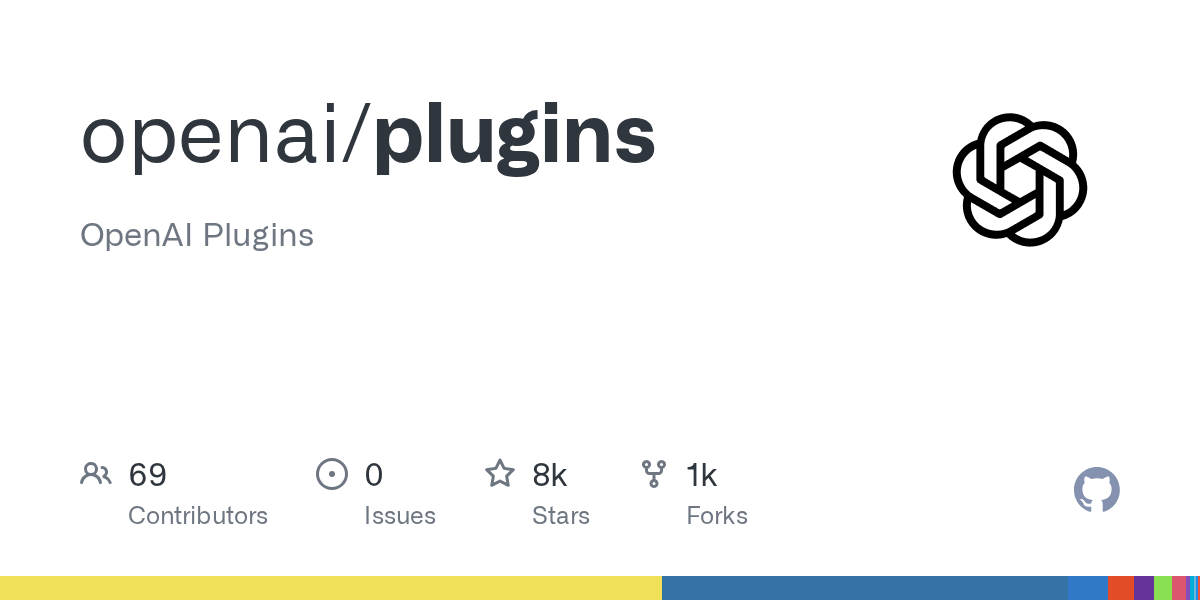
The openai/plugins repository on GitHub, captured November 12, 2026.
There is no repository-wide license. Each plugin declares its own terms: the Google Drive plugin is MIT, the Figma plugin ships under Figma's developer terms, the Data Analytics plugin is marked proprietary, and the Canva plugin declares none. Check those terms before copying a skill into your own tooling.
Three entries concern deck authoring. The rest support presentation production: diagrams, charts, reviews, revisions, and translation. A native Canva, Figma, or Google Slides design is not automatically proof of a faithful, editable PowerPoint export. The workflow illustrations below are original schematics, not product screenshots or tested outputs.
The 10 skills at a glance
| # | Skill | Plugin | Job in the deck workflow | Changes the deck? | Also needs |
|---|---|---|---|---|---|
| 1 | google-slides | Google Drive | Update or extend an existing Google Slides deck | Yes | Google Drive sign-in |
| 2 | figma-use-slides | Figma | Build or edit a Figma Slides deck | Yes | Figma connection (beta) |
| 3 | canva-branded-presentation | Canva | Turn a brief into a branded Canva deck | Creates a design | Canva connection, brand kit |
| 4 | canva-brand-check | Canva | Check a design against brand rules | No, read-only | Canva brand kit access |
| 5 | canva-design-feedback | Canva | Critique hierarchy, spacing, readability | No, read-only | Canva connection |
| 6 | canva-implement-feedback | Canva | Apply reviewer comments | Yes, within API limits | Canva connection, your approval |
| 7 | canva-translate-design | Canva | Make a translated copy | Creates a copy | Canva connection, your approval |
| 8 | figma-generate-diagram | Figma | Turn Mermaid syntax into a FigJam diagram | Creates a diagram | Figma connection |
| 9 | visualize-data | Data Analytics | Choose and draw the right chart | Produces a chart | Your data, Data Analytics tools |
| 10 | validate-data | Data Analytics | Check numbers and claims | No, review only | Access to source files |
The best Codex skills for PowerPoint and presentation design
1. google-slides: best for an existing Google Slides template
Use this when your organization has an existing native Google Slides template or a previous-period deck to update. The skill focuses on reading that reference, deriving its design system, and editing, repairing, or extending the presentation.
Its instructions say plainly: "Do not use this skill to author a blank or from-scratch presentation." New decks are routed to OpenAI's built-in Presentations plugin instead. You need the Google Drive connector, access to the referenced presentation, and a code-execution environment the skill uses to render and check slide previews. Verify any PowerPoint export separately.
Example request: Update this quarterly deck using the approved workbook. Preserve its design system and order, cite changed figures, and flag missing data.
2. figma-use-slides: best for detailed Figma Slides work
Read the figma-use-slides skill.
This skill supplies Slides-specific context for the Figma connector's design tool. It covers creating decks, editing layouts, applying styles from a reference file, and working with speaker notes. It suits teams already designing in Figma who want deliberate control over typography and placement.
It is meant to be used alongside the foundational figma-use skill, and the Figma plugin is labeled beta. Figma Slides can export a deck to PPTX, but Figma's export notes list limits: missing fonts fall back to PowerPoint's default, and gradients become solid colors. Open the exported file before you send it.
Example request: Create eight investor-update slides using this approved Figma reference, with editable elements, speaker notes, and unchanged financial claims.
3. canva-branded-presentation: best for Canva brand kits
Read the canva-branded-presentation skill.
This workflow turns a brief or outline into a branded Canva presentation. It retrieves available brand kits, asks you to confirm one if several exist, generates candidates, and creates an editable design from the selected candidate.
It is useful when marketing already manages approved assets in Canva. The file also notes that Canva's autofill feature requires an Enterprise plan, so check which path your account supports. Review branding and export fidelity rather than assuming the first candidate is ready to deliver.
Example request: Turn this approved product-launch outline into a presentation using our brand kit. Include a slide plan, recommended visuals, and notes.
4. canva-brand-check: best for brand consistency review
Read the canva-brand-check skill.
This read-only reviewer checks a Canva design against brand guidance: off-palette colors, non-brand fonts, logo misuse, and off-tone copy. Use it before external distribution, or when several contributors have edited one deck.
The instructions admit that "Colors and fonts are NOT reliably exposed" in the tool responses. The skill falls back to comparing the design thumbnail with the brand-kit thumbnail. That supports a visual assessment, not a verified hexadecimal match, so supply exact brand specifications when precision matters.
Example request: Review this deck against the supplied palette and fonts. Separate verified violations from approximate visual findings and prioritize corrections.
5. canva-design-feedback: best for slide critique
Read the canva-design-feedback skill.
Choose this for a broader visual review covering hierarchy, layout and spacing, readability and contrast, messaging, and consistency. It inspects the rendered design thumbnail as well as the available text and layout information.
The skill is strictly read-only. That separation helps when an author wants to approve recommendations before anything changes. It cannot establish numerical accuracy by looking at a chart; pair it with validate-data for that.
Example request: Review this presentation for a conference-room audience. Return five prioritized issues with page references and specific suggested fixes.
6. canva-implement-feedback: best for reviewer comments
Read the canva-implement-feedback skill.
This skill reads comment threads, identifies requested changes, applies the clear-cut ones, and flags anything that needs a human decision. It helps after a stakeholder review, when comments are scattered across a presentation.
Its documented limits matter. The file lists what the Canva editing API cannot do, including changing the font family and adding, removing, or reordering pages. Those requests become manual-action items. Do not promise reviewers that every comment can be automated.
Example request: Address clear reviewer comments on this deck. Preserve approved figures, identify conflicts, and list changes requiring manual action.
7. canva-translate-design: best for localized copies
Read the canva-translate-design skill.
Use this to create a translated copy of a Canva presentation. The instructions say to "always create a copy—never modify the original design." Proper nouns, brand names, and technical terms stay as they are, and the skill asks for approval before it commits the changes.
Translation changes text length. Inspect overflow, chart labels, terminology, and line breaks before sharing. Editable artwork and proofreading by a native speaker remain separate requirements.
Example request: Create a French copy of this deck. Preserve product names and numbers, use the supplied glossary, and flag text that no longer fits.
8. figma-generate-diagram: best for process explanations
Read the figma-generate-diagram skill.
This workflow converts Mermaid syntax into editable FigJam diagrams. It suits process flows, system explanations, and dependency relationships that later appear in a presentation.
Exactly five types are supported: flowcharts, sequence diagrams, state diagrams, Gantt charts, and entity-relationship diagrams. The skill lists ten unsupported types, including pie charts, mind maps, timelines, class diagrams, and quadrant charts. Its description still lists timelines as a trigger, so expect it to suggest another diagram type rather than draw one. An editable FigJam diagram does not guarantee editable PowerPoint shapes after you paste it in.
Example request: Diagram this approved onboarding process, showing decision points and exceptions. Flag undefined transitions before drawing it.
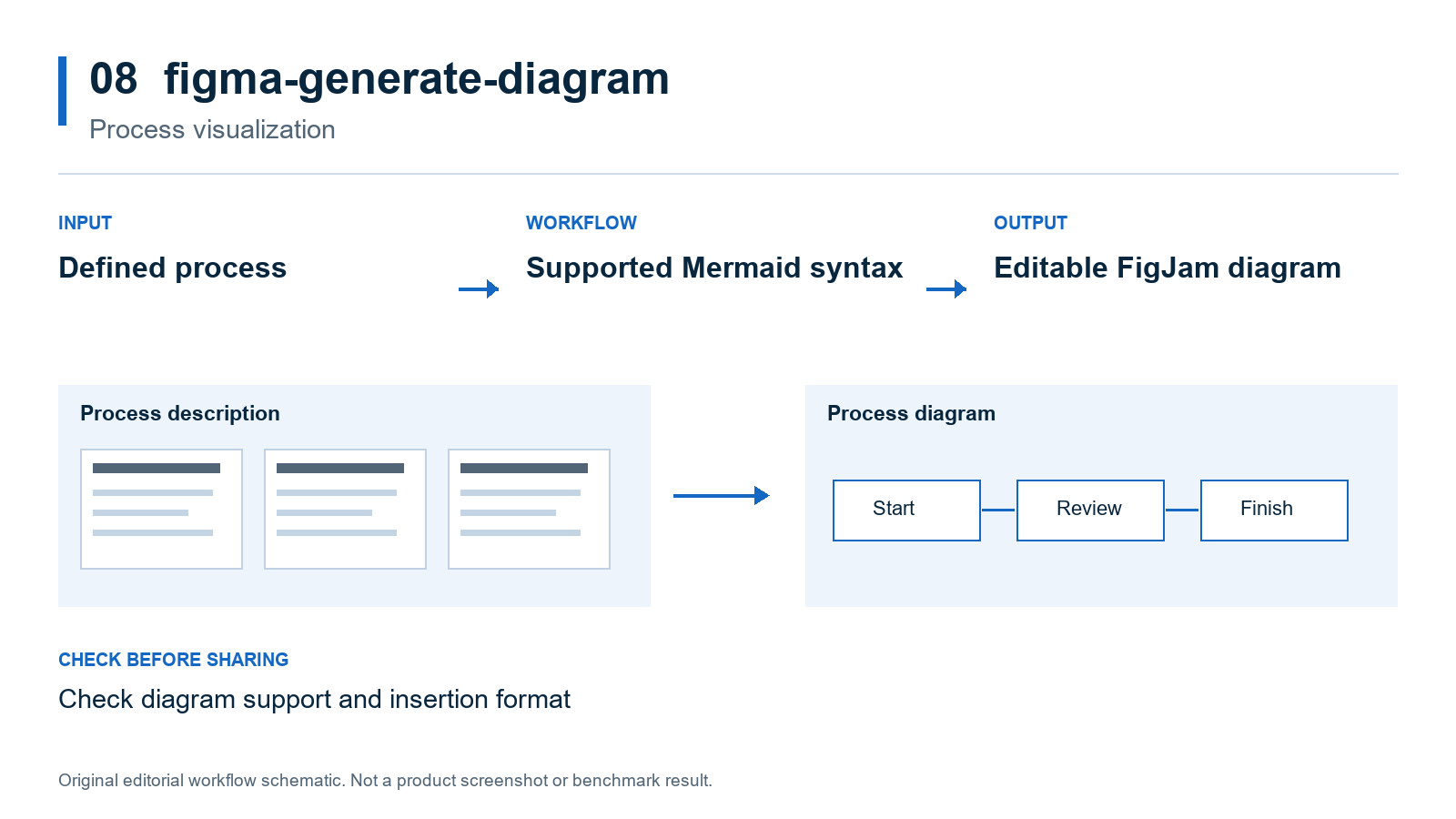
Original schematic: a defined process becomes a diagram asset.
9. visualize-data: best for analytical chart design
Read the visualize-data skill.
This skill covers chart selection, titles and labels, and analytical clarity. Its stated goal is visuals that are "analytically sound, immediately readable." Use it when a presentation needs a defensible trend, comparison, distribution, or relationship chart.
Two defaults matter for slide work. First, it renders charts as interactive widgets in the ChatGPT or Codex surface and falls back to static Python charts only on failure or when you ask. Second, its styling defaults favor a fixed palette built on blue, gold, orange, olive, and pink. Ask explicitly for a static image or file, the underlying data, and your brand colors. A static figure stays static when pasted into PowerPoint.
Example request: Visualize actual versus planned revenue from this dataset as a PNG and a CSV. Preserve units and periods, use our brand palette, and show the gap clearly.
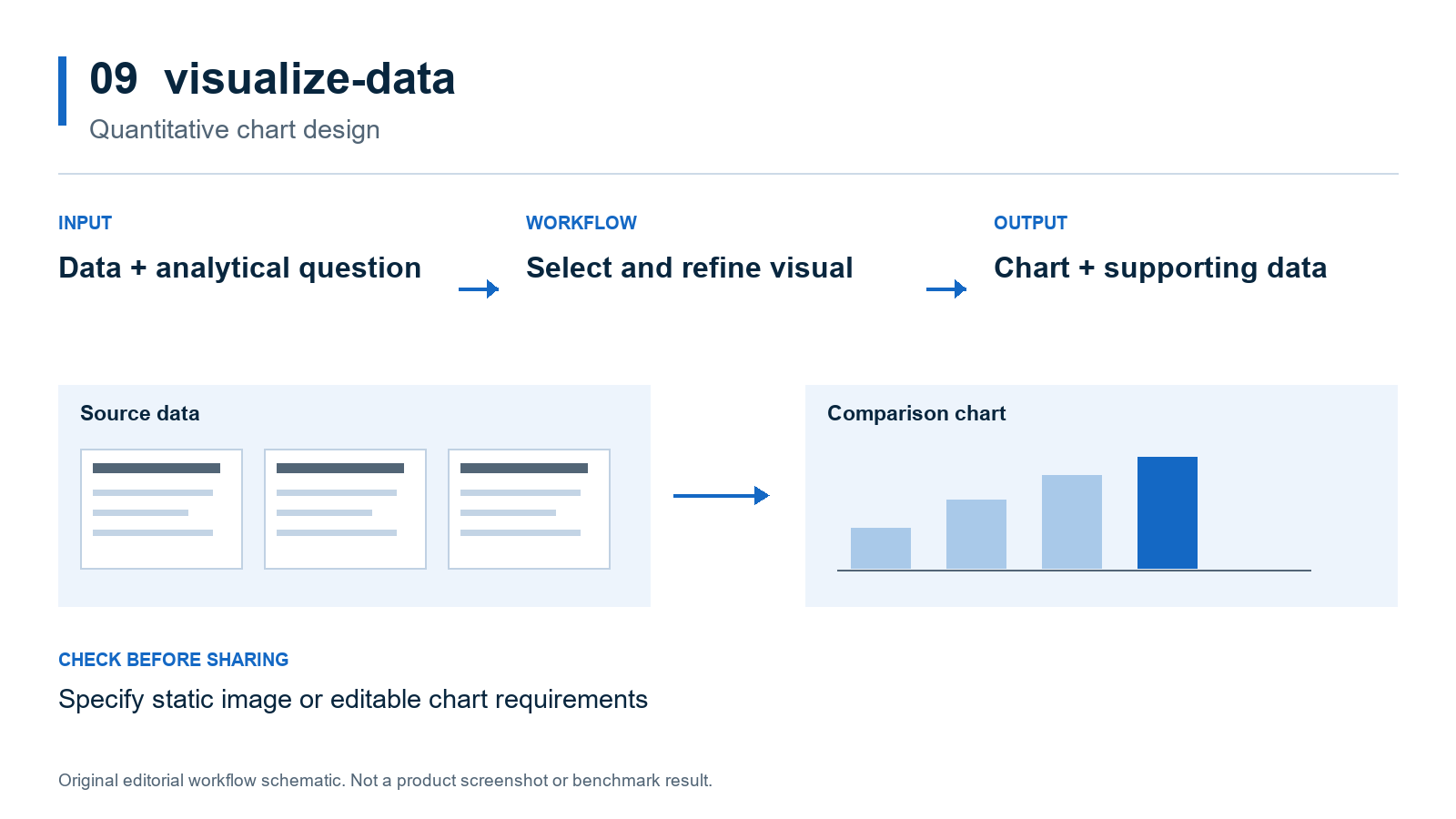
Original schematic: source data and a defined question determine the chart.
10. validate-data: best for checking presentation claims
Use this before sharing a financial, operational, or research deck. It reviews calculations, metric definitions, baselines, comparisons, visual evidence, and caveats. It also checks that "the analysis answers the stated business or product question, not a nearby easier question."
It needs accessible evidence to validate claims. If a denominator, source table, or methodology is missing, the correct output is an unresolved issue. Validation guidance is not a guarantee that every claim is correct.
Example request: Check every headline number against these source files. Review periods, denominators, rounding, and causal wording, then return a prioritized issue log.
What about creating a .pptx from scratch?
This is the gap most readers searching for "Codex skills for PowerPoint" run into. As of November 12, 2026, nothing in openai/plugins exists mainly to build a PowerPoint deck from a blank page:
- The Presentations plugin. The google-slides skill sends new decks to a Presentations plugin that ships with OpenAI's own app runtime. It is not published in the repository, so you cannot read or customize its instructions.
- report-to-google-slides. This narrow skill inside the Data Analytics plugin converts an existing HTML analytics report into a native Google Slides deck. Along the way it writes an editable local
deck.pptxbefore importing it. It only fits if your starting point is that kind of report. Read the report-to-google-slides skill. - The retired slides skill. The deprecated catalog once held a curated
slidesskill for.pptxdecks built with PptxGenJS. It was added on March 5, 2026 and removed on April 16, 2026.
If you need Codex to generate PPTX or HTML decks directly, look at community skills instead. Our roundup of Claude Code skills for PowerPoint compares PPTX, template, and HTML pipelines. The HTML slide skills library and our GitHub slide skill directory include skills written for both Codex and Claude Code. For Codex itself, see our complete guide to OpenAI Codex and the walkthrough on using Codex to generate marketing slides.
How to install and run these skills
All ten skills arrive as part of a plugin, not as standalone downloads. Per OpenAI's plugin documentation:
- Desktop app: open the Plugins tab in the ChatGPT desktop app and install the plugin. Installed plugins add their skills and tools to new chats and to Codex.
- Codex CLI: enter
/pluginsto open the plugin browser, install from a configured marketplace, then start a new session before using the bundled skills. - IDE extension: plugins are not available there, so install from the desktop app or the CLI.
- Connect the service when prompted. Google Drive, Figma, and Canva each ask you to sign in before their tools work. In company workspaces, an admin may control which apps are allowed.
Once installed, a skill activates when your request matches its description, or you can invoke it by name.
A reusable presentation brief
Whichever skill you use, a focused brief keeps the output reviewable:
Audience: [who will read or hear the presentation].
Decision: [what the deck must help them decide].
Sources: [approved files, links, and reporting period].
Output: [native design destination and required export format].
Create an outline before finished pages.
For each slide provide a supported title, evidence, source reference, recommended visual, and speaker note.
Preserve definitions, units, dates, and approved wording.
Mark missing evidence and identify which objects remain editable after export.
Where Codex skills stop and AI slide generation begins
The ten skills above are strongest when the deck already has a home and a design system. They operate Google Slides, Figma, or Canva well. What they do not do is take a stack of source documents and produce a structured, editable slide deck in one step. That job of reading source material, building a slide structure, and rendering pages is what a dedicated AI presentation tool is for.
Tosea AI is built around that document-to-PPT workflow. You upload PDFs, Word files, or spreadsheets, review the outline, choose a template, and edit slides in one workspace. Data Studio edits the data and styling behind charts recognized from source figures or imported from Excel and CSV files. Beautify PPT/PDF redesigns an existing deck, and Layout Only changes visual structure while keeping the wording. Product updates describe these features. For the PDF-to-PowerPoint route specifically, see our PDF to PowerPoint guide. For data-heavy decks, see building a business dashboard deck with AI.
Tosea AI is not a pixel-level design tool like Figma. Exported PPTX files can also shift when fonts or the application opening them differ, so they still need a check in the delivery environment. Use Codex skills when controlling connected workflows is part of the job. Use a presentation tool when the job is getting from approved source material to a coherent deck with fewer workflow choices. Neither approach removes the need to verify facts or test exported files.
Frequently asked questions
Can Codex create a PowerPoint file directly?
Not through any of the ten skills here. They edit or create native Google Slides, Figma, and Canva designs, which you then export. OpenAI's built-in Presentations plugin and community PPTX skills can create decks, but their output still needs the same export check.
Can Tosea AI redesign my existing PowerPoint without changing the content?
Yes. Upload the PPTX, or a PDF export, through Beautify PPT/PDF, which is available on Pro and above, and keep the source pages and wording. Use Layout Only for visual changes, then review labels, footnotes, numbers, and slide elements.
How do I upload a PowerPoint and ask Tosea AI to redesign each slide?
Upload the PPTX or exported PDF, preserve content and sequence, and choose a template or describe the visual direction. Generate the presentation and inspect every slide before export.
Can I upload my own PowerPoint template to Tosea AI?
Custom templates are included in the Pro and Max plans. Check required layouts, fonts, colors, logo placement, and master-slide rules before sharing the presentation.
Can Tosea AI use custom brand colors, fonts, and a logo?
Yes. Specify colors and fonts, supply an approved logo, or use a supported custom template. Feature access depends on the plan. Verify fonts, color values, contrast, and logo spacing after export.
Can Tosea AI match the style of my old company presentations?
A representative deck can guide the design without implying permanent model training. Use an approved template for stronger consistency and compare the result with current brand guidelines.
Does Tosea AI preserve PowerPoint formatting after export?
Editable PPTX export aims to stay close to the preview. Fonts, complex graphics, and the application opening the file can affect results. Test the presentation in the actual delivery environment.
Can I tell AI to edit the layout only and keep the exact wording?
Yes. Layout Only changes visual structure without intentionally rewriting approved content. Compare the result with the original, including labels, citations, footnotes, and line breaks.
Turn the workflow into a finished presentation
For prompt-driven deck work, see our guides to business presentation prompts and research presentation prompts.
The best Codex skills for PowerPoint and presentation design depend on where your work lives and which production step needs help. Google Slides, Figma, and Canva teams get real leverage from the authoring and review skills. Analysts get the most from visualize-data and validate-data. For a dedicated route from documents to an editable deck, try Tosea AI: upload your sources, review the outline, choose a template, and refine the slides before exporting.
Sources
- Skills — OpenAI for Developers, reviewed November 12, 2026
- Plugins — OpenAI ChatGPT and Codex documentation
- openai/plugins — GitHub, source of all ten SKILL.md files
- openai/skills (deprecated) — GitHub
- Remove spreadsheets and slides skills (#350) — openai/skills commit, April 16, 2026
- report-to-google-slides SKILL.md — openai/plugins
- Export from Figma Slides — Figma Help Center