8 Essential Ways to Use a Footnote in PowerPoint in 2026
Master the 8 types of PowerPoint footnotes — from citations and data sources to disclaimers and version control.
Footnotes are more than tiny text at the bottom of a slide — they are a cornerstone of credibility, clarity, and context. In academic, business, and research presentations, a well-placed footnote in PowerPoint can mean the difference between a confident claim and an unsubstantiated one. It builds trust by providing source citations, clarifying complex data, and managing legal disclaimers without cluttering your main message.
Many presenters struggle to use them effectively, leading to messy slides or — worse — a complete lack of attribution that undermines the entire presentation. This guide covers eight strategic approaches to footnotes, with practical implementation tips for each.
1. Citation Footnotes for Academic Sources
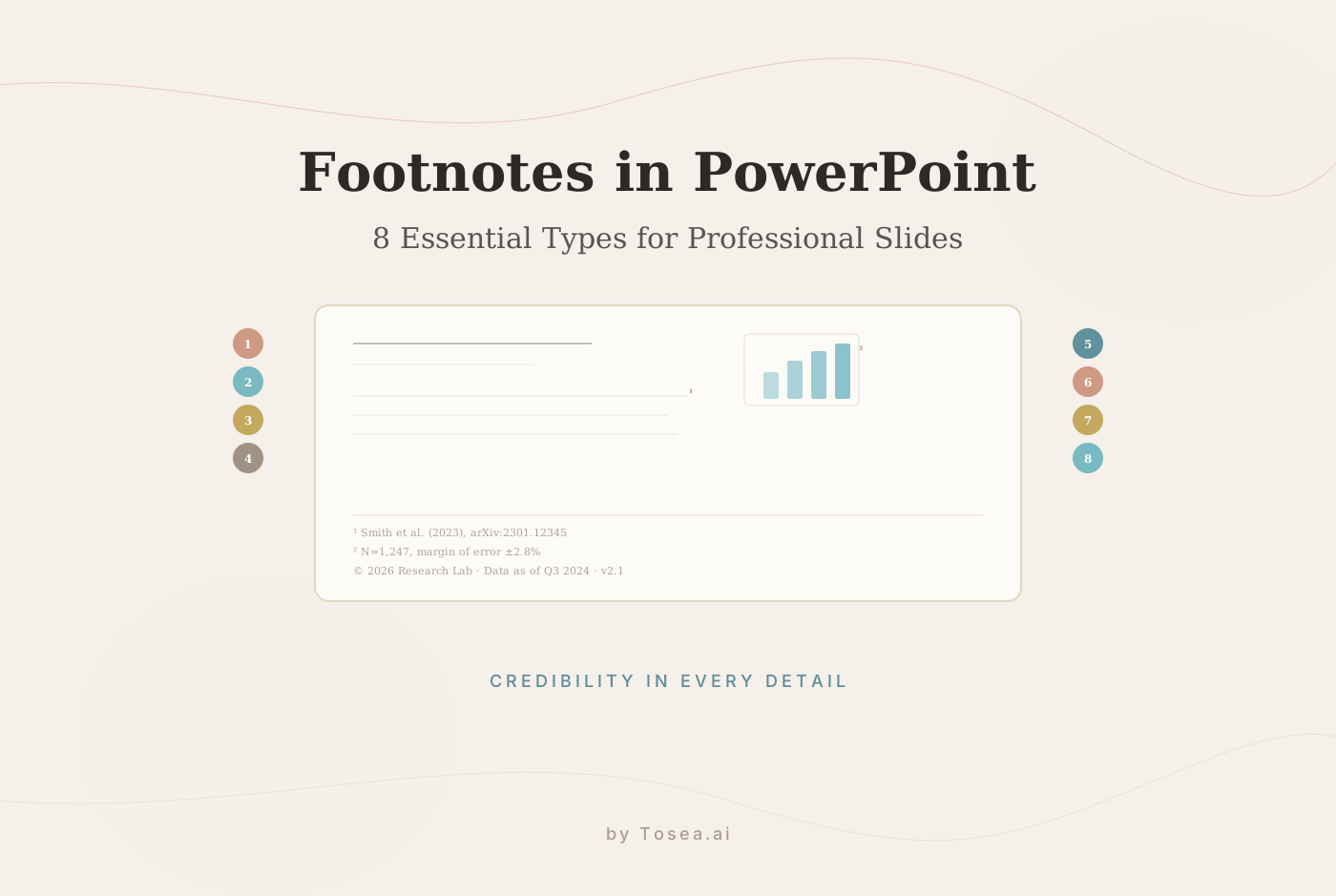
Citation footnotes provide bibliographic information to validate claims and credit original research. A slide discussing a new algorithm might feature a footnote like "Smith et al. (2023), arXiv:2301.12345," placed in the footer area, pointing viewers to the source without interrupting the explanation.
Implementation Tips
- Standardize your style: Choose one citation format (APA, MLA, Chicago) and apply it across all slides.
- Create a final bibliography: Dedicate the last slide to a complete reference list. Hyperlink individual footnotes to this slide.
- Automate citation capture: A solid research paper to slides workflow includes using evidence-driven extraction to automatically capture citations. Tosea.ai generates slides from your documents while preserving and formatting footnotes.
Tip: The footer area separates supporting information from your main argument, directing audience attention to key findings while providing context for those who need it.
2. Data Source and Methodology Footnotes
These footnotes document the origins of data and analytical methods used. A slide presenting survey results might include: "N=1,247 respondents, margin of error ±2.8%, collected Jan-Mar 2024."
Implementation Tips
- Position on first appearance: Place the source note on the first slide where the data appears.
- Anticipate questions: Think about potential challenges and address them proactively.
- Link to appendices: For technical audiences, hyperlink to detailed methodology slides — an approach outlined in the McKinsey way of presenting findings.
When converting data-heavy reports into presentations, Tosea.ai extracts tables, charts, and their associated methodological notes automatically.
3. Disclaimer and Limitation Footnotes
Disclaimer footnotes qualify claims, identify assumptions, and define boundaries. A slide with financial projections must include: "Forward-looking statements involve risks; actual results may differ materially."
Implementation Tips
- Consult compliance: For corporate presentations, ensure language meets regulatory requirements (SEC, FDA).
- Keep it concise: One to two lines maximum to avoid distraction.
- Use templates: Industry-specific templates ensure standard disclaimer language is applied consistently.
4. Attribution and Image Credit Footnotes
Attribution footnotes acknowledge the source, license, and ownership of visual assets. A slide featuring a diagram might include: "Diagram source: Wikimedia Commons, CC0 1.0" in a bottom corner.
Implementation Tips
- Verify licensing first: Use tools like TinEye to trace origins and check permissions.
- Standardize format: Create a uniform style (e.g., "Photo by [Creator] via [Platform]").
- Preserve embedded metadata: When extracting figures from PDFs, tools that maintain original attribution are valuable. This is a core function of Tosea.ai — learn more about how to type a subscript and handle special formatting.
5. Clarification and Definition Footnotes
Clarification footnotes define technical terms for mixed-expertise audiences. On a machine learning slide: "LSTM = Long Short-Term Memory, a neural network architecture."
Implementation Tips
- Define on first use: Introduce terms with a footnote on first appearance, then use freely.
- Know your audience: Reserve footnotes for genuinely unfamiliar terms.
- Create a glossary slide: For term-heavy presentations, add a dedicated glossary at the end.
6. Contact Information and Collaboration Footnotes
Contact footnotes turn presentations into networking opportunities. A footer like: "Dr. Sarah Chen, MIT CSAIL | [email protected] | chen-lab.mit.edu" bridges the gap between presentation and engagement.
Implementation Tips
- Use shortened links or QR codes for clean footer formatting.
- Appear on first and last slides — the title slide introduces you, the final slide provides reference during Q&A.
- Update before sharing: Ensure all contact details are current. Our top business presentation tips cover more on professional polish.
7. Copyright and Licensing Footnotes
Copyright footnotes clarify ownership and distribution permissions. A university deck might show: "© 2024 MIT. Licensed under CC-BY-NC for educational use only."
Implementation Tips
- Choose the right license: CC-BY for academic sharing, restrictive notices for commercial secrets.
- Specify all holders: For collaborative projects, list all contributing institutions.
- Include a license link: When using Creative Commons, link to the full text or include a badge.
8. Data Update and Version Control Footnotes
Version control footnotes document when data was current: "Data current as of Q3 2024. Updated monthly. Version 2.1 (Released: Jan 15, 2025)."
Implementation Tips
- Use semantic versioning: v1.0, v1.1, v2.0 to distinguish minor tweaks from major updates.
- State update frequency: "Updated weekly" or "Next update planned for April 2025."
- Automate date insertion: Configure footer templates that pull date and version dynamically. This is useful for recurring reports like those covered in our marketing monthly report guide.
How to Add Footnotes in PowerPoint: Step by Step
PowerPoint does not have a built-in footnote feature like Word. Here is the standard manual method:
- Insert a text box at the bottom of your slide. Position it in the footer area, below your main content.
- Add a superscript reference number in your slide content. Select the number, go to Font settings, and check "Superscript."
- Type the matching footnote in the footer text box, starting with the same number.
- Format consistently: Use a smaller font size (8-10pt) and a muted color (gray or dark gray) to distinguish footnotes from primary content.
- Use the Slide Master for recurring footnotes (like copyright notices or version numbers) that should appear on every slide.
For presentations with many footnotes, this manual process becomes tedious. This is where automated tools pay off — converting a document with embedded citations directly into properly footnoted slides eliminates hours of manual formatting.
Footnote Types Comparison
| Footnote Type | Complexity | Primary Purpose | Best For |
|---|---|---|---|
| Citation | Medium | Source verification | Academic talks, thesis defenses |
| Data Source | High | Reproducibility | Financial analyses, lab seminars |
| Disclaimer | Low-Medium | Risk management | Forecasts, clinical reports |
| Attribution | Low | Copyright compliance | Slides with external images |
| Clarification | Low | Audience accessibility | Mixed-expertise audiences |
| Contact | Low | Networking | Conference slides, pitches |
| Copyright | Medium | IP protection | Distributed presentations |
| Version Control | Medium | Data freshness | Dashboards, regulatory docs |
Common Footnote Mistakes to Avoid
Even experienced presenters make footnote errors that undermine their slides:
Inconsistent formatting. Mixing citation styles (APA on one slide, Chicago on another) signals carelessness. Choose one style and apply it uniformly.
Footnotes that compete with content. If your footnote text is the same size as your body text, it draws attention away from your main message. Keep footnotes at 8-10pt, noticeably smaller than slide content.
Missing footnotes on key claims. Every statistic, every external data point, and every quoted figure should have a traceable source. Unsourced numbers invite skepticism.
Too many footnotes per slide. More than three footnotes on a single slide creates visual clutter. If you need more, consider moving supporting information to an appendix slide with a single "See Appendix" footnote.
Footnotes with dead links. If your footnote references a URL, verify it before presenting. A broken link during Q&A is embarrassing and undermines the trust your footnotes are supposed to build.
Forgetting version dates. For data-driven presentations, a footnote without a date is incomplete. Always include when the data was collected or last updated.
From Dense Documents to Cited Slides
The manual process of creating, formatting, and managing footnotes across a large deck is a significant time sink. Transferring information from dense documents, ensuring every source is correctly cited, and tracking version numbers can consume hours better spent on narrative and delivery.
Footnotes Across Different Presentation Contexts
The way you use footnotes should adapt to your context:
Academic conferences demand rigorous citation footnotes on nearly every content slide. Audiences expect to see source references and will judge your credibility by their presence. Use a compact citation format (Author, Year) with a full bibliography on the final slide.
Corporate board presentations lean heavily on data source and disclaimer footnotes. Every financial projection needs a methodology note, and every forward-looking statement requires a risk disclaimer. Legal review of footnote language is standard practice for public companies.
Classroom and training presentations benefit most from clarification footnotes. Students encountering new terminology need on-slide definitions that do not interrupt the lecture flow. A glossary slide at the end serves as a study reference.
Client-facing consulting decks combine several footnote types: data sources to build trust, disclaimers to manage expectations, and version control to track which revision the client is reviewing. Consistency in footnote formatting across slides is especially important here, as it signals attention to detail.
Three principles emerge from this guide:
- Credibility is non-negotiable. Whether in a courtroom, boardroom, or lecture hall, claims must be verifiable. Footnotes provide that verification without cluttering slides.
- Context prevents confusion. Methodological limitations, data disclaimers, and technical definitions belong in footnotes where they inform without distracting.
- Automation improves accuracy. The less time spent on formatting citations, the more time for building a compelling presentation.
Tosea.ai automates this workflow by extracting key information, figures, and sources from your research papers and organizing them into a structured slide deck with properly formatted footnotes. For a broader look at AI-assisted slide creation, see our guide on mastering high-quality presentations with AI.
If you work with Google Slides as well, our guide on curving text in Google Slides covers more formatting techniques, and our best Google Slides templates roundup can help with design starting points.
For those looking to explore the full landscape of AI-powered presentation tools, our comparison of the best free AI PPT generators provides a detailed breakdown of what's available in 2026.