5 Best Claude.ai Skills for PowerPoint and Presentation Design in 2026
5 Claude.ai skills for PowerPoint in 2026: PPTX, Theme Factory, Brand Guidelines, Canvas Design and XLSX, checked against Anthropic's source files, with limits and prompts.
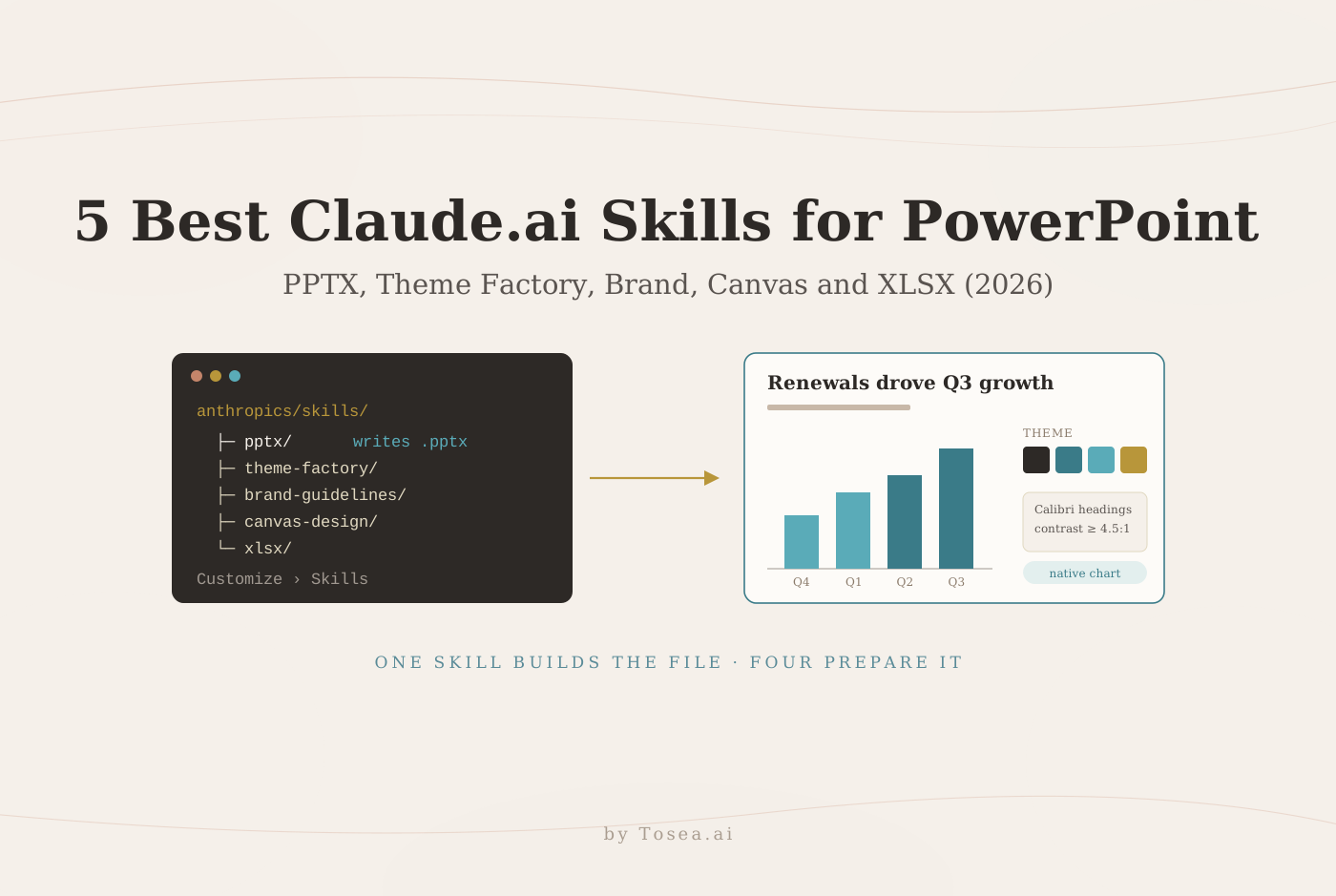
The best Claude.ai skills for PowerPoint and presentation design split the work of making a deck into parts: one skill builds the PowerPoint file, others choose a theme, apply brand rules, draw a cover visual or check the numbers behind a chart. Only one of the five writes a .pptx; the other four prepare what goes into it. Skills are folders of instructions and scripts that Claude loads when a task calls for them, and in Claude you can switch them on without touching a terminal. This guide checks each skill against its source files, shows where each one stops, and explains when a dedicated AI presentation tool such as Tosea AI is the shorter route.
How we selected and checked these skills
All five skills come from Anthropic's public skills repository, which had about 198,000 GitHub stars in November 2026, and from the Claude Help Center. We read every SKILL.md file and the files bundled with it. We did not test these skills in a Claude.ai account for this article. We did run the PPTX skill in Claude Code for our Claude for PowerPoint test, and we use those results below.
Three facts from the repository are worth knowing before you start:
- The Office skills became open source on November 6, 2026. The docx, pdf, pptx and xlsx skills, which Anthropic says power Claude's own document features, moved to the Apache 2.0 license that most other skills in the repository already used. Before that, they were published as source-available reference code.
- The PPTX skill changes often. It was updated twice in the week before we checked it (November 14 and 16, 2026), mostly fixes to packaging and validation scripts.
- The repository is a reference, not a guarantee. Its README says the behavior you get from Claude "may differ from what is shown in these skills." Test the deliverable, not the description.
How to use skills in Claude.ai
According to Anthropic's Help Center, skills are available on the Free, Pro, Max, Ultra, Team and Enterprise plans, and they require code execution. On individual plans, turn on Code execution and file creation under Settings, then Capabilities. On Team and Enterprise, an owner controls the setting in organization settings.
There are two kinds:
- Built-in skills. Anthropic provides skills for Excel, Word, PowerPoint and PDF. Claude uses them automatically, so asking for "a PowerPoint presentation about Q3 results" is enough.
- Custom skills. Package a skill folder as a ZIP, then upload it under Customize > Skills. Keep the folder complete: a SKILL.md copied on its own may leave out the scripts, fonts or theme files it refers to.
Skills you enable in Claude also load in the Claude for PowerPoint, Excel, Word and Outlook add-ins, and in Claude Code when you sign in with the same account. Anthropic's security advice is short: install skills only from trusted sources, and read a skill's files before enabling one a colleague shares.
One distinction trips people up. Claude also has Claude Slides, which builds a deck beside the chat. In our test, a PowerPoint downloaded from Claude Slides kept text and notes editable but turned charts, icons and shapes into pictures. Asking Claude for "a .pptx" by name uses the PPTX skill instead, which kept the charts native.
The five skills at a glance
| Skill | Best use | Main output | Watch out for |
|---|---|---|---|
| PPTX | Create or edit a deck | PowerPoint file with native charts | Render and inspect every slide |
| Theme Factory | Choose a consistent palette and fonts | Theme applied to a deck or document | Linux fonts and a few low-contrast themes |
| Brand Guidelines | Apply a fixed visual identity | Brand-styled artifact | Ships with Anthropic's brand, not yours |
| Canvas Design | Make a cover or section visual | Single-page PNG or PDF | Artwork is not editable slide content |
| XLSX | Prepare the numbers behind charts | Excel workbook with live formulas | A formula can run cleanly and still be wrong |
1. PPTX: the skill that actually writes the PowerPoint file
Best for: Business reviews, research talks, pitch decks and template-based editing.
The PPTX skill creates, edits and reads presentations. For a new deck, it writes a script with the pptxgenjs library and builds what it calls a structured deck: a theme, named layouts, placeholders and sections, so the deck can be restyled in one place and edited in PowerPoint without fighting it. For an existing deck or template, it unpacks the file, edits the slide XML and packs it again.
Several rules in the file explain why its output tends to hold up in PowerPoint:
- Charts stay native. It uses PowerPoint charts for everything PowerPoint can chart and says not to fall back to a rendered image.
- Validation is required. A bundled script checks the package, relationships and charts, and the skill then renders every slide to an image for visual review.
- Fonts are chosen for checking. It lists fonts that render true to width in its preview, such as Arial and Calibri, and tells Claude never to default to Aptos.
- Some design habits are banned. "NEVER use accent lines under titles," the file says, calling them "a hallmark of AI-generated slides." It also suggests 1.5 to 2 minutes per slide when sizing a live deck.
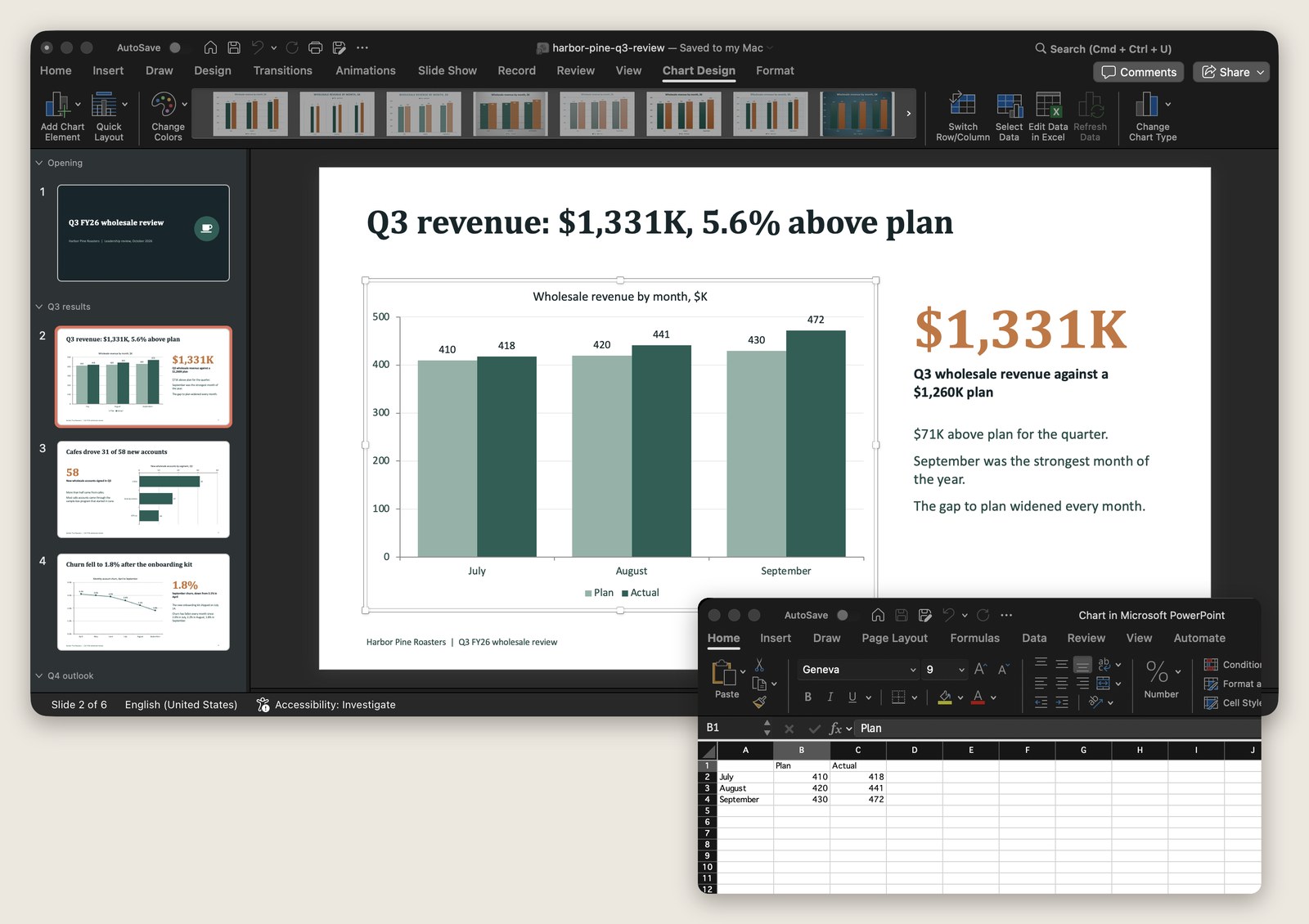
In our Claude Code test, the skill turned a one-page memo into a six-slide deck with three native charts and speaker notes. The charts opened in PowerPoint with their data available in Excel:
Create an eight-slide PowerPoint for [audience] using [approved sources]. First propose an outline with one message per slide, supporting evidence, and source references. Preserve approved figures and wording. Use editable text and native charts where appropriate. Add speaker notes. Deliver the PPTX and rendered previews; check overflow, chart values, citations, and missing elements. State which checks could not be performed.
Review: Open the file in the application you will present from. Edit one title and one chart's data to confirm both are really editable.
2. Theme Factory: make the visual decisions once
Best for: A deck whose pages look as if they came from different presentations.
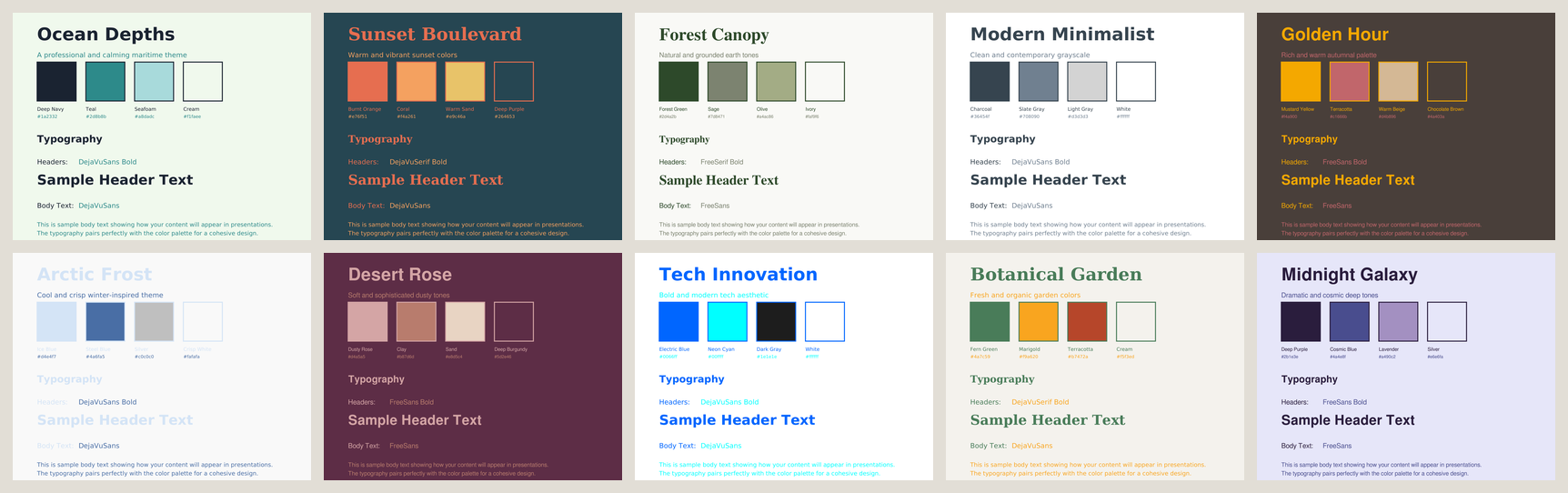
Theme Factory ships ten preset themes, each a four-color palette with a heading and body font, plus instructions for creating a custom theme. Its workflow is deliberate: show the bundled showcase PDF, ask which theme to use, wait for explicit confirmation, then apply it. Here are the ten pages of that showcase:
Two details are easy to miss when you look at the showcase:
- The fonts are Linux fonts. All ten themes use DejaVu Sans, DejaVu Serif, FreeSans or FreeSerif. None of these ships with Microsoft Office, so PowerPoint will substitute something else on most office computers. The PPTX skill's own font guidance prefers Arial, Calibri and other Office fonts, so ask Claude to map the theme to those.
- Two showcase pages have very low contrast. We read the text colors from the PDF itself. The 36-point Arctic Frost title is ice blue (
#d4e4f7) on near-white, about 1.2:1, and the 14-point Tech Innovation subtitle is neon cyan (#00ffff) on white, about 1.25:1. WCAG asks for 4.5:1 for normal text and 3:1 for large text.
Use Theme Factory to show the available themes for this [presentation type]. Recommend two options based on readability and audience, then wait for my selection. Apply the chosen colors, but map the fonts to Office fonts such as Calibri or Arial. Preserve wording, figures, source labels, and meaningful chart-color mappings. Check text contrast on every slide and report any pair below 4.5:1. Return a style summary and slide previews for review.
Review: A consistent theme does not make a deck accessible. Check contrast, small labels and font substitution in the final file, and keep chart colors meaningful: a treatment group should not change color halfway through a scientific talk.
3. Brand Guidelines: encode the rules that should not change
Best for: Teams that restyle decks to match an approved identity again and again.
The public Brand Guidelines skill applies Anthropic's own identity: dark #141413, light #faf9f5, an orange, blue and green accent set, Poppins for headings and Lora for body text, with Arial and Georgia as fallbacks. It does not know your company or university brand. Treat it as a pattern to copy with your own authorized specifications, not something to apply to a client deck as is.
When you adapt it, write down exact colors, font fallbacks, logo files and usage rules, and include examples of acceptable layouts. A brand skill guides styling, but it will not recreate a PowerPoint master or a proprietary template from a logo alone. Watch the fallback fonts as well: Georgia is on the PPTX skill's list of fonts whose preview widths are unreliable, so its overflow checks are less trustworthy for Georgia text.
Adapt the Brand Guidelines example to the attached approved brand manual. Replace the example identity with our specified colors, fonts, fallbacks, and logo rules. List missing specifications before applying changes. Preserve slide wording and evidence. Check logo spacing, contrast, and consistent styling. Deliver the adapted instructions and a sample slide for approval before updating the full deck.
Review: Compare the actual color values and fonts in the file with the manual. Looking similar is not the same as being compliant.
4. Canvas Design: create a purposeful cover or section visual
Best for: Title slides, conceptual artwork and chapter dividers.
Canvas Design works in two steps. Claude first writes a short design philosophy, a named aesthetic movement, as a Markdown file. It then expresses that philosophy as a single-page PNG or PDF that is "90% visual design, 10% essential text." The skill bundles a folder of 27 open-licensed font families for the artwork and insists that nothing overlaps or falls off the canvas.
For a research or business presentation, a restrained conceptual image can introduce a topic without pretending to be data. Keep the title, author and date as PowerPoint text so they stay editable, and keep essential evidence out of decorative artwork.
Create an original 16:9 conceptual cover asset for [topic] with a restrained [palette] and generous space for a separate PowerPoint title. Explain the visual concept briefly. Deliver a high-resolution PNG. Do not invent data, citations, institutional marks, or scientific findings. Keep essential wording out of the artwork so I can add editable text in PowerPoint.
Review: An inserted PNG is one picture; nothing inside it can be edited. Use the PPTX skill to place the asset next to real, editable slide text.
5. XLSX: check the numbers before designing the chart
Best for: Financial reviews, sales dashboards and any presentation built from spreadsheets.
The XLSX skill creates and edits workbooks with live formulas rather than pasted results, then recalculates them through LibreOffice and reports any formula errors. It is a preparation skill here: the workbook comes first, and the PowerPoint is a separate task once the numbers are approved.
The skill's own warning is the most useful line in it: "A green recalc proves your formulas evaluate, not that they are right." An off-by-one range produces a clean file with wrong numbers. It also steers Claude away from newer Excel functions such as XLOOKUP that its checker cannot evaluate, and it applies standard financial-model conventions, such as blue text for inputs and black for formulas, unless your file already uses others.
Prepare an Excel workbook from [approved inputs] for a presentation. Preserve source data, period labels, units, and assumptions. Calculate [metrics] with formulas and reconcile totals. Recalculate where supported, identify unresolved formula issues, and document exclusions. Deliver the workbook with a chart-ready summary table. After I approve it, use those verified values in a separate PPTX task.
Review: Keep the approved workbook version with the deck, and confirm that slide labels and plotted values still match it after every revision. Our guide to putting Excel data into PowerPoint covers linking versus embedding.
A practical sequence for combining the skills
Start with the evidence and the decision the deck supports. Use XLSX if calculations need work, and approve the chart-ready data. Use PPTX to propose the storyline. Choose a Theme Factory theme or apply your adapted brand rules. Add Canvas Design assets only where they help orientation or explanation.
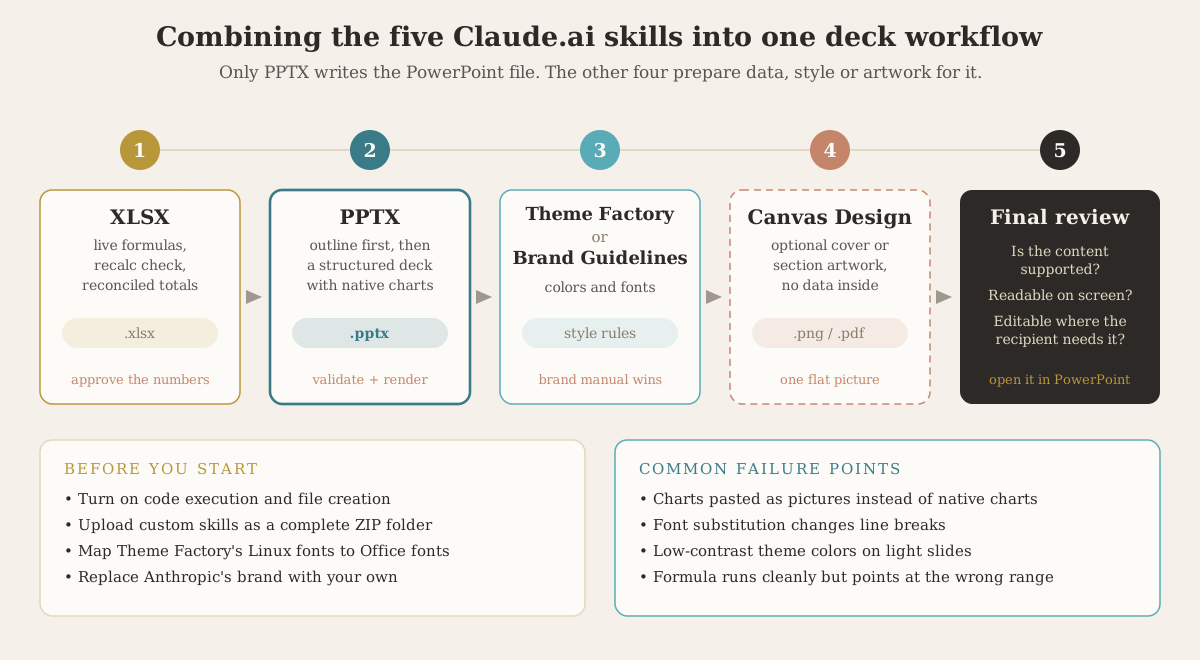
Do not enable conflicting style instructions without a priority rule. State that your approved brand manual overrides theme suggestions, and ask for a two-slide sample before generating a long deck.
For the final review, ask three separate questions. Is the content supported? Is each slide readable at presentation size? Is the exported file editable in the ways the recipient needs? A polished preview answers only part of that checklist.
Where Claude.ai skills stop and AI slide generation begins
Skills give you control, and they ask you to maintain it. Each one is a set of instructions you enable, adapt and keep up to date as the repository changes. You also become the person who checks rendered output, swaps Linux fonts for Office fonts and keeps the brand skill in sync with the real brand manual. For a developer or an operations team building a repeatable pipeline, that is a fair trade. Our lists of Claude Code skills for PowerPoint and Codex skills for presentation design cover the same ground for other agents.
If you mainly want to turn a report, paper or spreadsheet into a finished deck, a dedicated AI presentation tool removes most of that upkeep. Tosea AI is a separate presentation platform, not a Claude skill or native integration. You upload source documents, review the generated outline before any slide is drawn, and choose a layout or diagram for individual pages. Data Studio recognizes charts and imports Excel or CSV files, so the XLSX-to-chart step stays editable in the exported PowerPoint. Templates replace the theme and brand skills: custom templates are available on the Pro and Max plans.
For decks that already exist, Beautify PPT/PDF accepts PDF or PPTX on Pro and above. Choose Keep source pages when the content and sequence must stay, pick a template, and review the extracted outline before generating. Our guide on how to beautify a PowerPoint with AI walks through a full before-and-after.
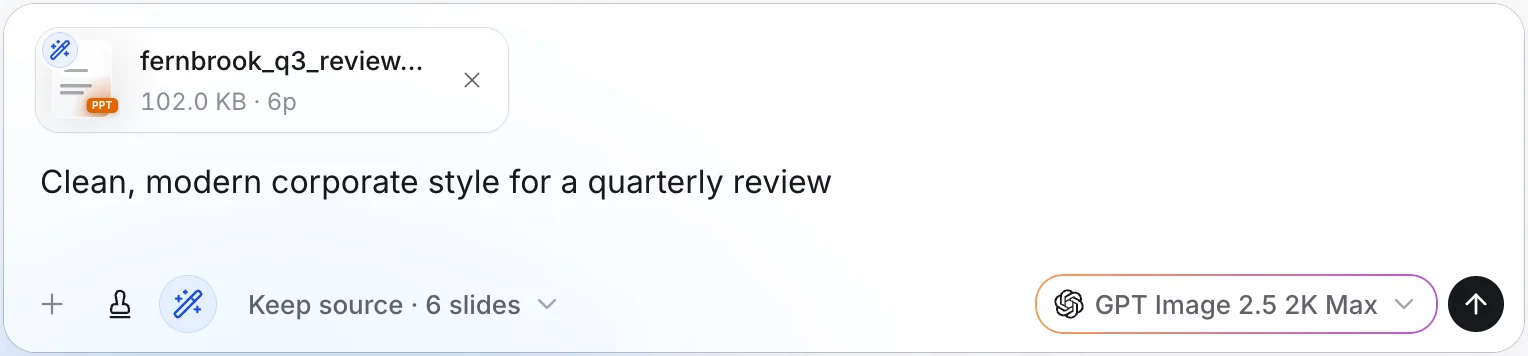
Official product image from the Tosea AI Beautify documentation. Interface details may change.
Frequently asked questions
Do I need Claude Code to use these skills?
No. Claude.ai supports built-in skills and uploaded custom skills. Turn on code execution and file creation and check your plan or organization settings. Custom skills may still need resources that work in Claude's execution environment.
Are Claude.ai skills free?
Skills are available on every plan, including Free, as long as code execution is enabled. Usage limits still depend on your plan.
Is Anthropic's PPTX skill open source?
Yes, since November 6, 2026. The docx, pdf, pptx and xlsx skills now use the Apache 2.0 license, like most other skills in Anthropic's repository.
Can Tosea AI redesign my existing PowerPoint without changing the content?
Yes. Upload a PPTX or exported PDF through Beautify and choose Keep source pages. Request wording preservation, use Layout Only for later visual edits, and verify labels and footnotes afterward.
How do I upload a PowerPoint and ask Tosea AI to redesign each slide?
Upload the PPTX or PDF, choose a template, and specify that content and sequence should be preserved. Review the outline, generate the deck, and inspect each slide before exporting.
Can I upload my own PowerPoint template to Tosea AI?
Yes, on the Pro and Max plans. Check required layouts, fonts, colors, logo placement and master-slide requirements in the generated output.
Can Tosea AI use custom brand colors, fonts, and a logo?
Specify required colors and fonts, supply an approved logo, or use a supported template. Feature access depends on the plan. Verify font availability, color values, contrast and logo spacing after export.
Can Tosea AI match the style of my old company presentations?
A representative deck can guide design without implying permanent model training. Use an approved custom template for stronger consistency and compare the output with current brand guidelines.
Does Tosea AI preserve PowerPoint formatting after export?
Editable PPTX export aims to stay close to the preview. Fonts, complex graphics and the application opening the file can affect appearance, so test the exported deck where you will present it.
Can I tell AI to edit the layout only and keep the exact wording?
Yes. Layout Only re-renders the page layout without modifying the outline. Compare wording, labels, citations, footnotes and line breaks with the original after editing.
Choosing the right skill for the job
The best Claude.ai skills for PowerPoint and presentation design each handle one part of the job. PPTX is the only one that builds the file, and its native charts and validation steps make its output easier to edit than a Claude Slides download. Theme Factory and Brand Guidelines need adapting before they suit an office environment, Canvas Design is for artwork rather than content, and XLSX keeps the numbers honest. When you would rather work in one presentation workspace, use Tosea AI to review the outline, select a template, refine layouts and charts, beautify an existing deck and export an editable PowerPoint.
Sources
- anthropics/skills — GitHub, README and SKILL.md files, read November 2026
- Move Office skills to the Apache 2.0 license (#2146) — anthropics/skills commit, November 6, 2026
- Use skills in Claude — Claude Help Center
- What are skills? — Claude Help Center
- Claude can now create and edit files — Anthropic
- Understanding Success Criterion 1.4.3: Contrast (Minimum) — W3C
- Claude for PowerPoint (2026): 4 Ways to Make Slides With Claude, Tested — Tosea, our hands-on test of the PPTX skill