How to Beautify PowerPoint with AI Without Changing Your Content
Step-by-step guide to beautifying an existing PowerPoint or PDF with AI while keeping the wording, numbers and slide order: Keep source pages, templates, Layout Only, and QA checks.
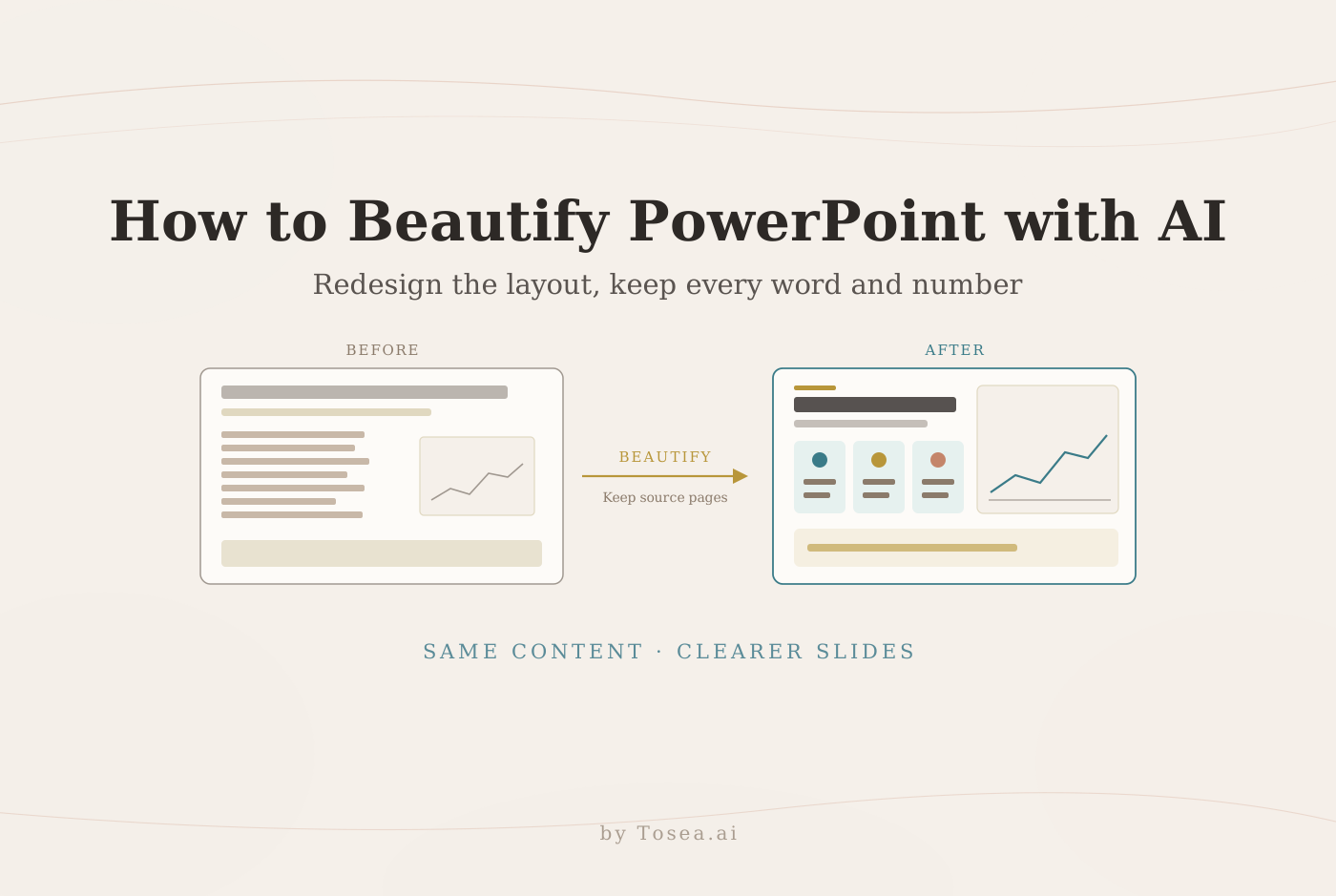
If you need to beautify PowerPoint with AI but your wording, figures, charts, and slide sequence are already approved, Tosea AI provides a focused redesign workflow. Upload the existing PPTX or PDF, choose Beautify PPT/PDF, select a built-in or custom template, and let the AI improve layout, hierarchy, spacing, colors, and visual balance while preserving the source content. You still review every page before export, but you avoid rebuilding the entire deck by hand.
This tutorial walks through the full workflow, shows a real before-and-after example including the one detail we had to correct, and ends with a checklist you can reuse for any redesign.
Direct answer
To beautify a PowerPoint with AI, sign in to Tosea AI, choose Beautify PPT/PDF in the chat composer, upload the existing presentation, keep the default Keep source pages option, and select a template. Use a library template for speed or a custom template for brand consistency. Ask the system to preserve the exact wording, figures, sequence, labels, and footnotes. Generate the redesigned deck, compare it with the source, correct any exceptions page by page, and export.
Beautifying a whole deck is available on Pro and above. The upload accepts one PDF or PPTX at a time, up to 50 MB and 300 pages.
Before and after: what AI presentation redesign should change
The original slide below already contains the right conclusion, evidence, and source figure. The problem is visual: the figure feels detached, three findings compete for attention, and the interpretation box runs across the full width without a clear reading order.
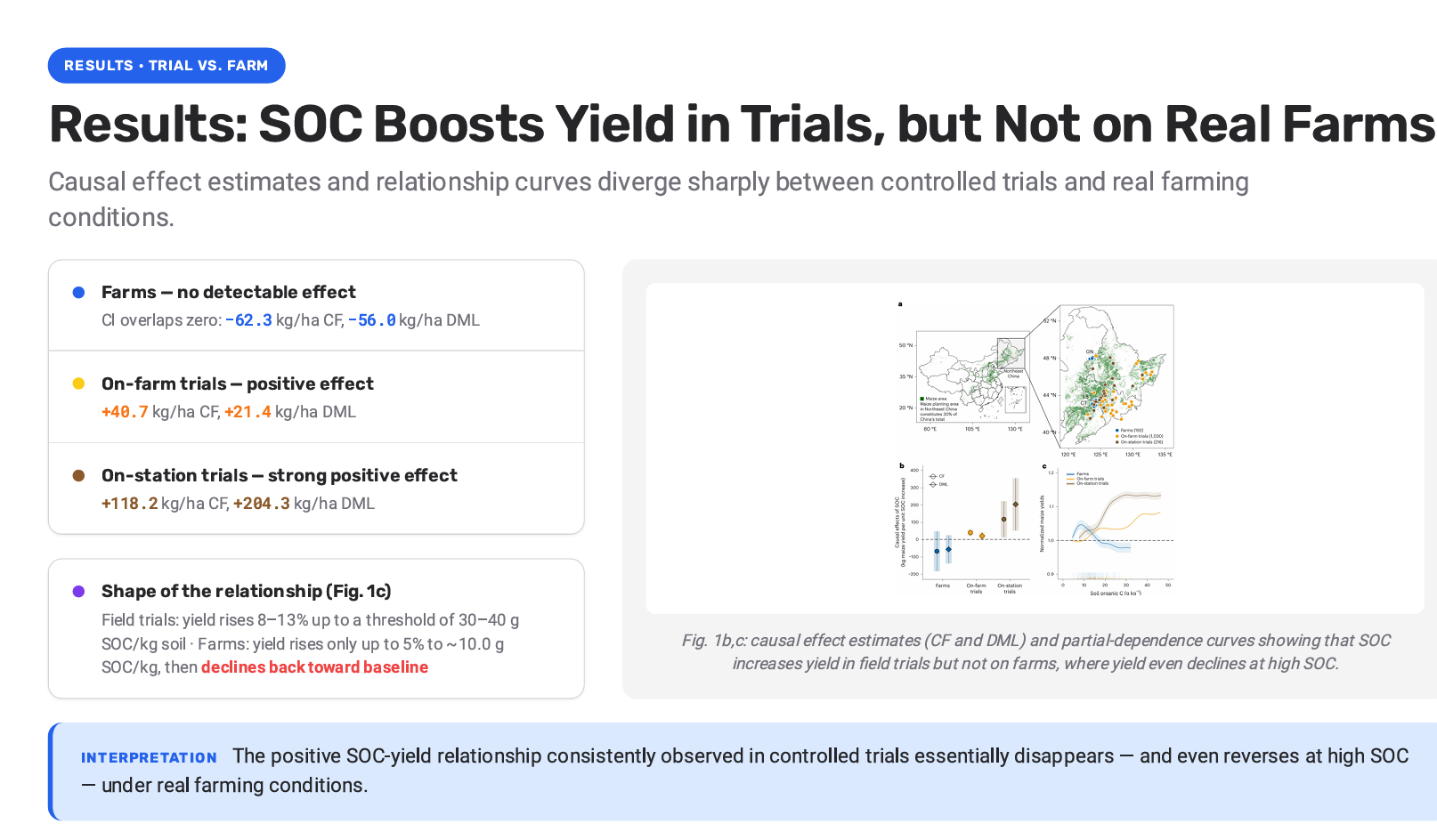
Before: the slide contains the right information, but the hierarchy and use of space can be improved.
The beautified version keeps the claim, every reported value, and the structure of the source figure, then creates a clearer reading path. The three study settings become a consistent comparison panel, the figure is larger, and the interpretation sits under the evidence it summarizes.
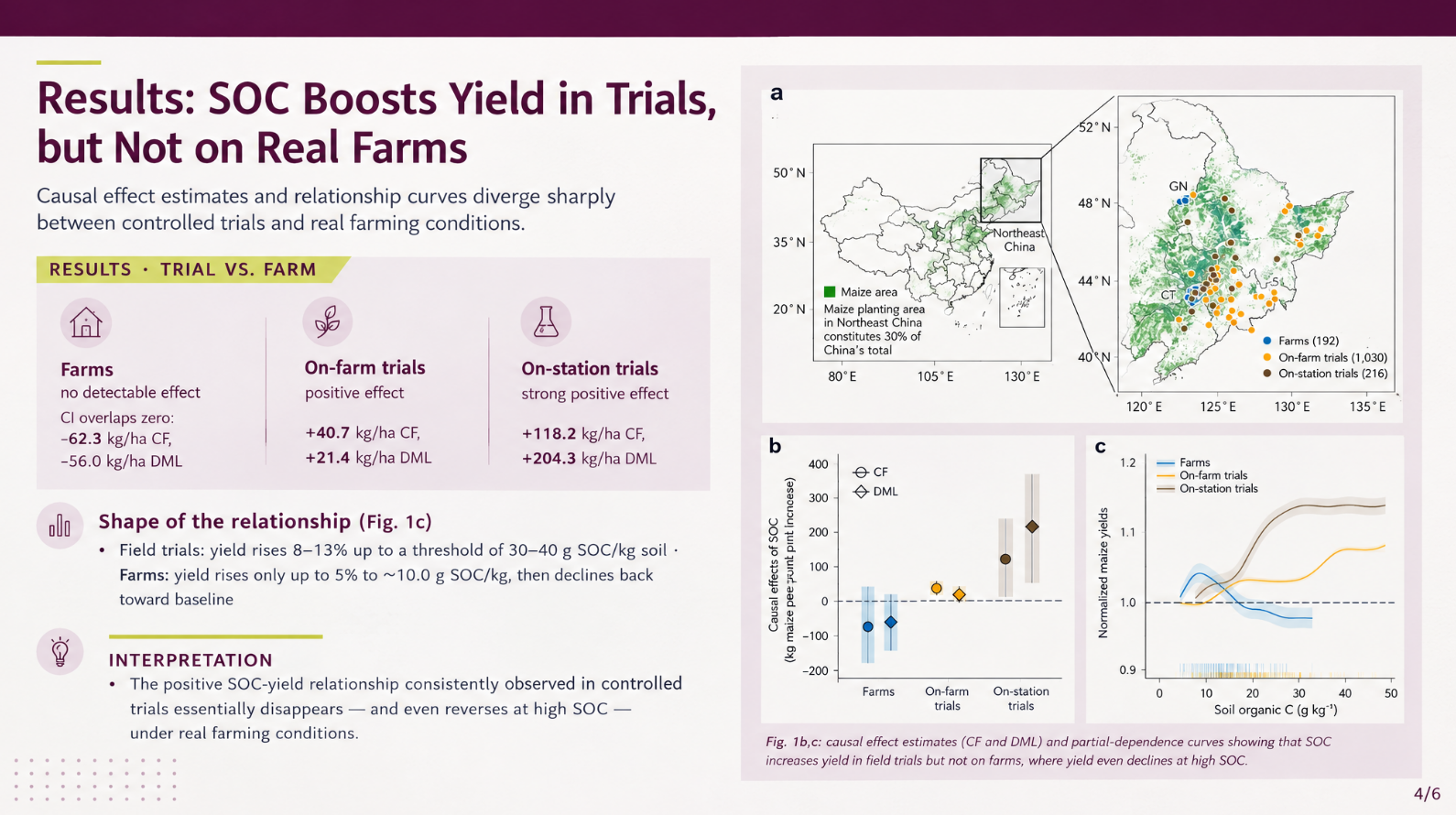
After: Tosea AI output in Image mode. All six effect values, the threshold text, and the interpretation match the source. In Image mode the figure is redrawn as part of the slide image; in this run the y-axis label of panel b came out garbled and needed correcting before export.
That caption matters. An AI PowerPoint beautifier should improve how information is read. It should not silently change what the information says. When a slide is rendered as an image, embedded charts and figures are re-created rather than copied pixel for pixel, so small labels are the first place to look for errors. Every number in this example survived; one axis label did not. The workflow below is designed to catch exactly that kind of exception.
What Tosea AI can improve without rewriting the deck
Visual redesign involves more than changing the background color. A useful beautification pass can adjust:
- Slide hierarchy, including title size, section labels, and emphasis
- Alignment, margins, spacing, and balance between text and figures
- Grouping of related evidence into cards, columns, or comparison panels
- Color use across headings, data labels, borders, and highlights
- Figure scale, placement, captions, and supporting callouts
- Consistency across slides, including typography and recurring components
- Layout density so that important findings receive enough room
Content that should normally remain unchanged includes approved wording, numbers, chart values, images, citations, footnotes, page order, and technical labels. Use Layout Only when the goal is visual restructuring rather than content revision. Tosea's guide to beautifying an existing PPT or PDF recommends Layout Only for refreshing slide styling without changing content, followed by a comparison with the source presentation.
Keep source pages or reorganize: choose the right mode first
Beautify offers two page options, and the choice determines how much of your deck can change.
| Option | What it does | Use it when |
|---|---|---|
| Keep source pages (default) | Keeps every source slide: the same count, order, and page breaks, with all text, data, charts, and images on each slide. Only layout and visuals are redesigned. | The content is approved and you need a visual refresh |
| Reorganize into N slides | Reorganizes the source content into a chosen number of slides. Slides may be merged, condensed, or split. | The deck is too long, repetitive, or badly sequenced, and you accept content changes |
For approved, regulated, or client-reviewed material, start with Keep source pages. Reorganizing is a content edit, even when the facts stay the same, so it needs a different review: someone has to confirm that nothing was dropped when two slides were merged.
You can also choose the output mode. Image mode uses an image model and renders each slide as a fully designed image; HTML mode uses a text model and keeps slide text as live text. Beautify needs a model that matches the mode, so pick the mode before the model. If your slides contain many small labels, equations, or dense tables that must stay exactly as written, test one page in each mode before committing the whole deck.
How to beautify PowerPoint with AI in Tosea AI
Step 1: Prepare the source presentation
Remove abandoned drafts, unwanted hidden slides, and duplicate pages. Confirm that every chart, image, citation, and footnote belongs in the final deck. If two people are still editing the content, wait. Beautifying a moving target creates two versions to reconcile.
Upload the PPTX directly. Use a PDF when appearance and page order are final, or when the deck came from Keynote or Google Slides. If you are unsure which format holds what, our explainer on what a PPTX file contains covers the difference.
Step 2: Sign in and choose Beautify PPT/PDF
Open Tosea AI and sign in. In the chat composer, select the Beautify PPT/PDF button, then attach the source deck. Beautify works with a single file; remove other attachments first.
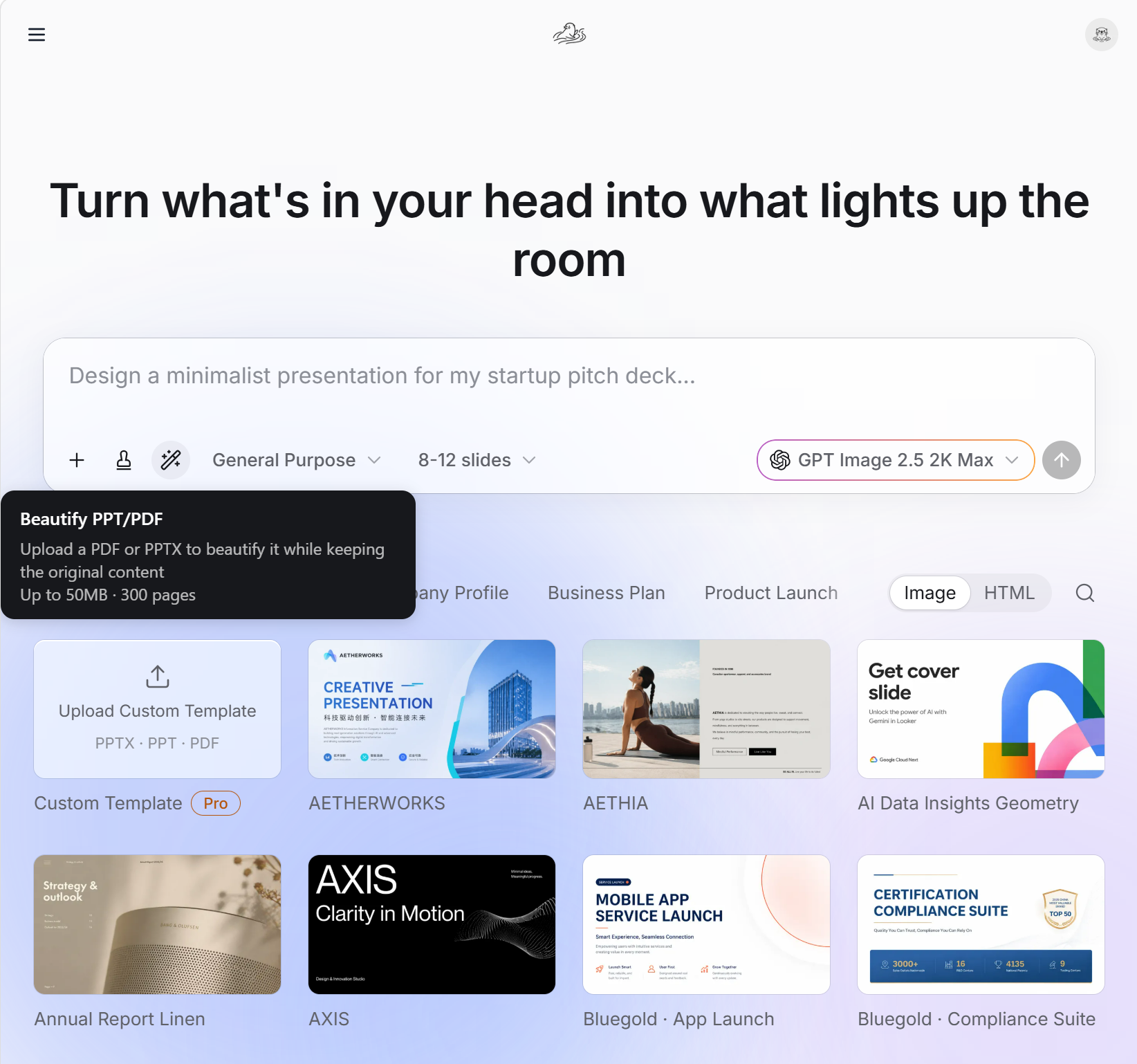
Choose Beautify PPT/PDF, upload the source deck, and select a template from the library or upload an eligible custom template.
Step 3: Choose a template
The template controls typography, color, spacing, page rhythm, image treatment, and visual formality. Choose it based on the audience and the decision the deck supports:
| Presentation type | Recommended visual direction |
|---|---|
| Executive work report | Restrained business template with clear KPI hierarchy |
| Thesis defense | Academic template with large figures and readable citations |
| Strategy consulting | Structured template with action titles, matrices, and comparison layouts |
| Medical roadshow | Clinical or healthcare template with high contrast and evidence-first pages |
| Investor presentation | Minimal corporate template with strong charts and financial callouts |
| Sales deck | Brand-led template with product imagery and clear conversion points |
Tosea AI includes a template library covering business, education, pitch decks, healthcare, editorial styles, and other presentation types. Custom templates and custom branding are available on eligible plans. Use an approved corporate template when exact fonts, colors, logos, and master-slide rules matter; the custom template guide explains the upload.
Step 4: Set the preservation instruction
State clearly that the content is approved and only the visual design should change. A reusable instruction is:
Beautify this presentation while preserving the exact wording, numbers,
images, charts, citations, footnotes, slide order, and technical labels.
Improve visual hierarchy, alignment, spacing, typography, color consistency,
figure placement, and information grouping. Do not summarize, rewrite, remove,
or add claims. Use the selected template and keep every source element complete.
If one page needs a different treatment, add a page-specific instruction. For example, ask for a three-column evidence comparison, a larger scientific figure, or a conclusion box at the bottom. Keep the evidence boundary explicit: "make the figure larger" is a design request; "make the result look stronger" is not.
Step 5: Generate and inspect the redesigned slides
Generate the new deck and review it page by page. Compare each slide with the source, not with your memory of the source. Opening both files side by side at the same zoom is faster than it sounds. Check that the redesign preserves:
- Every title, paragraph, number, unit, symbol, and date
- Chart axes, legends, baselines, confidence intervals, and sample sizes
- Figure labels, captions, citations, and footnotes
- The relationship between text and its supporting image
- Slide order and section structure
In the example above, this step is where the garbled axis label was found. The number check passed; the label check did not. Treat figures as a separate pass from text, because a reviewer reading for meaning skims past axis titles.
Microsoft recommends sufficient color contrast, unique slide titles, readable fonts, meaningful reading order, and alternatives to color-only coding. Run the PowerPoint Accessibility Checker after export, especially when the presentation will be shared broadly. See the Microsoft guidance for accessible PowerPoint presentations.
Step 6: Revise individual pages instead of restarting
Some slides need more room, a different hierarchy, or another layout. Revise those pages individually. Use Layout Only when the wording is correct. If the content itself needs correction, make that a separate edit so reviewers can distinguish factual changes from visual changes.
For a figure with a broken label, regenerate or edit that page and recheck the label before moving on. If a figure has to stay exactly as published, such as a chart from a peer-reviewed paper, confirm the redrawn version against the original or keep the original image in the final file.
The Tosea getting started guide explains the broader workflow for uploading files, selecting templates, reviewing the outline, generating slides, and exporting the result.
Step 7: Export and test the final PowerPoint
Export the approved pages as PDF, Image PPTX, or Editable PPTX according to the delivery need and plan. Editable PPTX is designed for continued work in PowerPoint or Google Slides. Complex fonts, graphics, and object groups can render differently across applications, so test the final deck on the computer used for delivery. If you only have slide images or a PDF later, the Reslide image-to-editable PowerPoint workflow explains how to recover editable objects.
Common failure modes and how to catch them
AI redesign fails in predictable places. Knowing them cuts review time.
| Failure mode | Where it shows up | How to catch it |
|---|---|---|
| Redrawn figure labels | Axis titles, legends, small annotations in Image mode | Zoom to 100% on every figure and read each label against the source |
| Shortened wording | Long bullets, footnotes, disclaimers | Search the export for a distinctive phrase from each slide |
| Lost qualifiers | "approximately," "preliminary," confidence intervals | Check every number together with its qualifier, not alone |
| Merged or split slides | Decks redesigned with Reorganize | Count pages and compare section headers |
| Color-only meaning | Red/green status, highlighted cells | Confirm there is also a label or symbol |
| Font substitution | Editable PPTX on another machine | Open on the delivery computer before the meeting |
| Wrong page numbers | Footers after regenerating single pages | Check the footer on the first, middle, and last page |
Most decks have one or two of these, not all seven. The point of the table is to make the search targeted.
Where AI PowerPoint beautification saves the most time
Work reports and executive reviews
Work reports often contain approved numbers but inconsistent design. Beautification can standardize KPI cards, charts, and conclusion boxes without rewriting the analysis. For editable reporting charts, see the guide to business dashboard PowerPoint design.
Thesis defenses and academic presentations
Research slides need readable figures, visible uncertainty, and citations. AI can reduce clutter and standardize results pages, but authors must verify equations, sample sizes, confidence intervals, labels, and references. The example in this article is a research slide for that reason. Our thesis defense presentation guide covers the structure before any redesign.
Strategy consulting decks
AI redesign is useful when a consulting storyline is approved but several contributors created inconsistent slides. For storyline development before visual redesign, read how to build a BCG-style storyline for a strategy consulting PowerPoint.
Medical roadshows and healthcare presentations
Medical decks combine evidence, positioning, safety information, and financial assumptions. Beautification can give critical evidence more space, but qualified reviewers must confirm medical, legal, safety, and regulatory content.
Investor, board, and fundraising presentations
A template can unify investor and board decks, while Layout Only can refresh approved pages. Confirm financial periods, units, totals, sources, and forward-looking statements before circulation.
Sales, product, and training decks
Sales teams can reuse approved messaging while adapting the visual style for a product launch or industry audience. Training teams can turn dense internal slides into clearer sequences, process diagrams, and examples. Preserve policy language and required disclosures exactly.
When not to use AI beautification
Beautify is the wrong tool in three situations. If the argument is unclear, a better layout makes a weak story look polished; fix the outline first, or upload the source document and generate a new deck. If the deck must match a locked corporate master pixel for pixel, apply the official template in PowerPoint. If a slide is a legal or regulatory exhibit whose layout itself is approved, leave it untouched and redesign the pages around it.
For decks that start from a report or paper rather than existing slides, see how to turn a research paper into a presentation without losing figures and citations.
Quality-control checklist before export
- Compare every redesigned slide with the original
- Confirm that no approved wording was shortened or paraphrased
- Recheck all numbers, units, dates, and technical notation
- Read every axis title, legend, and figure label at 100% zoom
- Confirm that images were not replaced or cropped incorrectly
- Check captions, citations, footnotes, logos, and page numbers
- Test contrast, font size, reading order, and color dependence
- Open the exported PPTX in the final PowerPoint environment
- Keep the source deck and the redesigned deck as separate files
Frequently asked questions
Can Tosea AI redesign my existing PowerPoint without changing the content?
Yes. Upload the PPTX or a PDF with Beautify PPT/PDF (available on Pro and above) and keep the default "Keep source pages" option, which preserves the page count, order, and content while redesigning the layout. Use Layout Only for later visual changes. Compare the output with the source to confirm that every label, footnote, figure, and slide element remains complete.
How do I upload a PowerPoint and ask Tosea AI to redesign each slide?
Sign in to Tosea AI, choose Beautify PPT/PDF, and upload the existing presentation. Keep the source pages, select a template or describe the visual direction, and state which elements must remain unchanged. Generate the deck and inspect every page before export. Keep the original file available for side-by-side verification.
Is there a file size or page limit?
The Beautify upload accepts one PDF or PPTX at a time, up to 50 MB and 300 pages. Split very large decks by section if you want to review them in smaller batches.
Can I upload my own PowerPoint template to Tosea AI?
Tosea AI supports custom templates on eligible paid plans. Upload the template through the template picker, then use it for the redesign. Confirm that required layouts, fonts, colors, logo placement, and master-slide conventions appear correctly before the presentation is distributed.
Can Tosea AI use custom brand colors, fonts, and a logo?
Yes. Specify the required colors and fonts, add the logo, or use a supported custom template. Custom logo and template features are available on eligible plans. After export, verify font availability, exact color values, logo clear space, contrast, and consistency with the current brand guidelines.
Can Tosea AI match the style of my old company presentations?
Tosea AI can use a representative deck or approved template as design guidance. This should not be described as permanent model training. For reliable consistency, use a current custom template that contains the company layouts, colors, fonts, and logo, then compare the redesigned deck with the formal brand system.
Does Tosea AI preserve PowerPoint formatting after export?
Editable PPTX export is designed to stay close to the generated preview while leaving elements available for further editing. Results can vary with fonts, complex graphics, and the application used to open the file. Test the exported deck in the exact PowerPoint environment used for delivery.
Can I tell AI to edit the layout only and keep the exact wording?
Yes. Layout Only changes the visual structure without intentionally rewriting slide content. It is useful when wording has already been approved. After the edit, compare the page with the source to confirm that labels, citations, footnotes, equations, chart details, and line breaks remain correct.
Beautify your next PowerPoint with Tosea AI
A good redesign preserves the work that is already correct and improves the way the audience sees it. Tosea AI combines the Beautify workflow, built-in templates, eligible custom templates, page-level revisions, and editable export so teams can spend less time moving boxes and more time checking the argument.
Start with Tosea AI, upload the presentation, select Beautify, choose the right template, and review the result against the source before export. For related workflows, read the best AI tool for technical presentations and how to turn GPT Image 2 slides into editable PPTX.
Sources
- Beautify an existing PPT or PDF, Getting started, and Custom templates — Tosea AI Help Center
- Tosea product updates — Tosea AI
- Make your PowerPoint presentations accessible to people with disabilities — Microsoft Support