Can Gemini Create Google Slides? 3 Ways That Work in 2026, Tested
Yes. Gemini builds a deck in chat and exports it to Google Slides, PDF or PPTX. We ran one memo through it: six slides in half a minute, charts as pictures, no speaker notes in the file.
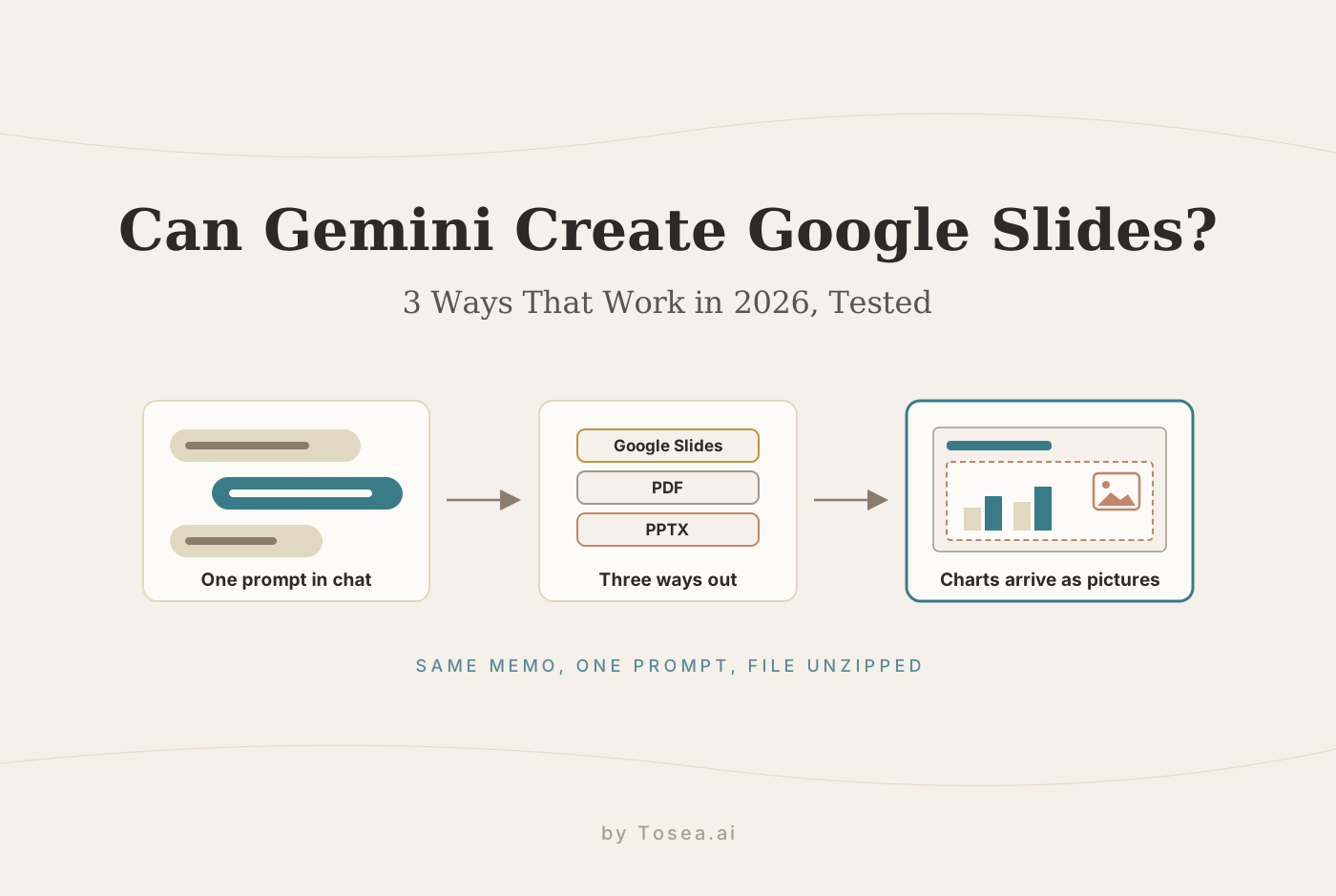
Quick answer: Yes. Gemini can create Google Slides three ways: ask for a deck in the Gemini app and export it to Slides, use Gemini inside Google Slides on an eligible plan, or generate a slide deck in NotebookLM. In our test, the Gemini app turned a one-page memo into six slides in about half a minute.
Speed was the strong point and the export was the weak one. All three charts reached Google Slides and PowerPoint as pictures. The speaker notes Gemini said it had added were in neither file. One bar in the revenue chart was drawn shorter than the number printed beside it. This guide covers each route, what Google says it does, and what we found inside the files.
Can Gemini create Google Slides?
Yes. As of November 2026, Gemini has three routes to a slide deck.
| Route | Where it runs | Plans, per Google | What you get | Tested here? |
|---|---|---|---|---|
| A deck in the Gemini app | gemini.google.com, in a panel beside the chat | Announced in 2025 for Workspace plans and Google AI Pro and Ultra. It worked on our account, which has no paid plan | A deck you edit in Gemini and export to Google Slides, PDF or PPTX | Yes |
| Gemini in Google Slides | The Ask Gemini side panel inside Google Slides | An eligible Google Workspace or Google AI plan, or Google Workspace Experiments. Desktop and English only | A new presentation, new slides, or edits to the slides you have | No, described from Google's help pages |
| NotebookLM slide decks | NotebookLM, Google's research notebook | See our NotebookLM guide | A slide deck generated from the sources in a notebook | Yes, in a separate guide |
Google's plans page lists Google AI Plus at $4.99 a month, Google AI Pro at $19.99 a month and Google AI Ultra from $99.99 a month in the US. We checked it on November 15, 2026.
How we tested
We reused the source from our ChatGPT and Claude tests so the three results can be compared: a one-page Q3 wholesale review memo that we wrote for a fictional coffee roaster. It has a three-month table of planned and actual revenue, new accounts by segment, six months of churn, two risks, and three commitments with owners and dates.
The prompt was one sentence, followed by the memo pasted as text:
Turn the memo below into a 6-slide PowerPoint deck (.pptx) for Thursday's leadership review. Use one chart per data slide, keep the text short, and add speaker notes to every slide.
- Where it ran: the Gemini web app at gemini.google.com on November 15, 2026, in Auto mode, on a personal Google account with no paid Google AI plan. We did not select Canvas or any other tool before sending.
- What we checked: We exported the deck as PPTX and to Google Slides, then downloaded the Google Slides copy as PPTX as well. A .pptx is a ZIP archive of XML files, as we explain in What Is a PPTX File. We unzipped both files and counted what was inside, validated them against the Office Open XML schema, opened the PPTX export in PowerPoint for Mac (version 16.112), and compared each figure with the memo.
- What we did not test: Gemini in Google Slides. On our account the Gemini button in Slides showed an offer to try a paid plan, so that section is based on Google's help pages. We also did not test paid Gemini models or PowerPoint for Windows.
- Scope: One run, one prompt, one short source. The prompt asks for a .pptx because it is the same prompt we gave the other two assistants.
Tosea makes an AI presentation tool, and we have no affiliation with Google.
Test result: fast and accurate, but the charts are pictures
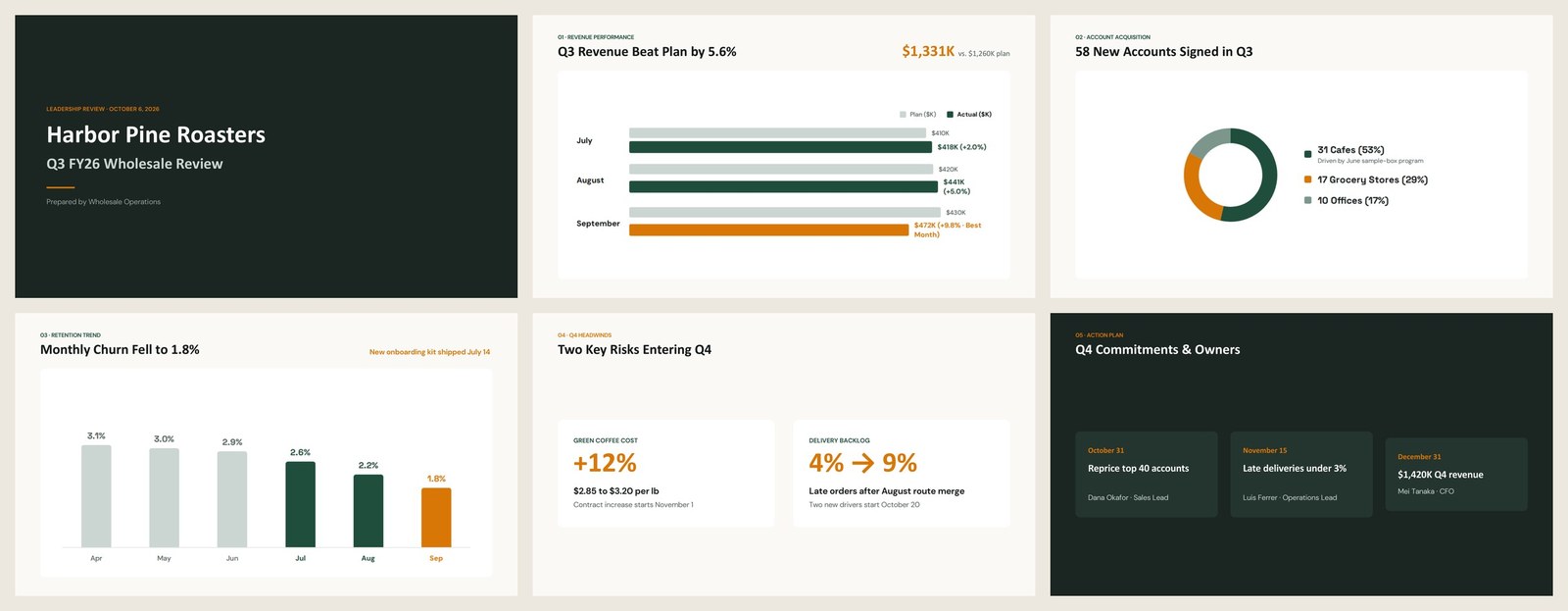
Gemini did not ask a question first. It opened a deck panel in the chat and filled it in. About half a minute after we sent the prompt, the six slides were done, and the reply said the deck had one chart per data slide and speaker notes on every slide.
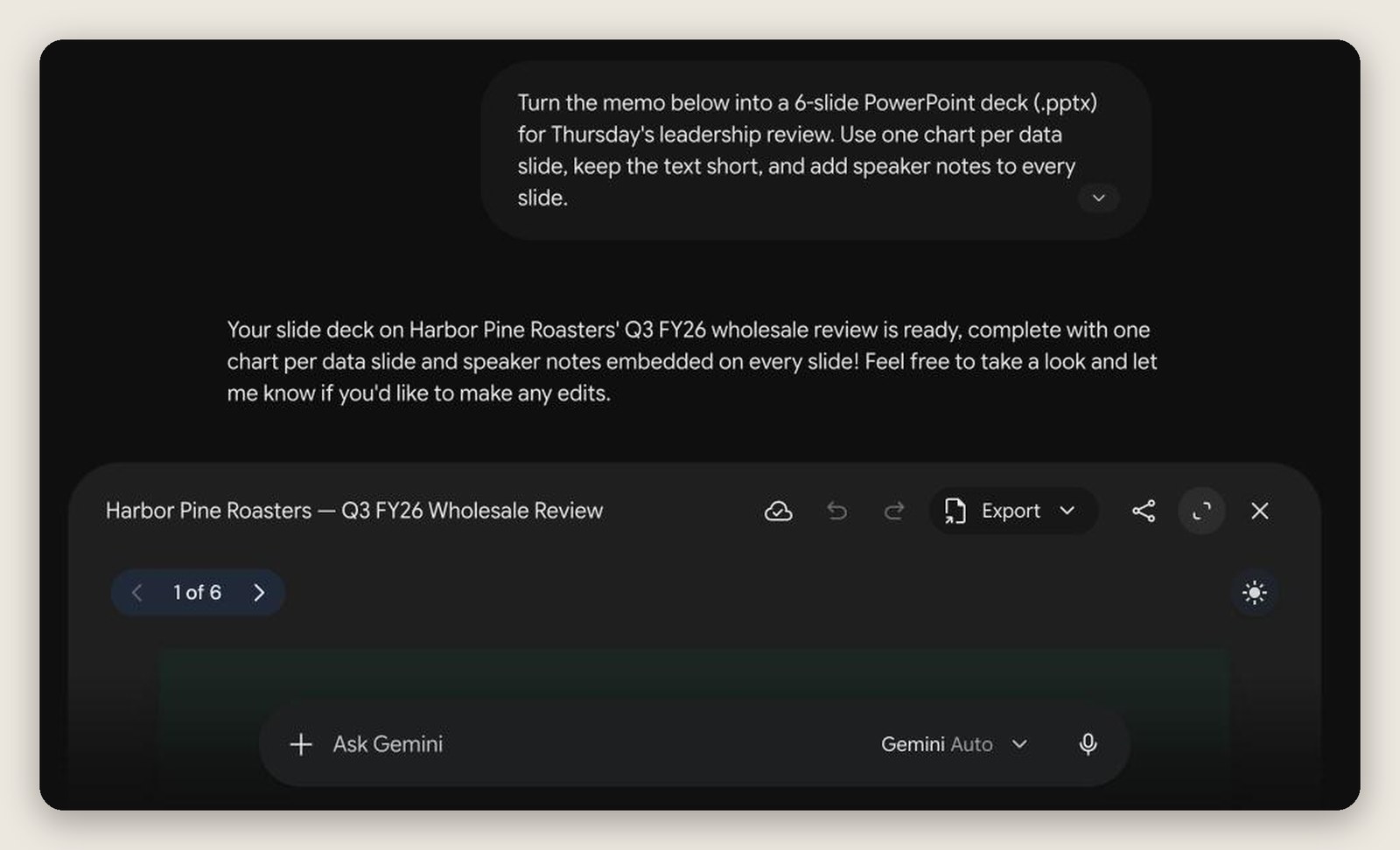
The panel's Export menu had three options: Slides, PDF and PPTX. Here is what the PPTX export contains.
| What we looked for | What was in the file |
|---|---|
| Slides | 6, as requested, at 13.33 by 7.5 inches (16:9) |
| Charts | No native charts. Each of the three chart slides holds one full-slide picture |
| Text | 135 words in 33 text boxes, all live text, from 10.5 pt to 54 pt |
| Pictures | 3, one per chart slide, at 1280 by 720 pixels |
| Speaker notes | None |
| Structure | A blank layout on every slide, no placeholders, no sections |
| Fonts | DM Sans and Space Grotesk, embedded in the file |
| File size | 163 KB |
The numbers were right, including the ones it worked out. Every figure on the slides matched the memo. Gemini also added percentages the memo does not give, and we recalculated each one:
- Actual revenue against plan of +2.0% in July, +5.0% in August and +9.8% in September
- Cafes at 53% of new accounts, grocery stores at 29% and offices at 17% (31, 17 and 10 of 58)
All of them are correct.
The text is short, as asked. The six slides carry 135 editable words. Slide titles are 27 pt, and the smallest live text is 10.5 pt on the small labels above each title. That is the sparsest of the three decks we have tested with this memo.
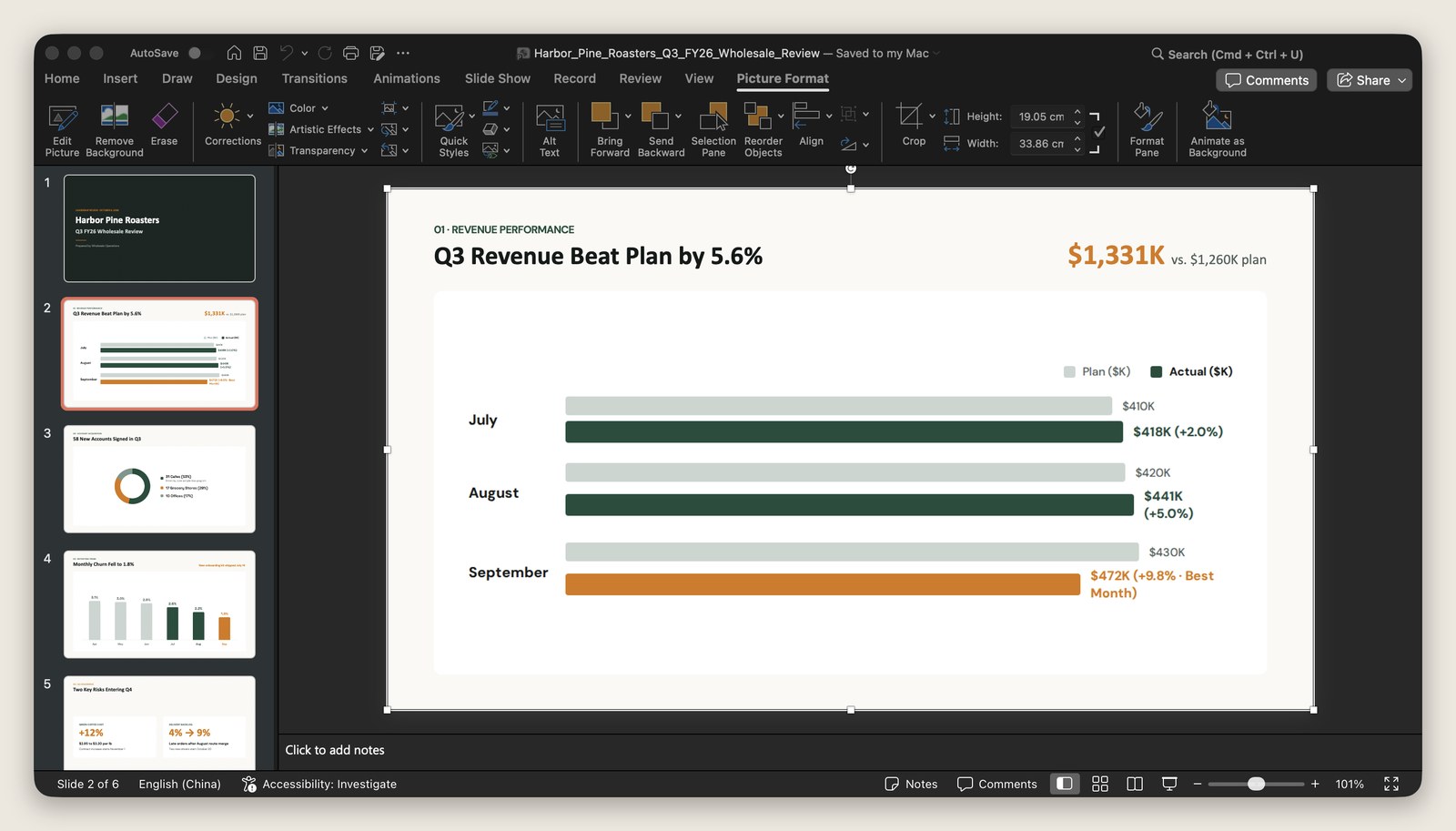
The charts are pictures. On the revenue, new accounts and churn slides, the chart, its axis labels, its value labels and its legend are a single picture that covers the whole slide. The slide title sits on top as a text box. In PowerPoint, clicking the chart selects the picture and brings up the Picture Format tab, not Chart Design. There is no data behind it, so you cannot change a number, restyle a series or switch the chart type.
The copy in Google Slides is built the same way. Clicking the chart there selected one image and offered Replace image. When we downloaded that copy as PPTX, it held the same three pictures and no charts.
One bar is the wrong length. The revenue slide draws plan and actual as pairs of horizontal bars. We measured them in the exported picture. Four of the six bars follow one scale, 1.84 pixels per $1K. The August actual bar is 786 pixels where that scale gives 813. The September actual bar is 712 pixels where it gives 870. September's $472K is the largest value on the chart and has the shortest bar, shorter than July's $410K plan.
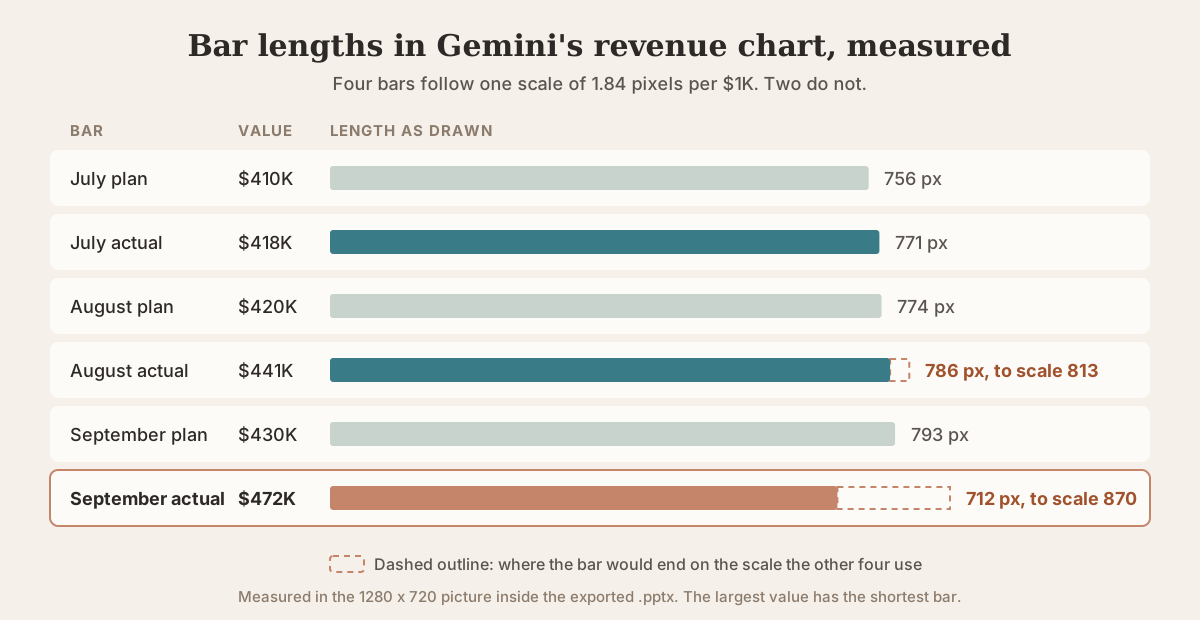
The two short bars are the ones with the longest labels beside them, which suggests the label takes space from the bar. The printed values are correct and the drawing is not. Because the chart is a picture, you cannot fix it in Slides or PowerPoint. The doughnut and the churn columns were drawn to scale.
The speaker notes did not export. Gemini's reply said speaker notes were embedded on every slide. The PPTX has no notes pages at all, and the Google Slides copy has six empty ones. We asked where the notes were. Gemini answered that its export tool "currently strips out the speaker notes metadata" and pasted six notes into the chat, 39 to 66 words each, to copy in by hand.
Two details about those pasted notes. The slide titles in the list did not match the deck: the revenue slide is titled "Q3 Revenue Beat Plan by 5.6%" in the deck and "Q3 Revenue Exceeded Plan by $71K (+5.6%)" in the list. And one sentence goes past the memo, saying the coffee price rise will compress margins unless prices change. The memo gives the price rise and says nothing about margins.
Three smaller things to check
- The date on the cover. The cover reads "Leadership review · October 6, 2026". That is the date of the memo. The prompt said the review is on Thursday, and October 6, 2026 is a Tuesday. Give the date in the prompt.
- The fonts. The text uses DM Sans and Space Grotesk, and the file carries both as embedded fonts. Our test Mac has neither installed. PowerPoint listed both fonts on the text and still drew it in a substitute, so the titles in PowerPoint do not look like the titles in Gemini.
- Stricter programs may reject the direct export. The PPTX that Gemini exported failed schema validation on its embedded font list, and LibreOffice 26.2 would not open it. PowerPoint for Mac opened it without a repair prompt. The copy we downloaded from Google Slides passed validation and opened in LibreOffice, so going through Slides is the safer path if the file is headed somewhere other than PowerPoint.
Way 1: Ask Gemini for slides in chat
This is the route we tested, and the fastest way to get from a document to a Google Slides file.
- Go to gemini.google.com, start a new chat and paste or attach your source.
- Ask for a presentation and give the slide count, the audience and the date. Google's help page says to select Canvas from the tools menu and name the format in the prompt. In our run Gemini opened the deck panel without Canvas being selected.
- Wait for the panel to fill. Ours took about half a minute.
- Page through the slides. The panel says you can click to edit text directly or select text and ask Gemini to change it. We did not test editing.
- Open Export and choose Slides, PDF or PPTX. Export to Slides took under half a minute and created a new file in Google Drive.
Prompt additions that address what we saw:
- "Put the speaker notes in your reply as well." The export dropped ours, and the chat is where they ended up.
- "The review is on [date]." This avoids the memo's date landing on the cover.
- "Keep value labels short and outside the bars." We did not test whether this fixes the bar lengths, so measure the chart against the numbers either way.
If a chart has to stay editable, plan to rebuild it. Delete the picture and use Insert, then Chart, in Google Slides or PowerPoint, with the figures from your source.
Google announced deck generation in the Gemini app in October 2025 for Google Workspace plans and for Google AI Pro and Ultra, on the web and mobile web. Our account has no paid plan and generated a deck in November 2026, so the feature has reached at least some free accounts. Yours may differ.
Way 2: Gemini in Google Slides
Gemini also works inside Google Slides, in a side panel opened with the Ask Gemini button. Google's help pages describe three jobs.
- Generate a presentation. From the Slides start screen or a blank presentation, describe the deck. You can add Drive files as sources and pick an existing deck to match its style. Gemini may ask follow-up questions, then shows a plan with an overview, the sources and an outline of each slide. You edit the outline and approve it, and keep the tab open for a few minutes while the slides are built.
- Add slides. In an open presentation, describe one or several slides, then insert them or replace the selected slide.
- Edit slides. Ask for changes to one slide, several slides or the whole deck, such as a more formal tone or a larger title size.
Google says this feature needs an eligible Google Workspace or Google AI plan, or Google Workspace Experiments for personal accounts, and that it is available on desktop and in English only. Google describes the generated presentation as fully editable. We could not check that: on our account the Gemini button in Slides opened an offer to try a paid plan.
If you have access, it is worth trying when editability matters, because the slides are built in Slides itself and are not exported from the Gemini app. Google's page mentions text and images, not charts or speaker notes, so check both before you rely on it.
Way 3: NotebookLM slide decks
NotebookLM is Google's research notebook, and it can turn the sources in a notebook into a slide deck. We tested it on a 48-page report in How to Make a PowerPoint With NotebookLM. In that test every slide in the downloaded PowerPoint was a single image. The Gemini app did better than that here: titles and body text stayed editable, and only the charts were pictures.
If you already have a NotebookLM deck where the slides are pictures, our NotebookLM slides to PowerPoint page covers how to get editable slides back.
Gemini vs ChatGPT vs Claude on the same memo
We gave the same memo and prompt to all three assistants. The ChatGPT and Claude files are taken apart in Can ChatGPT Make a PowerPoint? and Claude for PowerPoint.
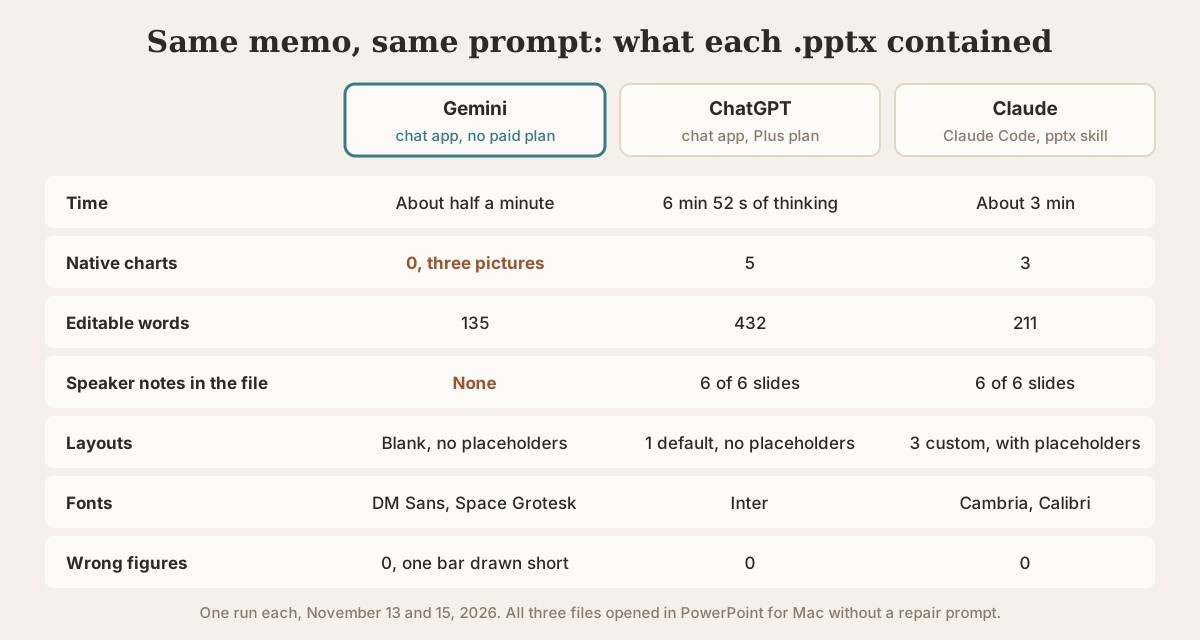
| Gemini, chat app, no paid plan | ChatGPT, chat app on Plus | Claude, Claude Code with the pptx skill | |
|---|---|---|---|
| Time | About half a minute | 6 min 52 s of thinking | About 3 min for the whole run |
| Native charts | 0, three pictures | 5 | 3 |
| Editable words | 135 | 432 | 211 |
| Speaker notes in the file | None | 6 of 6 slides | 6 of 6 slides |
| Layouts | Blank, no placeholders | 1 default, no placeholders | 3 custom, with title placeholders |
| Fonts | DM Sans and Space Grotesk | Inter | Cambria and Calibri |
| Wrong figures | 0, with one bar drawn short | 0 | 0 |
| Opened in PowerPoint for Mac | No repair prompt | No repair prompt | No repair prompt |
Gemini was the fastest by a wide margin, and the only one that ran on an account with no paid plan. It was also the only one whose charts could not be edited and whose notes did not reach the file. ChatGPT's deck was the densest, and Claude's had the most PowerPoint structure.
The three ran on different surfaces and plans, so read this as three data points, not a ranking.
Why can't Gemini create slides?
Google's search results for this topic include that question. From Google's help pages and our run, these are the likely reasons.
- You are in Google Slides without an eligible plan. The side panel needs a qualifying Workspace or Google AI plan, or Workspace Experiments. Without one, the button shows an upgrade offer. The Gemini app is the route that worked on our free account.
- Your language or device is not covered. Google says Gemini in Slides is on desktop and in English only for now.
- The deck was made but the export let you down. That is what happened to our charts and notes. Reddit threads from the past year describe exports that fail or arrive as pictures. We read those only as search excerpts.
When a dedicated AI presentation tool makes more sense
Gemini is a general assistant that can also build decks. A presentation generator starts from the deck, and the difference shows up with long source documents and when the result has to stay editable.
Tosea.ai is the tool we make, so weigh this section with that in mind. You upload a PDF or describe a topic, and it composes a full deck, placing the source's own figures, tables and formulas on the slides. If the deck has to end up in Google Slides, the PDF to Google Slides workflow produces an editable PPTX that opens in Slides. If you are holding slides that are pictures, the image to editable PPT converter rebuilds them with text as text boxes and visuals as separate objects.
Related reading: our AI presentation makers comparison scores six tools on design, and HTML slides versus image slides explains the two ways AI tools draw a slide.
FAQ
Can Gemini make a PowerPoint (.pptx)?
Yes. In our test the deck panel's Export menu included PPTX, and the download opened in PowerPoint for Mac without a repair prompt. Titles and body text were editable. The charts were pictures and the file had no speaker notes.
Is making slides with Gemini free?
It was for us. Our run used a personal Google account with no paid Google AI plan, and it generated and exported the deck. Google's 2025 announcement named Workspace plans and Google AI Pro and Ultra, and Gemini in Google Slides needs an eligible plan, so what you see depends on the account.
Can Gemini add speaker notes to Google Slides?
Not through the export we tested. Gemini wrote notes, but neither the PPTX nor the Google Slides copy contained them, and Gemini said its export drops them. Ask for the notes in the chat and paste them into the notes pane in Slides.
Can I edit a chart that Gemini made?
Not in the exported file. Each chart in our deck was one picture with no data behind it. To get an editable chart, delete the picture and insert a chart in Google Slides or PowerPoint with the numbers from your source.
Can Gemini edit an existing Google Slides deck?
Google's help pages say Gemini in Google Slides can add slides to an open presentation and edit one slide, several slides or all of them from a prompt. That feature needs an eligible plan, and we did not test it.
Sources
- Generate presentations with Gemini in Google Slides — Google Docs Editors Help
- Generate and edit slides with Gemini in Google Slides — Google Docs Editors Help
- Create docs, apps & more with Canvas — Gemini Apps Help
- Generate presentations in the Gemini app — Google Workspace Updates, October 28, 2025
- Google AI plans — Google One, checked November 15, 2026
- Gemini can't export canvas presentations — r/GoogleGeminiAI, read as a search excerpt