5 Best Claude Cowork Plugins for Productivity and Office Automation in 2026
5 official Claude Cowork plugins for office work in 2026: Productivity, Enterprise Search, Data, Finance and Marketing, with commands, connectors, limits and prompts.
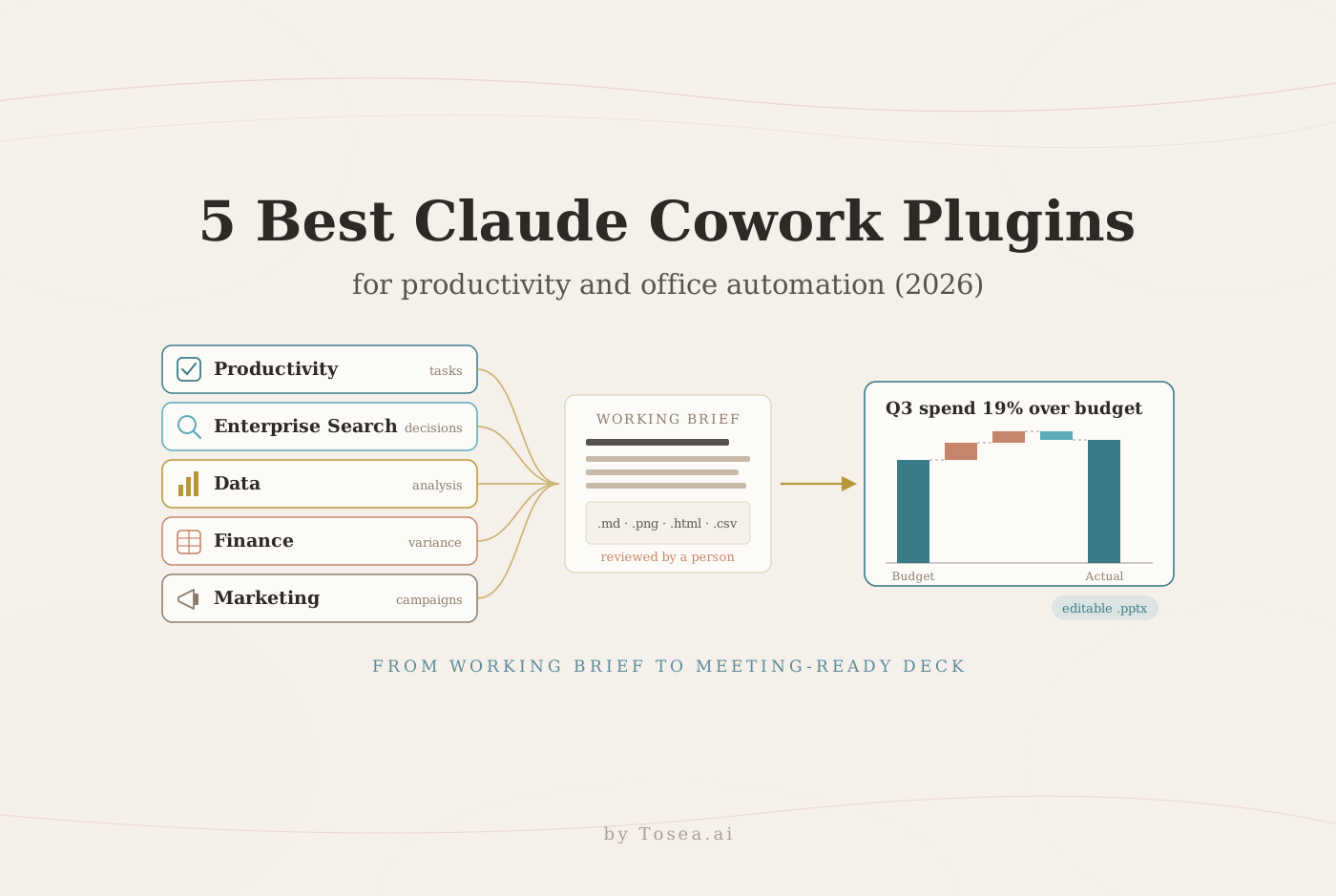
The best Claude Cowork plugins for productivity and office automation help with the work that usually comes before a meeting: organizing tasks, finding the decision behind a document, analyzing data, explaining a budget variance and planning a campaign. Claude Cowork is Anthropic's agent for knowledge work, and plugins give it role-specific instructions, connections and commands. This guide covers five official plugins, what each one actually does according to its source files, and where each one stops. One finding shapes the last section: none of the five produces a PowerPoint file, even though their output often ends up in one. That is the step where a presentation tool such as Tosea AI, which turns documents and data into editable slides, takes over.
How we selected these plugins
All five come from Anthropic's knowledge-work-plugins repository, the official source for Cowork's built-in plugins. We read each plugin's README, skill files and manifest in November 2026, and chose the five with the broadest use across office roles. "Best" here means most useful for common office workflows, not a measured performance ranking. We did not run these plugins in a live Cowork account, so the prompts below are suggested workflows, not test results.
Some context on the repository:
- It is open source. The repository is licensed Apache 2.0 and had about 36,600 GitHub stars in November 2026.
- It has grown since launch. Anthropic introduced plugins in Cowork on January 30, 2026 as a research preview for paid users, with 11 open-sourced plugins. The repository now holds 17 Anthropic-built plugins, and its marketplace file lists 123 entries once partner plugins are included.
- Cowork needs a paid plan. Anthropic's product page says the Cowork desktop app is available on the Pro, Max, Ultra and Team plans, and Enterprise admins control access in organization settings.
What is a Claude Cowork plugin?
A plugin bundles skills, connectors, slash commands and sub-agents for one job function. In the repository, every plugin follows the same file layout: a manifest, a .mcp.json file that lists tool connections, and a folder of skills. Everything is Markdown and JSON, with no code to build, which is why Anthropic encourages teams to edit plugins for their own tools and terminology.
Two terms are worth separating. A connector gives Claude access to a service such as Slack, Notion or Snowflake. A skill describes how to do a task, such as reconciling an account. Installing a plugin does not authorize access to your company systems; each connector still needs to be connected and permitted.
Install plugins from the Cowork plugin directory and connect only the services a workflow needs. The repository also documents Claude Code terminal commands for installation; you do not need those if you work in the Cowork app.
The five plugins at a glance
| Plugin | Version | Best starting task | Example commands | Main output |
|---|---|---|---|---|
| Productivity | 1.3.1 | Organize a scattered workday | /start, /update | Task file, memory files, local HTML dashboard |
| Enterprise Search | 1.3.0 | Reconstruct a project decision | /search, /digest | Answers with source attribution, digests |
| Data | 1.1.0 | Explain a business metric | /analyze, /create-viz, /validate | SQL, PNG charts, HTML dashboards |
| Finance | 1.3.0 | Prepare a monthly variance review | /variance-analysis, /reconciliation | Variance tables, working papers |
| Marketing | 1.2.0 | Plan a campaign or report results | /campaign-plan, /performance-report | Campaign briefs, drafts, reports |
1. Productivity: turn loose commitments into a working plan
Best for: Individual contributors and managers who lose action items across notes and conversations.
The Productivity plugin keeps a Markdown task list (TASKS.md), a two-tier workplace memory (a CLAUDE.md file for working context plus a memory/ folder for deeper notes) and a local HTML dashboard that shows tasks on a board. /start sets these up; /update triages stale items; /update --comprehensive scans email, calendar and chat for missed to-dos. Without connected tools, you manage tasks and memory manually. With Slack, Microsoft 365, Notion or a project tracker such as Asana, Linear or Jira connected, it has more context to work from.
For a Monday planning session, start with your current task list and meeting notes. Ask Claude to separate explicit deadlines from suggested priorities. The useful result is a plan that names owners and dependencies, not a longer list of everything mentioned in a conversation.
Review my task list and these meeting notes. Extract commitments, owners, explicit deadlines, dependencies, and missing information. Separate confirmed tasks from suggestions. Propose today's three priorities and explain trade-offs. Prepare a task update for review. Do not invent deadlines, send messages, or change calendar events.
Check before relying on it: The plugin's own example shows Claude expanding "ask todd to do the PSR for oracle" into a full name, a report name and a deal value. That is convenient when the memory is right and confidently wrong when it is stale. Confirm identities and dates before anything leaves your machine.
2. Enterprise Search: find the decision behind the document
Best for: Project handovers, meeting preparation and catching up after time away.
Enterprise Search sends one question to every connected source, such as chat, email, cloud storage, wikis, project trackers and CRM, and combines the results into a single answer with attribution. /search accepts filters like from:, in:, after:, before: and type:, and /digest --daily or --weekly summarizes activity with decisions and action items highlighted. Its synthesis skill scores confidence by freshness and authority. Coverage depends entirely on which sources are connected.
Suppose a launch date appears differently in a chat thread, a planning document and an email. Ask for a chronology and the evidence behind the current decision. The latest document is not automatically the approved one.
Find the approved launch date for [project] across the connected sources for [date range]. Return a decision timeline with links, authors, dates, and evidence of approval. Separate proposals from decisions. Flag conflicting versions and unavailable sources. Draft a one-page meeting brief without treating missing search results as proof that no decision exists.
Check before relying on it: Open the source links. A fluent summary can still combine an obsolete proposal with the current plan. Keep the uncertainty visible where the approval trail is incomplete.
3. Data: build an analysis that survives basic questions
Best for: Operations, sales and product teams preparing recurring performance reviews.
The Data plugin covers six commands: /analyze, /explore-data, /write-query, /create-viz, /build-dashboard and /validate. With a warehouse such as Snowflake, Databricks or BigQuery connected, it queries data directly. Without one, you paste query results or upload CSV or Excel files, and it can write SQL for you to run. Writing a query is not the same as executing it, so check which mode you are in.
The output formats matter if the analysis is headed for a meeting. /create-viz defaults to matplotlib and seaborn and saves charts as PNG files, switching to plotly only when you ask for interactivity. /build-dashboard produces a self-contained HTML page with Chart.js charts and filters. Both are useful; neither is a native PowerPoint chart.
Analyze [dataset] for a monthly retention review. Confirm the cohort definition, date field, customer key, and denominator before calculating. Check missing values and duplicates. Provide reproducible calculations or SQL, a retention table, and one suitable chart. Explain exclusions and uncertainty. Distinguish observed patterns from causal explanations, and list checks you could not complete.
Check before relying on it: Run /validate before sharing; the README's own example flags a denominator that "could overstate conversion rate by ~5pp." Reconcile counts against the source system and keep the calculation definitions with the deliverable.
4. Finance: prepare a reviewable variance explanation
Best for: Finance teams assembling month-end management reporting.
The Finance plugin supports journal entries, account reconciliation, income statements, variance analysis and SOX control testing, plus a month-end close checklist. Its variance skill includes default investigation thresholds: 10% for actual versus budget, 15% versus prior period, 5% versus forecast and 20% month over month, with dollar thresholds left for your organization to set. It suggests waterfall charts for explaining the bridge between two periods. Snowflake, Databricks, BigQuery, Slack and Microsoft 365 are the default connections; uploaded files also work.
A practical first task is comparing approved actuals with budget. Ask the plugin to flag material differences, reconcile the total movement, and separate documented business drivers from explanations that still need investigation. The result is a working paper for review, not an approved financial conclusion.
Compare approved actuals with budget for [period and entity]. Preserve currency, units, account definitions, and sign conventions. Reconcile the total variance and identify items above [materiality threshold]. Separate documented drivers from hypotheses. Prepare a variance table and management commentary with source references. Flag missing support. Do not post entries or present the draft as approved reporting.
Check before relying on it: The README states that the plugin "does not provide financial, tax, or audit advice" and that qualified professionals should review all outputs. Replace the default thresholds with your own materiality policy before running it.
5. Marketing: turn a brief into a coordinated campaign
Best for: Marketing teams managing launches, content calendars and performance reports.
The Marketing plugin has seven commands: /draft-content, /campaign-plan, /brand-review, /competitive-brief, /performance-report, /seo-audit and /email-sequence. Its connectors include Canva, Figma, HubSpot, Amplitude, Ahrefs, Similarweb and Klaviyo. Brand review works best when you store your voice and style guide in the plugin's settings; without them, it falls back to a generic review for clarity and consistency.
For a product launch, start with the audience, approved product claims, budget and conversion goal. Ask for a channel plan with owners and measurement rules. Do not let the model fill missing competitor evidence or campaign results with plausible numbers.
Build a campaign plan for [product] aimed at [audience] over [timeframe], using [approved brief, brand rules, and budget]. Provide channel choices, a content calendar, owners, dependencies, and measurement definitions. Link factual claims to the supplied evidence. Mark unsupported competitive claims and missing metrics. Draft assets for review without publishing or scheduling them.
Check before relying on it: Confirm attribution windows, metric definitions and product claims. The performance skill compares attribution models (first touch, linear, data-driven and others), and the model you pick changes which channel looks best. Generating an email sequence does not mean it has been approved or sent.
How to choose your first plugin
Pick the bottleneck you hit every week. Start with Productivity when commitments get lost, Enterprise Search when context is scattered across tools, or Data when a recurring question needs calculation. Finance and Marketing make sense when the deliverable follows a department-specific process.
Pilot one bounded task with known inputs. Compare the output with a deliverable you have already reviewed, and record corrections, missing tools and the time spent checking. That tells you more than how many plugins are installed.
For repeatable office automation, define the input location, period, output format, owner and approval point. Keep permission to draft separate from permission to send, publish or change a system of record. A weekly report prompt alone does not create a recurring schedule.
Where Cowork plugins stop and AI slide generation begins
We searched the skill files of all five plugins for PowerPoint, PPTX, deck and slide output. None of them writes a presentation file. The closest is the Marketing performance report, which offers a "slide-ready summary" as a follow-up: text you still have to lay out. Enterprise Search can find slides in cloud storage, but it does not make them. The deliverables are Markdown task lists, attributed answers, SQL, PNG charts, HTML dashboards, variance tables and campaign briefs. Yet a large share of that work ends up in a presentation: the month-end variance review, the quarterly business review, the campaign readout, the project handover.
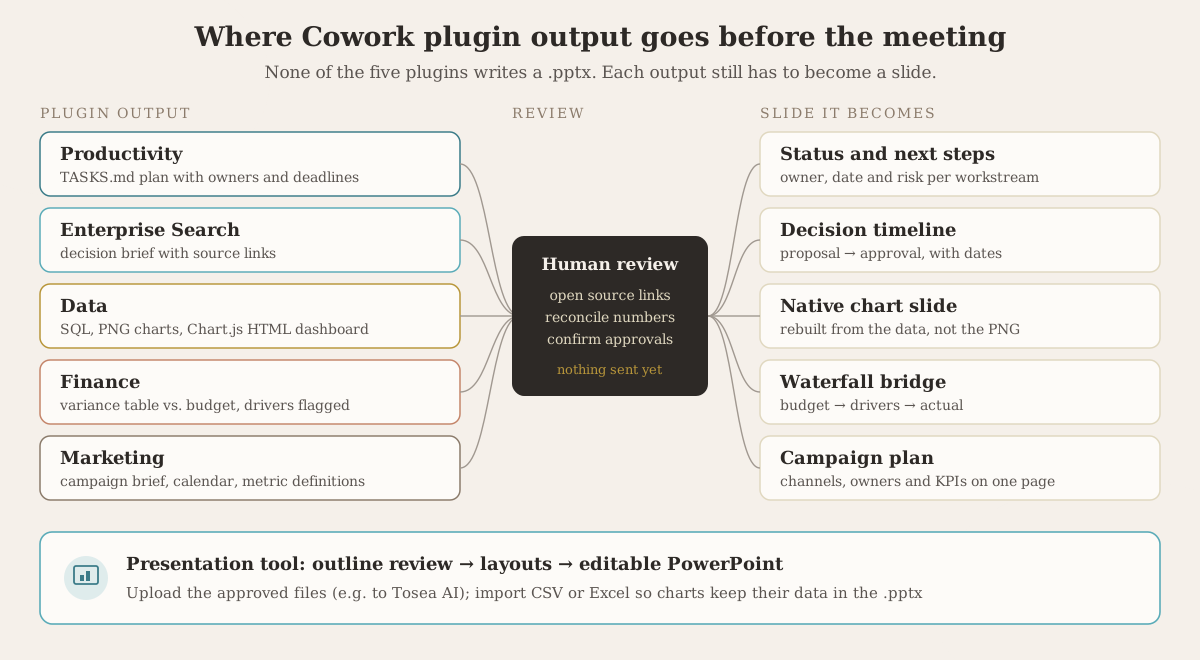
That gap matters in three places:
- Charts. A PNG from
/create-vizor a Chart.js dashboard looks fine on screen, but nobody can update the numbers in PowerPoint next month. A native chart keeps its data. Our article on editable PowerPoint charts with Data Studio explains why that matters for recurring reports. - Structure. A working paper is organized for the analyst; a slide deck is organized around the decision. The variance table needs to become a bridge chart with one message title per slide.
- Format. If you ask Claude for a deck directly, the file depends on the route. Our Claude for PowerPoint test found that a .pptx built with Anthropic's pptx skill kept native charts, while a Claude Slides download turned charts into pictures.
This is where a document-to-deck tool fits. Export the plugin's approved output (the variance table, the decision brief, the retention CSV) and upload it to Tosea AI. You review the generated outline, assign layouts or diagrams per page, and Data Studio imports Excel or CSV so the chart stays editable in the exported PowerPoint. This is a manual handoff, not a Cowork plugin or native connector. For deck structure, our QBR deck guide and marketing monthly report guide cover what each slide should say. For an earlier look at how Anthropic's enterprise push affects document-to-PPT work, see Beyond Anthropic Claude Plugins.
Frequently asked questions
Do these plugins work without connected company apps?
Partly. Productivity, Data, Finance and Marketing can work from files you upload or paste. Enterprise Search depends on connected sources, and live queries, digests and external updates need compatible connections and permissions.
Is Claude Cowork free?
No. Cowork works with a paid plan. Anthropic lists the desktop app on Pro, Max, Ultra and Team, with Enterprise access managed by admins.
Can a Claude Cowork plugin create a PowerPoint presentation?
None of these five plugins outputs a PowerPoint file. Claude's built-in PowerPoint skill is a separate capability, and the editability of the result depends on how the deck is made.
Can Tosea AI redesign my existing PowerPoint without changing the content?
Yes. Upload the PPTX or an exported PDF through Beautify and choose Keep source pages. Use Layout Only for later visual edits, then verify wording, figures, labels and footnotes.
How do I upload a PowerPoint and ask Tosea AI to redesign each slide?
Upload the PPTX or PDF, select a template, and request that content and sequence be preserved. Review the outline, generate the deck, and inspect each slide before exporting.
Can I upload my own PowerPoint template to Tosea AI?
Yes, on the Pro and Max plans. Check required layouts, fonts, colors, logo placement and master-slide requirements against the generated output.
Can Tosea AI use custom brand colors, fonts, and a logo?
Specify the required colors and fonts, supply an approved logo, or use a supported custom template. Feature access depends on the plan. Verify contrast, font availability and logo spacing after export.
Can Tosea AI match the style of my old company presentations?
A representative deck can guide the design without implying permanent model training. Use an approved custom template for stronger consistency and compare the result with your brand guidelines.
Does Tosea AI preserve PowerPoint formatting after export?
Editable PPTX export aims to stay close to the preview. Fonts, complex graphics and the application opening the file can affect appearance, so test the exported deck where you will present it.
Can I tell AI to edit the layout only and keep the exact wording?
Yes. Layout Only re-renders the page layout without modifying the outline. Compare the revision with the source, including citations, labels, footnotes and line breaks.
Build the workflow through to the final presentation
The best Claude Cowork plugins for productivity and office automation produce a clearer, better-supported working brief: a plan with owners, a decision with its evidence, an analysis that survives questions, a reconciled variance and a campaign with measurement rules. Each still needs a human review, and each still needs to become a presentation before the meeting. Bring the approved material into Tosea AI to review the storyline, choose layouts, keep charts editable and export a PowerPoint for your next meeting. For prompts that cover the deck itself, see our business presentation prompts for ChatGPT and Claude.
Sources
- anthropics/knowledge-work-plugins — GitHub, README, plugin manifests and skill files, read November 2026
- Customize Cowork with plugins — Anthropic, January 30, 2026
- Claude Cowork — Anthropic product page, plan availability
- Claude plugins directory — Anthropic
- Finance plugin README — anthropics/knowledge-work-plugins
- Data plugin README — anthropics/knowledge-work-plugins
- Claude for PowerPoint (2026): 4 Ways to Make Slides With Claude, Tested — Tosea