10 Best NotebookLM Workflows for Research and Academic Presentations in 2026
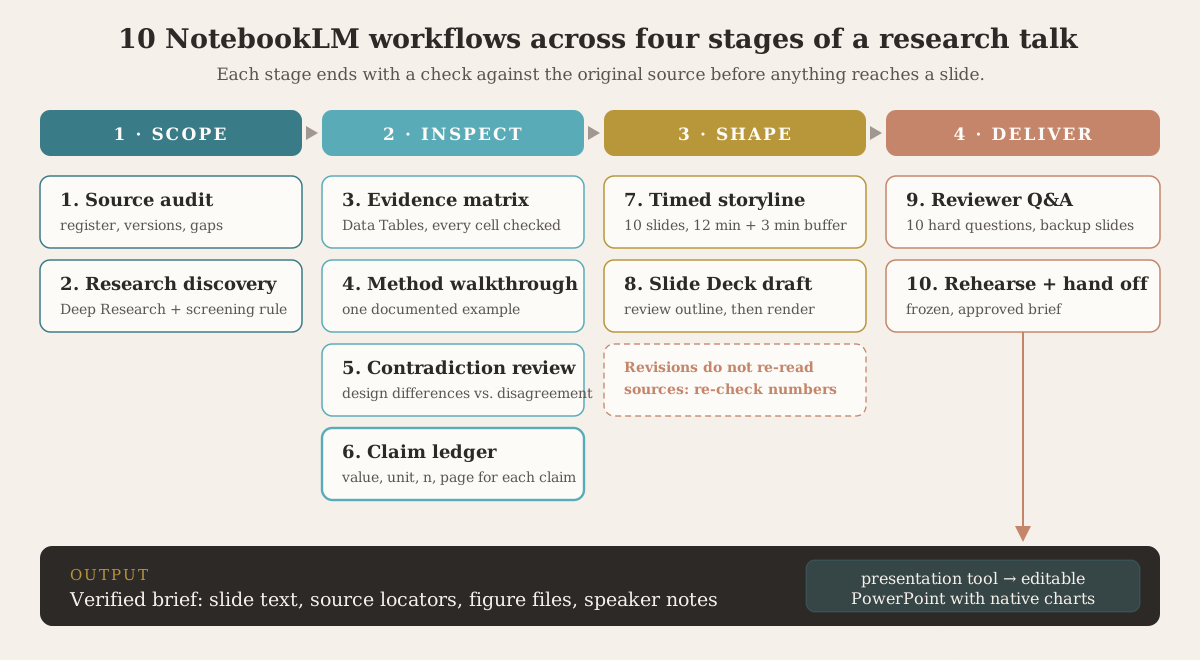
10 NotebookLM workflows for research talks: audit sources, build an evidence matrix, check every claim, plan a timed storyline, generate slides and prepare for questions.
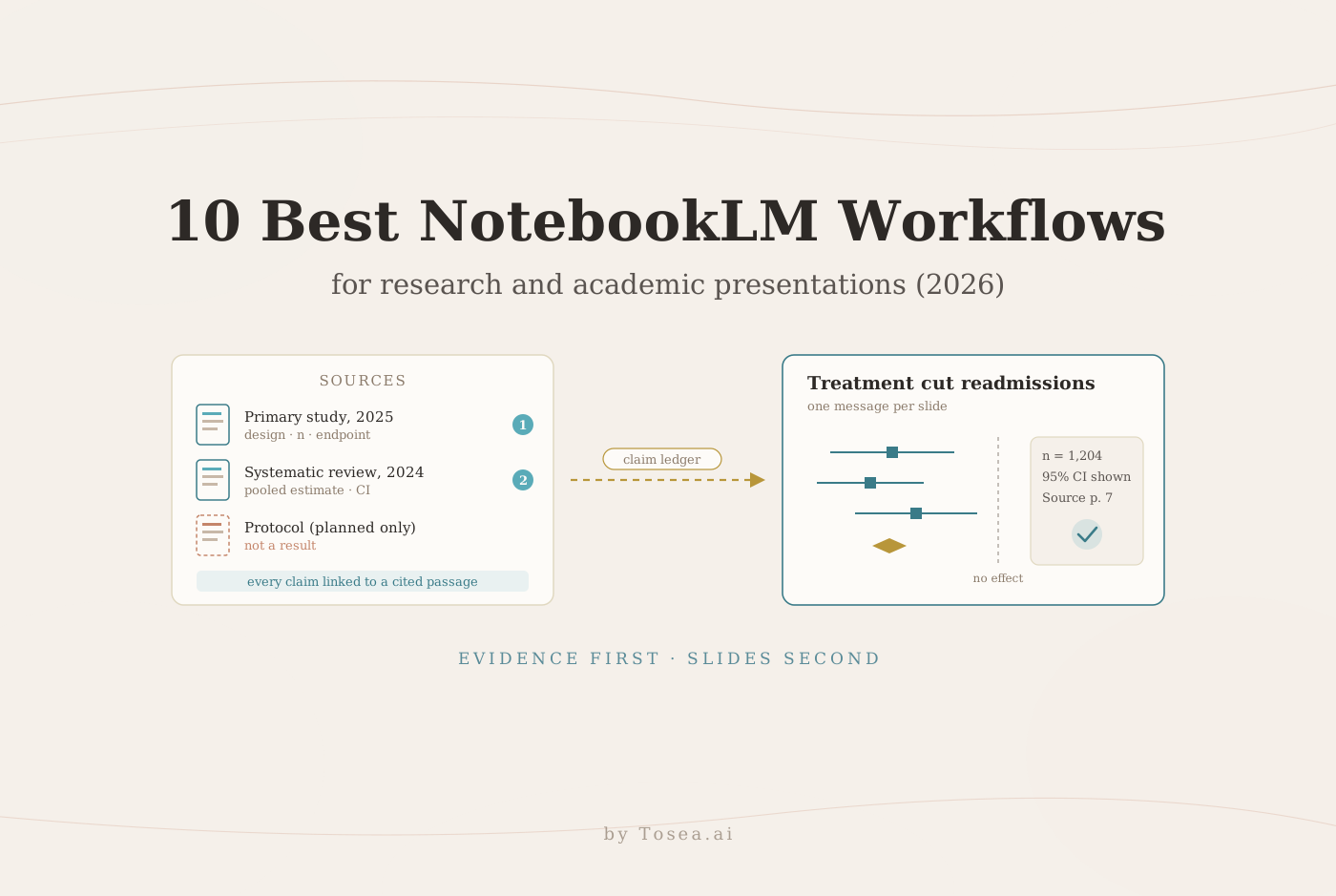
These NotebookLM workflows for research and academic presentations cover the work that happens before slide design: organizing sources, comparing studies, checking claims, building a timed argument and preparing for questions. NotebookLM is good at that stage because every answer is tied to the sources you add. It is weaker at the last stage. When we generated a deck with it, the slides contained an invented chart value, and the PowerPoint export was a set of pictures. So the workflows below treat NotebookLM as a research workbench, then hand the verified material to a presentation tool such as Tosea AI, which turns papers, documents and data into slides you can edit.
Each workflow comes with a copy-ready prompt and a check to run before anything reaches a slide.
How we chose these workflows
This is an editorial shortlist, not a benchmark of each prompt. We built it from three things:
- Google's own documentation, checked in November 2026. Google's help center now calls the product Gemini Notebook; we use NotebookLM because most people still search for that name. Features and limits vary by account, age and device.
- Our own NotebookLM test. On November 2, 2026 we generated a Slide Deck from NIST's 48-page AI Risk Management Framework, revised it and exported it. The full write-up is in our guide to making a PowerPoint with NotebookLM; the findings that matter for research talks appear in workflows 6 and 8 below.
- The way research talks fail. Reviewers rarely object to the slide colors. They object when a number has no denominator, a protocol is presented as a result, or a hypothesis from the discussion section becomes the headline. Each workflow targets one of those failures.
What NotebookLM can and cannot do for a research talk
Before choosing a workflow, it helps to know the limits Google publishes. These shape which tasks are safe to hand over.
| Capability | What Google documents | What it means for your talk |
|---|---|---|
| Sources | Up to 50 sources per notebook on the free tier; each up to 500,000 words or 200 MB | Enough for a focused literature set, not a full systematic search |
| Web pages | Only the page text is imported, not images or embedded content | Figures from a web source will not be in the notebook |
| Deep Research | Browses up to hundreds of sites and returns a report plus cited and uncited sources | Candidate sources still need screening; unimported results are discarded |
| Data Tables | Turns sources into structured tables you can export to Google Sheets | A good start for an evidence matrix, but every cell needs checking |
| Inline citations | Link an answer to the supporting passage | You can check a claim fast, but only if you open the passage |
| Slide Deck | Over-18 accounts; optional outline review; PDF or PPTX download | Our PPTX export contained one image per slide, with no editable text |
| Slide revisions | Per-slide instructions; Google notes sources are not consulted during revisions | A revised slide can drift from the evidence |
| Audio Overview | Deep Dive, Brief, Critique and Debate formats | Useful for review and rehearsal prep, not a timed run-through |
Set up a notebook that can support your claims
Create a focused notebook around one research question. Add the primary papers, supplements, relevant protocols and approved background sources. Use filenames that include the publication year and version, so you can tell a preprint from the journal version at a glance. For each task, select only the sources that belong to it rather than letting every document feed every answer.
Google documents source discovery and Deep Research, but suggested sources still need screening. Record inclusion decisions outside the generated answer, in a spreadsheet or your reference manager. A notebook is a working collection, not proof that your literature search is complete.
Before uploading unpublished findings or participant information, check your institution's rules and the terms for your account. Keep identifiable research data out of any workflow your institution has not approved.
Which NotebookLM workflow should you use?
| Research task | Workflow | Useful output |
|---|---|---|
| Check an unfamiliar document collection | 1. Source audit | Source register and gaps |
| Find additional relevant studies | 2. Research discovery | Screened candidate list |
| Compare a body of literature | 3. Evidence matrix | Study comparison table |
| Explain a difficult method | 4. Method walkthrough | Input-to-output explanation |
| Reconcile inconsistent findings | 5. Contradiction review | Explanation hypotheses |
| Prepare trustworthy results slides | 6. Claim audit | Verified claim ledger |
| Plan a short academic talk | 7. Timed storyline | Slide-by-slide outline |
| Create a first presentation draft | 8. Slide Deck generation | Reviewable visual draft |
| Prepare for a defense or journal club | 9. Reviewer Q&A | Questions and bounded answers |
| Rehearse and deliver | 10. Rehearsal and handoff | Revised notes and delivery brief |
1. Audit the sources before summarizing them
Best for: Joining a project with an unfamiliar folder of papers.
Ask for a source register before requesting conclusions. Separate primary studies, reviews, protocols and commentary. For example, a protocol describes planned analyses; it cannot establish that those analyses produced positive results.
Using the selected sources, list each document's title, year, type, research question, and role in this notebook. Identify possible duplicate versions, missing supplements, and unclear publication status. Cite the relevant source. Mark information you cannot verify as unknown. Do not infer results from a protocol.
Check: Confirm publication status and which version should govern the presentation. NotebookLM does not import footnotes or comments from Google Docs, so a note like "superseded by v3" left in a comment will not reach the register.
2. Expand the reading list with a screening rule
Best for: Scoping an emerging topic or preparing an introductory seminar.
Use Fast Research or Deep Research to find candidates, then screen them. Define the population, intervention or exposure, outcome and date range where they apply. For an engineering topic, substitute task, dataset, comparator and evaluation metric. Deep Research returns a report and a list of the sources it found, cited and uncited; anything you do not import is discarded when you leave, so export the list first if you need an audit trail.
Find candidate sources about [question] within [scope and dates]. Prioritize primary research and authoritative reviews. For each candidate, explain relevance, study type, publication details, and why it might be excluded. Separate retrieved sources from the sources I approve for analysis. Do not describe this as an exhaustive systematic review.
Check: When you need comprehensive coverage, use the scholarly databases for your field and a documented search process.
3. Build a literature comparison matrix
Best for: Literature reviews, thesis introductions and journal clubs.
A matrix makes differences visible before you compress them into slides. Google's Data Tables feature, launched in December 2025, organizes source information into tables you can export to Google Sheets. Treat the export as a draft: review each extracted cell before using it analytically.
Compare the selected studies in a table: question, design, sample or dataset, comparator, primary endpoint, reported result, uncertainty, and limitation. Cite supporting passages. Use not reported for missing information. Preserve original units and distinguish adjusted from unadjusted estimates. Do not pool incompatible outcomes.
Check: A blank cell can reveal a reporting gap; it does not authorize an estimated value. For a results slide, the matrix columns that matter most are design, sample, endpoint, estimate with its interval, and the page where each number appears.
4. Explain the method as an input-to-output walkthrough
Best for: Methods seminars and interdisciplinary audiences.
Choose one example the paper actually documents and follow its data through processing and evaluation. If the paper omits implementation details, keep those gaps visible instead of filling them with a plausible pipeline.
Explain the method in [paper] using one documented example. Trace input, preprocessing, intermediate representations, model or procedure, and output. Cite the relevant sections and figures. Explain every symbol in any equation you include, with its units where applicable. Separate stated implementation details from inferred steps and unresolved gaps.
Check: Verify equations and diagrams against the original PDF before building the methods slide. Google says NotebookLM can answer questions about images, charts and diagrams in your sources, but reading a figure is where a model is most likely to misquote a value.
5. Investigate why studies disagree
Best for: Discussion sections and critical appraisal.
Two studies can report different results without contradicting each other. Different populations, follow-up periods, endpoint definitions or measurement procedures may explain the gap. Treat each explanation as a hypothesis until the sources support it.
Compare [study A] and [study B]. Identify whether their questions, populations, comparators, outcomes, and follow-up periods are comparable. Separate genuine disagreement from differences in design or measurement. For each proposed explanation, provide supporting citations or label it an untested hypothesis. Do not force a single consensus conclusion.
Check: Do not let a discussion-section hypothesis become the headline finding of either paper.
6. Create a claim ledger for the results slides
Best for: Research talks with numerical or clinically important findings.
Google says inline citations link answers to the supporting passages in your sources. Open those passages. A citation can be present while the sentence attached to it still overstates the evidence.
This step matters most once a slide generator is involved. In our NIST test, NotebookLM drew a gauge on the "Measure" slide with values (Accuracy 95%, Fairness 98%, Robustness High) that appear nowhere in the 48-page source. A claim ledger built before generation is how you catch that kind of error in seconds rather than in front of an audience.
Audit these proposed slide claims: [claims]. For each, provide the supporting source location, population, endpoint, value, units, uncertainty, and qualification. Classify it as directly reported, supported by prior literature, inference, or unsupported. Propose a narrower wording when needed. Flag causal language unsupported by the study design.
Check: Recalculate derived percentages yourself and confirm the denominator before presenting them.
7. Turn the evidence into a timed storyline
Best for: A 15-minute conference presentation.
Build the argument before generating any visuals. A practical starting point is ten content slides with twelve minutes of prepared explanation and three minutes for buffer, transitions or questions, adjusted to the conference rules. Our 15-minute conference talk guide covers the timing in more depth.
Create a 15-minute talk outline for [audience] using only approved sources. For each slide, give one message title, supporting evidence, source location, proposed visual, transition, and estimated speaking time. Explain motivation, research gap, method, results, limitations, and implications. Keep exploratory findings distinct from prespecified analyses. Put optional technical detail in backup slides.
Check: Rehearse aloud. A generated time estimate cannot measure how fast you actually speak.
8. Generate a Slide Deck from the approved outline
Best for: A first visual draft after the argument is settled.
NotebookLM generates slides from the Studio panel. Google's Slide Deck instructions describe choosing sources, a format, an output language and a length, plus an optional outline review before rendering. The feature is limited to users over 18, and generation can take several minutes. Choose a speaking-oriented format for a live talk; a detailed reading document rarely projects well.
Use this approved outline for [audience and duration]. Give each slide one message and an inspectable evidence panel. Preserve sample sizes, units, citations, and uncertainty. Use restrained colors, open layouts, and readable figure labels. Do not add recommendations or numerical results absent from the sources. Review the outline before final rendering.
Here is what that produced in our test, from a single 48-page source:
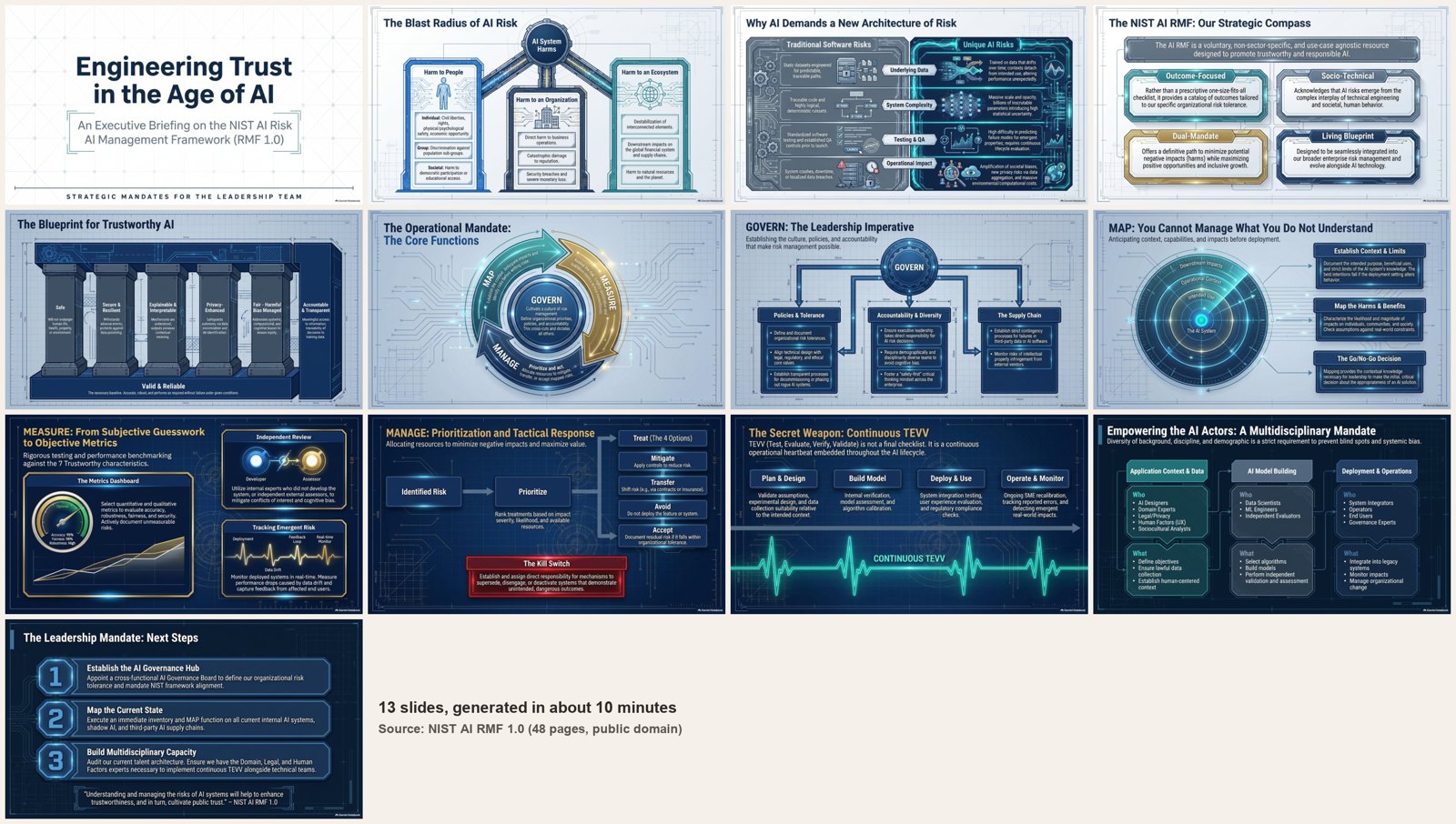
The layout quality was good. Two problems needed fixing: a typo in the subtitle and the invented gauge values described in workflow 6. NotebookLM's revision mode fixed both, one instruction per slide:
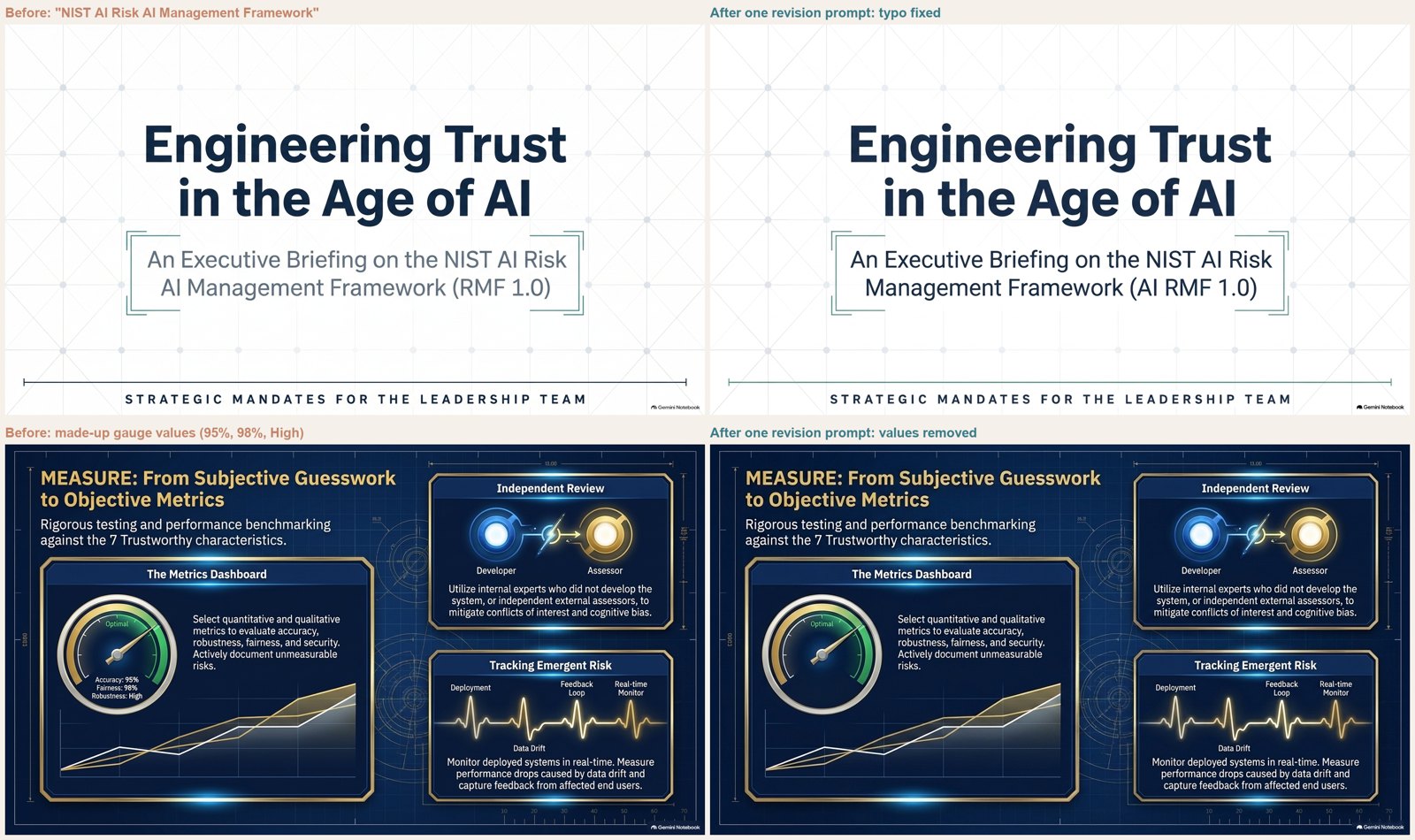
Two details from Google's documentation matter for research use. First, sources are not taken into account during revisions, so a revision can fix a typo but cannot re-check a number against the paper. Second, each revision generates an entirely new deck and counts against a quota, so batch your corrections.
Check: Inspect every slide against your claim ledger. Google states that generated decks may contain visual or factual inaccuracies.
9. Prepare reviewer-style questions and bounded answers
Best for: Thesis defenses and journal club discussions.
Ask for questions that challenge assumptions, not generic praise. A useful answer names the supporting evidence and what remains unknown, and tells you which backup slides are worth preparing. For a full defense, our thesis defense presentation guide covers committee questions in detail.
Act as a critical research reviewer. Ask ten questions about design, controls, bias, statistical assumptions, reproducibility, and generalizability in [paper]. Draft concise answers grounded in the selected sources, with citations. Label unanswered questions explicitly. Recommend a backup slide for each question that requires a figure, sensitivity analysis, or technical explanation.
Audio Overview adds a second angle here. Its Critique format has two hosts give a constructive evaluation of the material, and the Debate format argues both sides. Listening to either is a quick way to hear objections you had not written down.
Check: Never present a model-drafted defense as an analysis the researchers actually ran.
10. Rehearse, then prepare a controlled handoff
Best for: Moving from source understanding to a conference-ready deck.
Audio Overviews help you revisit the material, but listening is preparation, not a timed rehearsal of your own slides. Present aloud and note where your explanation breaks down. Interactive mode, where you can interrupt the hosts with questions, is currently available only in English.
Using my rehearsal notes [notes], identify unexplained terms, missing transitions, overloaded slides, and claims needing qualification. Produce a revised presentation brief with approved slide text, source locators, figure filenames, speaker notes, and unresolved checks. Preserve the distinction between source findings and interpretation. List proposed content changes separately for approval.
Check: Freeze an approved version of the brief before any redesign, then compare the final deck against it.
From NotebookLM research to an editable research deck
NotebookLM can download a Slide Deck as PDF or PowerPoint. Google announced the PPTX export in March 2026, and the help page now lists "Download PowerPoint (.pptx)" in the deck menu. The file extension does not tell you what is inside, though. When we unzipped our export, every slide was a single full-slide image: no text boxes, no native charts, nothing you can correct in PowerPoint. For a research talk that will go through co-author comments, that is the main limitation. You cannot fix a typo in a figure label, apply your lab's template or update one number without regenerating the deck.
There are three practical ways to finish the job:
- Keep NotebookLM's design and convert it. Run the PDF export through the free NotebookLM slides to PowerPoint converter on Tosea. In our test, most body text came back as editable text boxes, but some titles and curved labels stayed part of the image, and "AI" was occasionally read as "Al". Check every slide.
- Rebuild from the verified brief. Bring the brief from workflow 10, the papers and your permitted figures into an AI presentation tool. In Tosea AI, you review the outline before generation, assign a layout or diagram to individual pages, and export an editable PowerPoint. This is a manual handoff, not a native NotebookLM integration. Our research paper to slides workflow shows the full document-to-deck path.
- Redesign an existing deck. If you already have slides, Beautify PPT/PDF accepts PDF or PPTX on Pro and above. Select Keep source pages to keep your page sequence rather than reorganizing content, then review the extracted text and figures before generating.
For data-heavy slides, Tosea AI Data Studio recognizes charts and imports Excel or CSV files, so a chart can stay editable instead of being flattened into a picture. Verify extracted values before restyling, and keep the original figure when redrawing it could change its scientific meaning. If you want prompts for the slide stage itself, see our AI prompts for research presentations and the Claude Code prompts that make research slides look less AI-generated.
Frequently asked questions
Can NotebookLM replace a systematic literature review?
No. Source discovery and synthesis can help, but they do not establish comprehensive retrieval, eligibility screening, risk-of-bias assessment or a reproducible review process.
Can NotebookLM make a PowerPoint for a research talk?
Yes. The Slide Deck feature generates a presentation from your sources and downloads it as PDF or PPTX. In our November 2026 test, the PPTX contained one image per slide, so you could not edit the text in PowerPoint without converting it first.
Do NotebookLM slide revisions re-check the sources?
No. Google's help page states that sources are not taken into account during revisions. Fix wording and layout with revisions, but verify numbers against your claim ledger.
Can Tosea AI redesign my existing PowerPoint without changing the content?
Yes. Upload the PPTX or an exported PDF through Beautify, select Keep source pages, and request preservation. Review wording, labels, footnotes and figures after generation.
How do I upload a PowerPoint and ask Tosea AI to redesign each slide?
Upload the PPTX or PDF, choose a template, and specify that content and sequence should be preserved. Review the outline, generate the deck, and inspect each slide before exporting.
Can I upload my own PowerPoint template to Tosea AI?
Yes, on the Pro and Max plans. Check the required layouts, fonts, colors, logo placement and master-slide requirements in the generated result.
Can Tosea AI use custom brand colors, fonts, and a logo?
Specify the required colors and fonts, supply an approved logo, or use a supported template. Feature access depends on the plan. Check font availability, contrast and logo spacing afterward.
Can Tosea AI match the style of my old company presentations?
A representative deck can guide visual choices without implying permanent model training. Use an approved custom template for stronger consistency and compare the result with current brand guidelines.
Does Tosea AI preserve PowerPoint formatting after export?
Editable PPTX export aims to stay close to the preview. Fonts, complex graphics and the application opening the file can affect results, so test it in your delivery environment.
Can I tell AI to edit the layout only and keep the exact wording?
Yes. Layout Only re-renders the page layout without modifying the outline. Compare labels, citations, footnotes and line breaks with the source after editing.
Turn reviewed evidence into a presentation
The best NotebookLM workflows for research and academic presentations leave you with traceable claims, a coherent argument and a list of questions you are ready to answer. NotebookLM handles that stage well, as long as you open the citations and keep a claim ledger. The slide stage needs different strengths: editable text, native charts, your template and a file your co-authors can comment on. Bring the approved material into Tosea AI to review the outline, choose layouts, edit charts and export an editable PowerPoint for the final rehearsal.
Sources
- Generate Slide Decks in Gemini Notebook — Gemini Notebook Help, checked November 2026
- Add or discover new sources for your notebook — Gemini Notebook Help
- Generate Audio Overview in Gemini Notebook — Gemini Notebook Help
- New ways to customize and interact with your content in NotebookLM — Google Workspace Updates, March 20, 2026
- Google's NotebookLM introduces Data Tables feature — Google Blog, December 18, 2025
- NotebookLM goes global with Slides support and better ways to fact-check — Google Blog, June 6, 2024
- How to Make a PowerPoint With NotebookLM (2026) — Tosea, our hands-on test with the NIST AI Risk Management Framework